








How to Create Eye-Catching Marketplace Listings

A great marketplace listing starts with an alluring photo. But when you're selling something casually, you probably don't have a studio, professional lighting, or time to carefully stage every shot. You might have a perfectly usable photo that’s just a little too dark, has a distracting background, or doesn't show the item at its best.
Fixing those issues manually can take several editing tools and plenty of trial and error. Thankfully, there’s a simpler way. BeFunky’s Smart Edit lets you describe the changes you want to make using a simple text prompt. Instead of manually adjusting brightness, cleaning up the background, or improving colors one at a time, you can ask our AI-powered Smart Edit to make several changes at once.
Whether you're selling a piece of furniture, a vintage find, clothing, home decor, or something else, Smart Edit can help turn an everyday snapshot into a more polished marketplace photo. We’ll show you how!
How to Enhance a Marketplace Photo With Smart Edit
Ready to get started? Just follow these three simple steps below.
Step 1: Open Smart Edit
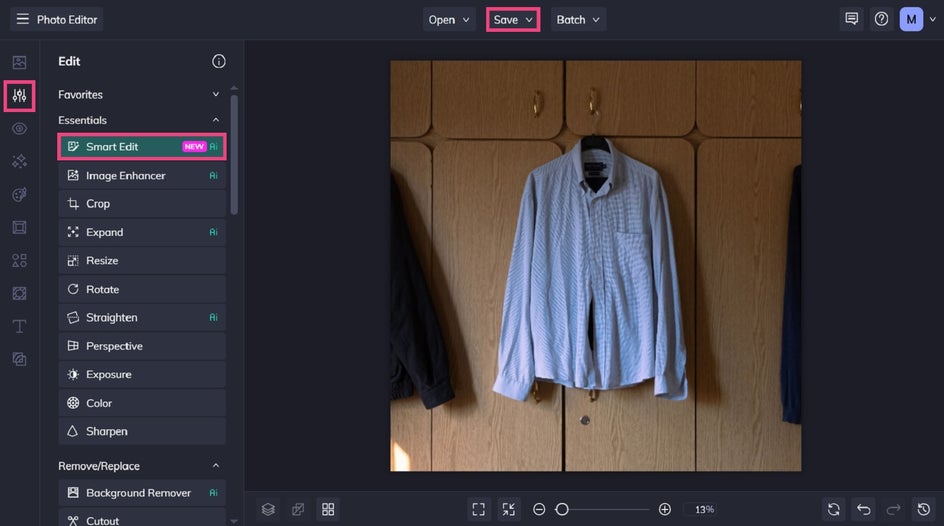
Upload your product photo to BeFunky's Photo Editor, then select Smart Edit from the Edit tab.
We recommend choosing the highest-quality version of the image you have so Smart Edit has as much visual detail as possible to work with.
Step 2: Describe and Generate Your Product Variation
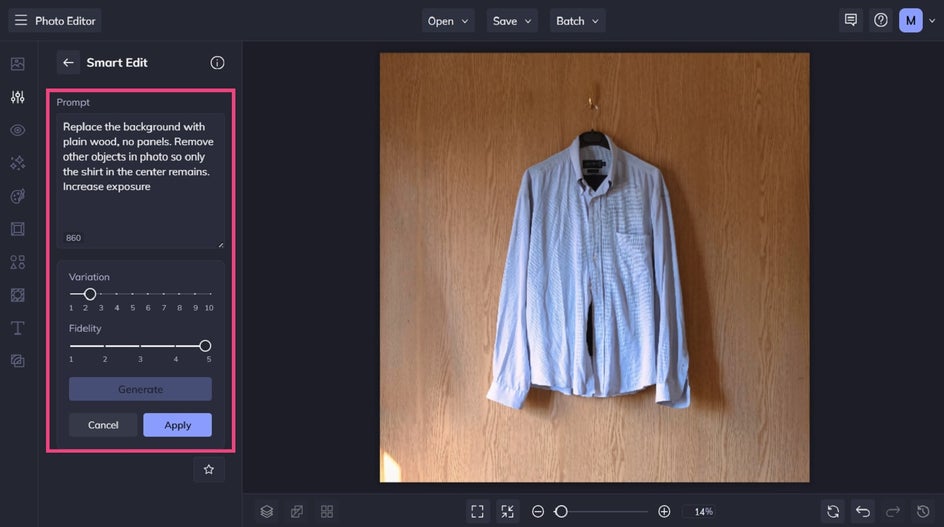
Within the tool, you'll be presented with a prompt box where you can describe exactly how you'd like your photo to change. Think about the finished photo you want to create. Then, ask Smart Edit to make several related changes in the same prompt.
For example, you could write:
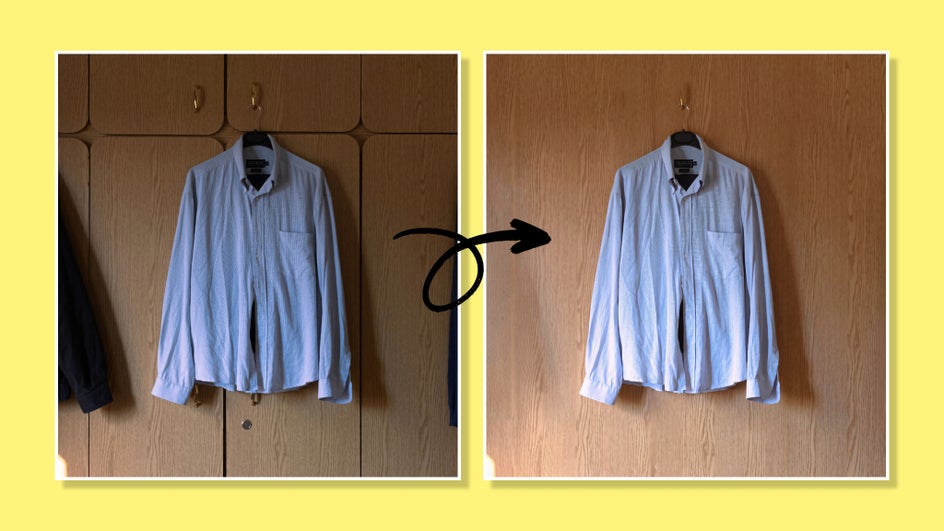
“Replace the background with plain wood, no panels. Remove other objects in photo so only the shirt in the center remains. Increase exposure.”
This prompt tells Smart Edit what to change while making it clear that the main subject should remain the same.
Click Generate to preview your edited photo. If the result isn't quite what you had in mind, refine your prompt and try again. Adding specific details about the background, lighting, color, or other visual elements can help guide the result.
You can also experiment with the Variation and Fidelity settings. Variation helps you explore different interpretations, while Fidelity controls how closely the result follows your original image.
Once you're happy with the result, click Apply.
Step 3: Save Your New Listing Photo
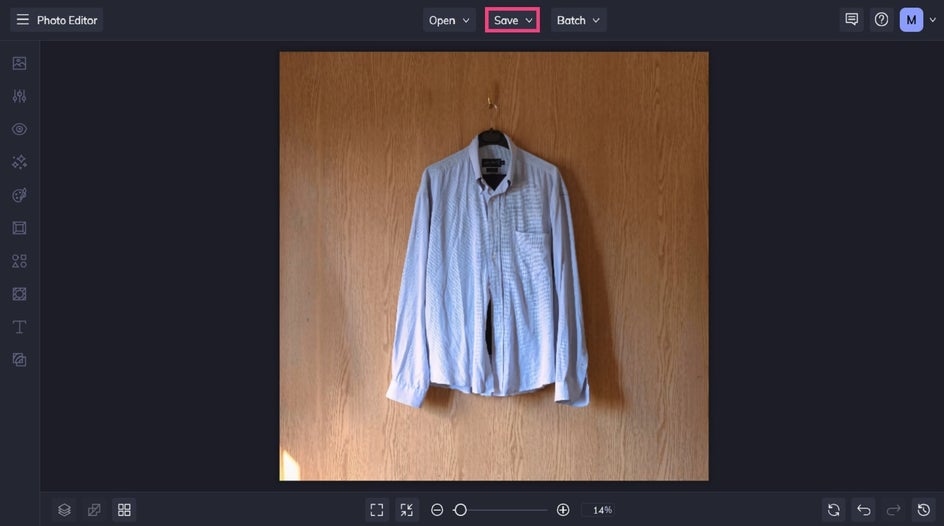
Finally, all that’s left to do is to save your improved listing photo. Click Save at the top of the screen, then select your preferred file destination and format.
Final Result: From Quick Snapshot to Listing-Ready Photo
Even a few subtle improvements can make your item easier to see and give the overall listing a more polished appearance. This can be especially useful when you're selling something casually and don't want to spend more time editing the photo than you spent taking it.
Inspiration for Better Marketplace Product Photos
Once you've tried improving a basic listing photo, you can use Smart Edit to explore even more creative ways to present your items. These ideas can help your listings stand out within a crowded online marketplace.
Create an On-Theme Background
The setting surrounding a product can change how it looks and feels. A plain or cluttered background may distract from the item, while a more intentional setting can help it stand out.
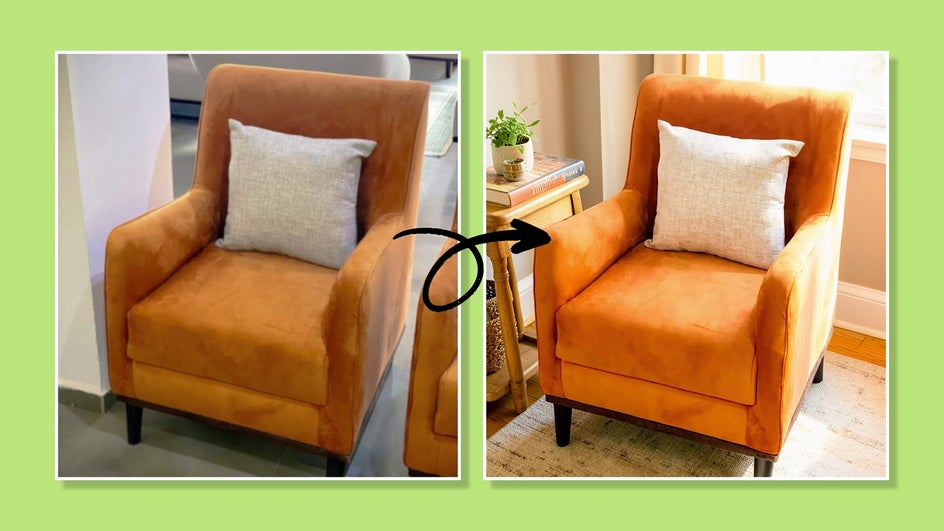
Use Smart Edit to replace the existing background with an environment that complements what you're selling. For example, a vintage lamp could be placed in a cozy reading nook, while a piece of outdoor furniture could be shown on a styled patio.
Try a prompt like:
“Place this armchair in a bright, cozy reading nook with a neutral rug, wooden side table, and warm natural lighting. Keep the armchair unchanged.”
This can help potential buyers visualize how an item might look in a real setting without requiring you to stage and photograph it yourself.
Show Products in Use
A basic product photo can show shoppers what an item looks like, but an image of the product being used can give them a better idea of how it fits into their lives. Smart Edit makes it possible to create these types of images without finding a model, arranging a photoshoot, or taking new photos yourself.
This is especially useful for clothing. For example, let’s start with our photo of the shirt from the tutorial above. We can now use Smart Edit to recreate the image with that same shirt being worn by a man. Potential buyers can then see how the item looks when worn rather than having to imagine it from a flat product photo. You can create a similar result with dresses, jackets, hats, accessories, and any other wearable items.
Simply describe the person, setting, and how you want the product to be used in your prompt. This gives shoppers a more detailed look at the product and helps them visualize how they might use or wear it themselves – all without the time and effort of organizing another photoshoot.

Edit Multiple Product Photos at Once
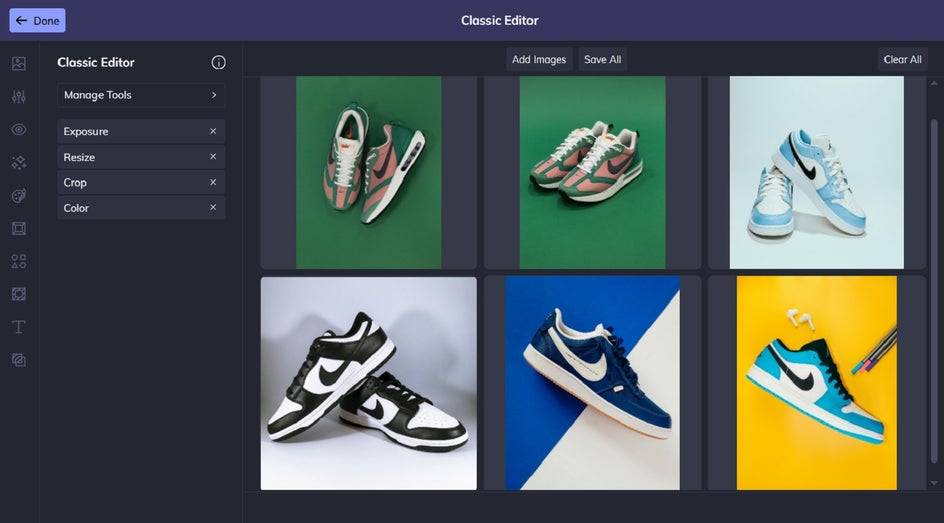
If you're listing several items, editing each photo individually can quickly become repetitive. Thankfully, our Batch Photo Editor lets you apply the same edits to multiple photos at once, making it easier to create a consistent look across a collection of product images.
You can use batch editing for cropping, resizing, exposure, and color correction across multiple photos. This is particularly useful when you're preparing several marketplace listings or photographing multiple items from the same collection.
For more ideas on streamlining your product photography workflow, check out our guide to editing product photos in bulk.
Create Better Marketplace Listings With Smart Edit
Creating eye-catching marketplace photos doesn't have to involve professional photography or complicated editing workflows. Smart Edit makes it easy to improve an existing photo by describing the changes you want to make in a simple text prompt.
From correcting lighting and cleaning up backgrounds to changing colors, creating new settings, and showing products in use, you can explore different ways to present an item without starting from scratch. This gives casual sellers more flexibility to create polished listing photos without investing in additional equipment, models, or photoshoots.
The next time you're preparing an item for sale, start with the photo you already have. With Smart Edit, a few simple instructions can help turn an everyday snapshot into a more compelling marketplace listing that’s sure to sell quickly.
Try Smart Edit for yourself today!