





Give Yourself a Virtual Makeover Using Smart Edit

Trying a new look can be exciting, but some changes require a little more commitment than others. A new hairstyle, facial hair, or piercing, for example, can completely change your appearance. Therefore, it’s helpful to know what you'll look like before you make the change in real life.
With BeFunky's Smart Edit, you can experiment with your appearance using a photo you already have. Simply describe the changes you'd like to see, and Smart Edit can add, remove, or transform features in your portrait – all within seconds. It's a fun way to realistically explore new looks before you pick up the scissors or razor, or head to the salon.
Want to learn how? We’ll show you just how easy it is!
Smart Edit Versus Touch Up Tools: What’s the Difference?
Before we begin, you might be wondering: doesn’t BeFunky already have Touch Up tools for enhancing portraits? Our Touch Up tools are great for improving or changing the features already present in a portrait. You can smooth skin, brighten eyes, paint on a new hair color, add makeup, or make other subtle adjustments to polish your photo.
Smart Edit, however, takes things a step further. Instead of simply enhancing your existing appearance, you can use a text prompt to completely reimagine it. Turn straight hair into curls, add a piercing, change the shape of your eyebrows, or see what you'd look like with a beard, for example.
3 Steps to Creating Your Virtual Makeover
Ready to begin your virtual makeover? Head to the Photo Editor and open the image you’d like to edit. For the best results, start with a clear portrait where your face and hair are easy to see.
Then, navigate to Smart Edit within the Edit tab to get started.
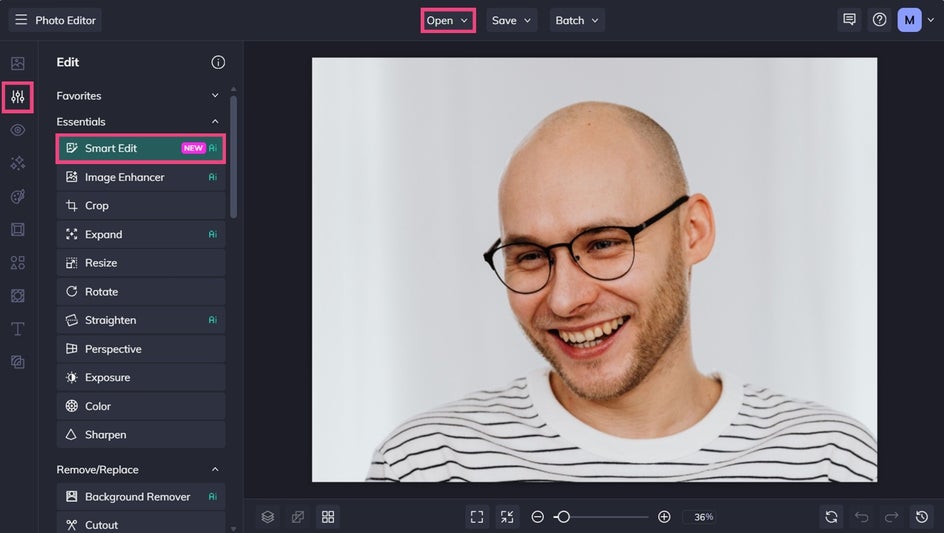
Step 1: Describe Your Design Changes
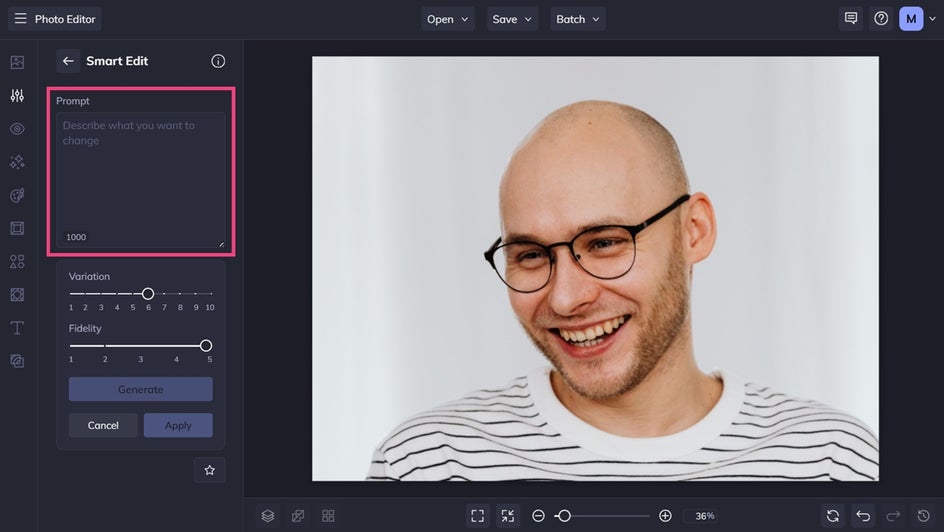
In the tool’s prompt box, describe exactly what you'd like to change. The more specific your prompt is, the more accurately Smart Edit can recreate your vision.
Here’s the prompt we’ve used to transform our own photo:
“Remove facial hair from the subject’s face. Add brown wavy hair to the subject’s head.”
Step 2: Generate Your New Look
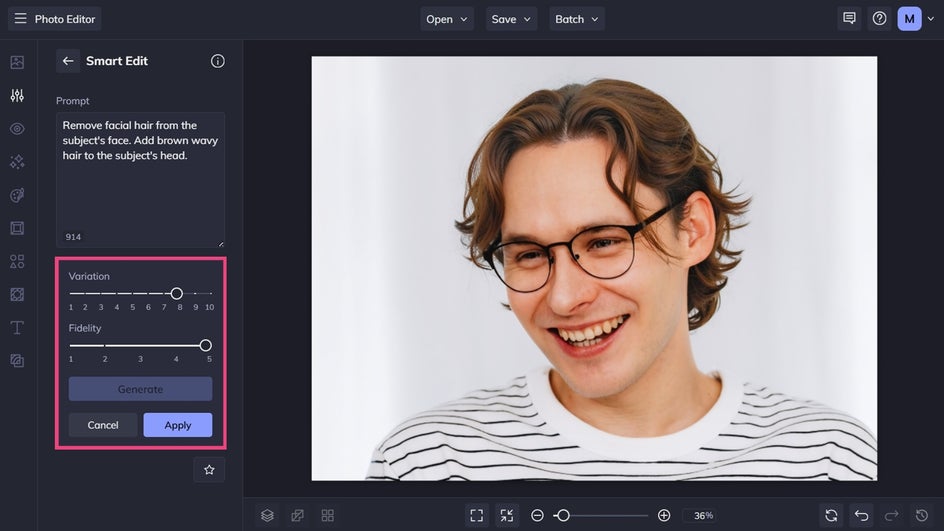
Click Generate to see your results.
If you'd like to explore more options, simply adjust your prompt and generate your results again. You can also experiment with the Variation and Fidelity settings. Variation helps you explore multiple possibilities for an edit, while Fidelity gives you control over how closely the generated result matches the original image.
Once you've found a look you love, click Apply to keep your changes.
Step 3: Save Your Favorite Results
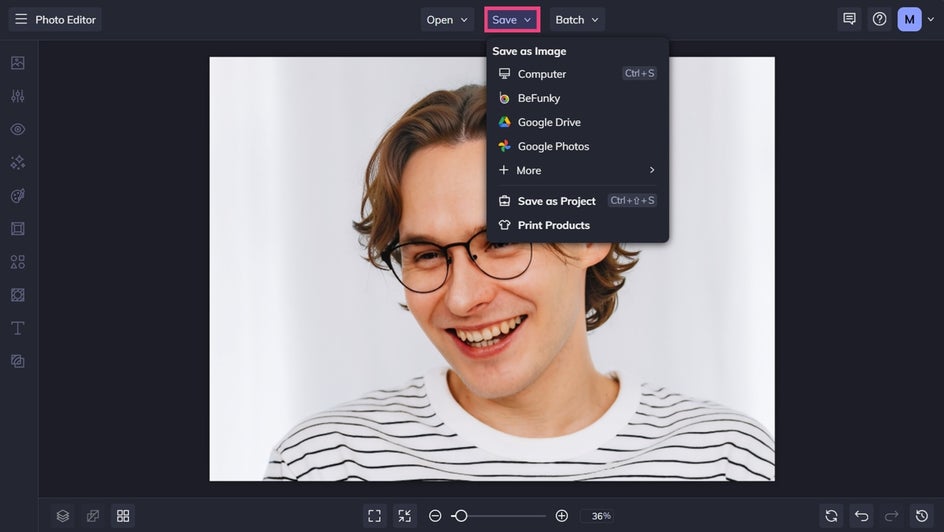
Click Save at the top of the screen, then choose your desired save format and location.
Final Results: Sample a New You in Just Seconds
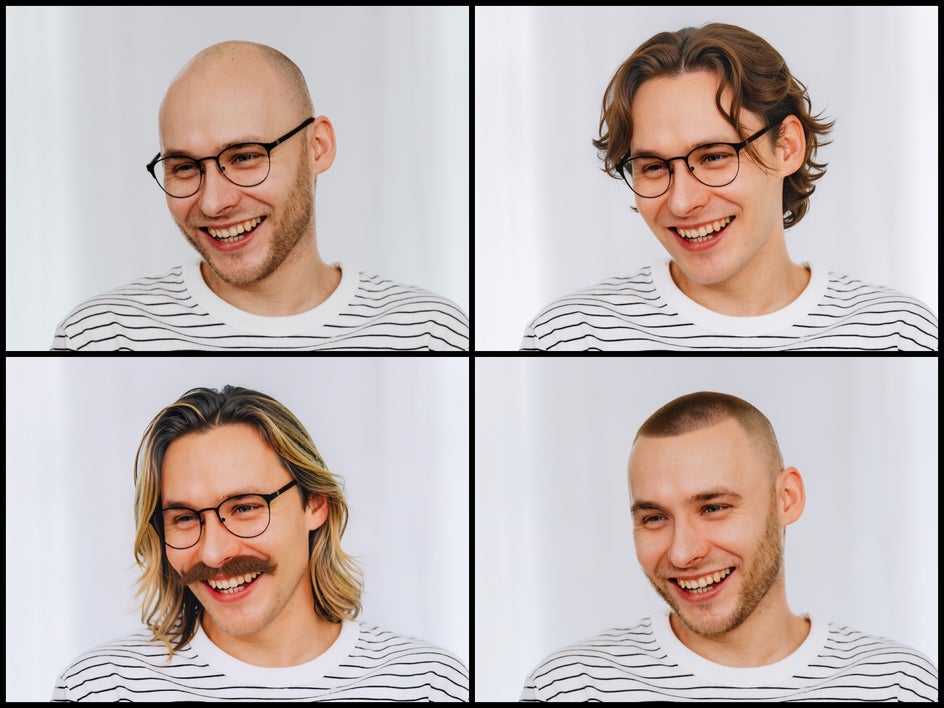
Now that you've created your first virtual makeover, why stop at one? Generate several different versions of your portrait to create a collection of potential looks. Try a combination of multiple features, then compare them side by side – just as we’ve done below!
Just remember that the edited images are creative previews. Real-world results can vary depending on factors such as your hair texture, facial features, and the specific style you're considering.
More Virtual Makeover Inspiration
Want to mix-up your appearance but not sure where to start? Here are a few of our favorite ways you can change your look using Smart Edit.
Try a New Hairstyle
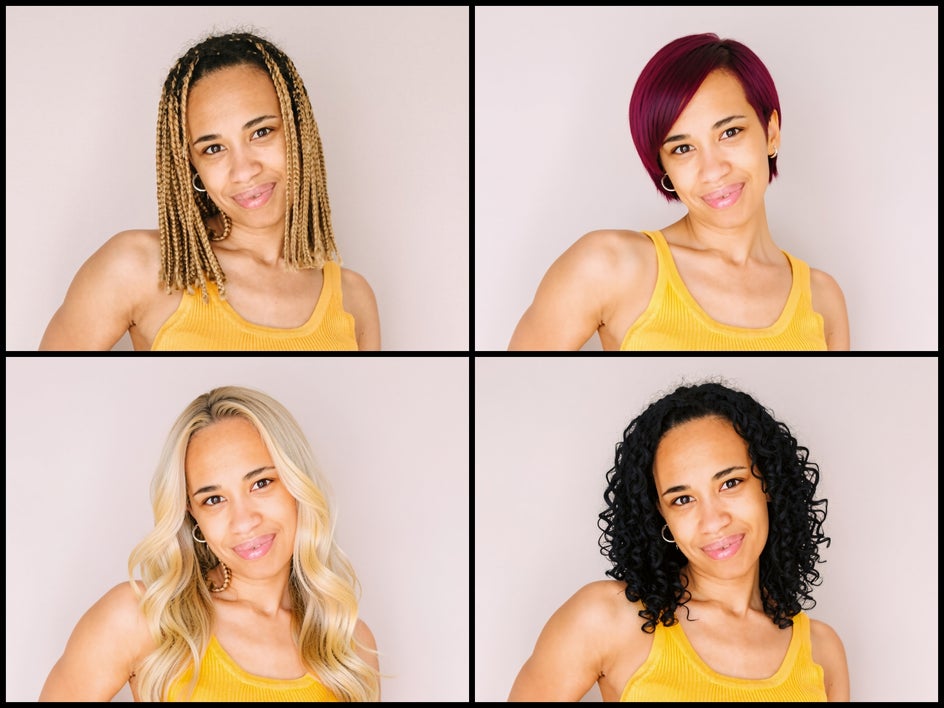
A different hairstyle can make a surprisingly big difference to your overall look. Smart Edit lets you explore options without reaching for the scissors or scheduling a salon appointment.
Try prompts like:
- “Give the subject long, wavy hair.”
- “Change the subject’s straight hair to loose curls.”
- “Give the subject a short, layered haircut.”
- “Add curtain bangs to the existing hairstyle.”
Don’t forget you can experiment with different lengths and styles to see which ones suit your portrait best. If you're considering a real-life haircut, your favorite edited version can even serve as inspiration when discussing your ideas with a stylist.
Experiment With Facial Hair
Curious about what you'd look like with a beard? Or wondering whether you'd prefer a clean-shaven look?
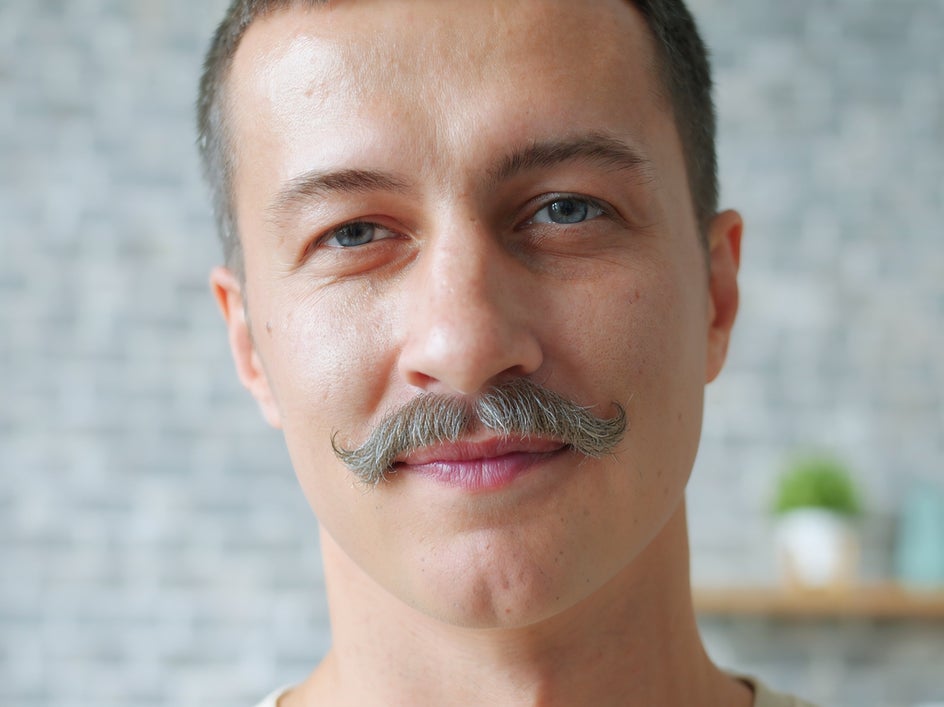
Smart Edit can add or remove facial hair from a portrait, making it easy to experiment with different styles. Try adding stubble, a moustache, a full beard, or another look you've been considering. You can also change the length and style to see how different options affect your overall appearance.
This can be especially fun when combined with a hairstyle change. Try a few different combinations to find a look you might not have considered before.

Change Your Eyebrows
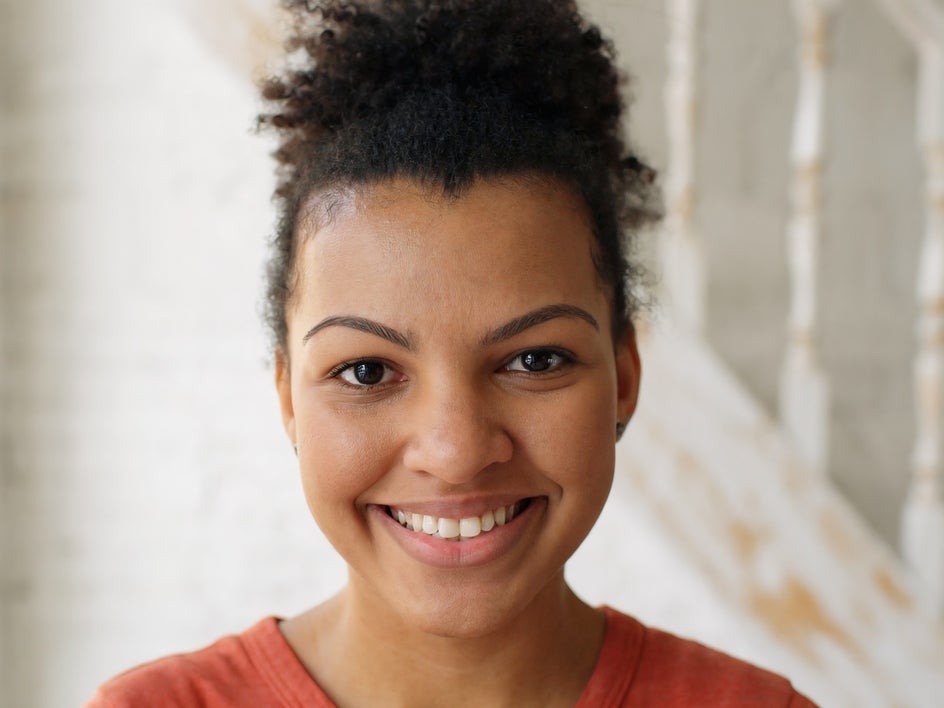
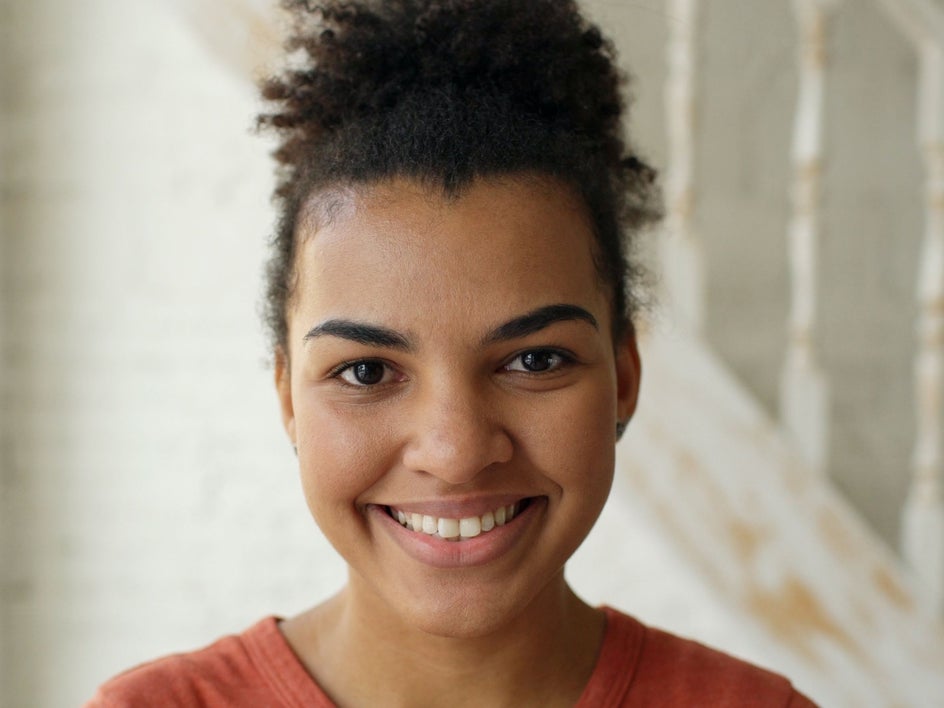
Eyebrows might seem like a small detail, but changing their shape can make a noticeable difference to a portrait. With Smart Edit, you can experiment with different brow styles without reaching for the tweezers.
Consider making your eyebrows:
- Thicker or thinner
- Straighter or more arched
- Fuller or more defined
- Shorter or longer
Experiment with a few variations to see how each shape changes your overall aesthetic. Which type compliments your natural features the most?
Add Piercings
Thinking about getting a piercing but not sure how it would look? Simply add one to your portrait before you commit!
Smart Edit can help you visualize different piercing ideas, from a subtle nose stud to a more noticeable eyebrow or lip piercing. Try changing the placement, style, or number of piercings to explore different possibilities.
It's an easy way to play around with an accessory that would otherwise require a more permanent commitment (not to mention, a needle).


See Yourself in a New Way With Smart Edit
The goal of a virtual makeover isn't necessarily to find the “perfect” look. Sometimes it's simply fun to see how different you can make your appearance while still looking like yourself.
Smart Edit makes it easy to experiment with your appearance using a photo you already have. Whether you're curious about curly hair, a new brow shape, facial hair, or a piercing, you can explore the possibilities with a simple text prompt.
So, before making your next big change, try giving yourself a virtual makeover first. You might just discover your next favorite look!
Head to Smart Edit in the Photo Editor to get started.