









A Guide to Writing Powerful Smart Edit Prompts

Imagine being able to replace a photo's background, change the color of a product, remove unwanted objects, or turn an image into a watercolor painting simply by describing the result you want. That's exactly what Smart Edit allows you to do.
Using AI-powered text prompts, Smart Edit helps you make targeted changes to your images without the need for complex editing techniques. Instead of spending time on selections, masks, and manual adjustments, you can focus on your creative vision while Smart Edit handles the heavy lifting.
Like any AI tool, though, the quality of the results depends on the instructions you provide. Fortunately, writing effective prompts doesn't have to be complicated. In most cases, a few specific details are all it takes to guide Smart Edit toward the result you're looking for.
The tips below will help you write stronger prompts and create more accurate, realistic, and consistent edits!
Describe What to Change and What to Keep
When editing an image, it's easy to focus on what you want to change and forget about the elements you'd like to remain as-is. But including both pieces of information leads to stronger results.
Think of it as giving Smart Edit boundaries. By identifying what should stay the same, you help the AI make targeted edits without unintentionally altering other parts of the image.
Instead of:
"Replace the background."
Try:
"Replace the background with a misty mountain landscape. Keep the subject, clothing, and lighting unchanged."
This approach is especially useful for portraits, product photography, and branding imagery where consistency is important.


Focus on Specific Visual Outcomes
The more clearly you describe the final result, the easier it is for Smart Edit to translate your vision into reality.
Rather than describing how you want the image to feel, describe what you want it to look like. Consider details such as lighting direction, color, atmosphere, texture, or environment.
Instead of:
"Make this look more professional."
Try:
"Add soft window light from the right side, brighten the background slightly, and reduce harsh shadows."
Rather than using subjective words like "better," "nicer," or "cooler”, specific visual details like this give Smart Edit a much stronger foundation to work from.


Make One Major Change at a Time
It can be tempting to pack every desired change into a single prompt, but you'll often achieve better results by working in stages.
For example, if you're creating a product image, start by replacing the background. Once you're happy with that result, create a second edit to adjust colors, lighting, or styling details.
Breaking larger projects into smaller edits gives you more control over the final outcome and makes it easier to refine specific elements along the way.

Clearly Identify the Element Being Edited
Many photos contain multiple people, objects, colors, and visual elements. If your prompt isn't specific, Smart Edit may not know exactly which part of the image you're referring to.
Whenever possible, identify the object, person, or area you'd like edited using descriptive details.
Instead of:
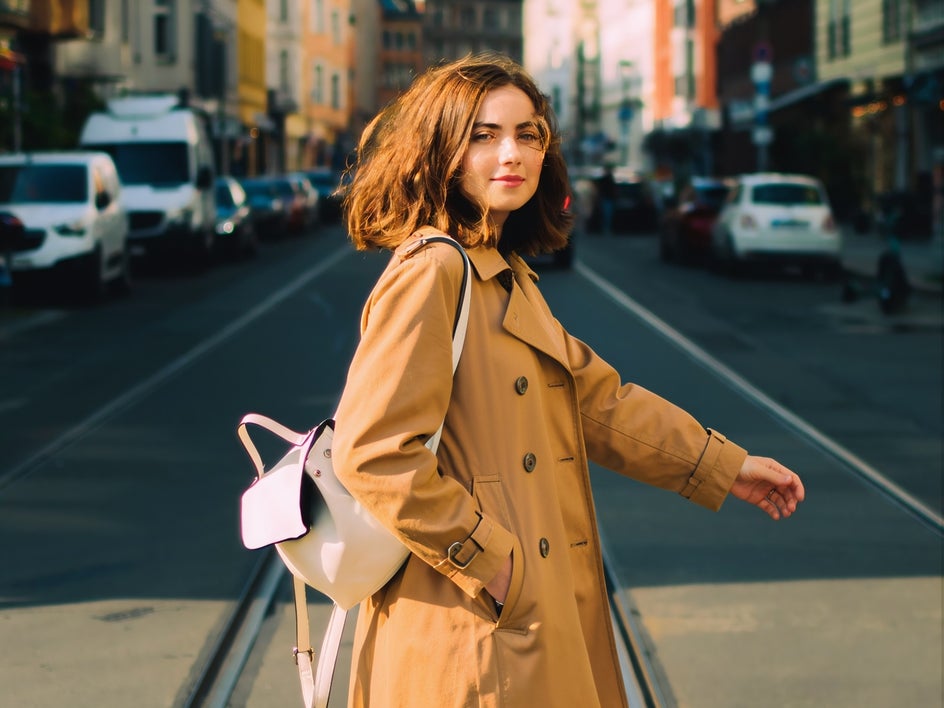
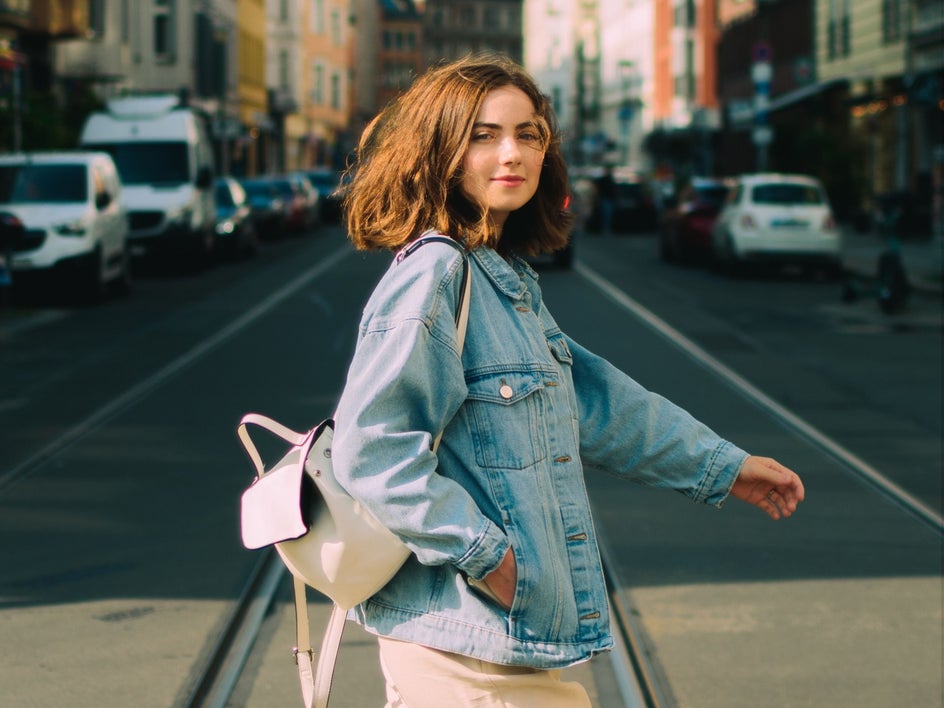
"Change her jacket."
Try:
"Change the denim jacket worn by the woman in the foreground to a camel-colored trench coat."
The more clearly you identify the target of your edit, the more accurately Smart Edit can apply your changes.
Use HEX Codes for Accurate Colors
Color names are helpful, but they're also open to interpretation. Your idea of "navy blue" may be completely different to how AI interprets it.
If you're working with brand guidelines, product mockups, marketing assets, or any project where color consistency is important, HEX color codes provide much more precise instructions.
For example:
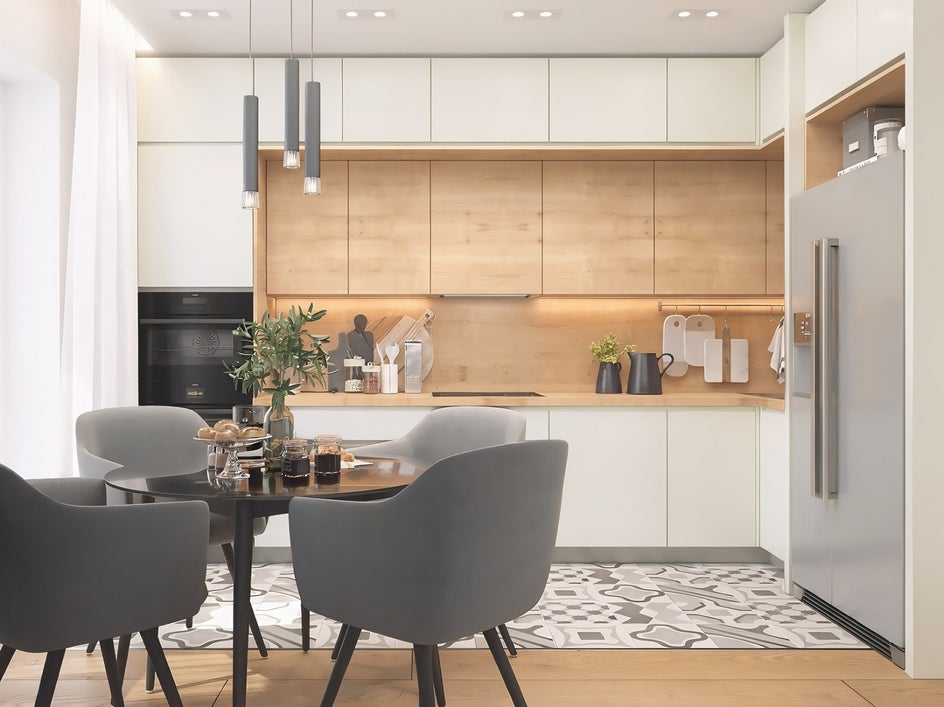
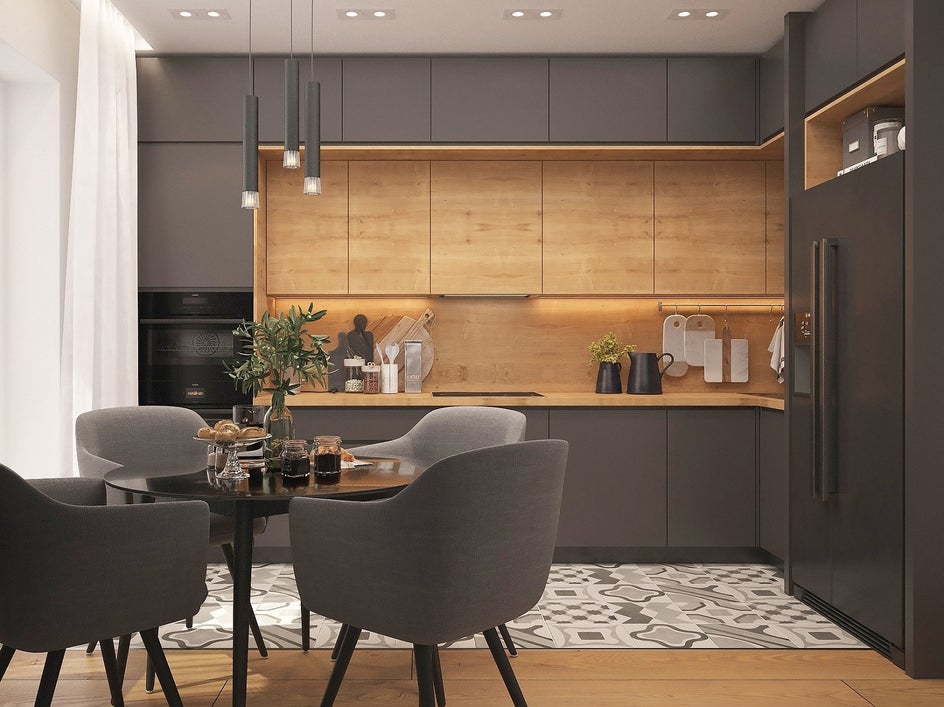
"Change the color of the kitchen cabinetry to #E1E1E1. Keep the colors, textures, and lighting of the rest of the scene unchanged."
Using HEX codes helps ensure your edits stay aligned with established color palettes. It's also a great way to test different color variations before committing to a final design.
Refinement Is Part of the Process
Even the most detailed prompt won't always produce a perfect result on the first try. That's completely normal.
If an edit isn't quite what you envisioned, make small adjustments to your prompt and try again. Adding one more descriptive detail, clarifying what should remain unchanged, or even simplifying the request can often make a huge difference.
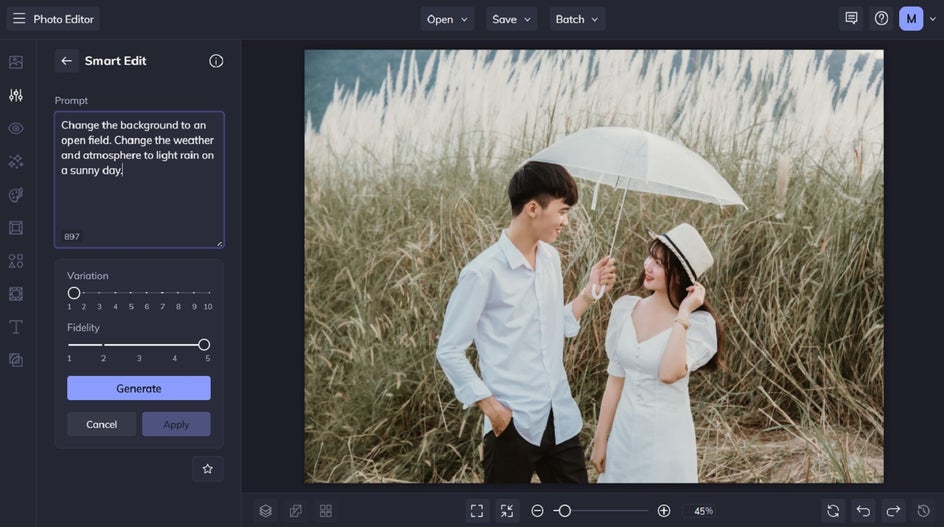
In many cases, the strongest results come from a few quick rounds of experimentation. The more you work with Smart Edit, the easier it becomes to communicate your ideas and bring them to life.
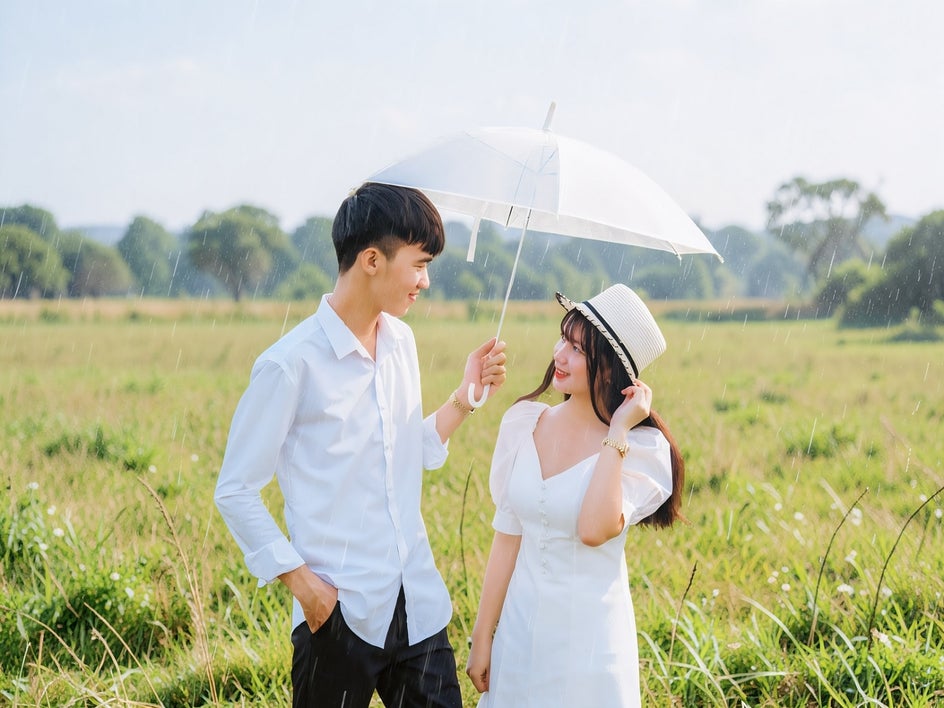
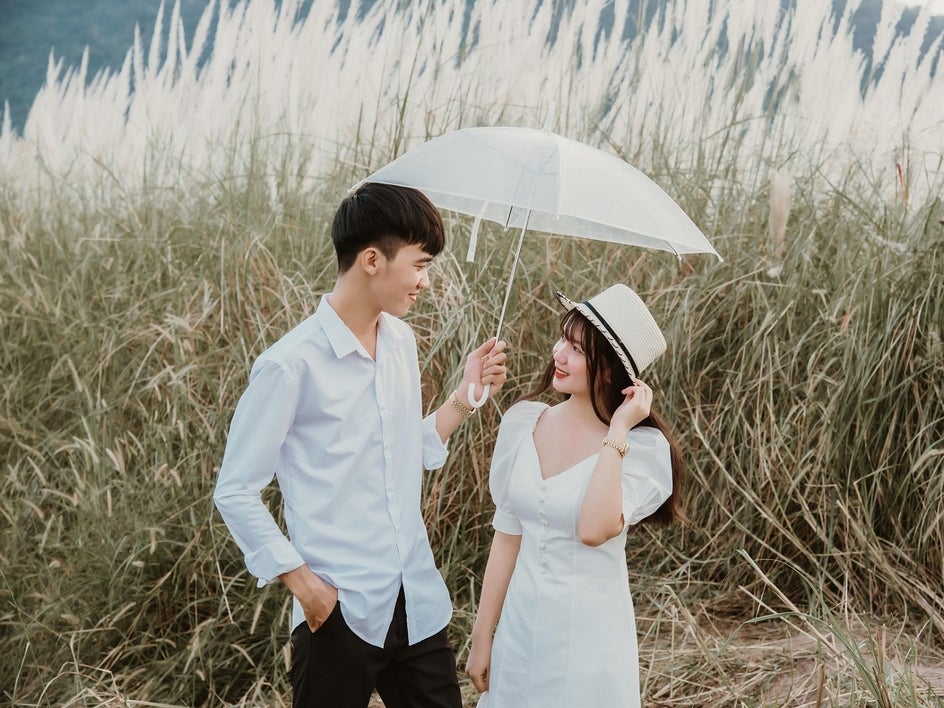
Unlock More Creative Possibilities With Smart Edit
Whether you're making subtle adjustments or completely transforming an image, Smart Edit makes advanced photo editing more accessible than ever. By combining clear prompts with a little experimentation, you can remove distractions, swap backgrounds, change colors, adjust lighting, and create entirely new looks – all without complicated editing workflows.
Start exploring Smart Edit in the Photo Editor and see what incredible photo adjustments you can make!




