
Create Multiple Product Variations From One Photo Using Smart Edit

Today's online shoppers expect choice. Whether they're browsing an ecommerce store, Etsy shop, or online marketplace, they want to see products available in different colors, materials, styles, or finishes before they commit to buying.
Creating all those variations through traditional product photography can be expensive and time consuming, however. Every new color, packaging design, or lifestyle image often requires another photoshoot – not to mention precious time spent editing.
Thankfully, there's a faster way. With BeFunky's Smart Edit, you can transform a single product photo into multiple marketing mockups using simple text prompts. Change colors, experiment with materials, visualize new packaging, or place your product in completely different environments!
Whether you're an ecommerce business, Etsy seller, or anyone else selling their own products, Smart Edit makes it easy to explore fresh product ideas without starting from scratch. Keep reading, because we’ll show you how!
How to Create Product Variations Using Smart Edit
For the best results, begin with a high-resolution product photo that clearly shows your item. The more detail Smart Edit has to work with, the more realistic your variations will appear.
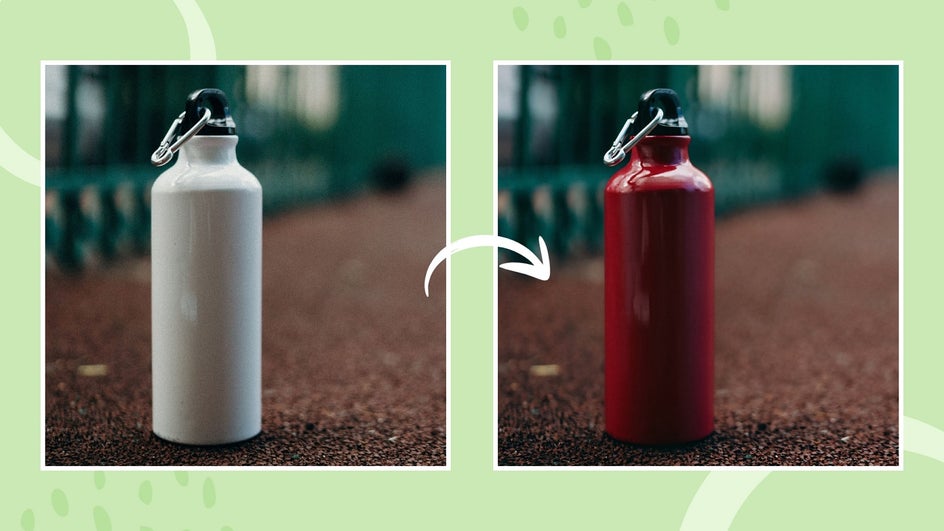
For this example, we'll create a different colored reusable water bottle from one original product photo.
Step 1: Open Smart Edit
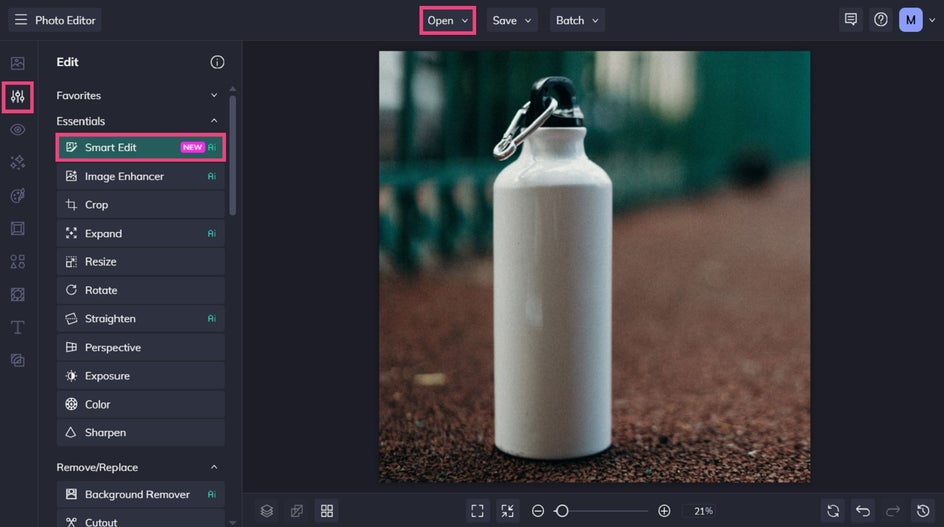
Upload your product photo to BeFunky's Photo Editor, then select Smart Edit from the Edit tab.
Step 2: Describe and Generate Your Product Variation
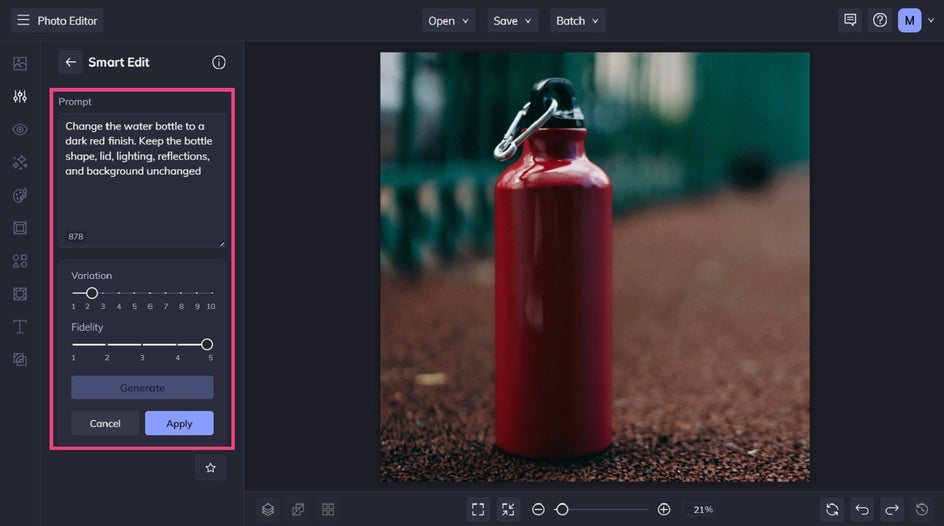
You'll be presented with a prompt box where you can describe exactly how you'd like your product to change.
The best prompts clearly explain four things:
- What should change
- What it should become
- Any important visual details
- What should stay the same
For example, you could write:
Change the water bottle to a dark red finish. Keep the bottle shape, lid, lighting, reflections, and background unchanged.
Click Generate to preview your results.
If a variation isn't quite what you imagined, simply refine your prompt and generate another version. Even small wording changes can improve the final result.
You can also experiment with the Variation and Fidelity settings. Variation creates alternative interpretations of your prompt, while Fidelity controls how closely the generated image matches your original product.
Once you're happy with the results, click Apply to finish your edit.
Step 3: Save Your New Product Variation
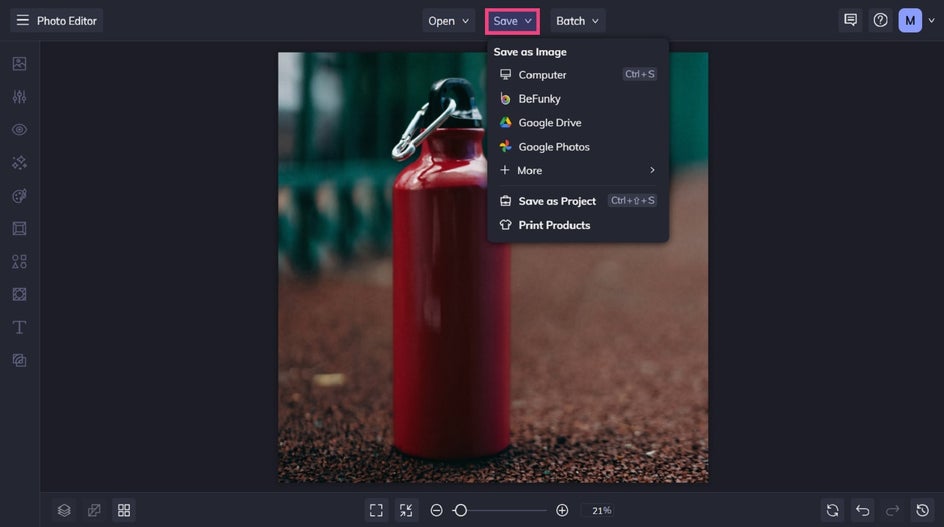
Finally, all that’s left to do is to save your new product variation image. Click Save at the top of the screen, then select your preferred file destination and format.
Once you’ve generated your first variation, you can also repeat the process with additional prompts to create an entire product collection.
Final Result: New Product Imagery, Minus the Photoshoot
Instead of photographing every color separately, we've created multiple product options from a single image using only a few text prompts.
This approach makes it easy to visualize new collections, test product ideas before manufacturing, or create polished marketing assets for online stores and social media. What once required multiple product samples or complex editing can now be accomplished in just a few minutes.
More Ways to Create Product Variations With Smart Edit
Changing colors is only the beginning. Smart Edit can also help you experiment with materials, branding, environments, and seasonal marketing to get even more value from every product photo.
Test Different Materials and Finishes
A simple material change can completely transform how a product feels. Smart Edit makes it easy to visualize different finishes before investing in production or photography.
Try prompts like:
- Change the ceramic mug to frosted glass while keeping the shape unchanged.
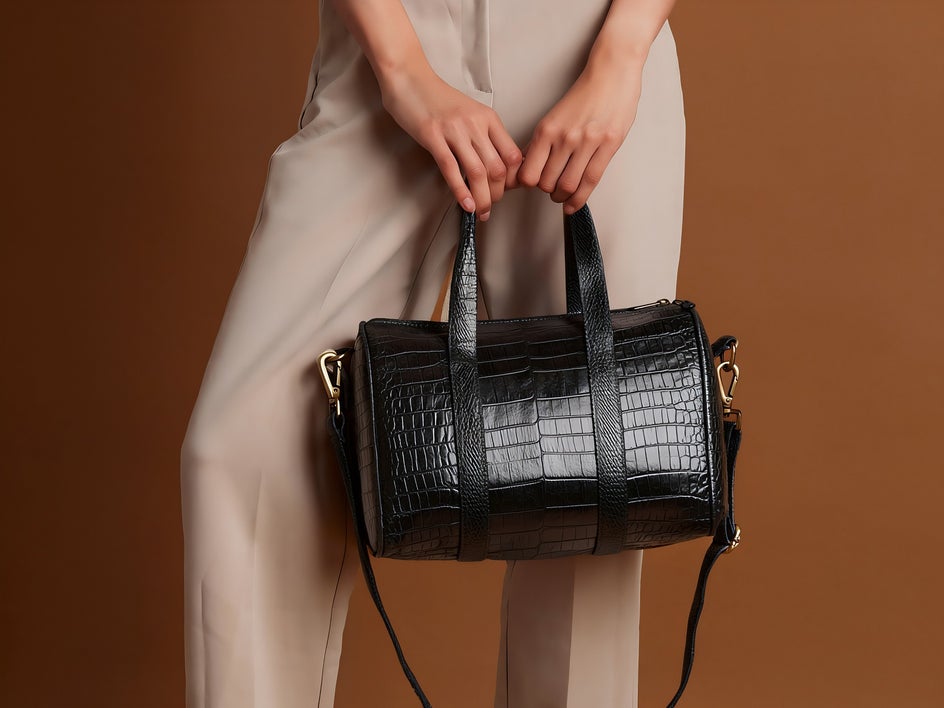
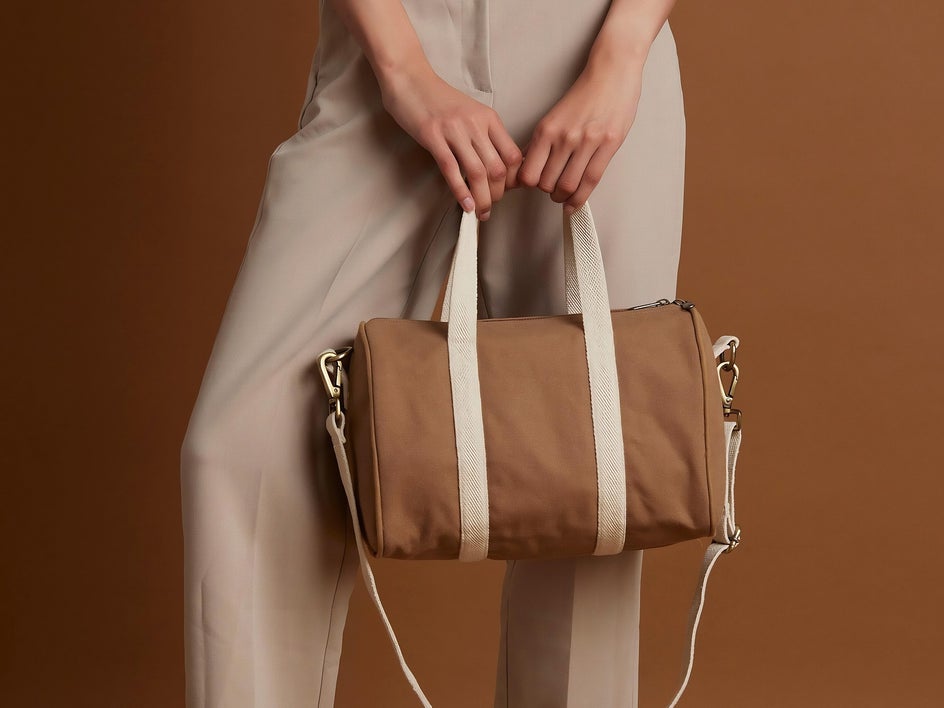
- Replace the leather handbag with cream canvas and brass hardware.
- Turn the wooden picture frame into brushed black metal.
These variations are perfect for testing new product concepts before moving to the manufacturing stage.
Visualize New Packaging Designs
Packaging plays an important role in attracting customers and reinforcing your brand identity. Instead of creating physical prototypes, you can use Smart Edit to quickly explore different packaging ideas.
For example:
- Replace the label with a minimalist white design featuring gold accents.
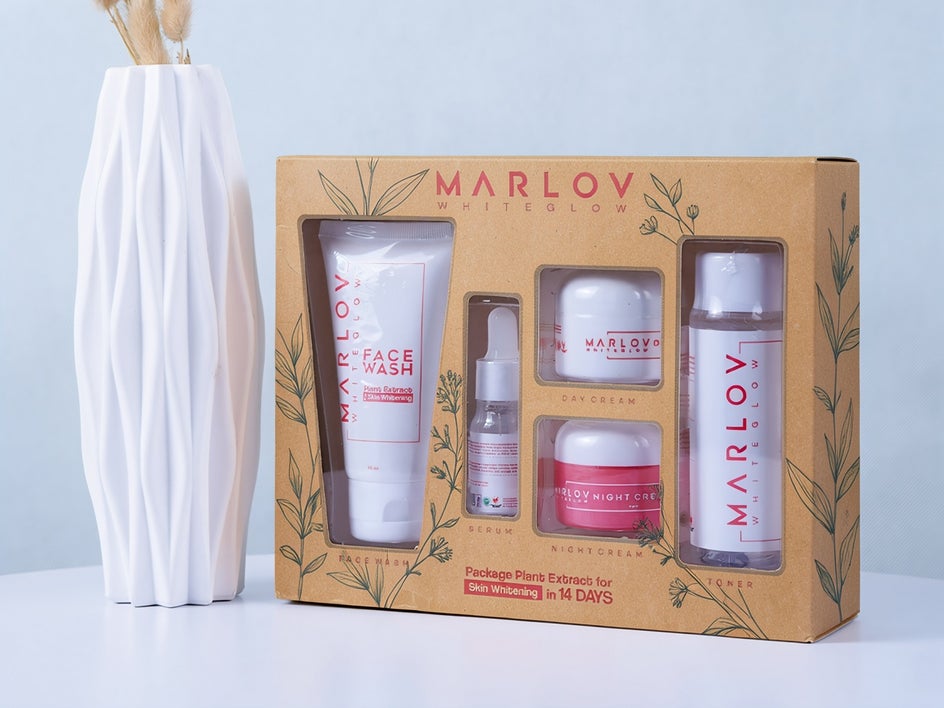
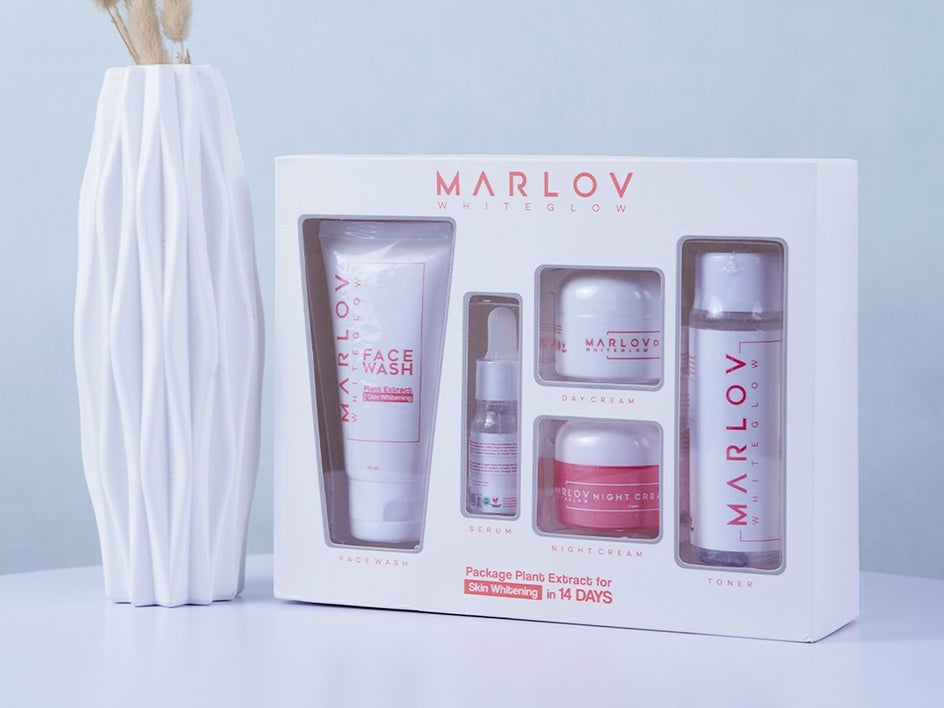
- Change the white box to kraft cardboard with a modern botanical illustration.
- Update the coffee bag with a bold navy label and clean typography.
Creating multiple packaging concepts makes it easier to compare ideas before committing to a final design.
Place Products in Different Environments
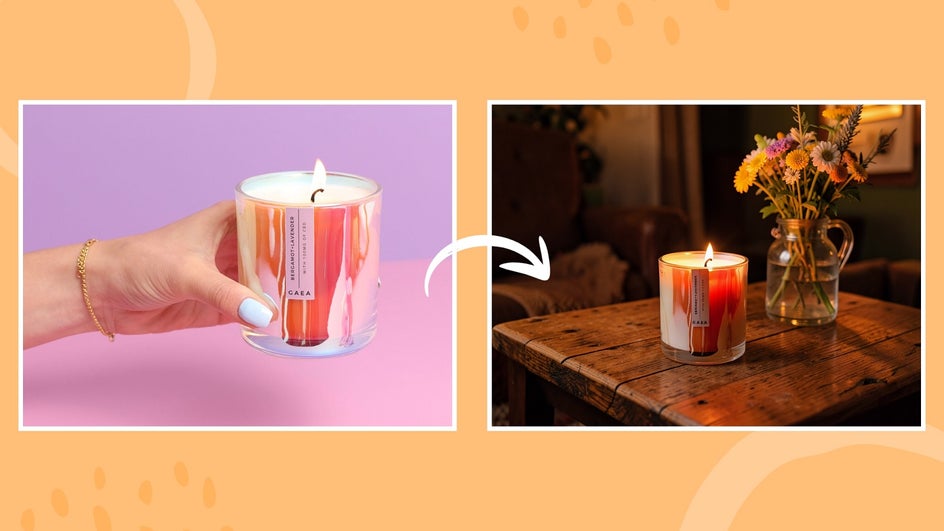
Lifestyle photography helps customers imagine using your product in the real world. Smart Edit allows you to create these scenes without booking additional photoshoots.
Try prompts such as:
- Place the water bottle on a hiking trail beside a backpack.
- Set the candle on a cozy wooden coffee table with warm evening lighting.
- Position the notebook on a clean home office desk beside a laptop and coffee cup.
Creating multiple environments helps you produce fresh marketing content for websites, advertisements, and social media using the same original product photo.
Create Seasonal Marketing Mockups
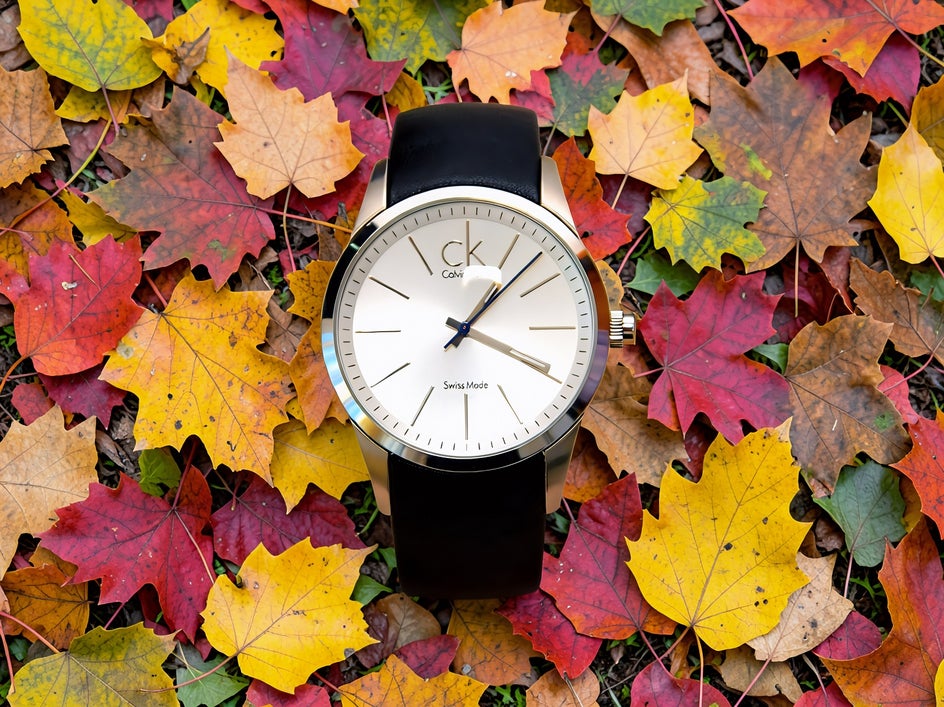
Seasonal promotions often require updated product photography, but Smart Edit lets you adapt existing images throughout the year.
Consider prompts like:
- Surround the product with autumn leaves.
- Add festive holiday decorations and warm string lights.
- Place the product among fresh spring flowers with soft natural lighting.
Refreshing your imagery for different seasons helps keep marketing campaigns feeling timely without requiring new photography for every single promotion.
Create More Marketing Content With Less Effort
Creating product variations doesn't have to involve multiple photoshoots or hours of manual editing. With Smart Edit, you can quickly transform a single product photo into an entire collection of marketing assets using simple text prompts.
Whether you're changing colors, testing new materials, visualizing packaging, creating lifestyle imagery, or designing seasonal campaigns, Smart Edit gives you the flexibility to explore new ideas while saving valuable time.
Ready to try Smart Edit for yourself? Head to the Photo Editor and discover how one product photo can become countless possibilities!