









Introducing Powerful AI Photo Editing With Smart Edit

Some photo edits are easy, but others can take dozens of clicks, multiple tools, and plenty of trial and error to get right.
Whether you're trying to remove unwanted objects, swap out a background, change clothing colors, or completely transform the style of an image, traditional editing workflows often require precise selections and advanced editing techniques.
Thankfully, Smart Edit changes that.
Available in BeFunky's Photo Editor, Smart Edit lets you edit photos using simple text prompts. Instead of manually masking, brushing, or adjusting multiple settings, you can describe the change you'd like to make and let AI handle the heavy lifting.
From product photography and portraits to social media content and creative projects, Smart Edit makes complex edits possible while keeping your original image intact.
What Is Smart Edit?
Smart Edit is an AI-powered editing tool that allows you to make targeted changes to your photos using natural language.
Simply describe what you'd like to change, and Smart Edit generates an updated version of your image while preserving everything else as closely as possible.
This opens up a wide range of creative possibilities. You can:
- Place a subject in a completely different environment
- Remove distracting objects from a scene
- Change the color of products or clothing
- Experiment with different design styles
- Adjust the mood and atmosphere of a photo
- Add new visual elements
- Explore alternative creative directions without starting from scratch
Because edits are driven by simple text prompts, you can achieve incredible results without needing advanced photo editing experience.
How to Use BeFunky's Smart Edit
Ready to put the power of AI photo editing to the test? Experience the magic of Smart Edit by following these three simple steps.
Step 1: Open Smart Edit
Drag and drop your image file into the Photo Editor and select Smart Edit from the Edits tab.
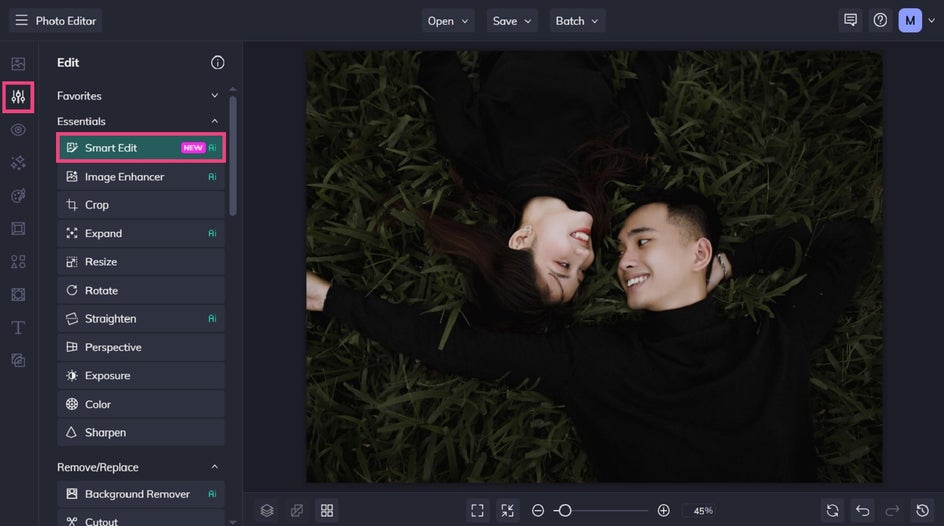
Step 2: Write a Detailed Prompt
Within Smart Edit, you'll be presented with a prompt box where you can describe exactly how you'd like your image to change. Keep in mind the best prompts clearly identify four things:
What you want to change + what it should become + any important visual details + what should stay the same
For example: "Replace the office background with a bright modern coworking space. Keep the subject's pose, clothing, and lighting unchanged."
This level of specificity helps Smart Edit understand your intent and often produces more predictable results.
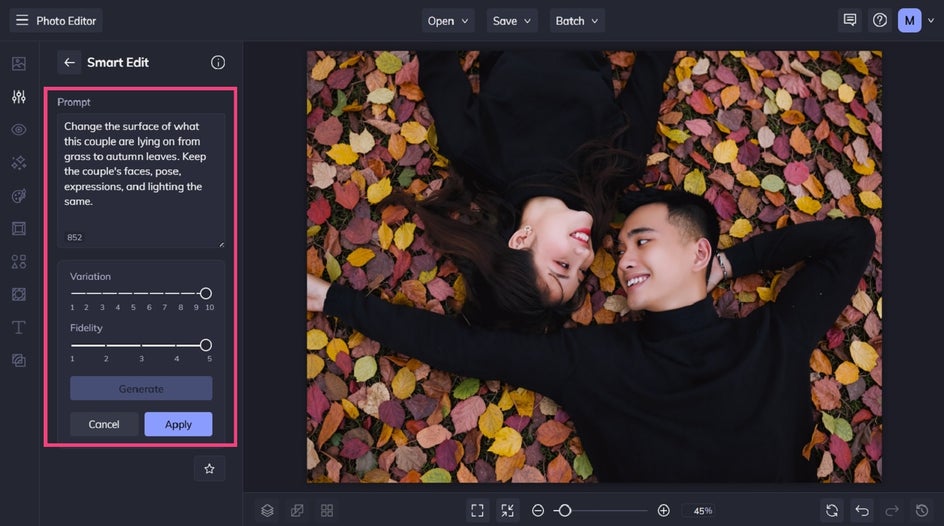
Step 3: Generate and Refine
Click Generate to preview the edit.
If the result isn't quite what you envisioned, don't be afraid to refine your prompt. Small adjustments often make a big difference. Adding one more detail about lighting, color, texture, or composition can help guide the AI toward your desired outcome.
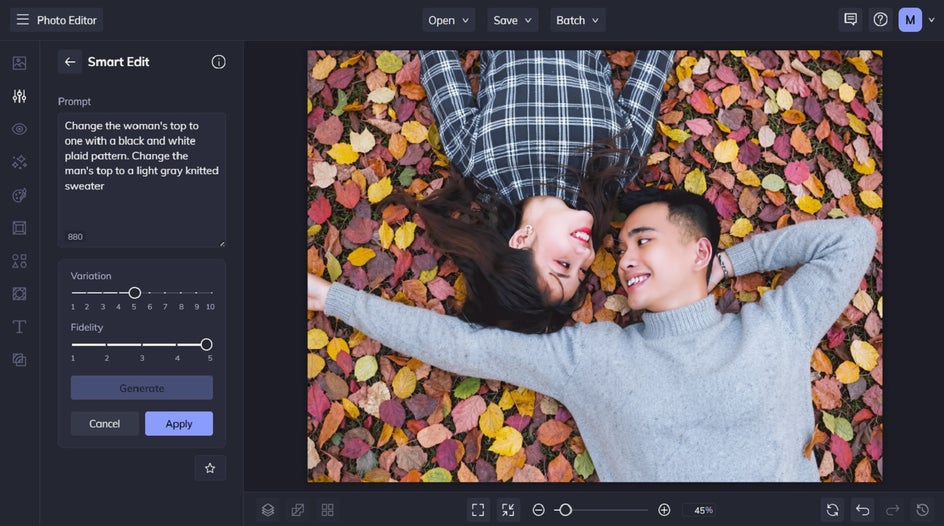
You can also experiment with the Variation and Fidelity settings. Variation helps you explore multiple possibilities for an edit, while Fidelity gives you control over how closely the generated result matches the original image.
Repeat this process as many times as you’d like. When you’re happy with the results, click Apply. You can then save your project or continue editing your image.
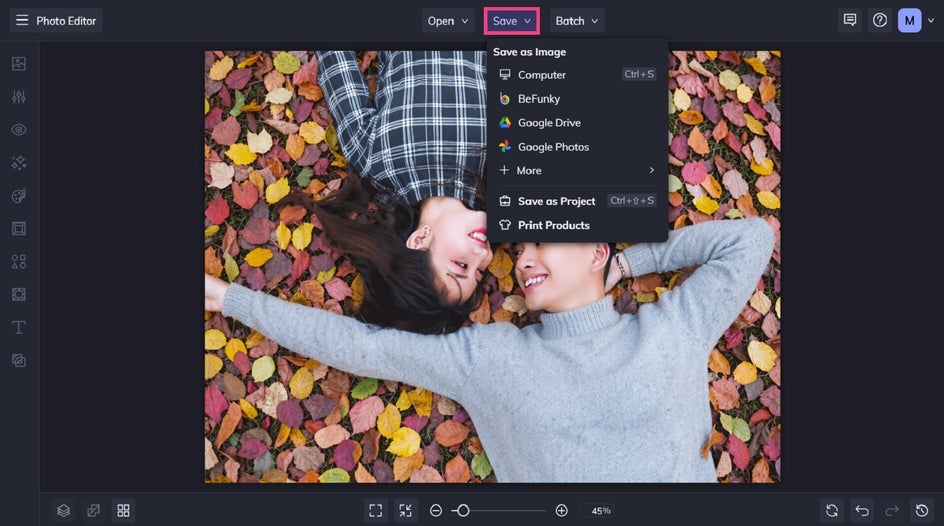
Before and After Using Smart Edit
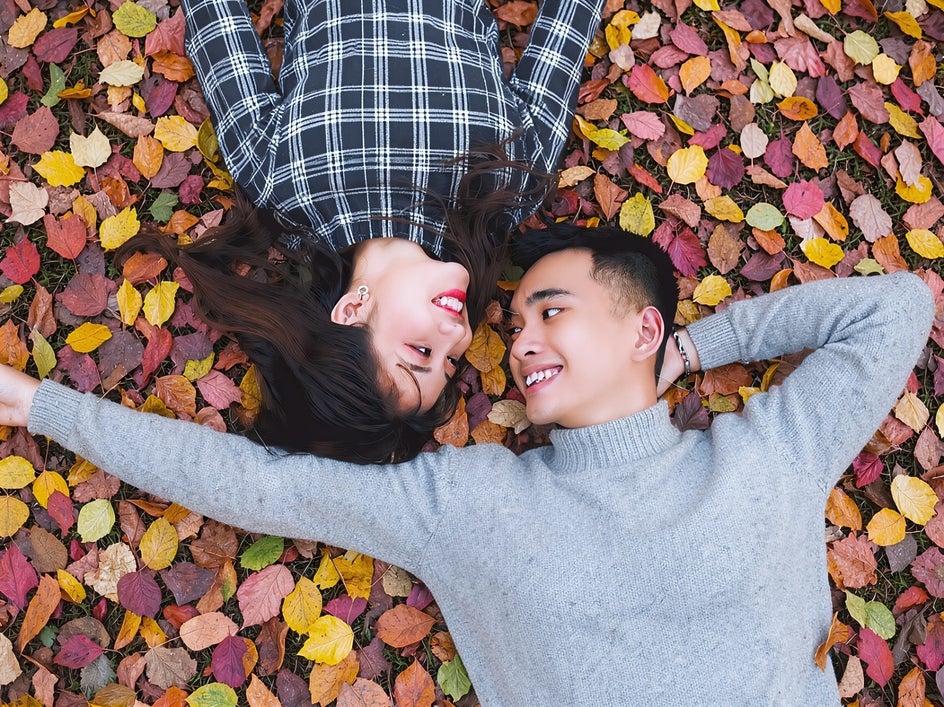
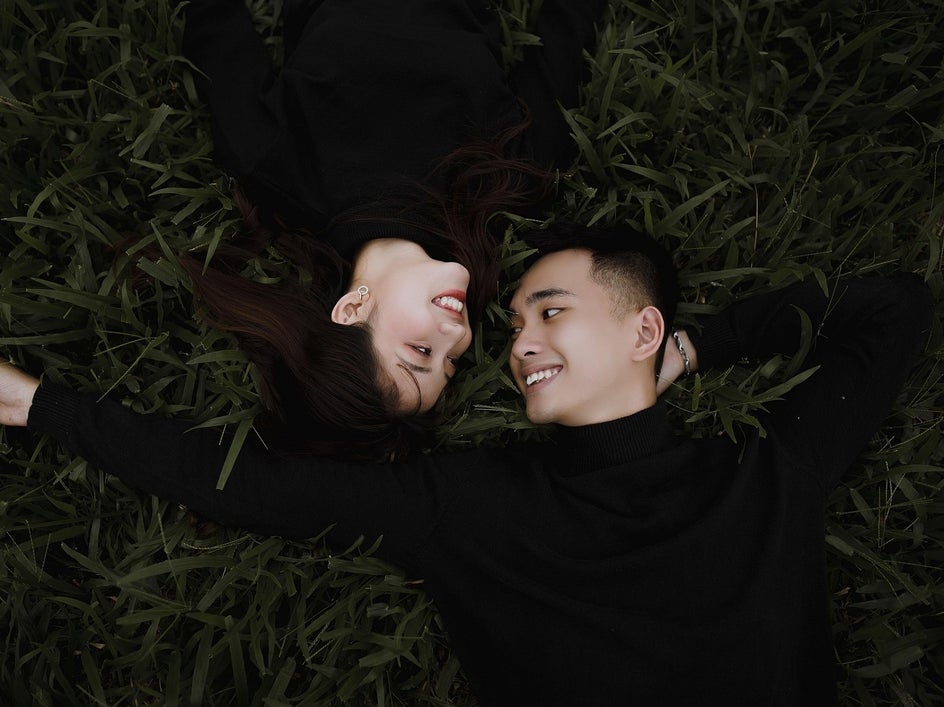
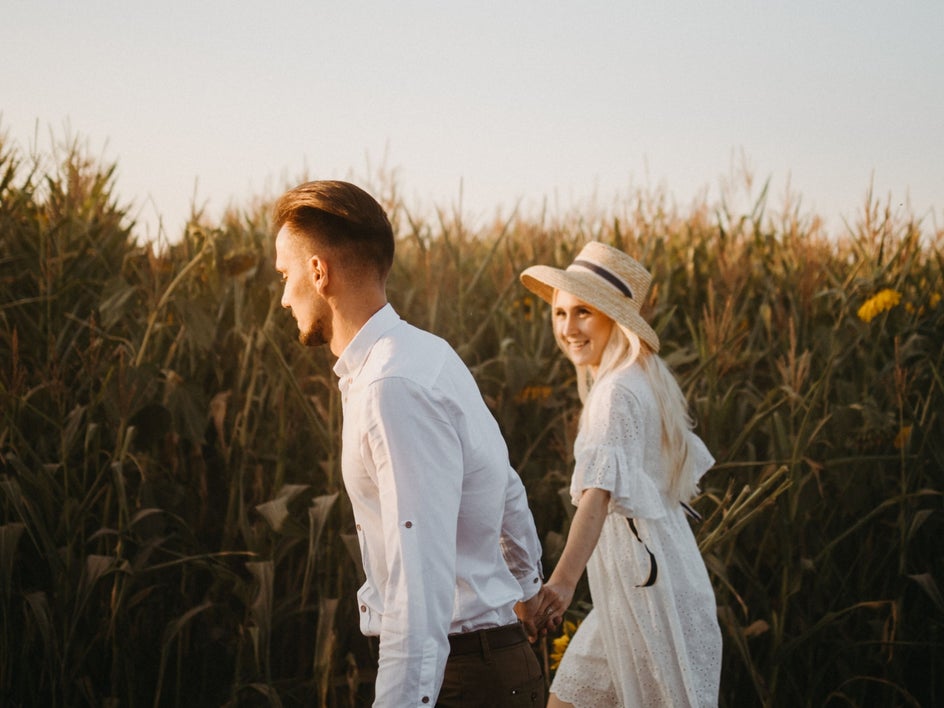
Using just two prompts, we were able to change the background of our photo, as well as the material, pattern, and color of our subjects’ clothing. Such complex edits would’ve taken hours to complete previously. Yet, with the powerful AI capabilities of Smart Edit, these changes took just seconds.
Creative Ways to Use Smart Edit
One of the most exciting things about Smart Edit is how many different editing tasks can be accomplished using the same simple workflow. Here are some of the most effective ways to use this revolutionary tool.
Reimagine Backgrounds and Locations
Changing a background can instantly alter the context, mood, and purpose of an image.
For businesses, this might mean creating clean product photography without a costly studio setup. For creators, it could mean placing a subject in a completely different environment to tell a new visual story.
Try prompts like:
- Replace the background with a cozy mountain cabin interior featuring a stone fireplace and warm ambient lighting.
- Move the subject to a rooftop overlooking a city skyline at sunset. Keep the subject unchanged.
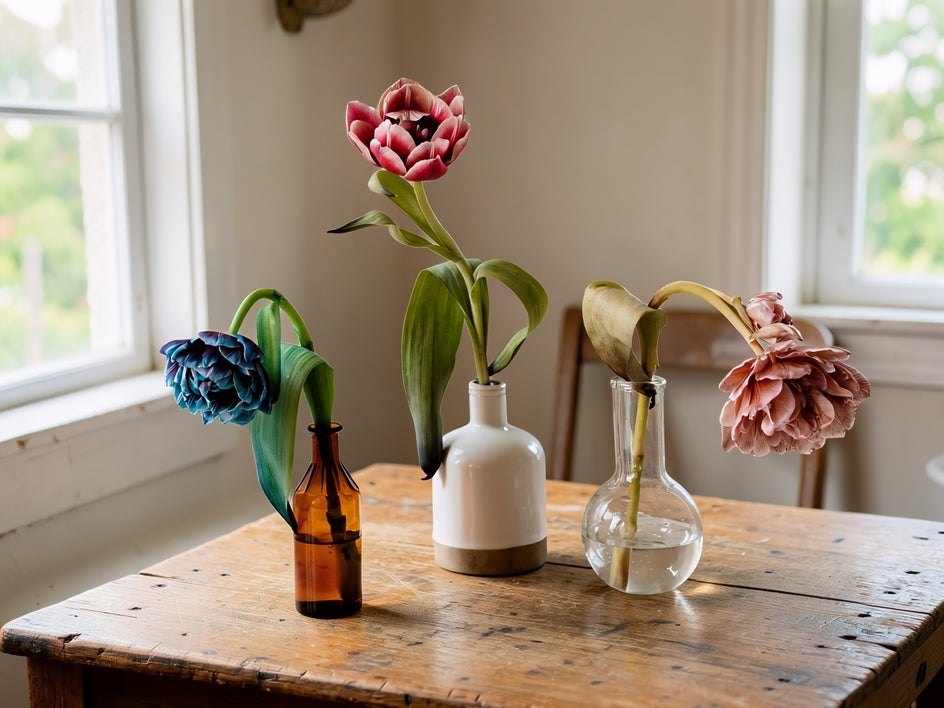
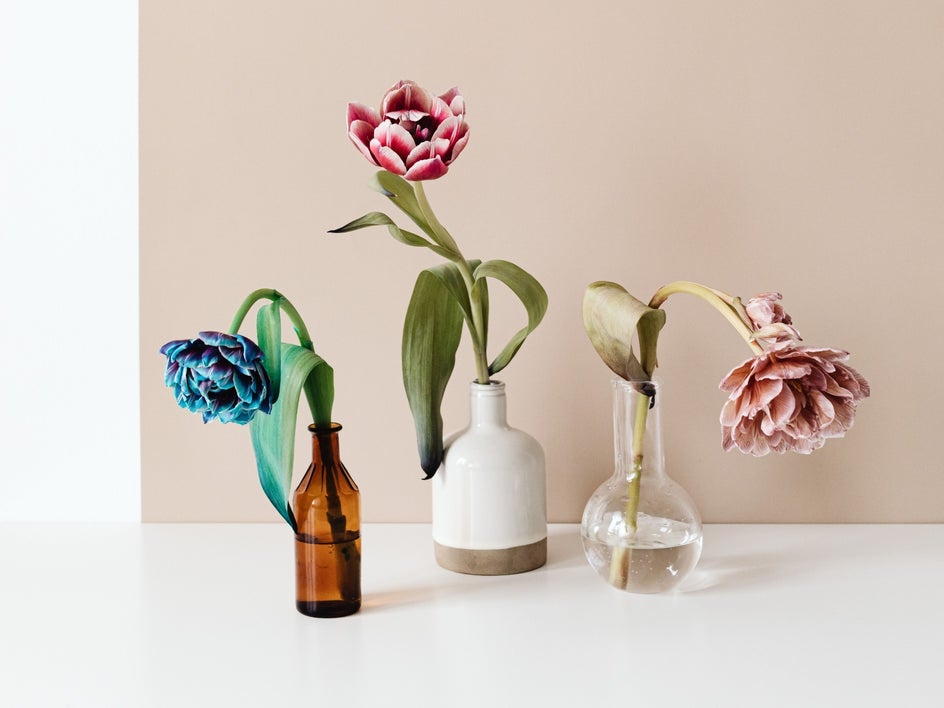
- Place these vases of flowers on a rustic farmhouse table with soft natural window light.
The more descriptive you are about the setting, lighting, and atmosphere, the more realistic the final result tends to be.
Remove Distractions and Add New Details
Sometimes the smallest elements can pull attention away from your subject. Smart Edit makes it easy to clean up distractions or introduce new details that enhance the scene.
For example:
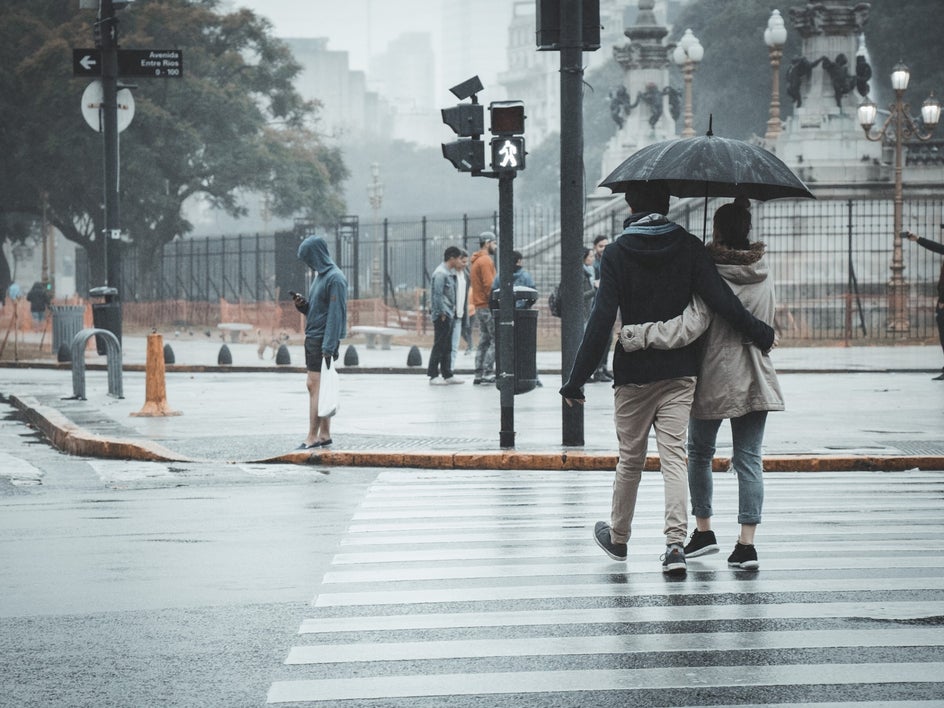
- Remove the parked cars in the background and replace them with trees.
- Erase the power lines crossing the sky.
- Add an open notebook and pen beside the coffee cup.
Remember, when adding or removing objects, be as specific as possible. Mentioning placement, size, or surrounding context often helps the AI create more natural-looking edits.
Experiment With Color and Material Changes
Whether you're visualizing product variations, exploring branding concepts, or simply trying a different aesthetic, Smart Edit can quickly transform any color or material.
Try prompts like:
- Change the kitchen cabinets to matte navy blue (#1E3A5F). Keep the countertops unchanged.
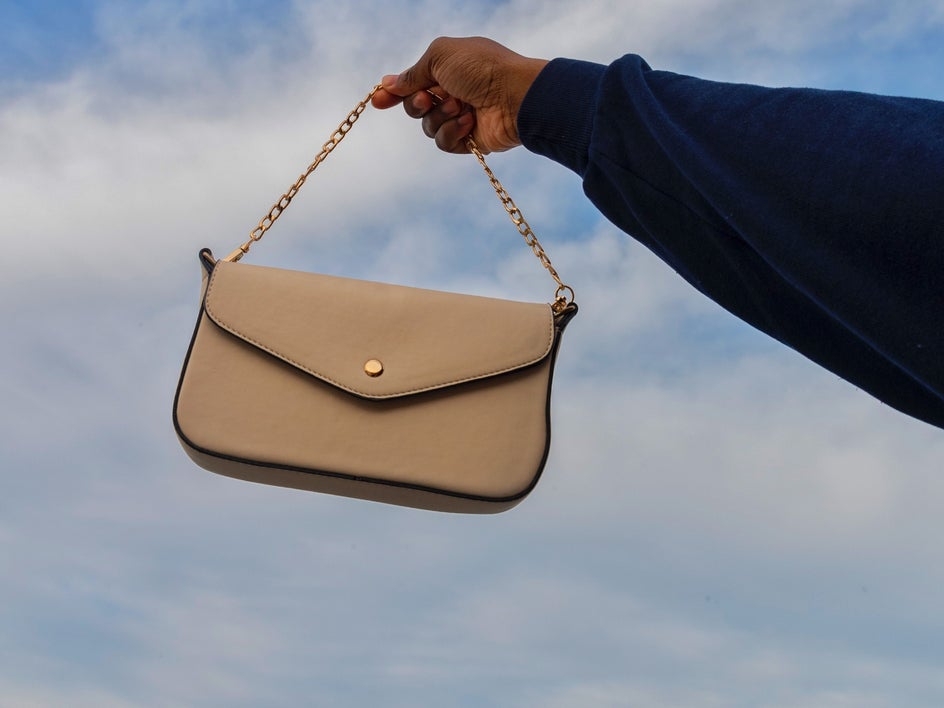
- Turn the leather handbag into a soft cream canvas tote.
- Change the bicycle frame to bright orange (#F77F00) while preserving all decals and details.
These types of edits are particularly useful for e-commerce, product mockups, interior design concepts, and marketing materials.

Create Artistic Style Transformations
One of the most creative uses for Smart Edit is transforming the overall look of a photo.
You see, instead of changing individual elements, you can reinterpret the entire image through a different artistic lens.
For example:
- Turn this image into a vibrant travel poster illustration.
- Transform this portrait into a colorful comic book illustration with bold outlines.
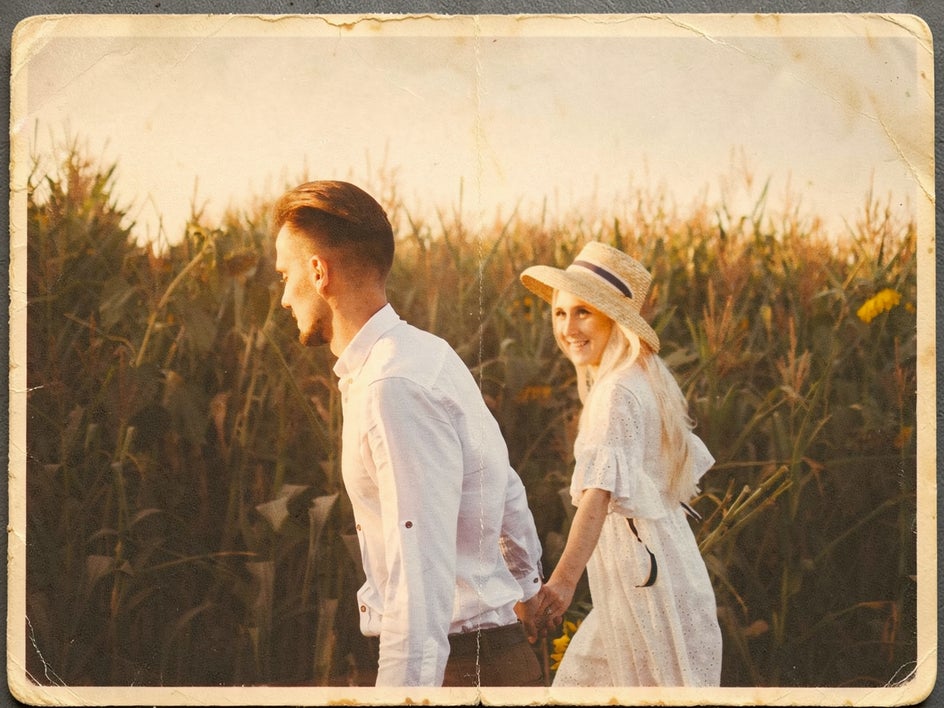
- Create the look of a faded vintage postcard from the 1960s.
Adding a few descriptive details about texture, color, or mood can often make style transformations feel more intentional and polished.
Change the Mood With Lighting and Atmosphere
Lighting plays a huge role in how an image feels. Smart Edit allows you to dramatically shift the atmosphere of a scene without changing its vital subject matter.
Consider prompts like:
- Add dramatic sunset lighting with long shadows and warm golden tones.
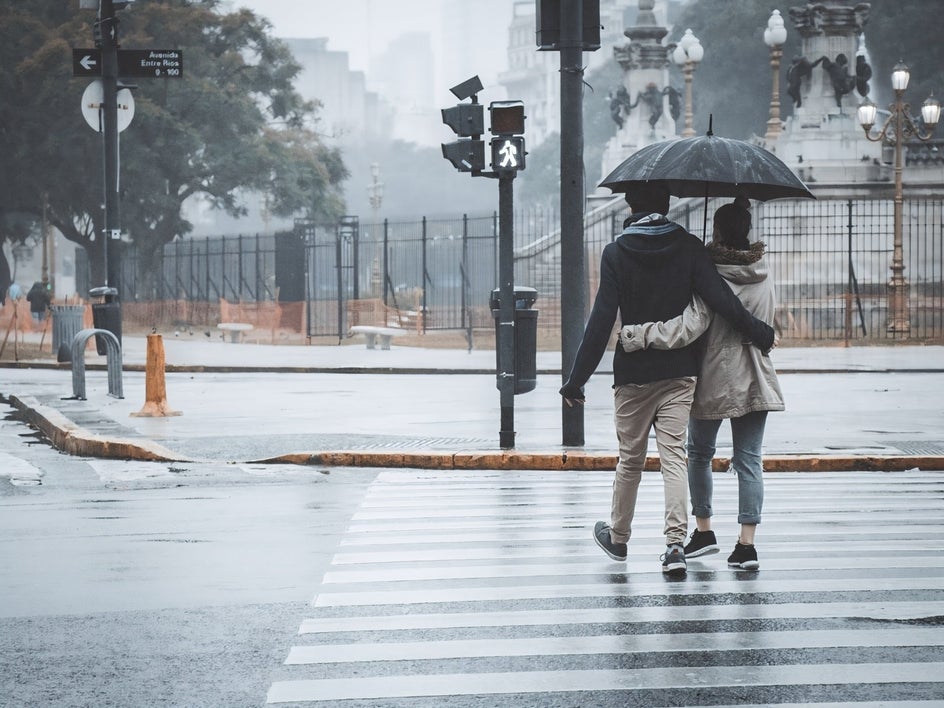
- Create a moody rainy-day atmosphere with reflections on the pavement.
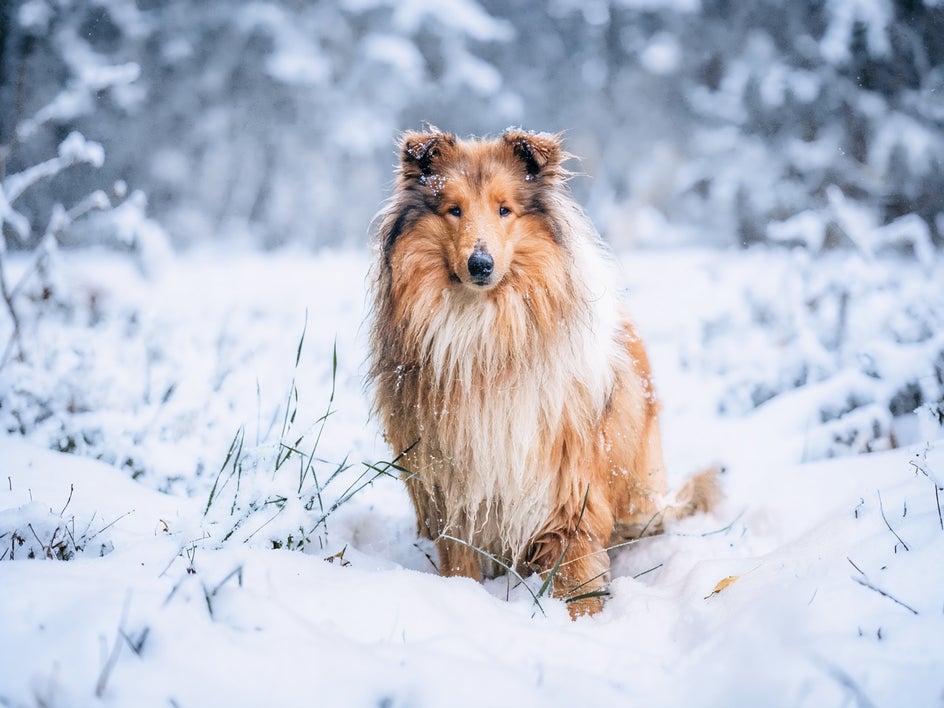
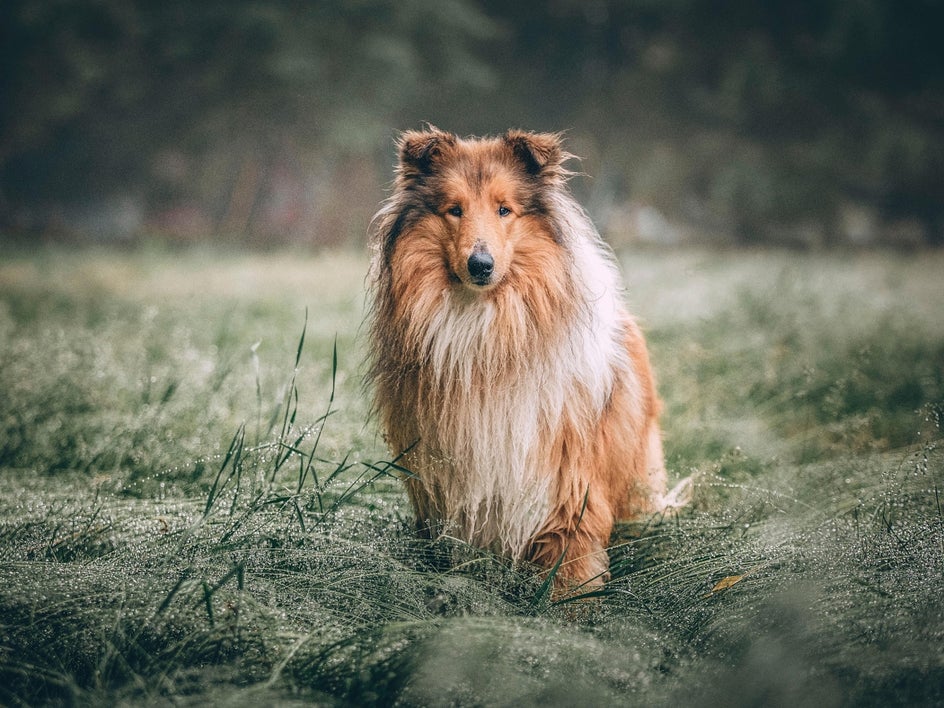
- Transform the scene into a clear winter afternoon with fresh snow covering the landscape.
These edits can help convey emotion, reinforce a theme, or simply give an existing image a completely different vibe.
Refresh Clothing, Accessories, and Portrait Details
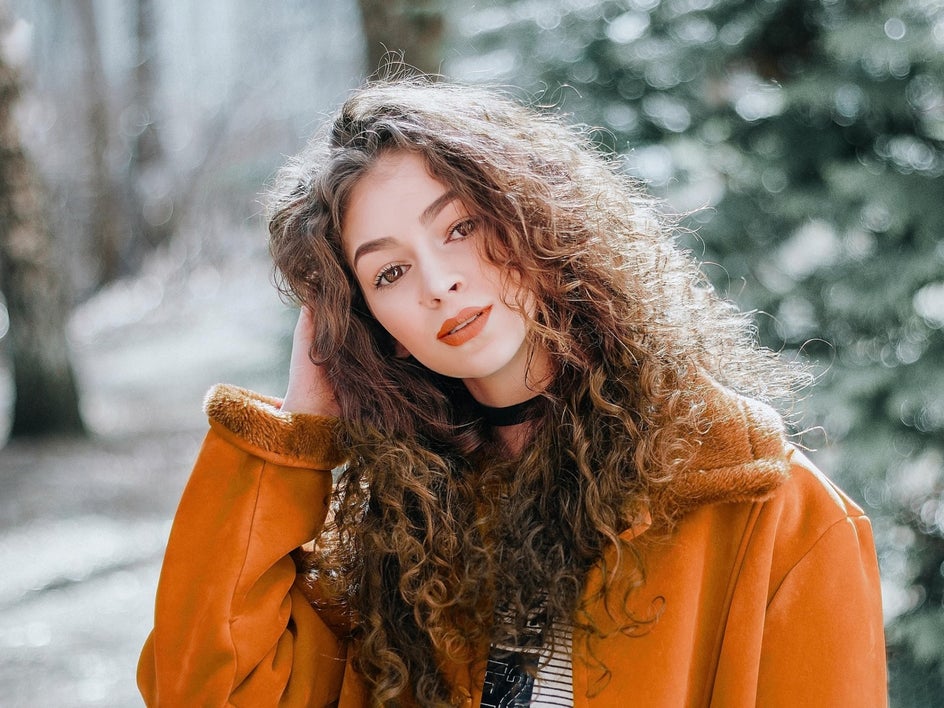
Portrait and fashion photography can also benefit from targeted edits that would normally require careful (and very advanced) retouching.
For example:
- Replace the baseball cap with a knitted beanie.
- The subject is now looking slightly past the camera with a relaxed smile.
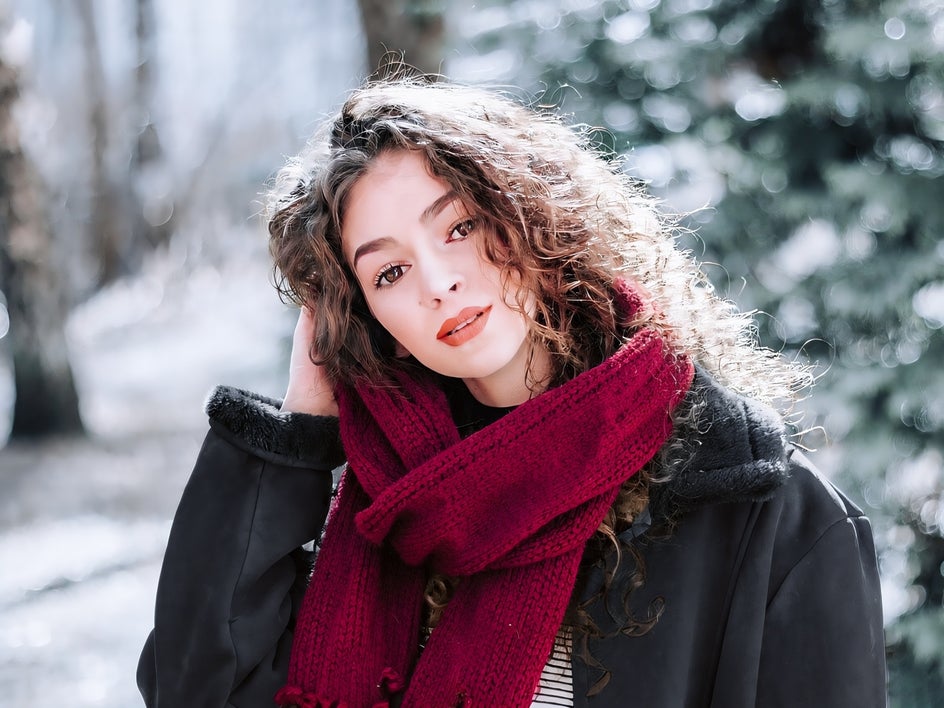
- Add a dark red scarf around the subject’s neck.
These edits help you explore different creative options without starting from scratch.
AI Photo Editing the Smarter Way
Photo editing doesn't have to involve complicated selections or lengthy workflows. With Smart Edit, you can make any change you want through simple prompts.
Whether you're replacing backgrounds, removing distractions, changing colors, transforming styles, or creating entirely new looks, Smart Edit helps bring your ideas to life with just a few words.
Check out Smart Edit today to discover just how easy AI-powered photo editing can be!




