








How to Turn a Single Photo Into Endless Social Media Content

Keeping your social media feeds fresh can feel like a full-time job. Between Instagram, Pinterest, LinkedIn, blogs, newsletters, and more, there's always another post to create. Unfortunately, organizing regular photoshoots isn't practical for most creators, influencers, bloggers, and small businesses.
Thankfully, you don't need an jam-packed camera roll to produce an endless stream of content. You see, the secret isn't taking more photos – it's finding creative ways to reuse the ones you already have. BeFunky’s Smart Edit makes that easier than ever by letting you describe the changes you'd like to make instead of manually editing every detail.
Swap backgrounds, refresh outfits, change the lighting, or create an entirely new mood in just a few clicks! Instead of booking another shoot every time the seasons change or your branding evolves, you can reimagine the photos you already have.
Ready to see how? Here's how to turn a single photo into fresh social media content your followers will love.
How to Create Unique Images for Social Media Using One Photo
Start by opening the photo you want to transform in the Photo Editor and navigate to the Edit tab to locate Smart Edit.
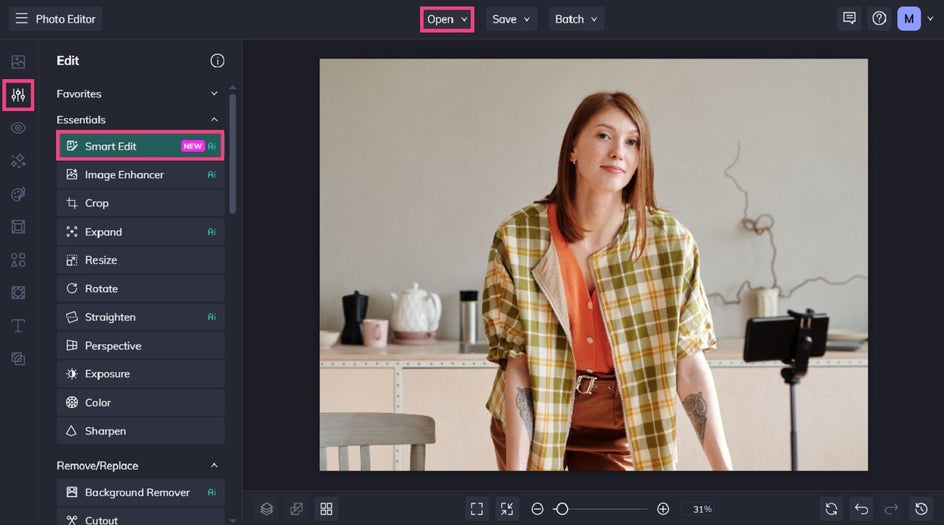
For the most versatile results, we recommend choosing a photo with good lighting, a clear subject, and a simple composition.
Then, just follow these 2 steps below!
Step 1: Create a New Look With a Detailed Prompt
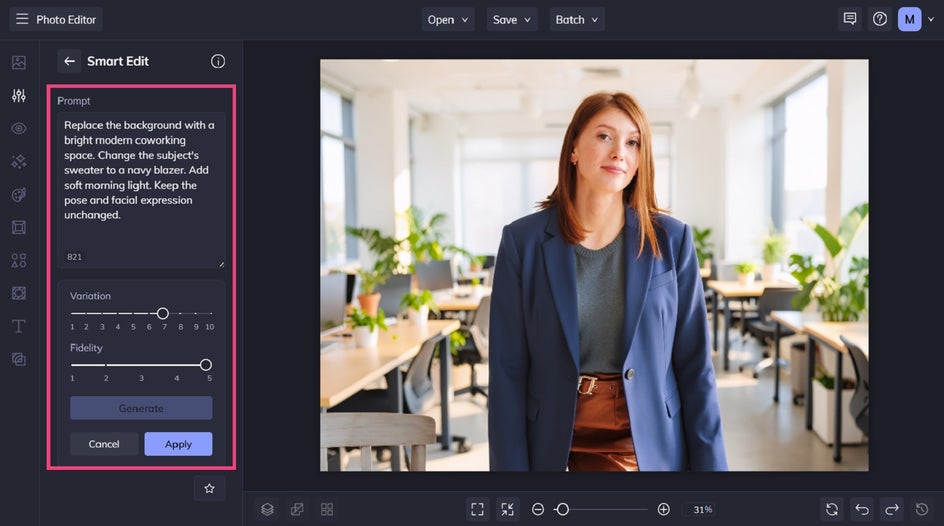
Within Smart Edit, you’ll notice a prompt box. This is where you describe exactly how you'd like your product to change. Remember, the more specific your prompt is, the more predictable your results tend to be.
For example:
Replace the background with a bright modern coworking space. Change the subject's jacket to a navy blazer. Add soft morning light. Keep the pose and facial expression unchanged.
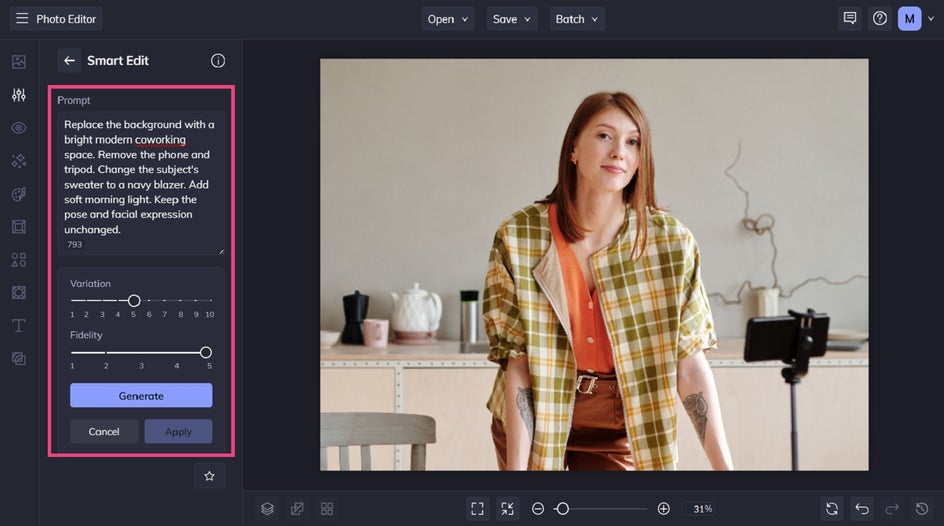
After clicking Generate, you can continue refining your prompt until you're happy with the final image.
You can also experiment with the Variation and Fidelity settings. Variation creates alternative interpretations of your prompt, while Fidelity controls how closely the generated image matches your original product.
Click Apply to finish your edit.
Step 2: Repeat the Process to Build Your Content Library
Instead of making just one edit, you can also use your original photo to create multiple variations for different platforms, audiences, campaigns, seasons, and more.
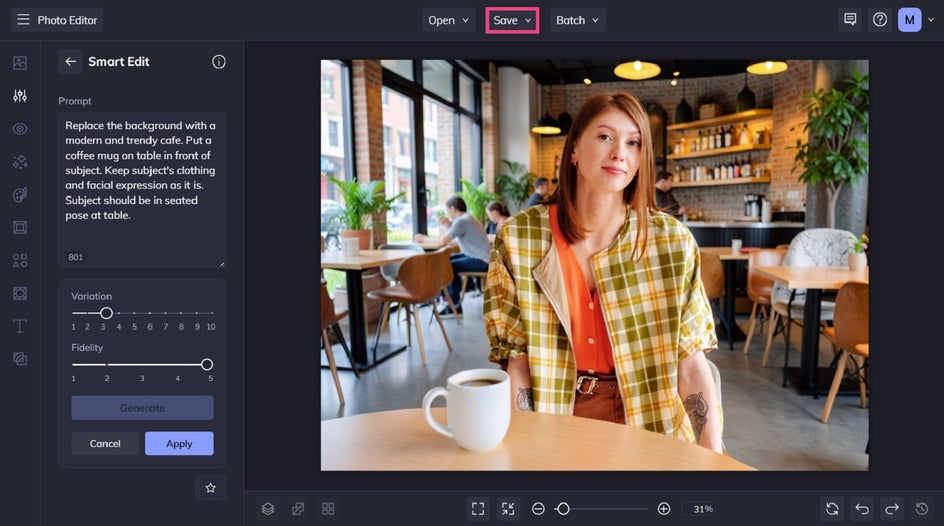
In this example, we’ve transformed our original portrait into a cozy lifestyle shot featuring our same subject at a café.
Because you're working from the same original image, it's easy to compare different creative directions.
When you’re finished making your edits, click Save at the top of the screen, then select your preferred file destination and format.
Before and After: One Image, So Many Uses
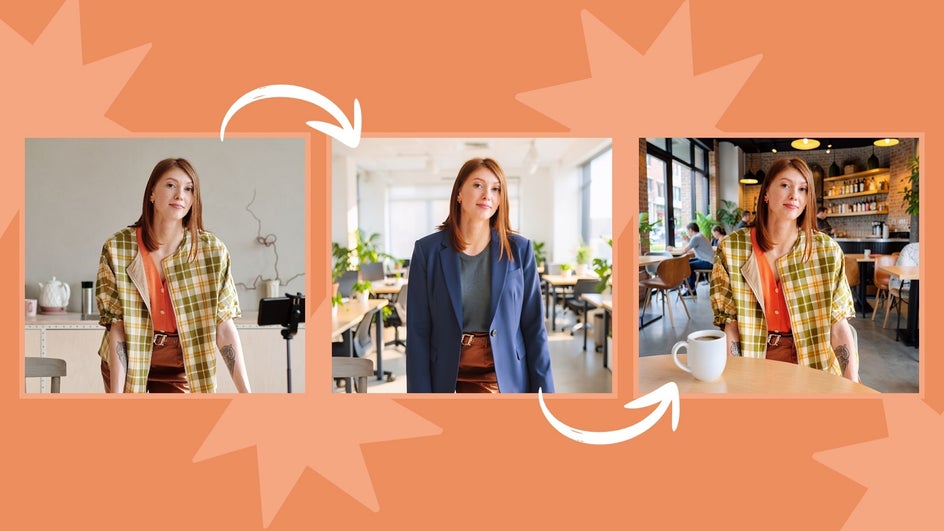
With just a few prompts, a single portrait can become a mini collection of social media assets.
One version might feature a bright café background for Instagram. Another could showcase a professional office for LinkedIn. A third could transform the scene into an autumn setting for seasonal promotions.
Instead of scheduling multiple shoots throughout the year, you're simply giving your existing images a fresh new purpose.
Inspiration for Your Next Content Refresh
As you can imagine, there are countless ways to repurpose your photos for different platforms and campaigns. Here are a few to inspire your next project!
Refresh Your Feed for the Seasons
Refresh your imagery throughout the year by updating backgrounds, lighting, colors, and clothing to match holidays or changing seasons. Whether you're promoting a summer sale or creating festive holiday posts, your existing photos can easily adapt to the occasion.
Try transforming the same portrait by focusing on prompts that mention:
- A sunny garden filled with spring flowers
- A tropical beach with warm summer lighting
- Colorful autumn leaves in a local park
- A cozy holiday setting with festive decorations
These simple changes help your content stay timely without requiring another photoshoot.


Experiment With Different Brand Styles
Maybe you're working with a new client, or perhaps you're exploring a rebrand of your own?
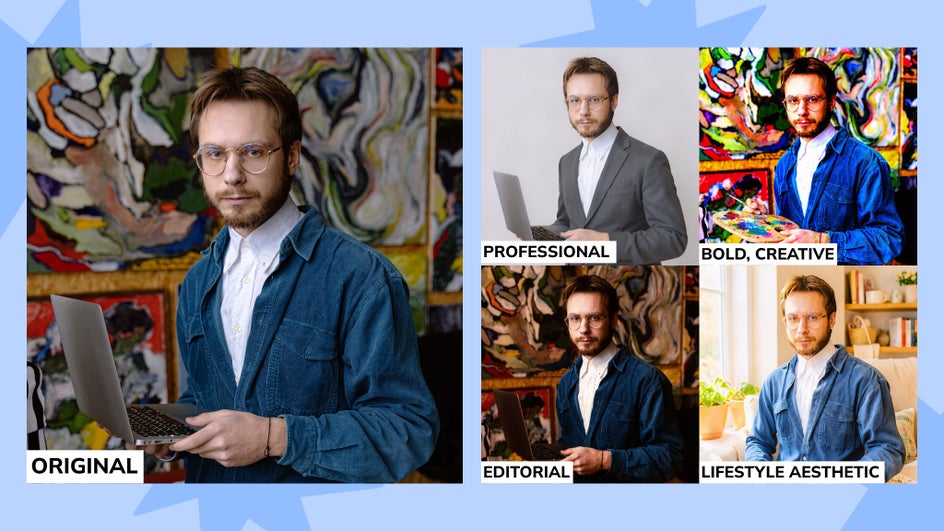
You can also Smart Edit to experiment with different visual identities before committing to one.
For example, transform the same image into:
- A clean minimalist aesthetic
- A warm, cozy lifestyle brand
- A bold, colorful creator style
- A luxury editorial look
Create New Perspectives
You don't always need another photo to create another point of view. Smart Edit can help reimagine your subject from a different angle, giving you fresh content from the same original image.
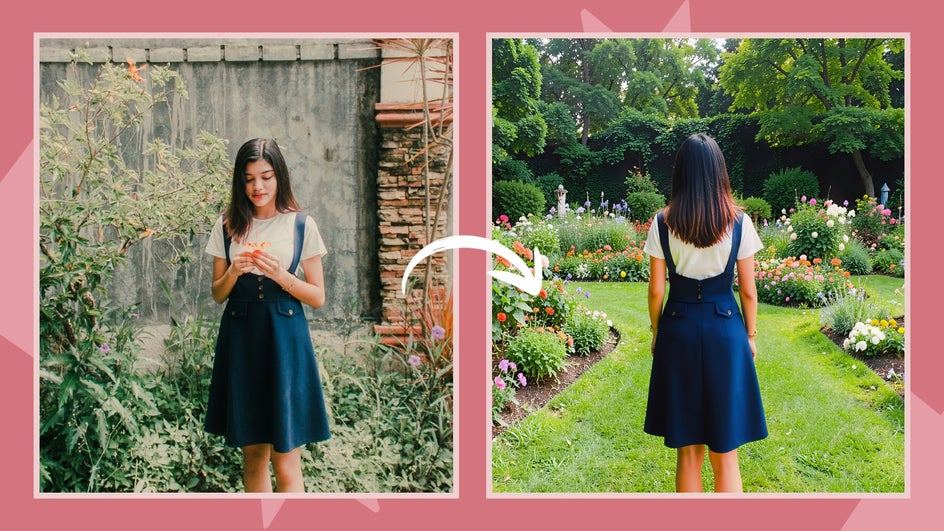
For example, if you have a portrait of yourself smiling at the camera in a garden, you could prompt Smart Edit to recreate the scene from behind, showing the back of your head as you admire the flowers. Or, ask it to generate a side profile, adjust your pose so you're looking into the distance, or have you glance down at a notebook or cup of coffee.
These subtle composition changes can make your content feel like it came from an entirely different photoshoot, helping you add more variety to your social media feed while making the most of every image you've captured.
Get More From Every Photo
Creating engaging social media content doesn't have to mean constantly planning new photoshoots. With Smart Edit, you can transform a single image into fresh content for different seasons, campaigns, platforms, and branding styles.
Whether you're refreshing your Instagram feed, preparing holiday promotions, or testing a completely new aesthetic, Smart Edit helps you make the most of every photo you've already captured. Simply describe the changes you'd like to make, generate your edits, and keep your content calendar full without stepping in front of the camera.
Visit Smart Edit within the Photo Editor to see just how amazing it is!