How to Edit Photos From the Graphic Designer

Design projects often start with a template, but the real magic happens when you make it your own. With BeFunky’s Graphic Designer and Photo Editor working together seamlessly, you can design eye-catching graphics with stunning photos – all without pausing your workflow. By easily moving between the two, you’re able to quickly fine-tune images, customize details, and create something completely on-brand.
Whether you’re designing social media graphics, posters, invitations, marketing campaigns, or more, having direct access to powerful photo editing tools inside the Graphic Designer makes the entire creative process smoother, faster, and more fun. Here’s how to elevate any design project with professional-quality photo edits!
Edit Photos From the Graphic Designer in 3 Steps
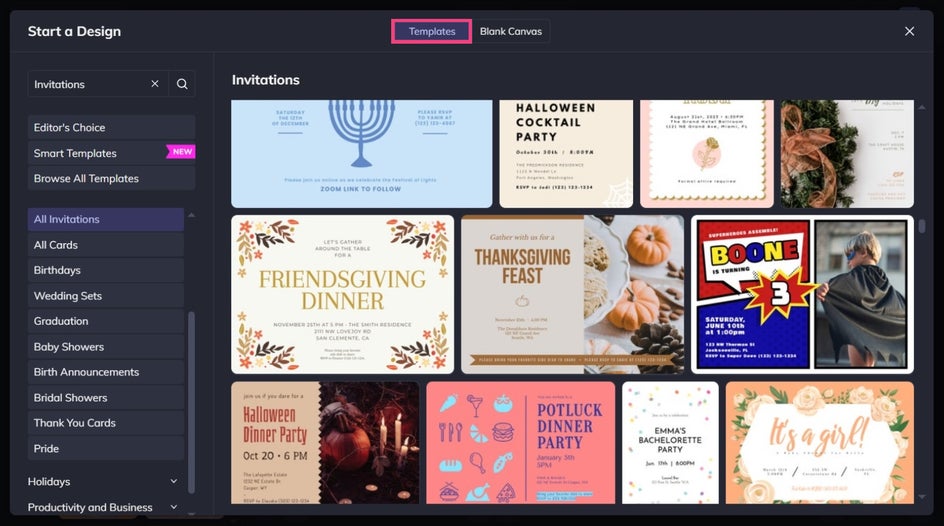
To get started, open up the Graphic Designer and choose a template that fits your project. For photo edits to have the most impact, choose a design with at least one large placeholder image.
Step 1: Replace the Placeholder Photo
Click on any placeholder photo in your template to replace it with a photo from your device, or drag and drop one directly onto the canvas from the Image Manager.
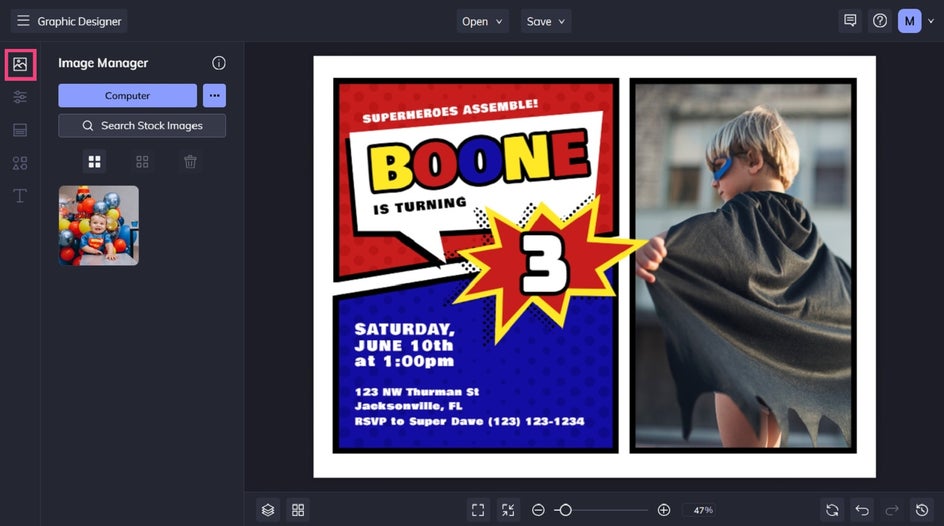
Once your image is in place, select it with your mouse, then click Edit Image to directly open the in-platform Photo Editor.
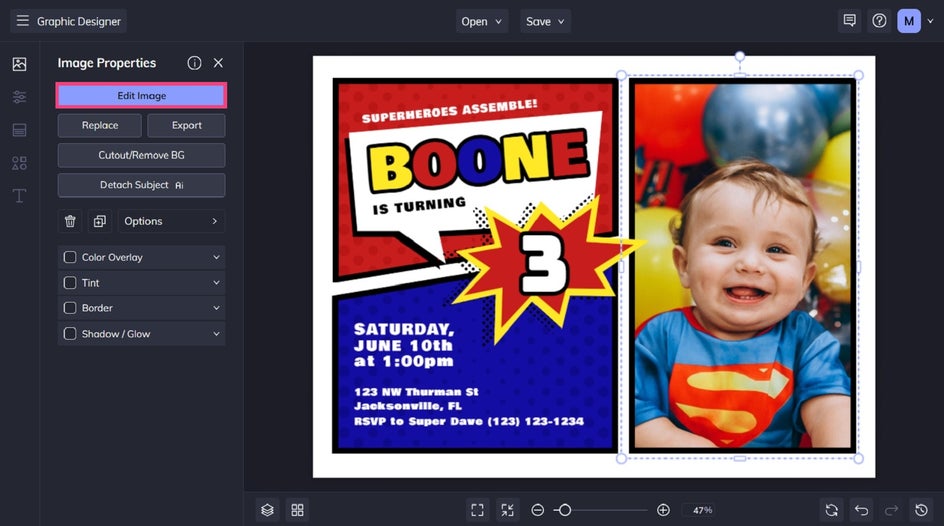
Step 2: Edit Your Photo in the Photo Editor
Inside the Photo Editor, you’ll have access to hundreds of professional tools and effects designed to be intuitive for beginners and powerful enough for experienced creators.
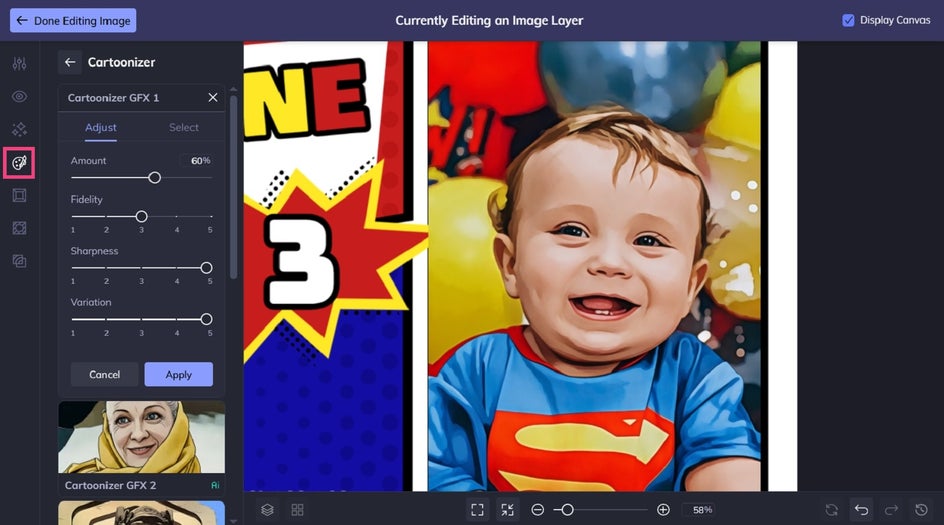
In this project, we’re applying the Cartoonizer GFX 1 effect, available in the Artsy category, to bring our photo in-line with the design’s comic book inspired superhero theme.
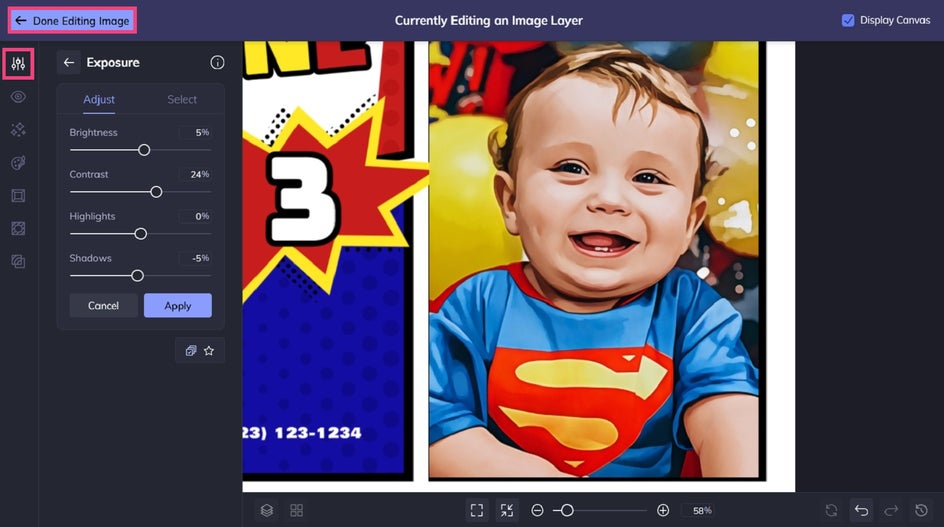
Next, we’re adjusting our photo’s exposure – including its brightness, contrast, and shadows – to really make it pop.
You can also explore additional enhancements in the Touch Up tools, for example, which are great for polishing portraits, while our many Photo Effects can subtly or dramatically change your image’s aesthetic.
When you’re happy with your edits, click Done Editing Image in the top left corner to instantly return to your design.
Step 3: Finalize Your Design and Save
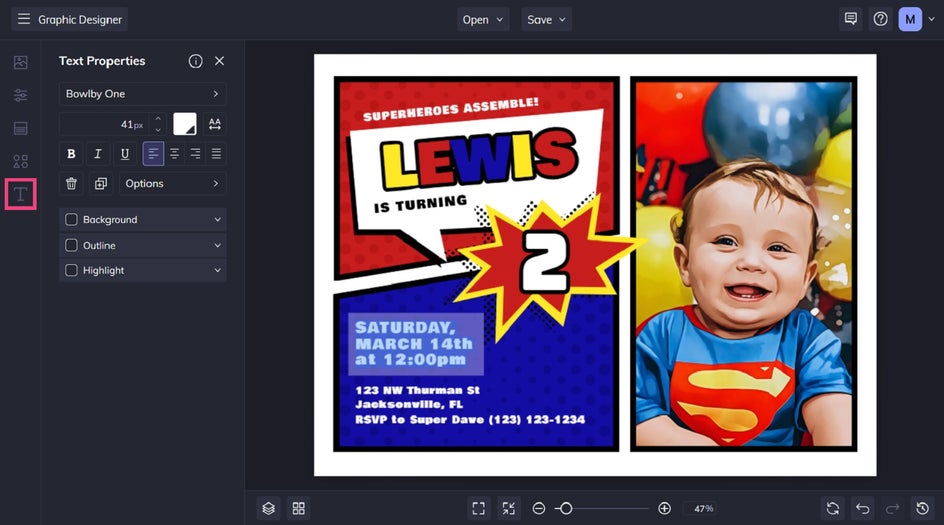
Back in the Graphic Designer, your edited photo will automatically update within the template. From here, you can adjust your design’s color scheme, customize text, and add additional elements like graphics to complete your project.
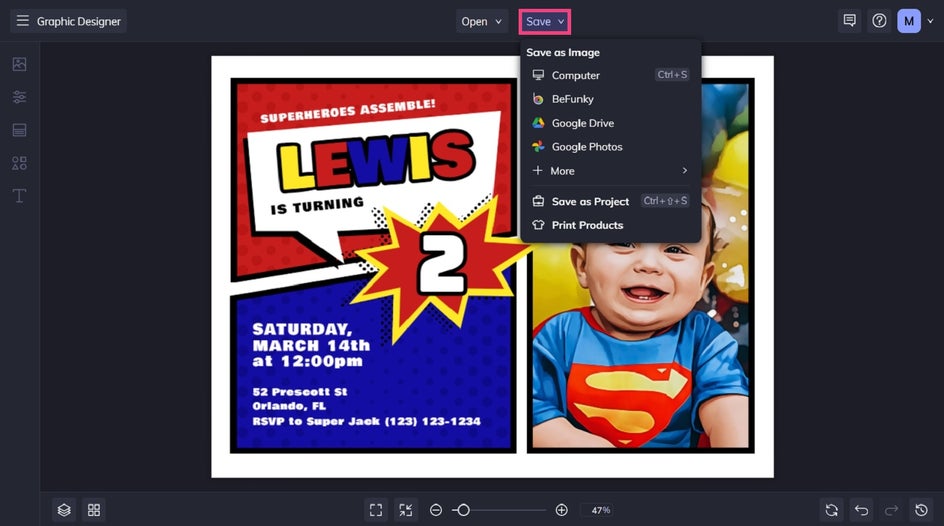
Once everything looks just right, click the Save button at the top of the canvas. Your finished design is now ready to share. You can even print it at home or through our handy Zazzle integration!
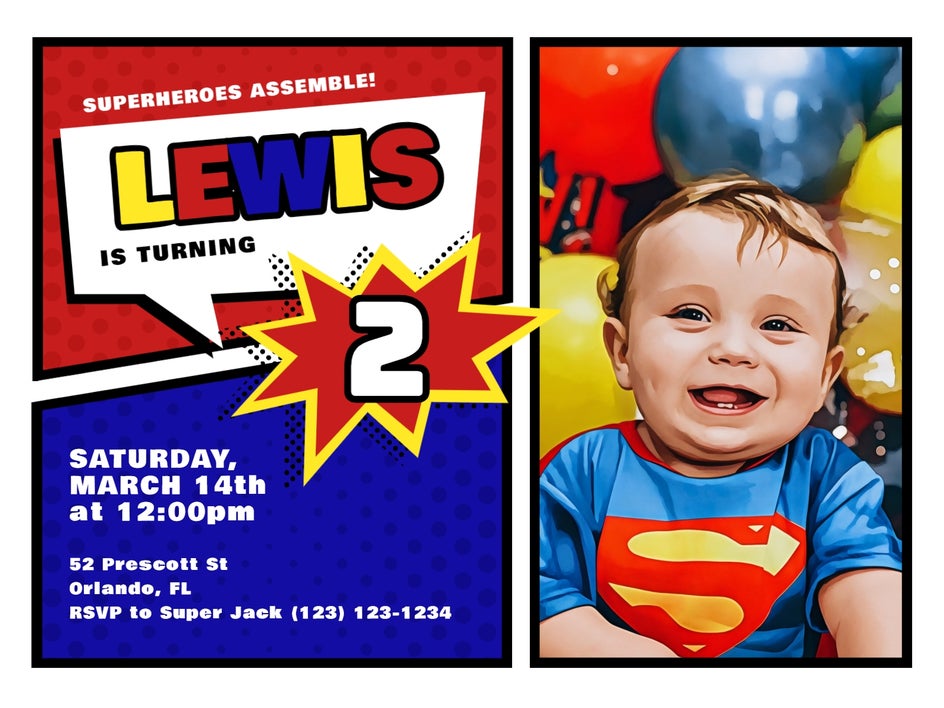
Final Results: A Superhero Party Invitation that Pops
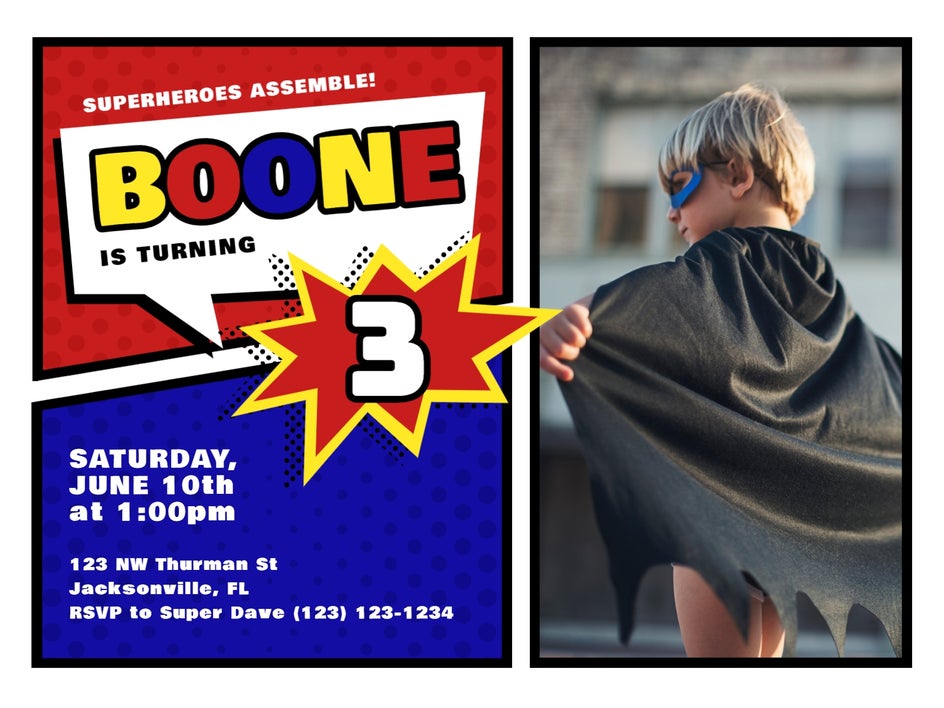
Here’s a comparison of our birthday party invitation before and after the photo edits! The final result looks brighter, more creative, and cohesive with the overall template.
Creative Design Inspiration With In-Platform Photo Edits
Now that you know how easy it is to edit photos from within the Graphic Designer, let’s look at a few popular design projects that truly shine when paired with some simple photo edits.
Social Media Graphics
Eye-catching visuals are essential for standing out in crowded social media feeds. Use the Edit tab to adjust your photo’s color to match your brand palette, or apply your favorite photo effects for a cohesive aesthetic across posts. Our super creative Artsy effects can also help turn a standard image into a scroll-stopping graphic. This is especially helpful for promotions or other important announcements.
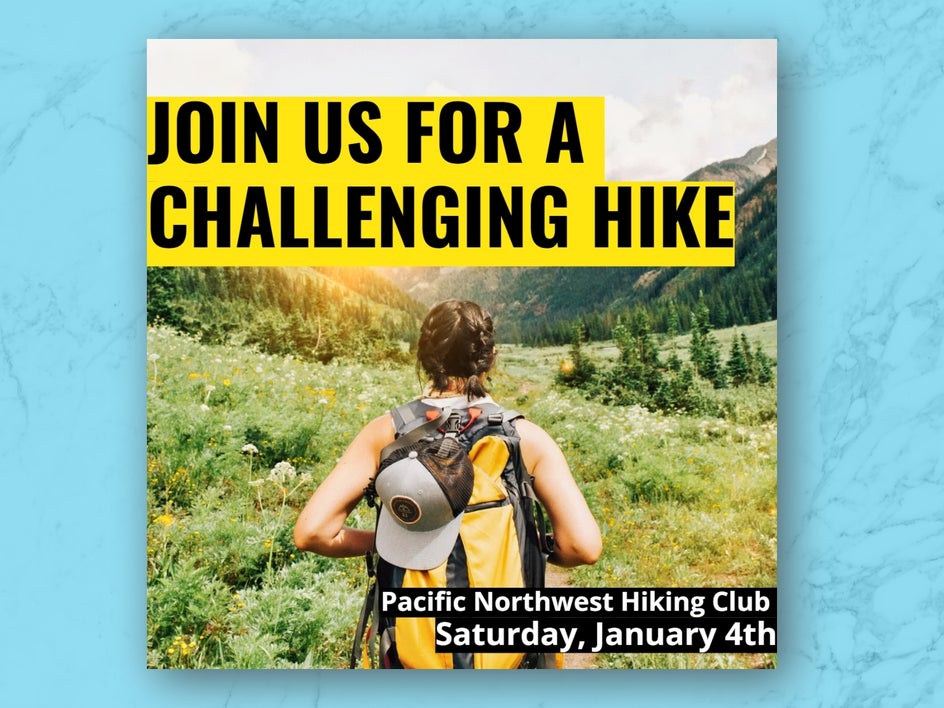
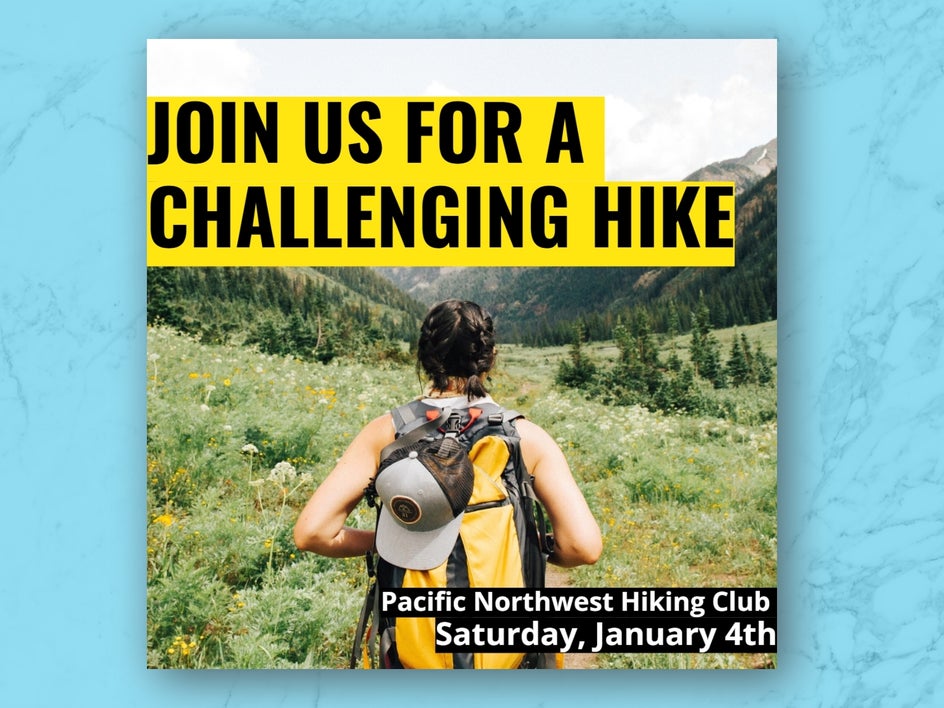
In this Instagram post, we applied the Image Enhancer (located in the Edit tab), before adding the Sunny Day Lens Flare effect. The end result is now more enticing, as it showcases the advertised hike beautifully.
Posters and Flyers
Posters and flyers benefit from bold imagery and clear focal points to truly capture an audience’s attention. Editing photos directly from the Designer allows you to fine-tune important elements like color, contrast, and composition so text remains legible and impactful.
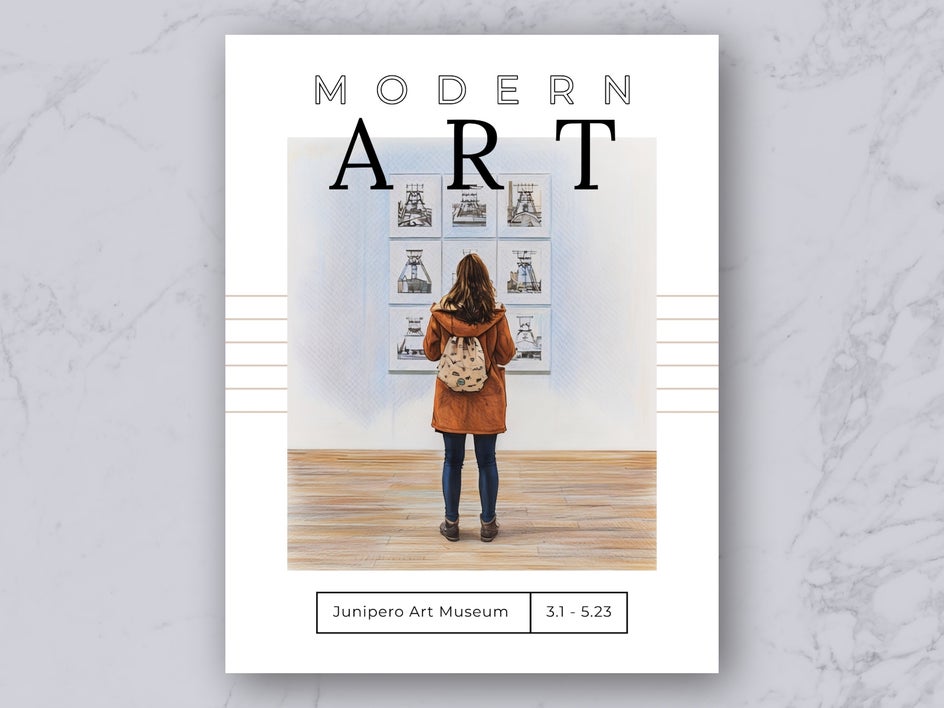
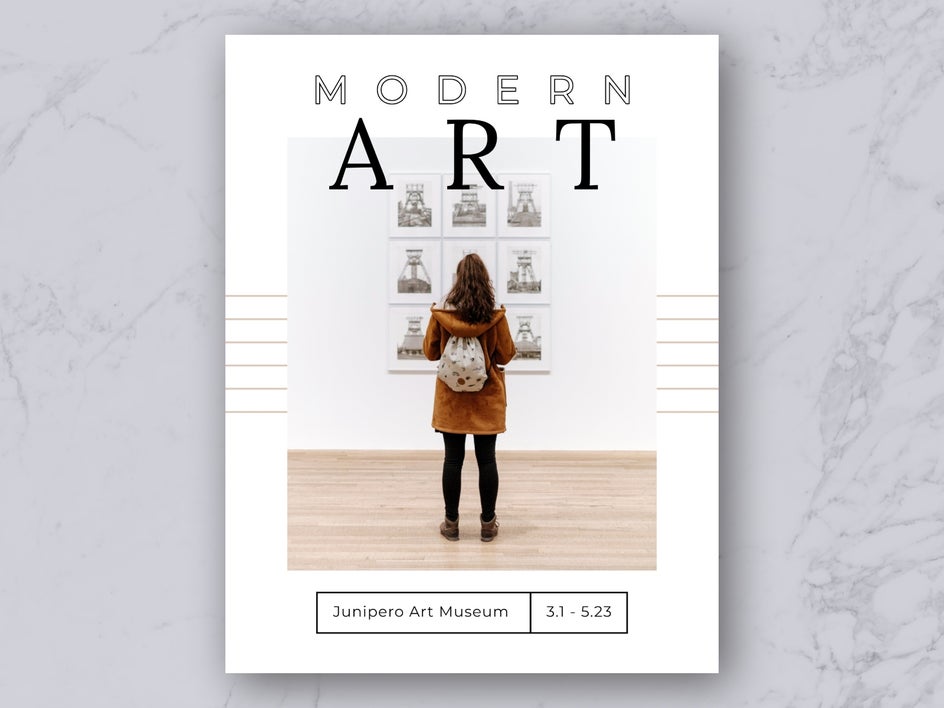
Even small photo edits can dramatically elevate the overall professionalism of printed or digital marketing materials. Take this flyer design below, for example. We applied the Crayon GFX Artsy effect to not only add some wow-factor, but also emphasize the flyer’s artistic subject matter.
Greeting Cards
Greeting cards are one of the easiest ways to create something meaningful, and unique photo edits can instantly elevate the final design. From holiday and birthday cards to thank you notes and everyday greetings, polished photos help your message feel more personal and intentional.
With our Card Maker templates, you can start with a professionally designed layout and customize it in just a few clicks. Edit any photo directly from the Graphic Designer to perfect portraits, improve lighting, or clean up backgrounds so faces and details stand out beautifully.
In the Mother’s Day card below, we used Touch Up tools like Teeth Whiten, Mascara, and Perfect Skin, as well as the one-click Image Enhancer, to really help it shine.


Design and Edit Without Interrupting Your Creative Flow
Being able to move seamlessly between the Graphic Designer and Photo Editor opens up endless creative possibilities. Instead of stopping and starting projects to go between platforms, you can focus on designing with confidence – knowing that powerful photo editing is always just a click away.
Whether you’re creating content for work, personal projects, or pure creative expression, this integrated workflow helps you bring your ideas to life faster and more beautifully than ever. Explore our Graphic Designer today and see how easy it is to elevate your designs with in-platform photo edits!