









Say Happy Birthday With Creative, Photo-Forward Designs

There’s nothing like a handmade card to show someone how much you care. That’s why BeFunky’s online Card Maker offers dozens of customizable birthday card templates for all ages. The Card Maker features tons of intuitive tools, design assets, and personalization options. Plus, not only can you add your own photos to any template, those photos can also be edited directly in the platform!
The ability to edit photos in-platform takes DIY cardmaking to the next level. Improve lighting with essential editing tools, make portraits more flattering with the AI Portrait Enhancer, or get even more creative using Artsy effects or Chromatic filters. Because there’s no need to export files or switch tabs to go between the Graphic Designer and Photo Editor, the process is quick and seamless. It’s the simplest way to transform a good birthday card into a great one.
In this tutorial, we’ll show you just how easy it is to customize your own birthday card template from start to finish, including how to apply creative photo edits. Let’s get started!
How to Enhance a Birthday Card With Photo Edits
First, open up the Birthday Card category of the Graphic Designer. Here you’ll find tons of birthday card templates to suit all styles and age ranges, from elegant minimalist cards to themed designs with colorful graphics. For the photo edits to really shine, pick a template that features 1-3 images.
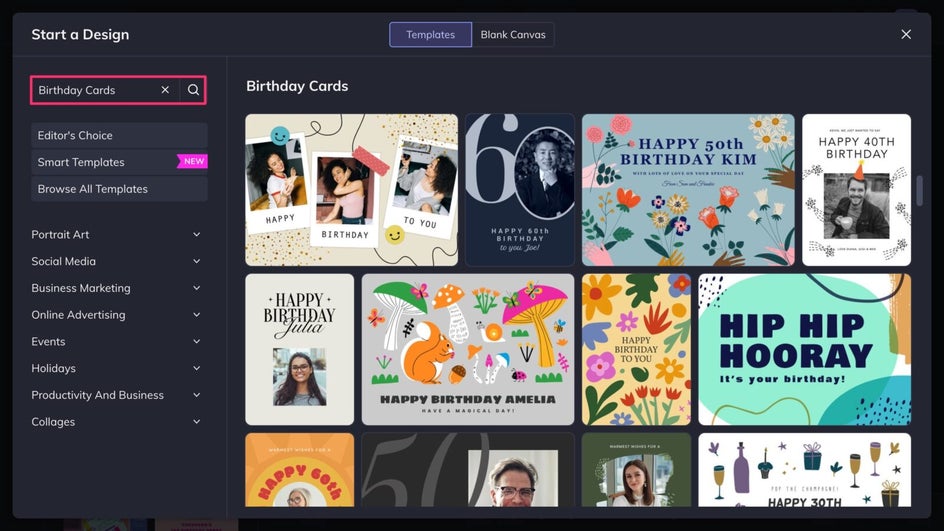
Step 1: Add a Personal Photo
There are three different ways to add a photo to a birthday card template: Click on a placeholder image to replace it, drag and drop a photo from the Image Manager, or drag and drop a photo directly from your device.
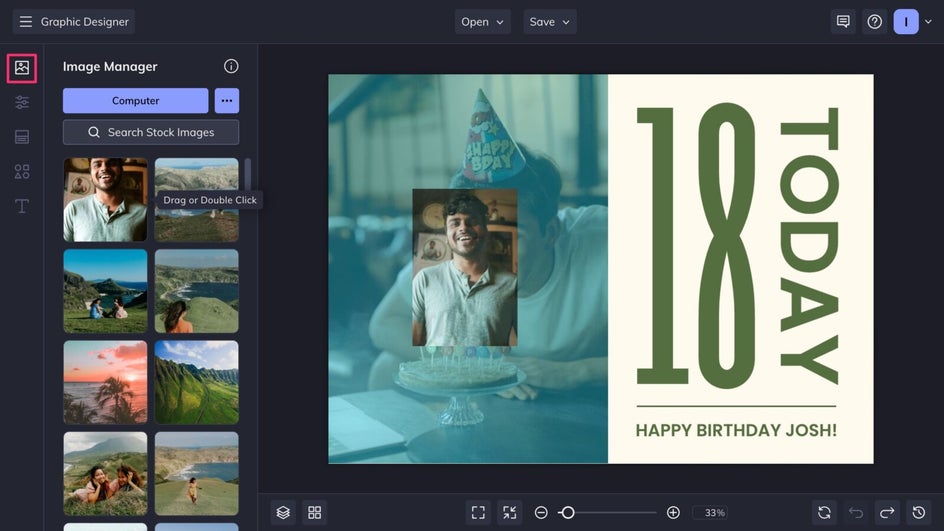
Once a photo has been added, click on it and select Edit Image to be brought directly to the in-platform Photo Editor. You’ll be able to return to your design at any time!
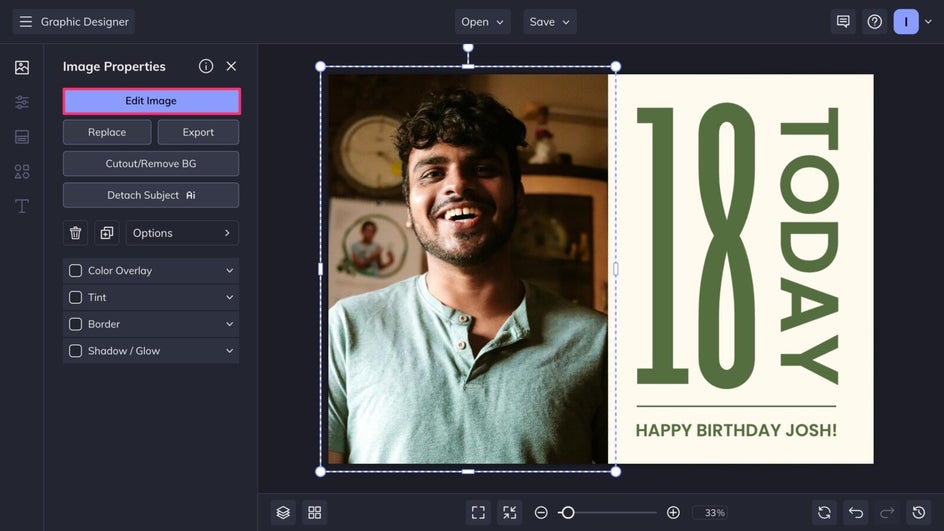
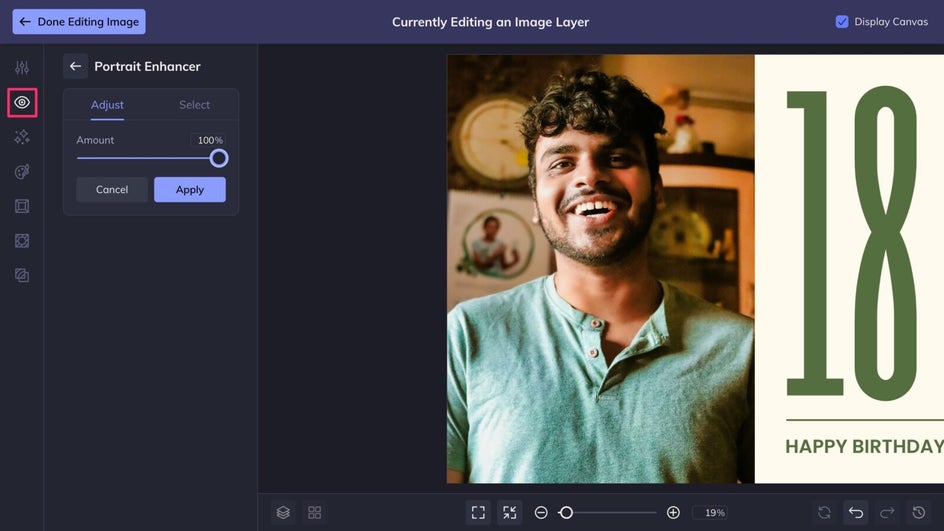
Step 2: Apply Edits and Effects
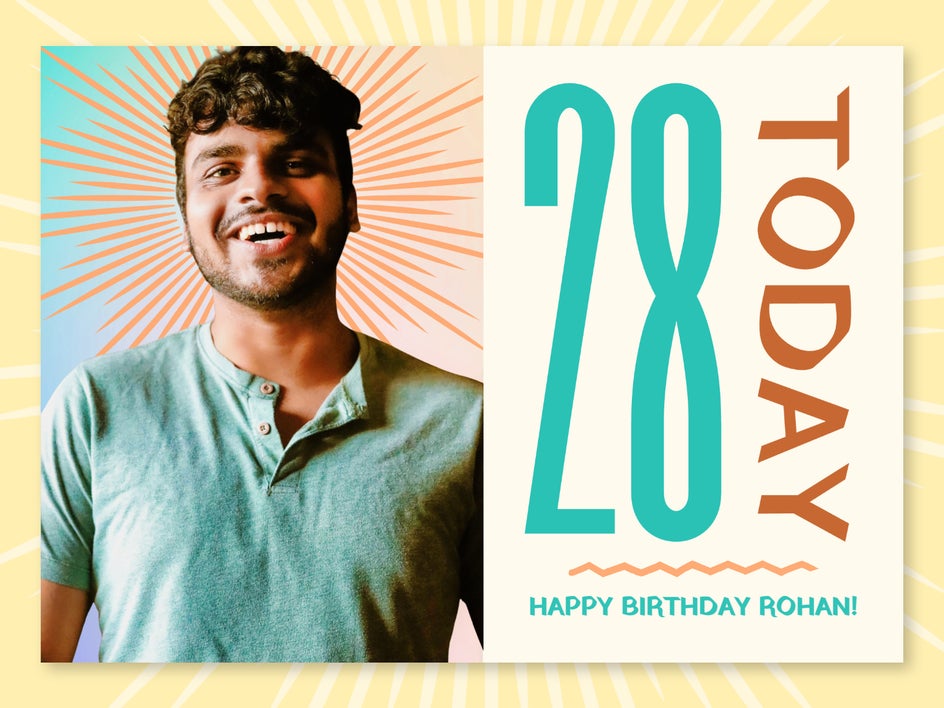
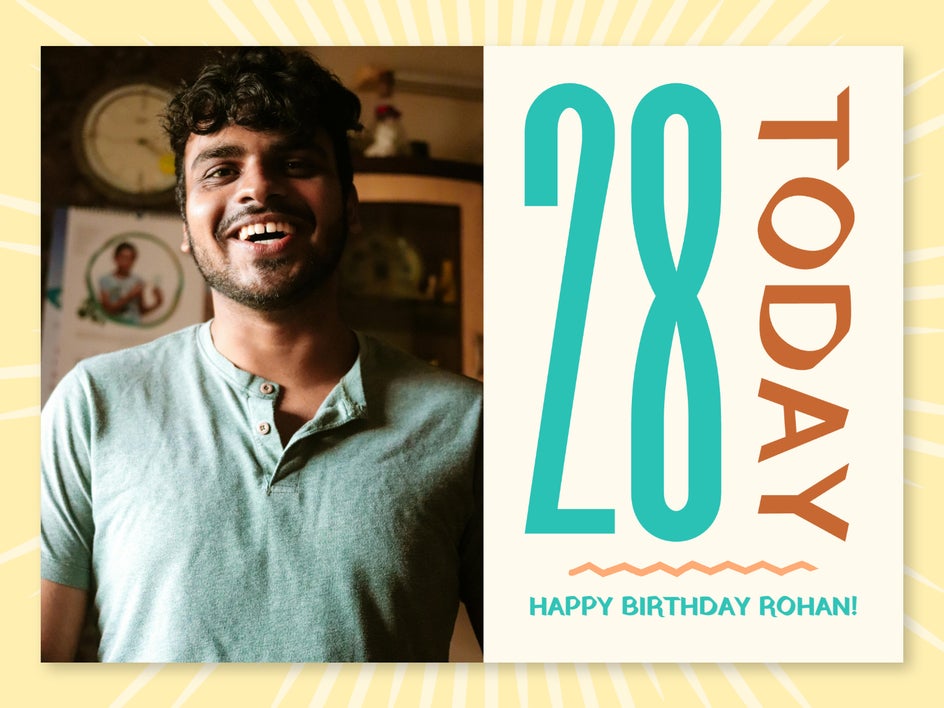
The Photo Editor offers plenty of photo editing essentials. These are great for enhancing a photo, especially when combined – but for portraits, you can cut down on steps by simply using the AI Portrait Enhancer. Not only does this tool adjust lighting and color instantly, it also brightens eyes, whitens teeth, and smooths skin for a more flattering but realistic portrait.
Now we’ll replace the busy background using the Background Remover. Choose from the featured background images or browse thousands of other options in our Stock Image Library.
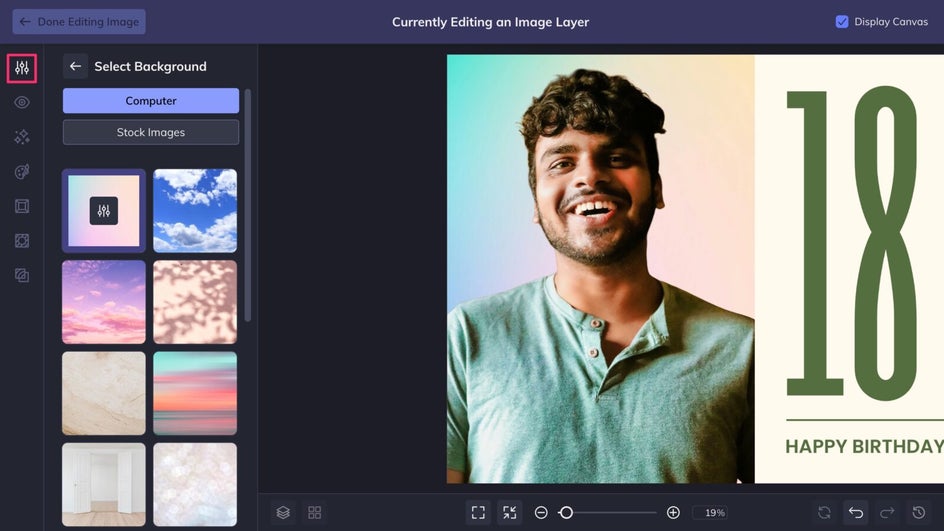
Finally, a toning filter like Warm Tones 3 helps to boost specific colors in a photo and make it more balanced.
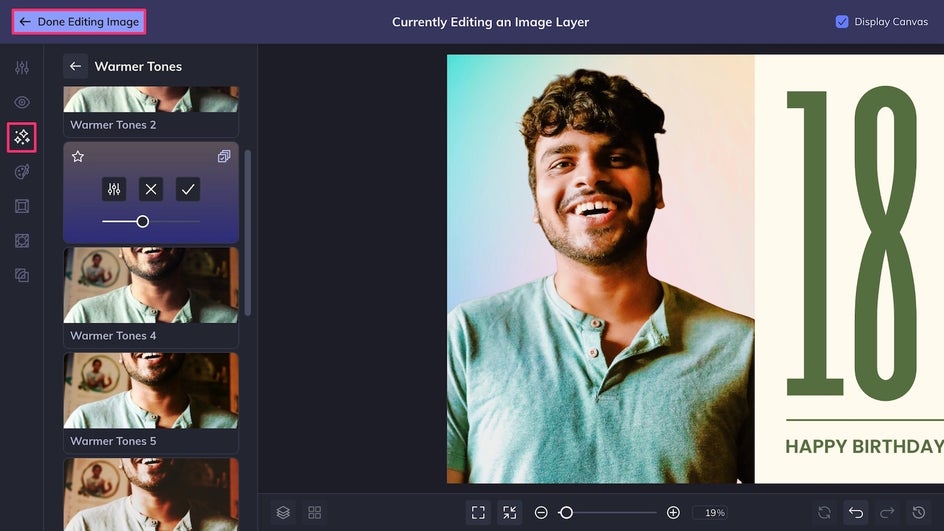
The Photo Editor has many other features to explore, from overlays to textures to frames – feel free to experiment with different combinations of tools! Once you’re satisfied with all the adjustments, click Done Editing Image to seamlessly return to your design.
Step 3: Customize Your Design and Save!
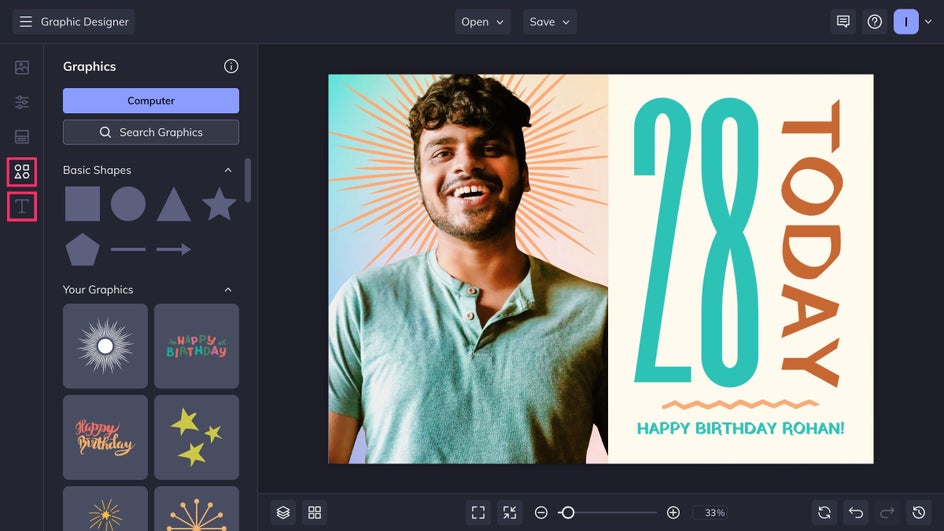
Now it’s time to get creative with the rest of your birthday card design. Change up the background color in the Customize tab if needed, then add graphics from the Graphics tab and change up fonts in the Text tab. Don’t forget to customize the name and, if necessary, the personal message.
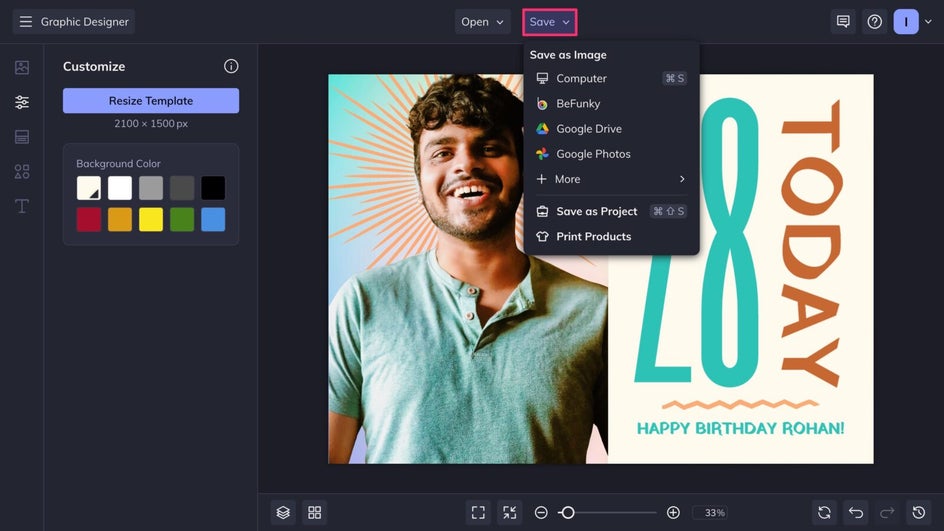
Finally, it’s time to Save our custom birthday card! Export the file as a PDF to print on cardstock at home, or a high-quality PNG for digital sharing. You can also send the design to Zazzle directly from the Card Maker to have it printed professionally.
And that’s it! While a card like this only takes a few minutes to make, it’s a truly heartfelt gesture that the birthday celebrant is sure to cherish.
Creative Birthday Card Inspiration
With the combined power of the Card Maker and Photo Editor, generic birthday cards are a thing of the past. Layer tools, filters, and effects to give your photos a unique aesthetic, then customize the template to create a standout birthday card every time. Here are some ideas to help you get started:
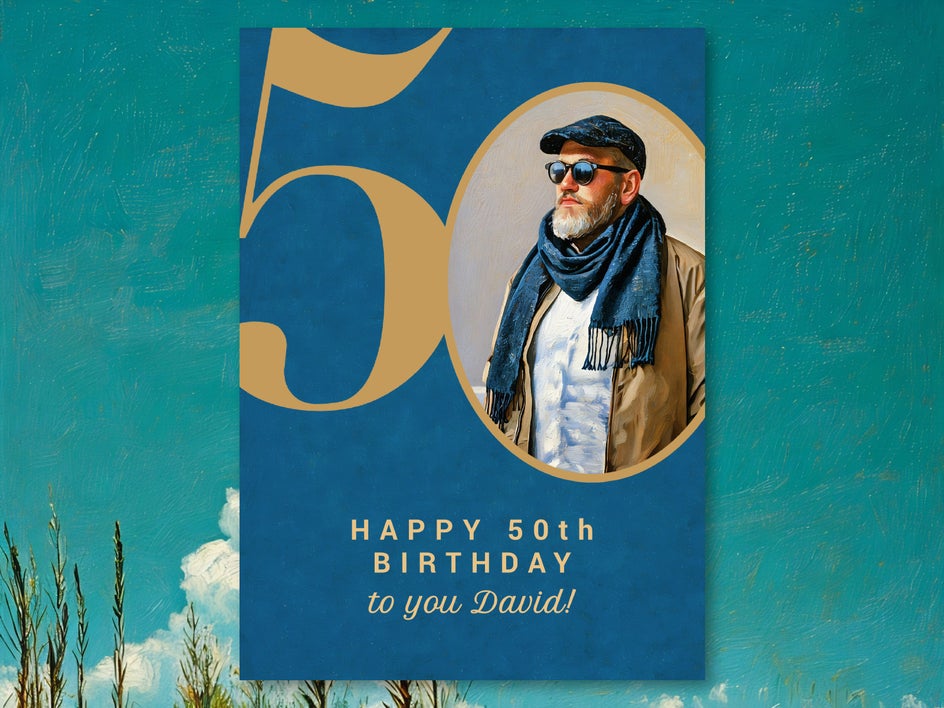
Textured Painting
Infuse your photo with color and texture using a painted Artsy effect. Choose from painting mediums like oil, watercolor, and gouache, as well as styles like impressionist and impasto. This particular example uses Oil Painting GFX.
Multimedia Collage
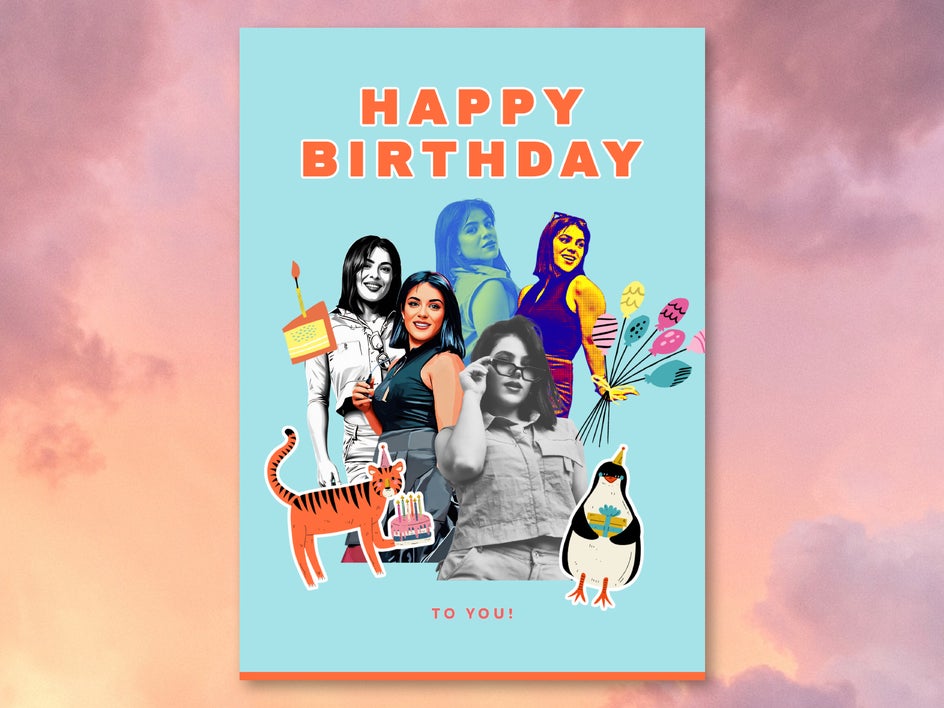
Combine a variety of effects like Pop Art, Sketcher, and Black & White effects with the Cutout tool to create a stunning pop art collage birthday card. This card also doubles as a work of art that the recipient can hang on their wall!
Vintage Polaroid
Layer Light Leak textures with a Polaroid-style frame and the Film Grain effect to recreate this classic instant camera look. It’s the perfect birthday card for someone who loves a retro aesthetic.

Make a Birthday Card to Remember With Creative Photo Edits
Whether you’re making a kids’ birthday card or a birthday card for adults, celebrating a big milestone or simply marking another year around the sun, BeFunky has a a birthday card template for everyone. And now that you know how to elevate an online card template with photo edits, you’ll never have to settle for a store-bought birthday card again. Show just how much you care and create a more memorable birthday card today with the Birthday Card Maker!




