Design Standout Twitter Posts With These Photo Editing Tools

The research is clear: Tweets with images get more likes, retweets, and replies. And a consistent visual style is one of the best ways to boost your social media presence over time. But to stay on top of an endless Twitter feed, you need to post images that are unique, appealing, and on-brand – regularly, if not daily. That’s a tall order!
This is where BeFunky’s Twitter templates come in. Whether you’re sharing a blog post, promoting an upcoming event, or establishing your brand, these ready-made post and header designs make it easy to create stand-out graphics fast.
One of the best parts about using the BeFunky for your Twitter posts and headers is that you can unlock a full suite of creative editing tools without ever leaving your design. It’s the best of both worlds – the design flexibility of the Graphic Designer with the powerful photo editing tools of the Photo Editor, all in one place.
In this article, we’ll show you how to make the most of BeFunky’s templates and tools, boosting your Twitter account with more creative visuals. From painting effects to AI image enhancements, combining the Graphic Designer with the Photo Editor is a surefire way to attract more online engagement.
How to Quickly Edit Template Photos
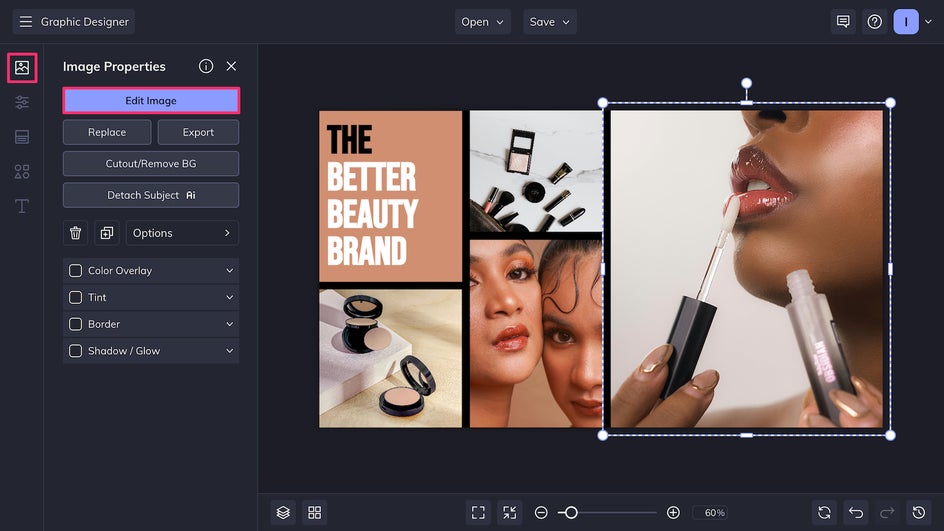
Editing photos directly from a BeFunky template is super simple. Once you’ve opened up your Twitter template in the Graphic Designer and replaced the placeholder images, click on the photo you’d like to edit. Select Edit Image to be brought straight to the in-platform Photo Editor.
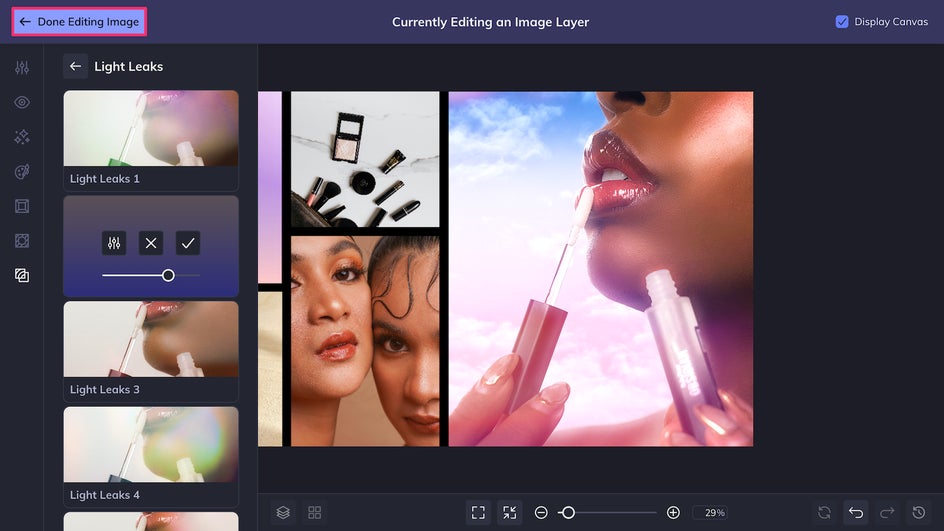
Here, you can make all the changes you need – adjust exposure, add effects, layer textures, apply filters, and more. In this example we’re using the Vibrance and Glow tools as well as the Sky Replacer. Once you’re satisfied with your edits, click Done Editing Image to pop right back into the Designer. No need to switch tabs or jump from platform to platform – it’s that simple! Now you can get even more creative with your Twitter images to extend your reach, engagement, and replies.
5 Photo Editor Tools to Make Your Twitter Posts Pop
Here are five creative Photo Editor features that pair perfectly with BeFunky’s Twitter post and header templates. They’re quick to apply but pack a big visual punch, so that you can get more eyes on your tweets in less time.
1. Instantly Brighten With AI Image Enhancer
When your image looks a little dull, low-contrast, or is just missing that special spark, the AI Image Enhancer is the fastest way to fix it. This intelligent photo editing tool automatically adjusts exposure, sharpness, and color vibrancy in a single click.


Try the AI Image Enhancer on product photos that look too flat, event or travel snapshots with poor lighting, and mobile photos that need a boost before tweeting. Use it on posts to make them more consistent or apply it to your header image to improve your overall brand. You can also use the AI Portrait Enhancer to improve portraits and selfies specifically, adding a smooth look and natural glow to faces without going overboard.
2. Transform the Mood With the Sky Replacer
Whether you're tweeting out vacation photos, property listings, or editorial photos, a gray sky can drag the whole image down. The Sky Replacer swaps in a vibrant, high-res sky in seconds – no masking or complex layering required.
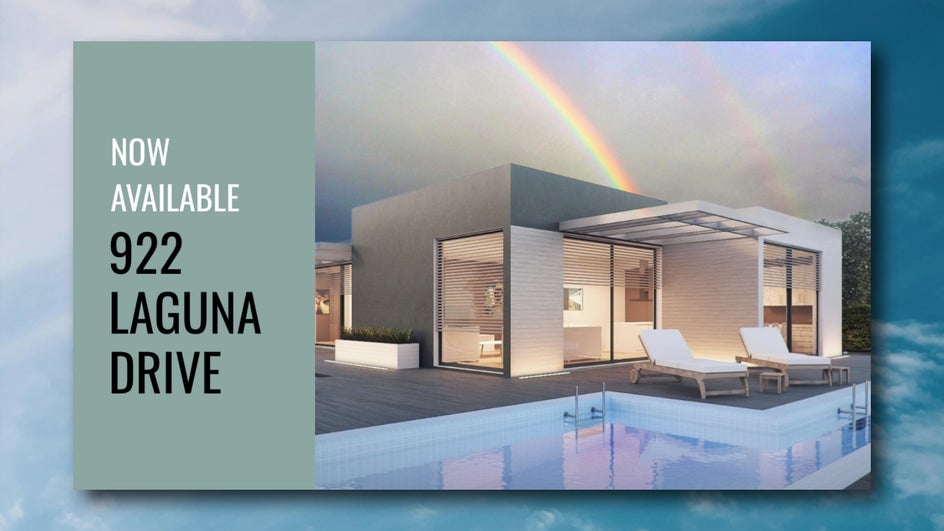
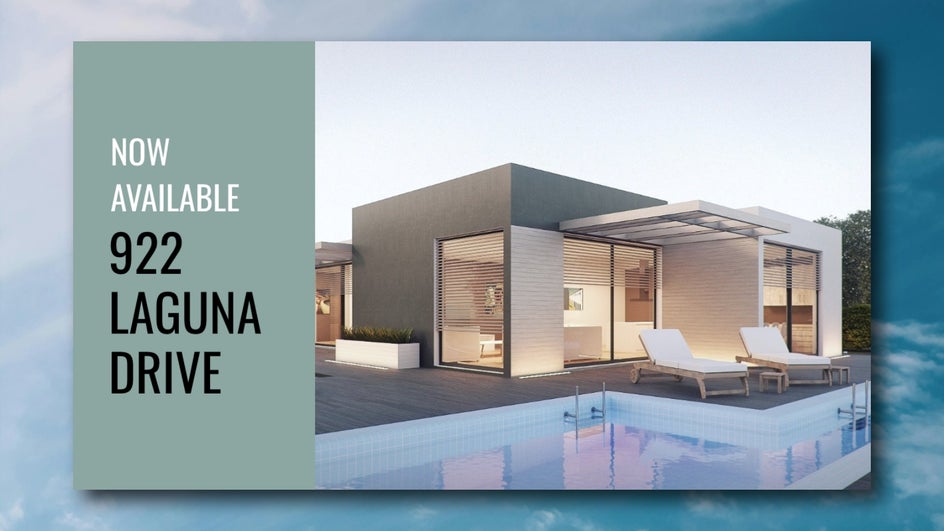
Choose from sunny blue skies, dramatic sunsets, starry nights, or even upload your own sky photos. This tool is particularly useful if you’re running an account for a travel brand, real estate agency, outdoor businesses, or lifestyle brand. Here’s a quick tutorial on how to use the Sky Replacer to elevate your Twitter images.
3. Get Creative With Artsy Effects
If you want to create a tweet that grabs people’s attention, there’s no better tool to use than Artsy effects. These AI-powered filters turn any regular photo into a full-blown work of art. Turn landscape photos into watercolor or oil paintings, portraits into pop art–inspired graphics, and product photos into elegant sketches or ink illustrations. It’s a powerful way to make your content stand out while reinforcing a unique visual identity. Combine with bold headlines or quotes in your Twitter template for maximum impact. The example below uses the Pop Comic GFX effect.
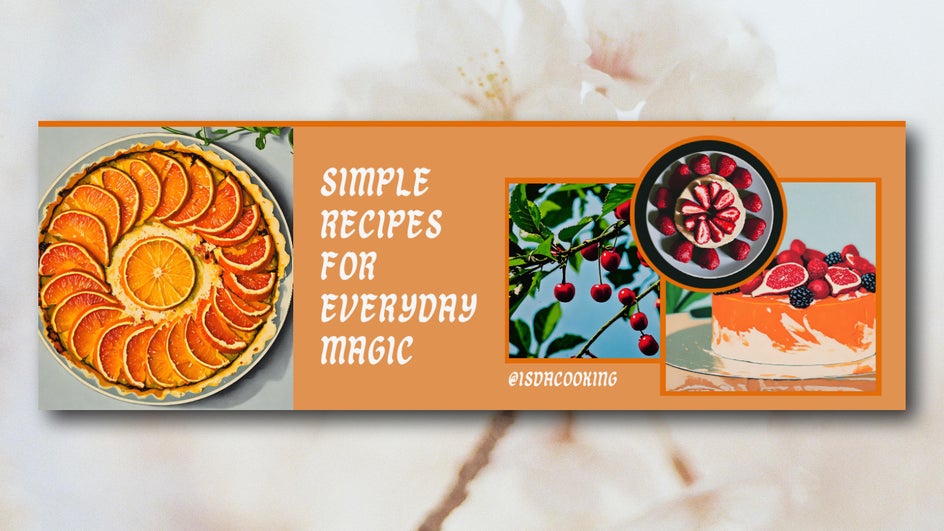
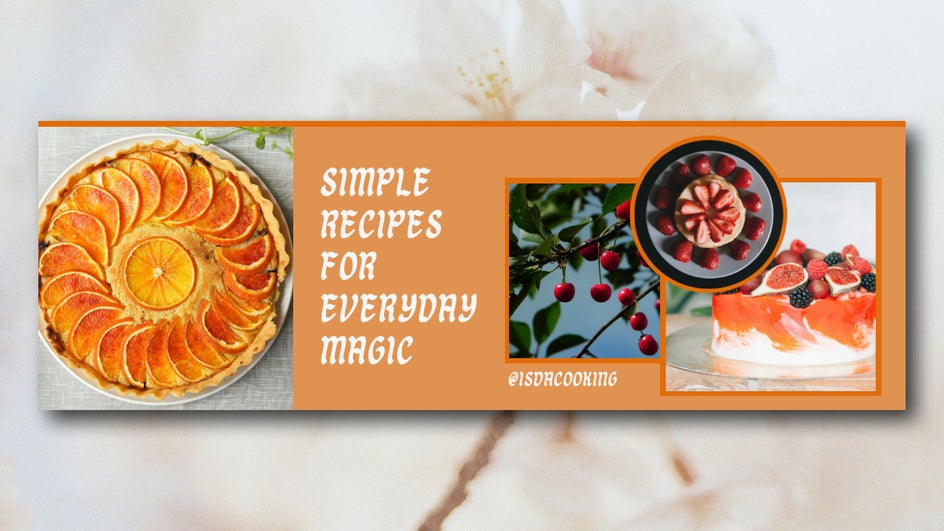
To make your Twitter account even more unique, try using a matching Artsy effect for both your header and profile picture. Here we’ve put together some creative inspo for using Artsy effects with other Photo Editor tools to elevate your social media profile pictures.
4. Stay On Brand With Color Grading
Want to make sure your tweets are instantly recognizable? Use the Color Grading and Color Mixer tools to tweak tones, balance temperature, and apply consistent tints to your photos to maintain a unified aesthetic. Try using cooler tones for a clean, techy feel, or increase the warmth across all your posts for hospitality or food content. You can even make adjustments to bring out your specific brand colors.


A well-graded image will blend seamlessly into your color story and help you build up brand awareness over time, whether that brand is personal or corporate.
5. Spark Interest With Lens Flares
Catch people’s eye with a Lens Flare effect added to landscape shots, aesthetic portraits, and product photos. Choose between warm, natural sunbeams, cool futuristic lighting, and editorial style camera flashes. Then, adjust the lens flare to your desired intensity and place it where it will have the most visual impact – by your subject, against a light source, or even along the edge of the photo for a subtle glow effect. Adding a Simple lens flare to this Twitter header adds a new level of intrigue and appeal.


If you’re looking to truly stand out on Twitter, here are a few more creative ways to utilize lens flares in your photography.
Start Designing Smarter Tweets Today
With BeFunky, you don’t have to choose between efficient design and creative control. Combining Twitter post and header templates with the powerful tools in the Photo Editor gives you both, making it simple to create standout content in minutes. Whether you're a social media manager, small business owner, or just someone who wants a more beautiful Twitter feed, these tools are here to help your posts and headers look their best. Get more creative with your Twitter templates today in the Graphic Designer!