The Best Templates for Your Twitter Posts

Have you ever wondered how to make your Twitter content stand out on a never-ending feed? Long gone are the days when short, text-only tweets were enough to grab people’s attention. These days, if you want to raise brand awareness, promote a new product, or spread the word about your latest content, visuals matter.
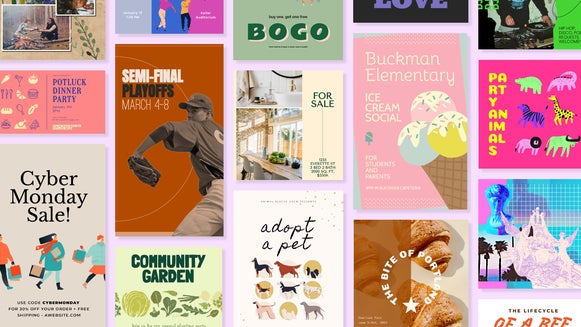
This is where BeFunky’s Twitter post templates come in. These templates are created by professional graphic designers to ensure that your Twitter content is visually appealing and engaging – while also saving you hours of time. Pick from dozens of different styles and change as much or as little as you want using the Graphic Designer’s full suite of graphics, stock images, and photo editing tools.
Whether you’re an influencer, small business owner, social media marketing manager, or simply looking to build your personal brand, BeFunky’s editable Twitter post templates are the perfect way to create better content, faster. In this article, we’ll show you exactly how to use them to give your Twitter presence a boost.
Smart Ways to Use BeFunky’s Twitter Templates
No matter what your goal is with your tweets, you can find a BeFunky template to suit it. Simply change out the imagery, text, and colors as needed. You can also combine any template with BeFunky’s other powerful tools to make your post even more impactful. Here are just some of our favorite ways to use Twitter post templates for marketing, content creation, and brand awareness:
Product Spotlights & Promotions
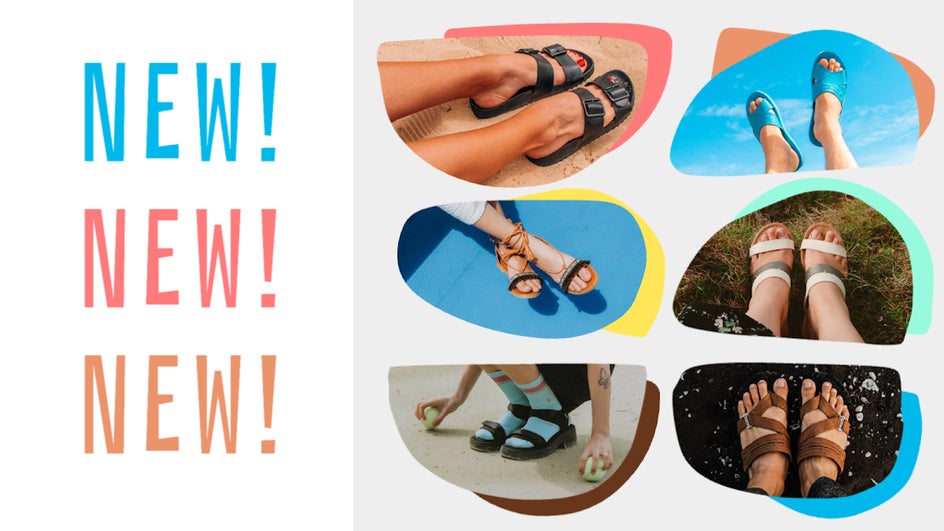
Launching something new? Announcing a sale? Our product-centric Twitter templates are ideal for showcasing your lineup in a clean, visual-first format. To make your product photos stand out even more, try using the AI Image Enhancer, a one-click photo editing tool accessible right from the Graphic Designer.
Quotes & Testimonials
Looking to feature a customer review or amplify a memorable tweet? Use one of our clean, text-forward templates designed specifically for sharing quotes. This style of template is perfect for increasing brand trust over time.
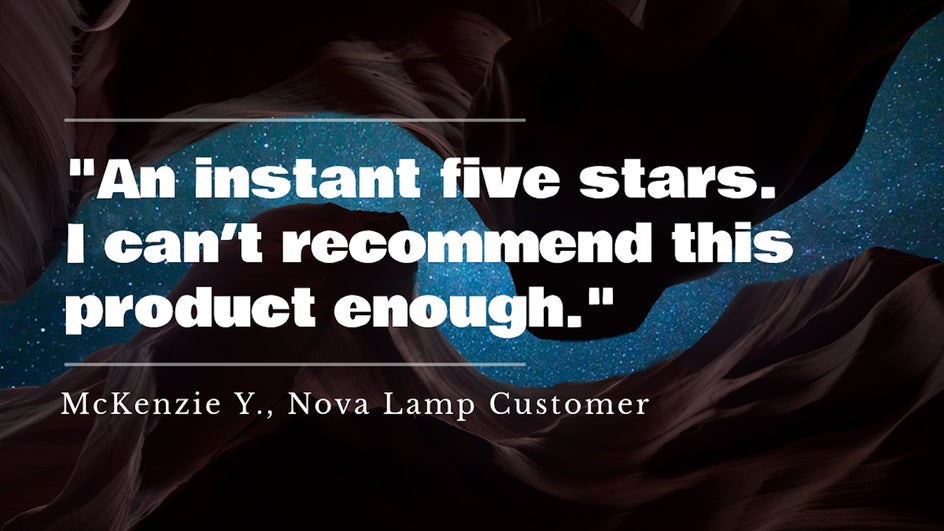
BeFunky’s Text Editor makes it easy to add brand fonts, bold important words, and highlight key phrases. Try a free stock photo as the background or add graphics to maximize visual interest.
Announcements & Events
Our Twitter announcement templates make it easy to keep your audience informed and excited about upcoming workshops and events. Don’t forget to use background and text colors that match your brand color palette. If your announcement features a headshot or portrait, try out the Portrait Enhancer to perfect the final image.

Educational Tips & Threads
Twitter threads with value-packed advice are one of the best ways to grow your engagement. Start your threads off strong and grab attention with a branded cover graphic using one of our Twitter templates designed for tips and insights. Want to go further? Create visuals for each tip and use the Batch Photo Editor to resize or filter multiple images at once before you drop them into your thread.

How to Customize a Twitter Post Template
Designing with BeFunky’s templates is refreshingly simple – whether or not you’re an expert in graphic design. Here’s how to take any of the Graphic Designer’s Twitter post templates and make it your own in just a few clicks:
Step 1: Choose Your Twitter Template
Open up the Graphic Designer to browse all design templates. Navigate to Social Media > Twitter Posts on the left-hand side to find the Twitter post template options.
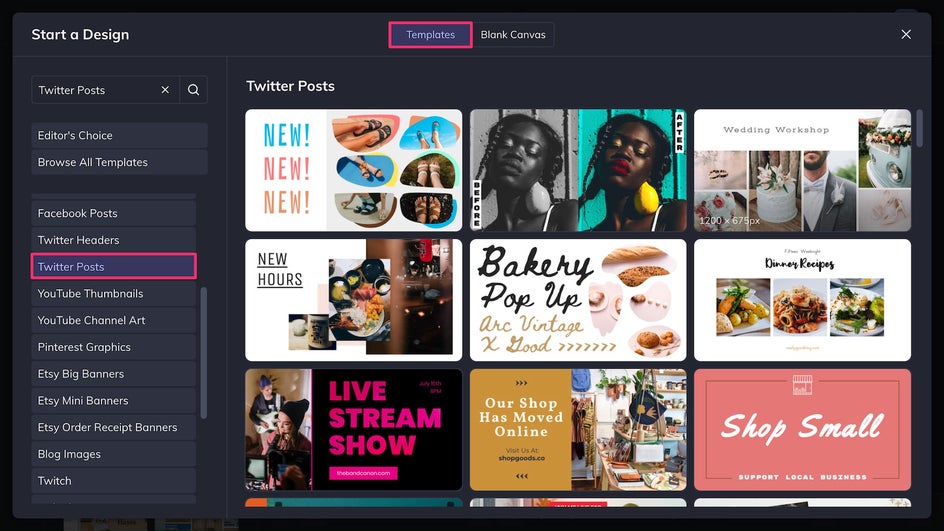
Pick a template that has the right balance of text and imagery for your needs – for instance, if you’re promoting a new product, consider a collage-style template; if you’re making an announcement, choose a template with large, bold text.
Step 2: Replace and Edit Imagery
Next upload the photos you want to use to the Image Manager. Click any existing image in the template to replace it with your own, or just drag and drop directly from the Image Manager.
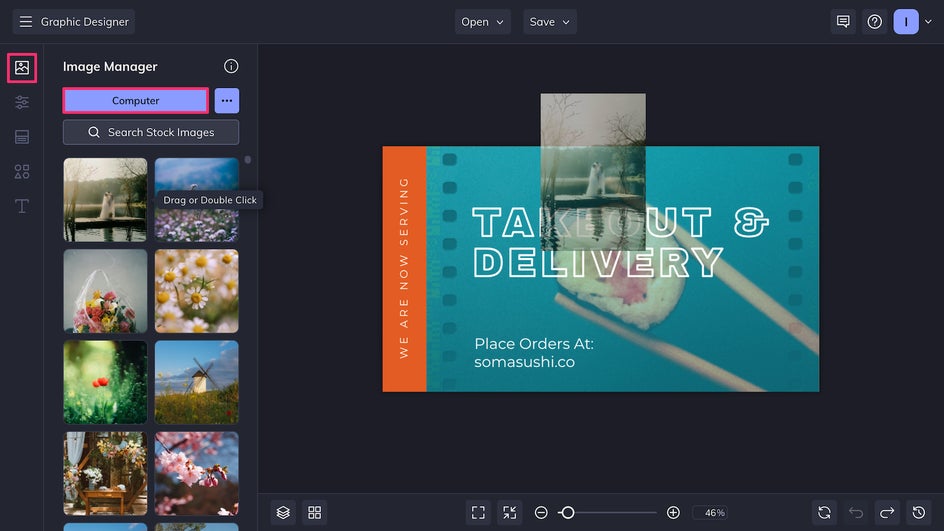
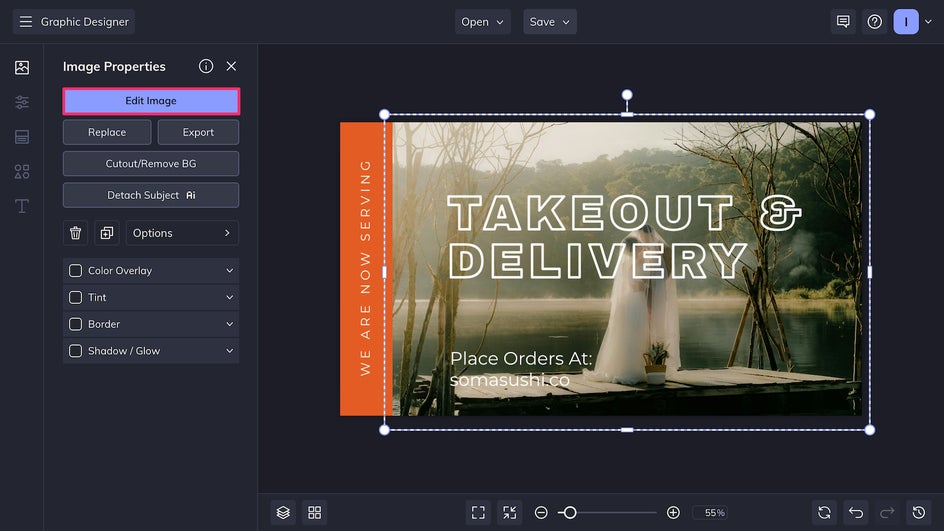
Once your images are in place, you can click any photo and choose Edit This Image to be brought to the in-platform Photo Editor.
Here you can fine-tune contrast, apply unique effects, add texture, remove clutter, and more. Here we’re using the one-click AI Image Enhancer to add balance and vibrance to our image.
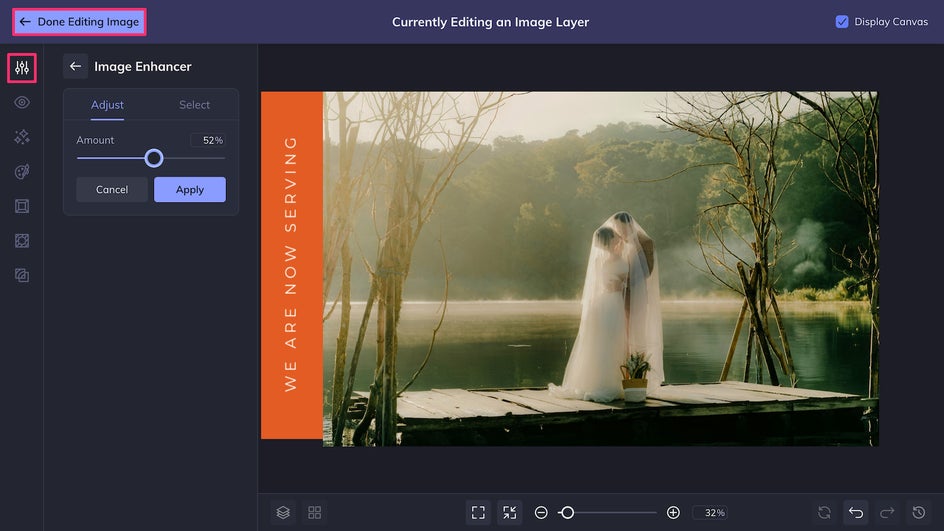
Once you’re finished making edits, just click Done Editing Image at the top of the canvas to return to the Graphic Designer.
Step 3: Edit Colors, Text, and Graphics
Once you’re satisfied with your photo edits, return to the Graphic Designer and head on over to the Customize tab to update the canvas background color. You can also click on any graphic or text element to change its color. The Color Picker lets you match hex codes exactly and even save colors to your library so that you can stay perfectly on-brand.
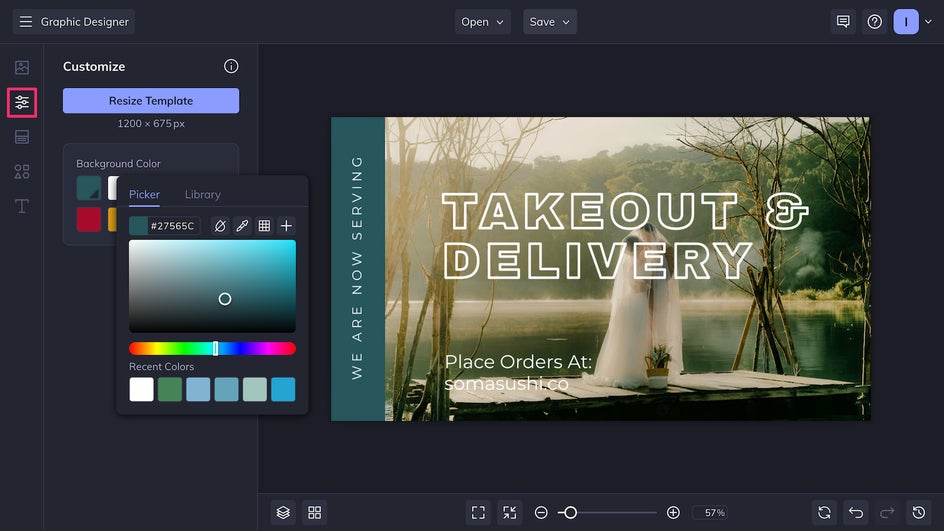
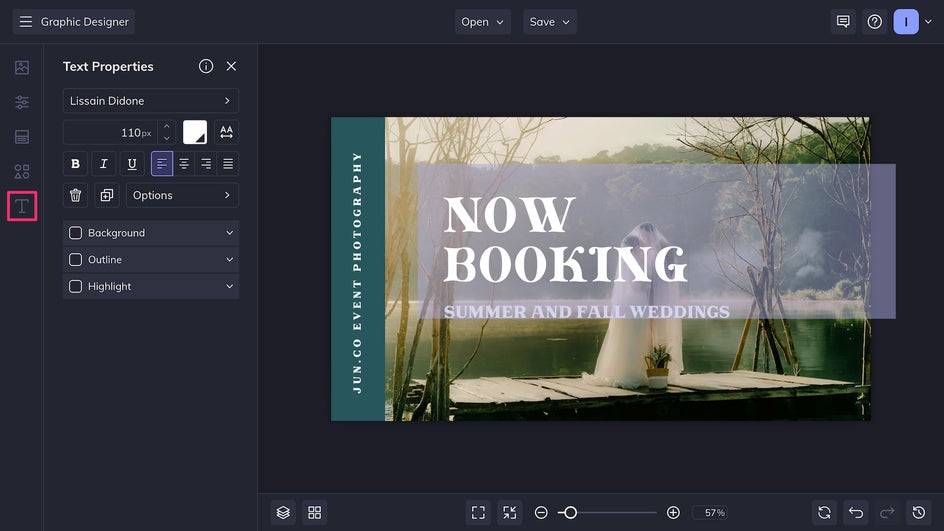
Click on any text box to replace the content and change the font, size, spacing, and color.
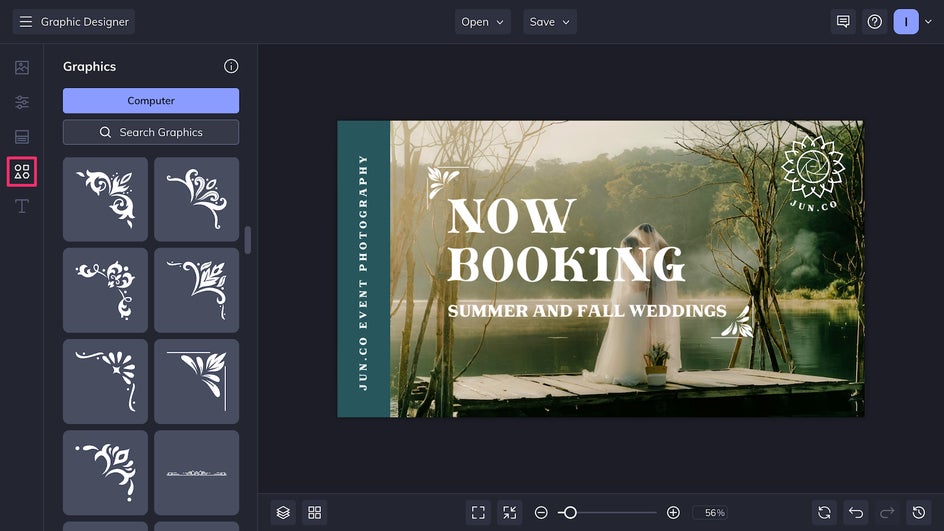
Add or replace existing design elements with vector graphics from the Graphics tab, or use your own business logo to personalize the design.
Step 4: Save and Tweet
Finally, Save your design using the button at the top of the canvas. You can save the image to your device or post it directly to Twitter.
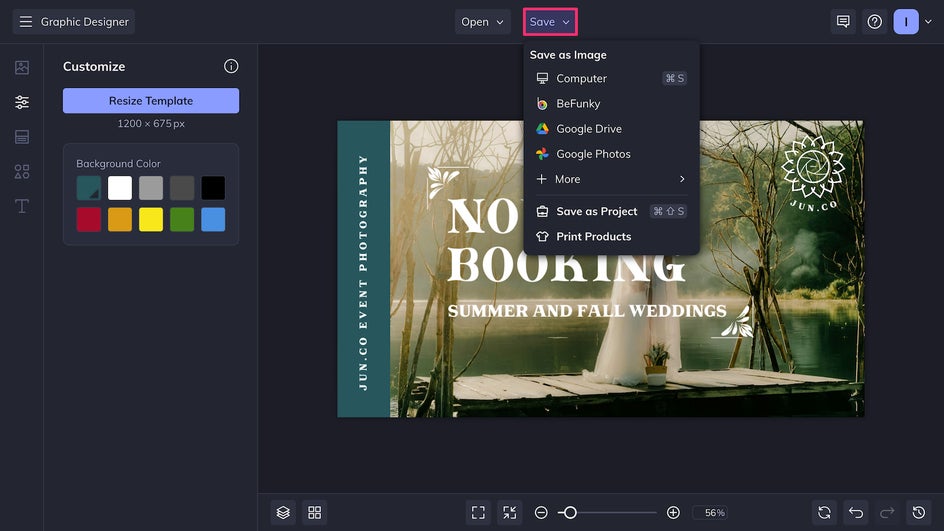
And that’s it – in just a few minutes you’ve got a stunning custom Twitter graphic that’s sure to stand out on anyone’s feed.
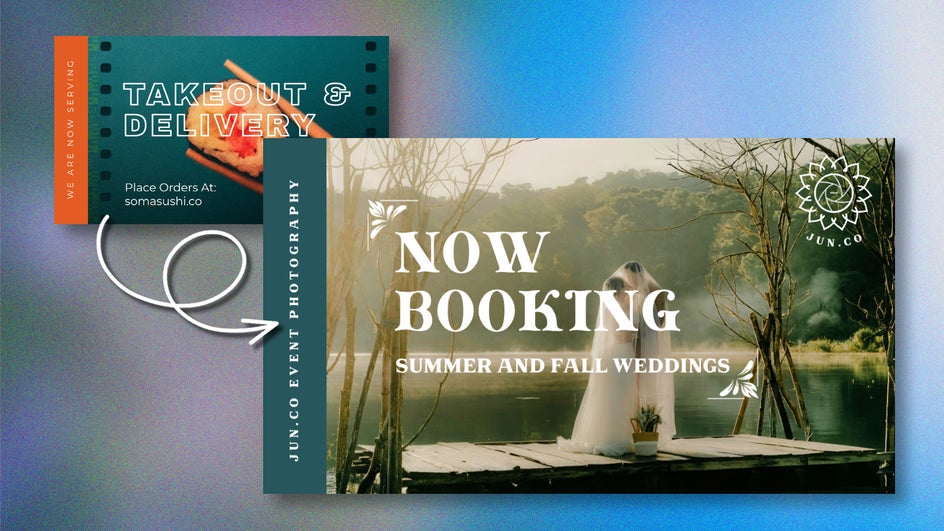
Ready to Design Your Next Scroll-Stopping Tweet?
Twitter is a great website to build your personal brand, promote a small business, run a marketing campaign, or simply get more visibility for your ideas – if you can get enough engagement. And with the Graphic Designer’s Twitter templates, you can ensure that your content is appealing, consistent, and compelling. Get better online engagement faster – customize your first Twitter post template today!