Create Twitter Headers That Speak For You
Twitter has always been unique among social media platforms for its bite-sized posts and strict character limits. Twitter bios, for instance, are capped at 160 characters, which is an average of 15-30 words. That doesn’t leave a lot of room to explain who you are or what you have to offer! Since the bio is one of the first things people see when they look at your Twitter profile, it’s important to make those few words count. But there’s also a workaround to the 160-character limit: Creating a text-based design to use as a Twitter header image.
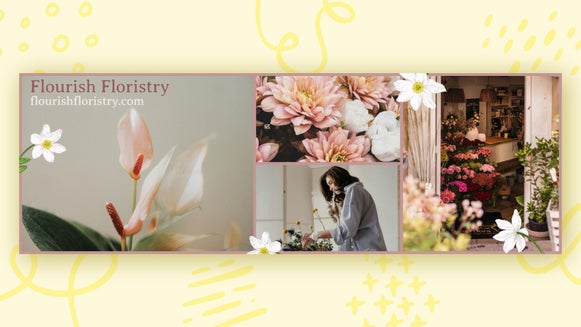
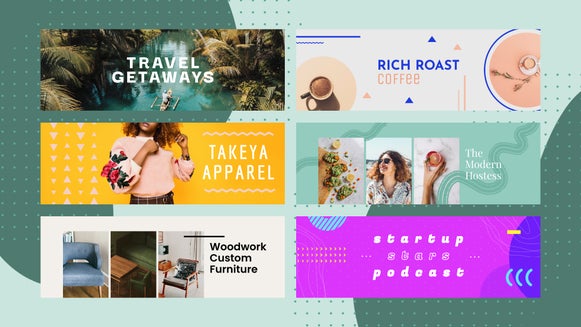
Most people simply use a photo or illustration for their Twitter banner and call it a day. What they don’t realize is that the banner offers up to 1500x500 px of additional space to share URLs, mission statements, upcoming promotions, and more. With BeFunky’s customizable Twitter Header templates, it’s possible to design an attractive typographic header in minutes right from your browser. This way, users get the most relevant information about you or your brand without having to scroll down. Convenience is key when attracting new followers!
In addition to professionally designed templates for Twitter headers and posts, the Graphic Designer provides hundreds of fonts, an enormous library of stock images, and tons of hand-drawn vector graphics. In other words, it has everything you need to make the perfect custom header and increase your profile’s appeal in just a few clicks. Here’s how it works!
How to Design a Typographic Twitter Header
If you thought creating a custom Twitter header was a complicated process, think again. Creating a text-based Twitter banner in the Graphic Designer takes just a few seconds.
Step 1: Choose a Twitter Header Template
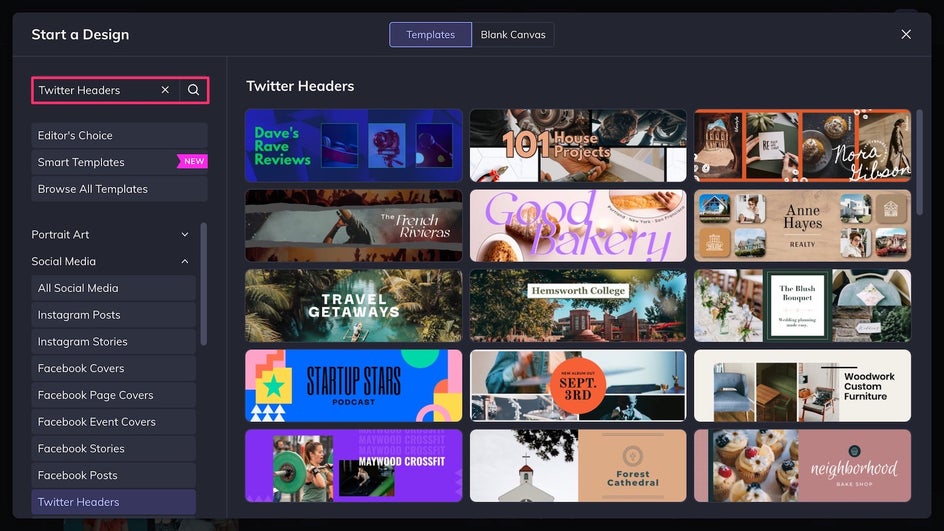
First, open up the Twitter Header template category of the Graphic Designer. These templates are perfectly sized for Twitter, and most already feature text that can be customized as needed. If you plan to put a few lines of information, make sure to choose a template with a simpler background. For short slogans and announcements, you have the option to pick a more complex layout, like one that includes multiple photos.
Step 2: Customize the Text
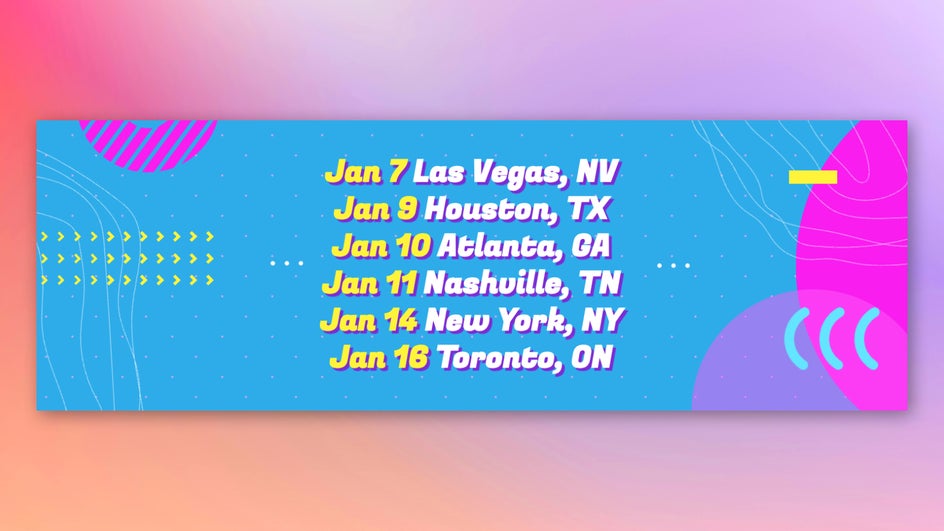
Click on the existing placeholder to text to change it or head to the Text tab to add more text boxes. Here we’re going to be promoting a concert tour with locations and dates. The font, size, color, line height, and spacing can all be easily adjusted depending on your needs. Make sure not to put any text in the lower left corner, as this space overlaps with your Twitter profile picture.
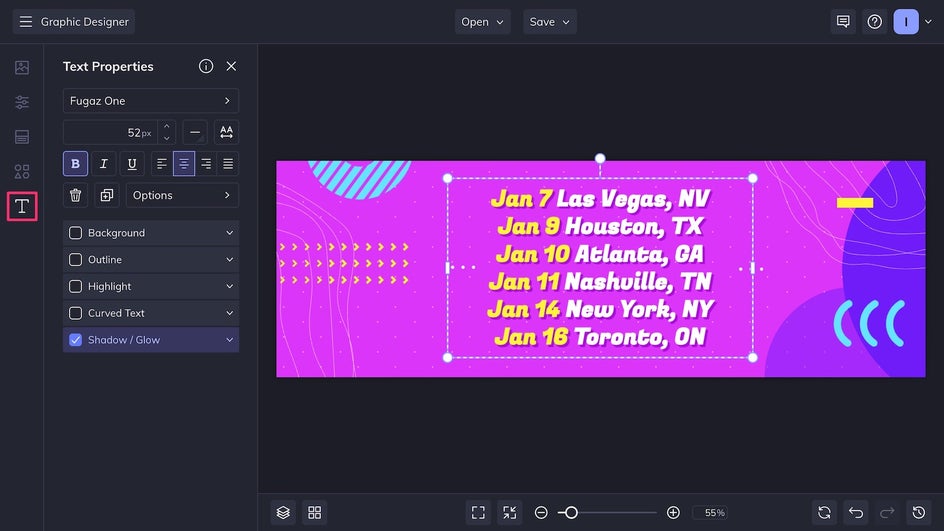
The Text Editor also allows you to change the text style. Mix and match styles for greater contrast, better accessibility, or simply to create a more unique look. Here we’re using a colorful drop shadow with the blur turned all the way down.
Step 3: Finalize Your Design
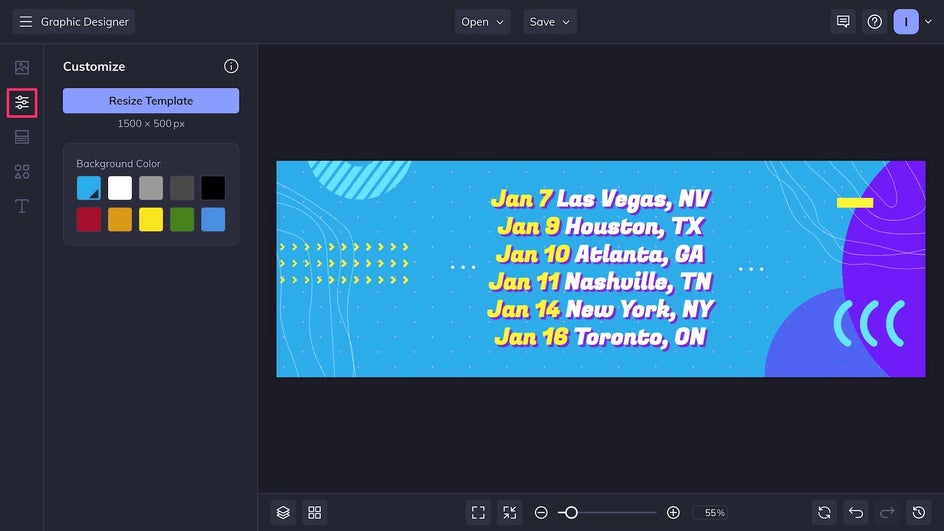
Now it’s time to align the rest of the header design with your brand and aesthetic. The level of customization is up to you – keep it simple with a few key replacements or experiment by adding new fonts, images, and graphics. Here, we’re keeping it simple by changing the background color in the Customize tab.
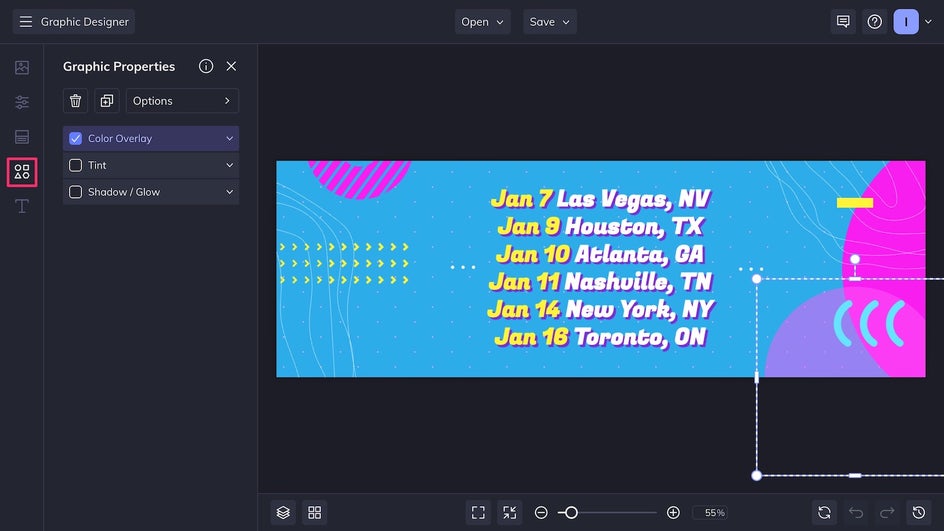
Click on the template’s existing graphics or head to the Graphics tab to add more on-brand assets to your typographic design.
Step 4: Save and Share!
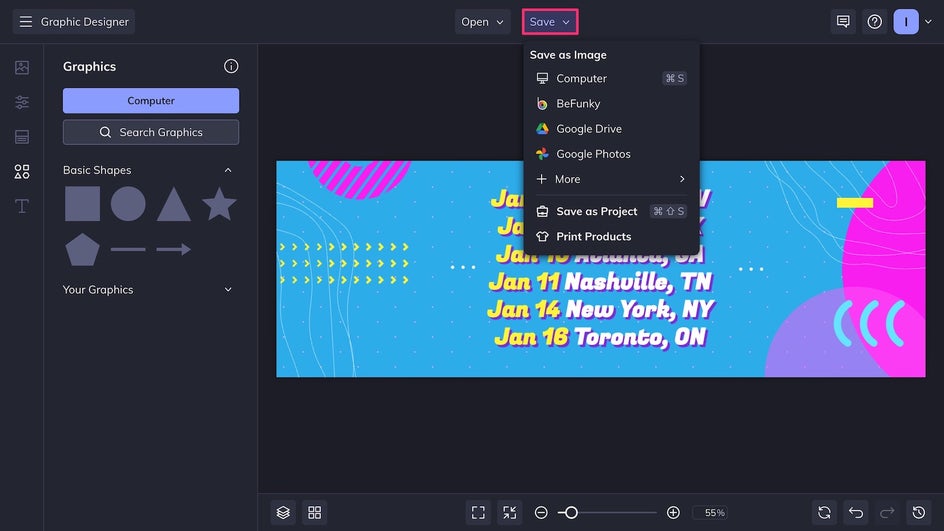
Now that everything matches up with the color palette of this particular tour, our typographic Twitter banner is ready! Click Save at the top of the canvas and export the file as a high-quality PNG for the best resolution across mobile and web.
A Twitter Header That Does More
Thanks to the Graphic Designer’s simple but effective online tools, we were able to create an informative, attention-grabbing Twitter header in just a few minutes. There’s no need to scroll through Tweets or click a link to an external site – just information people want to know, front and center.

The Best Ways to Use Text in Twitter Banners
There are plenty of reasons to add text to a Twitter header. Here are some situations where typographic banners come particularly in handy.
Promotions & Announcements
Twitter headers are often overlooked on brand accounts. But they’re very easy to replace, which means they can be used for seasonal promotions, sale announcements, and upcoming event information. To save time, the Graphic Designer’s Smart Resize tool allows you to easily turn any Twitter post into a header and vice versa!

Contact Information
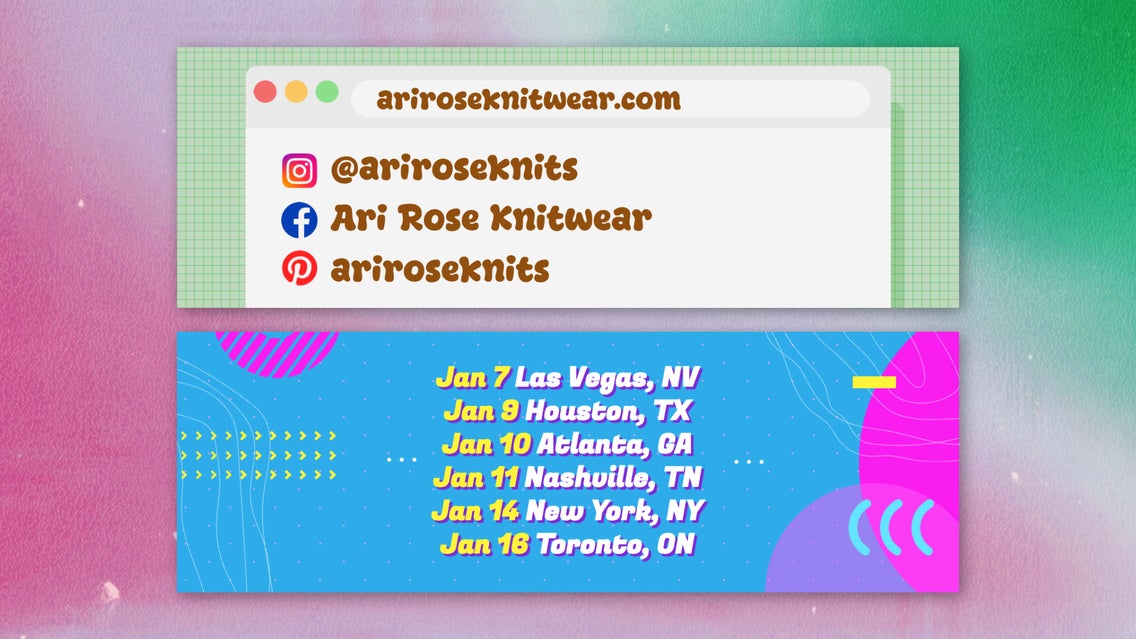
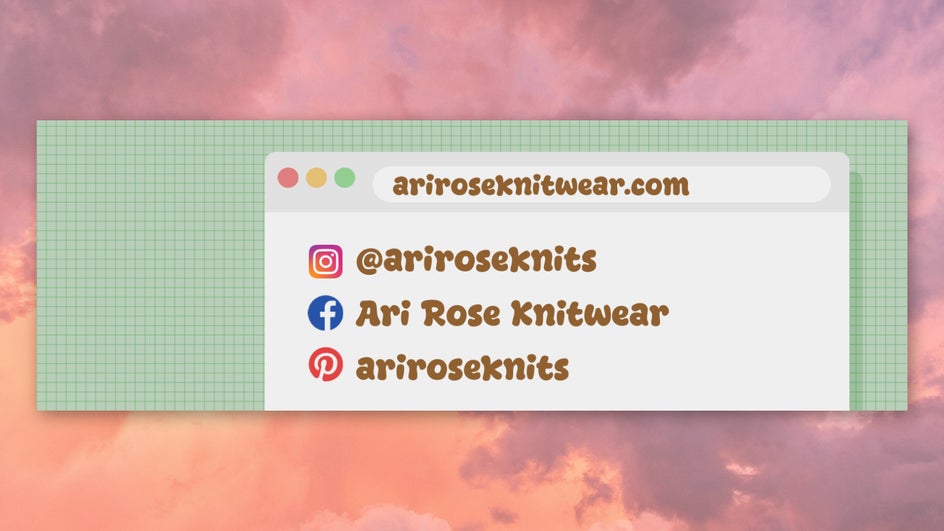
It’s difficult to add URLs, social media handles, and email addresses to a bio or Tweet. To help people understand the best way to get in touch with you, try incorporating contact info into your Twitter banner instead. This is especially useful if you’re more active and responsive on other platforms. For clearer visuals, BeFunky’s Graphics Library provides vector icons of social media logos that you can customize to fit your brand.
Slogans & Mission Statements
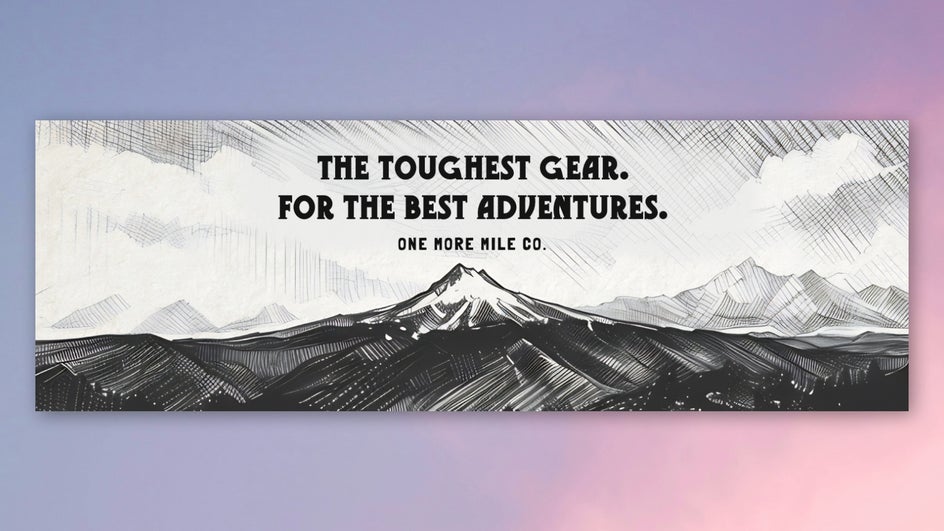
Being direct about values and goals is a great way to build trust between creator and audience or brand and customer. Keep sentences short and to the point, but don’t shy away from talking about what makes your Twitter account special. Try using an Artsy effect to create a painted or sketched background for your text!
Say More With a Custom Twitter Header
A Twitter bio doesn’t offer enough space for announcements or information. A pinned Tweet can only do so much. By adding text to your Twitter banner, you can bypass restrictive character limits and say more in the same amount of space. And with the Graphic Designer, creating a custom banner doesn’t need to be complicated – just choose a template, make a few changes, and you’re ready to go. Do more with your profile and make your own custom Twitter header today!