How To Create Your Own Custom Color Palette

Whether you’re decorating a room, building a brand, styling a photoshoot, or planning a wedding, a cohesive color palette can help bring your creative vision together. One of the biggest benefits of using a custom color palette is consistency. When you’re working across multiple designs, platforms, or collaborators, having a clear set of colors helps everything feel polished and connected.
For example, a wedding color guide can help florists, bakers, and stationery designers coordinate seamlessly. A business color scheme can keep branding cohesive across logos, packaging, websites, and social media graphics. Even interior design projects become easier when you can reference a specific set of colors while shopping for furniture and decor.
With BeFunky’s Color Picker, you can extract exact shades from inspiration photos and turn them into your own custom color palette in minutes. The Color Picker provides HEX color codes, making it simple to reuse your exact colors across future designs. Better yet, the Color Picker can be used throughout BeFunky, including the Photo Editor, Graphic Designer, and Collage Maker, making it easy to apply your colors across all kinds of creative projects.
Instead of relying on generic palettes you find online, you can create something completely personalized to your style, mood, or brand aesthetic. We’ll show you how!
How To Create a Custom Color Palette in BeFunky
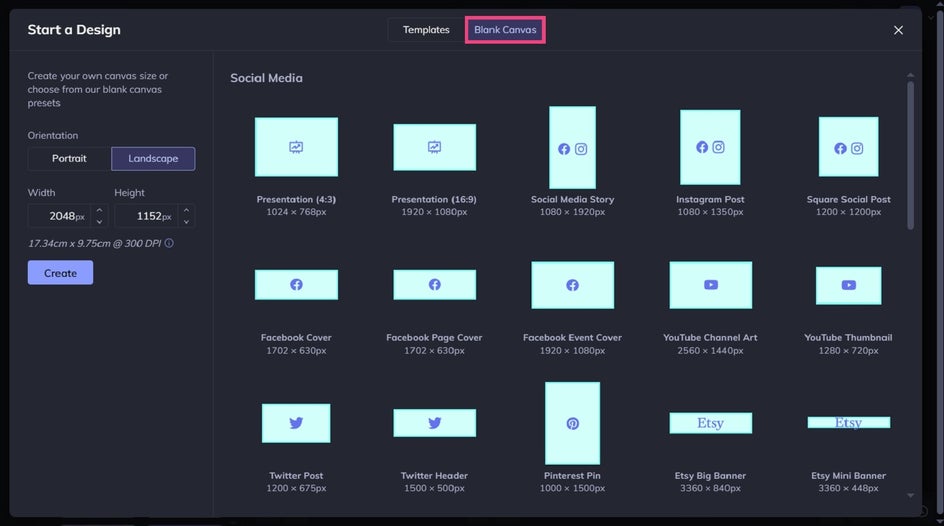
When you’re ready to get creative with color, head to the Designer and choose a Blank Canvas. This will be the background for your moodboard and color palette.
Step 1: Upload Your Images
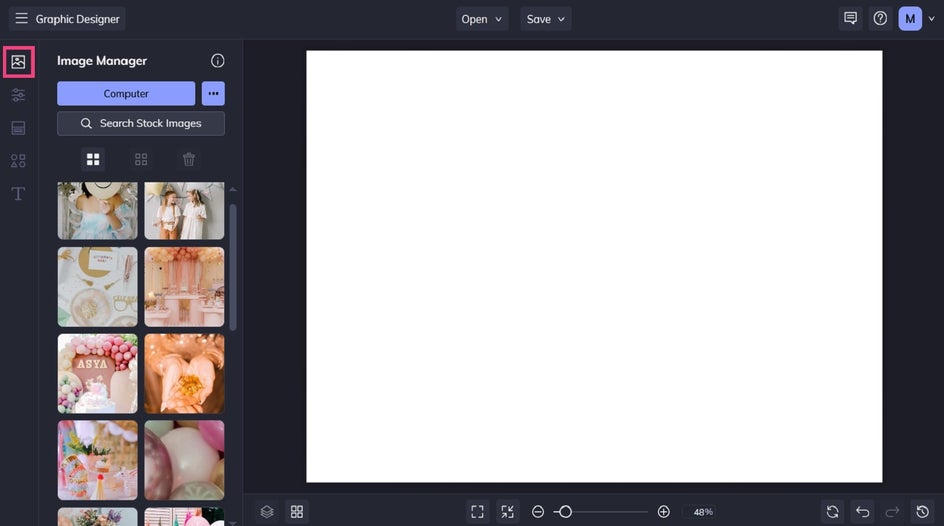
Start by uploading the images which will serve as your color scheme inspiration. To do this, navigate to the Image Manager and either search for imagery in our Stock Photo Library or open your chosen images from your computer.
Once added to your Image Manager, simply drag and drop each image to arrange it on your canvas. Depending on how you want your color palette moodboard to look, you can either leave some space for your color swatches, or fill the entire canvas with imagery and add the color swatches on top.
Step 2: Add Shapes for Color Swatches
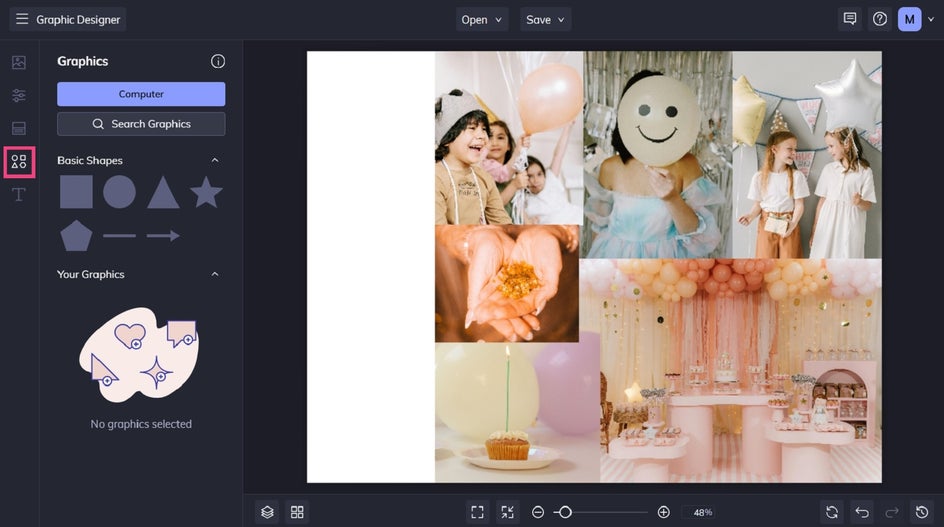
With your imagery in place, it’s time to add some shapes to your moodboard. These will serve as your curated color scheme once filled with your chosen colors.
Navigate to Graphics, and select any of the Basic Shapes. Then, arrange them on your canvas.
Step 3: Choose Your Color Palette
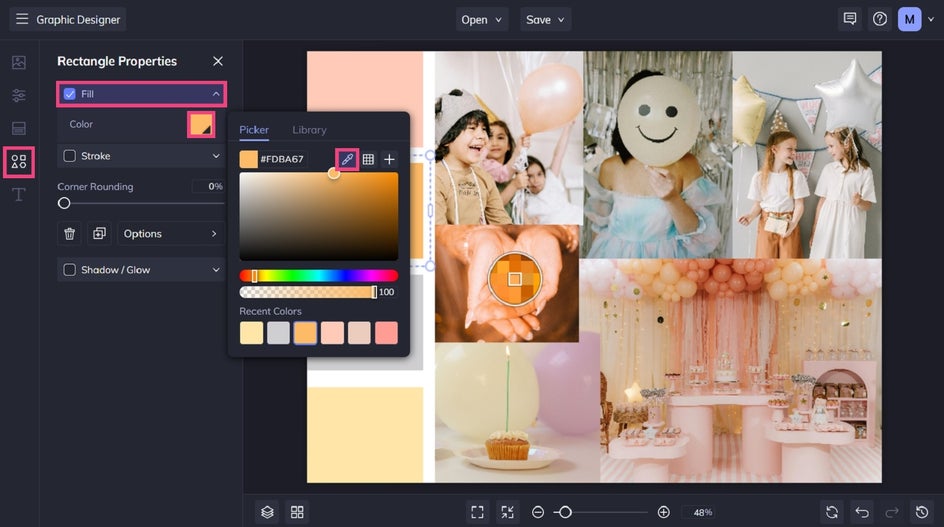
Any time a graphic is selected on your template, a Graphic Properties toolbar will appear. This is where the color magic happens! Click on Fill and use the Eyedropper tool in the Color Picker to select any pixel from any of the photos on your template, and the swatch (or shape) will become that color.
Repeat this process until you’ve got all the inspiring colors you want represented in your color palette.
Step 4: Save Your Custom Color Scheme
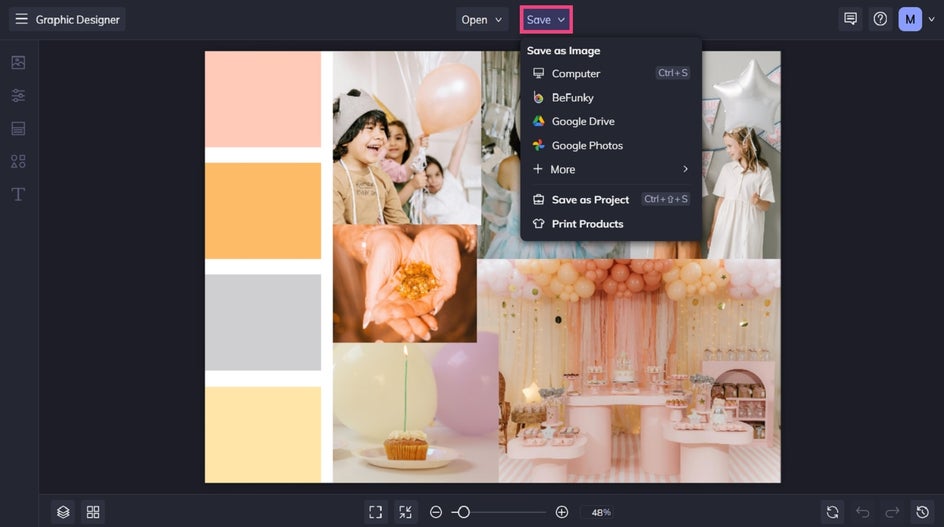
When you’re finished with your color palette, click the Save button at the top of the Designer to save your work to your Computer or other chosen destination.
Want to continue editing your set of colors at a later date, or even re-use your moodboard template for future color schemes? Selecting Save As Project from the save menu saves your project in an editable format to your BeFunky account or as a .BFD file on your computer. This lets you reload it and continue editing as much as you’d like. It’s also super handy for when you need to extract those exact hues again in the future!
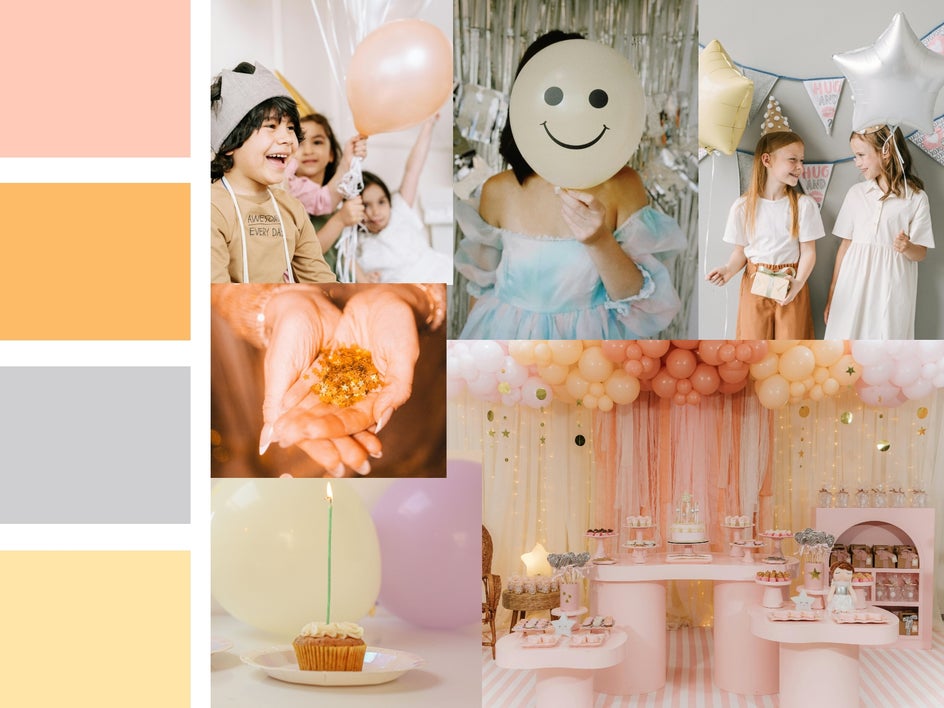
Final Results: Pastel Party Color Inspiration
All it took was a few minutes to gather a custom color palette for a pastel kids’ party. Rather than trawling through online color swatches or opting for generic shades, our Color Picker tool puts you in control of your color scheme – no guesswork required!
Creative Ways To Use a Custom Color Palette
It doesn't matter what creative project you're working on, the Color Picker can help you create a totally custom color scheme to tie your work together. Here are just some of the ways you might consider using your color palette inspiration.
Wedding Planning
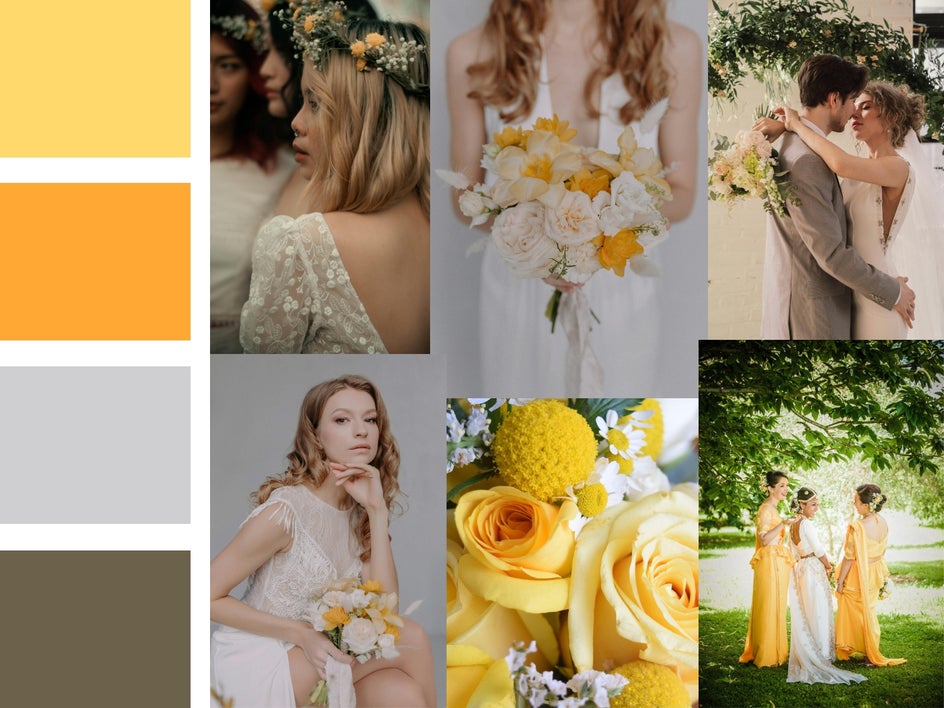
Wedding planning involves countless visual details, from florals and table settings to invitations and signage. Creating a custom wedding color scheme early in the process helps everything feel cohesive from start to finish.
You can even use your palette while designing DIY wedding stationery to ensure every detail stays beautifully coordinated.
Branding a Business
Color plays a huge role in brand recognition and overall visual identity. A thoughtfully chosen palette can help communicate your brand personality while creating consistency across your website, social media graphics, packaging, and marketing materials.
Because the Color Picker provides exact HEX codes for your selected colors, it’s easy to share your palette with graphic designers or collaborators working on your brand assets.
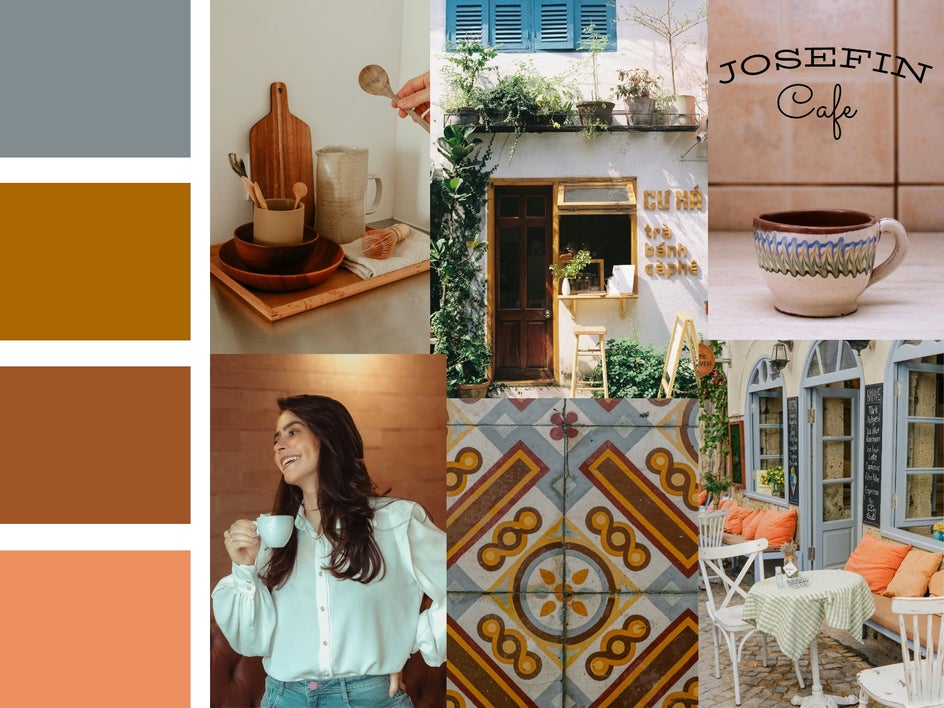
Interior Design Inspiration
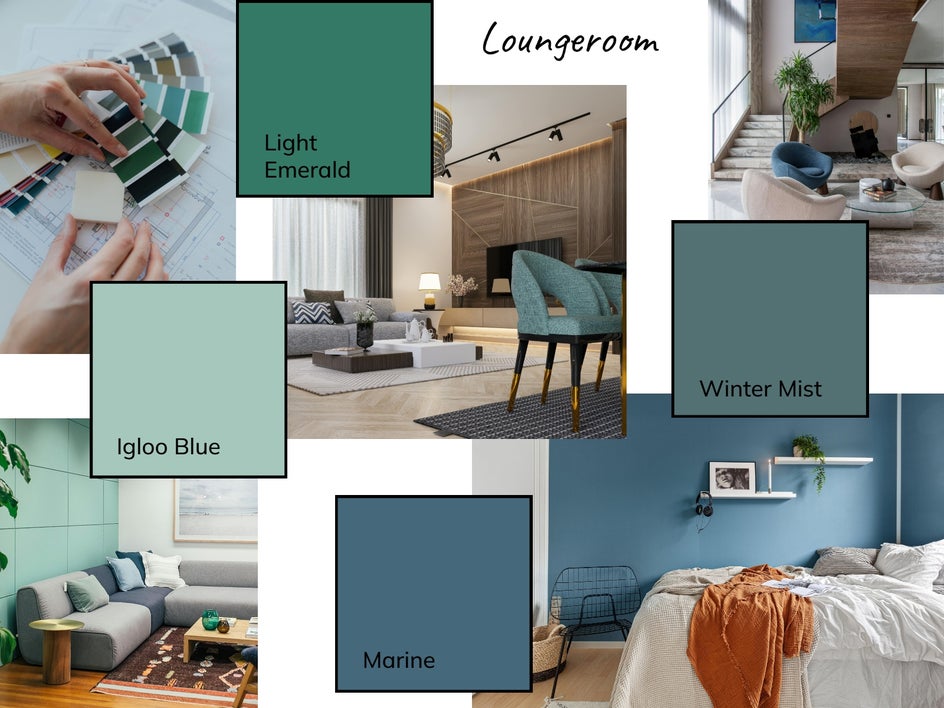
If you’re refreshing a single room or redesigning your entire home, a custom palette can help narrow down your choices and create a more intentional look.
By pulling colors directly from interior inspiration photos, you can build a palette that captures the exact mood you want before shopping for furniture, paint, textiles, or decor.
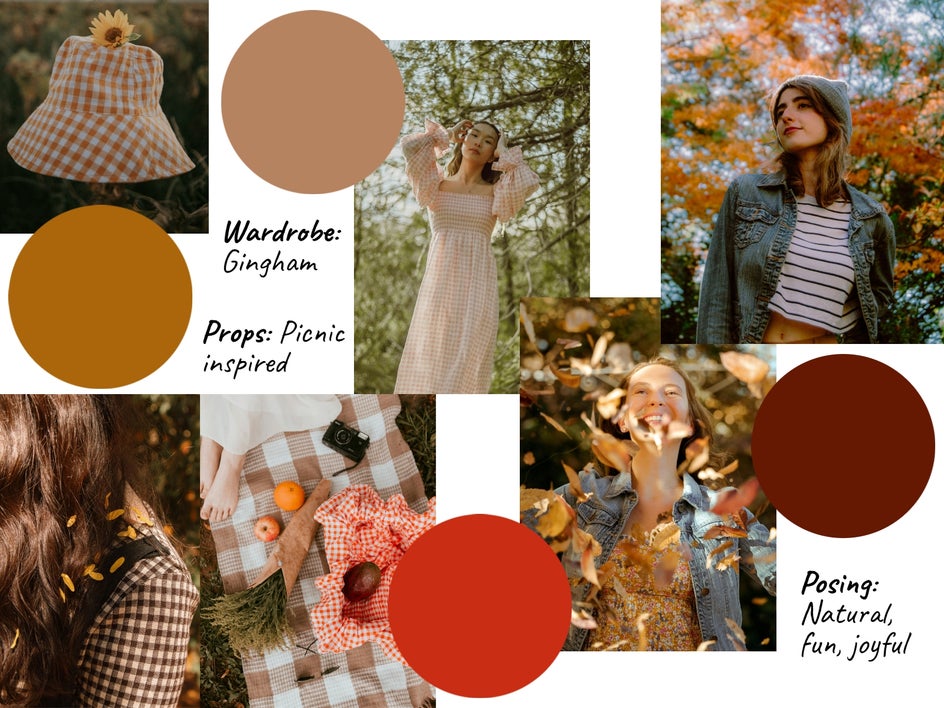
Styled Photoshoots and Moodboards
Styled shoots often involve coordinating multiple creative elements, including wardrobe, props, florals, backdrops, and editing styles. A color palette helps tie all of those visual components together.
Creating a moodboard alongside your palette can also help collaborators quickly understand the creative direction before shoot day.
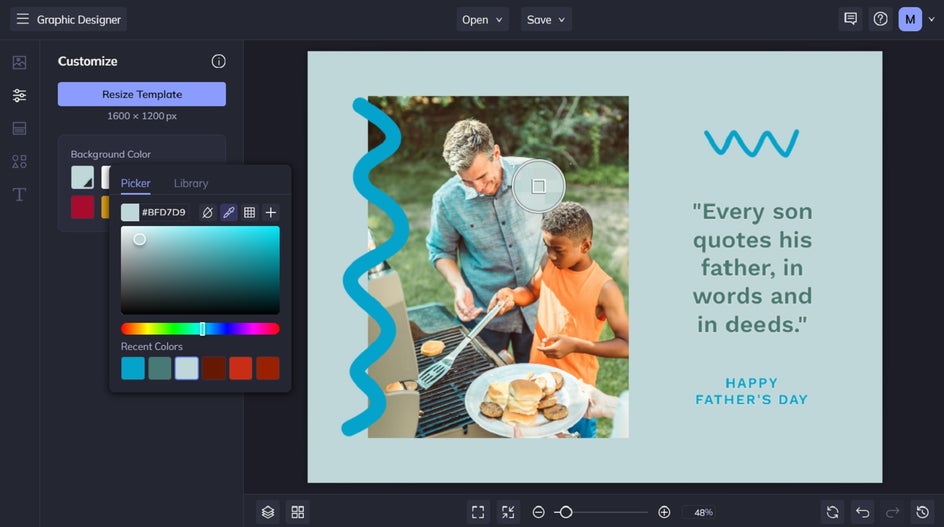
As we mentioned earlier, the Color Picker tool is available across BeFunky's entire creative suite, so you can use it within any project that takes your fancy.
You can even swap in your chosen color scheme to any of our available templates, helping you quickly and easily add your own branding to every design.
Bring Your Creative Vision Together With Custom Color Palettes
Whether you’re planning an event, building a brand, decorating a space, or designing social graphics, creating a custom color palette can help every part of your project feel more polished and intentional.
With our intuitive Color Picker, it’s easy to extract exact shades from inspiration photos, save your favorite colors, and apply them across future designs. Pair your palette with customizable templates in the Graphic Designer, and you’ll have everything you need to bring your creative ideas to life!