Make a Twitter Header That Turns Heads With Creative Photo Edits

What makes a good Twitter header? This narrow space at the top of every Twitter profile is often overlooked, but it has the potential to add both style and substance to your account. For example, use it to share additional info that won’t fit into a short bio. Show off your brand logo at full size. Or, display one or more photos that strengthen your visual identity and make your profile truly recognizable.
The online Graphic Designer provides tons of Twitter header templates that make creating a custom banner a breeze. To keep things simple, just replace the placeholder images with your own, update the text and colors, and you’re done! But for an even more attention-grabbing banner, take advantage of the Designer’s in-platform Photo Editor. With this feature, you can switch seamlessly between editing and design tools, making photo enhancements effortless. From sharpening and expanding images to layering artistic effects and portrait enhancements, the Photo Editor has everything you need to design a more eye-catching Twitter header. These same tools can be used with our Twitter post templates as well!
In this tutorial, we’ll show you just how easy it is to create a unique Twitter banner by combining the Designer’s premade templates with the Editor’s creative tools. Let’s get started!
How to Edit Photos for a Unique Twitter Header
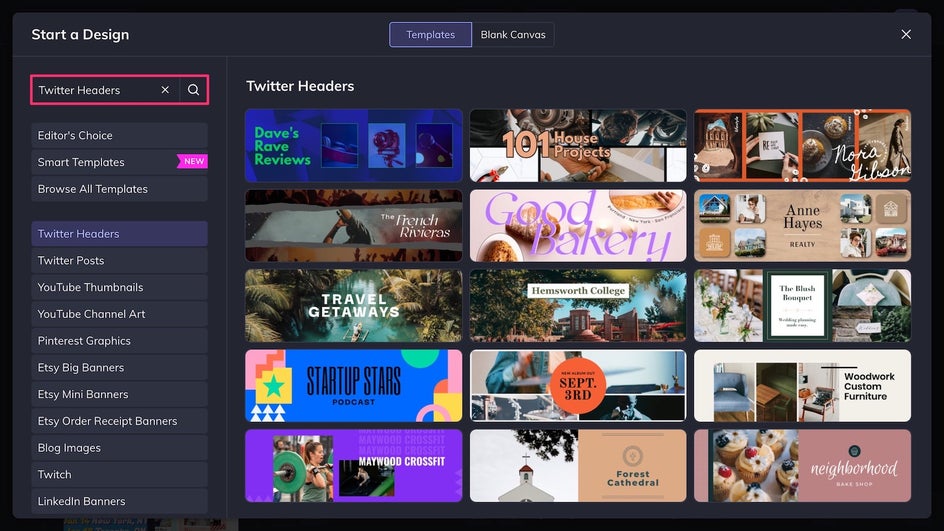
First things first, open up the Twitter Header template category of the Graphic Designer. Here you can choose from a wide selection of professionally designed banner templates, all already perfectly sized at 1500x500px. Some prioritize bold graphics or typography, others are more photo-focused. There are plenty of options to choose from depending on your style. For photo edits to have the most effect, choose a banner template that features 1-3 large images.
Step 1: Replace the Placeholder Photo
Upload photos from your device into the Image Manager, then drag and drop them onto the canvas to replace the placeholder images. Alternatively, drag and drop images directly from your desktop!
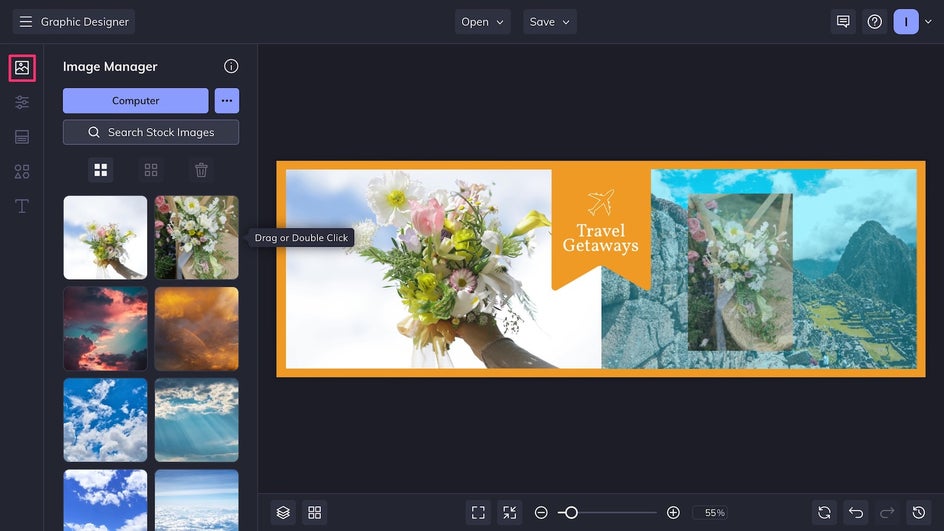
Twitter banners have limited space, so make sure to choose high-quality photos that best represent your brand. In some cases, you may want to crop images closer for better readability.
Step 2: Transform Your Image With the Photo Editor
Click on any photo and select Edit Image to access the in-platform Photo Editor. You’ll be able to switch seamlessly between the Editor and Designer at any time.
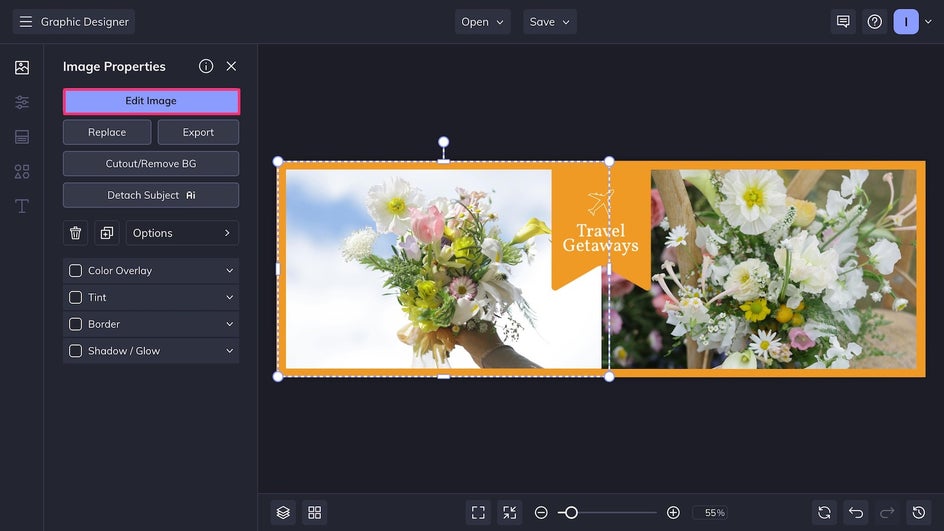
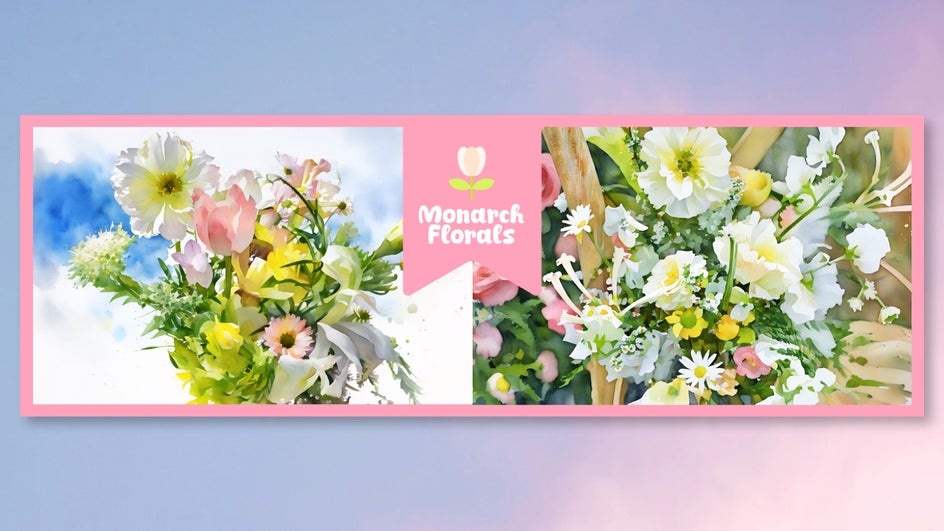
The Photo Editor offers hundreds of editing features, from basic tools like exposure and color adjustments to more complex edits like the AI Portrait Enhancer and Background Remover. Here we’re going to be using a watercolor Artsy effect to give this photo more color and texture.
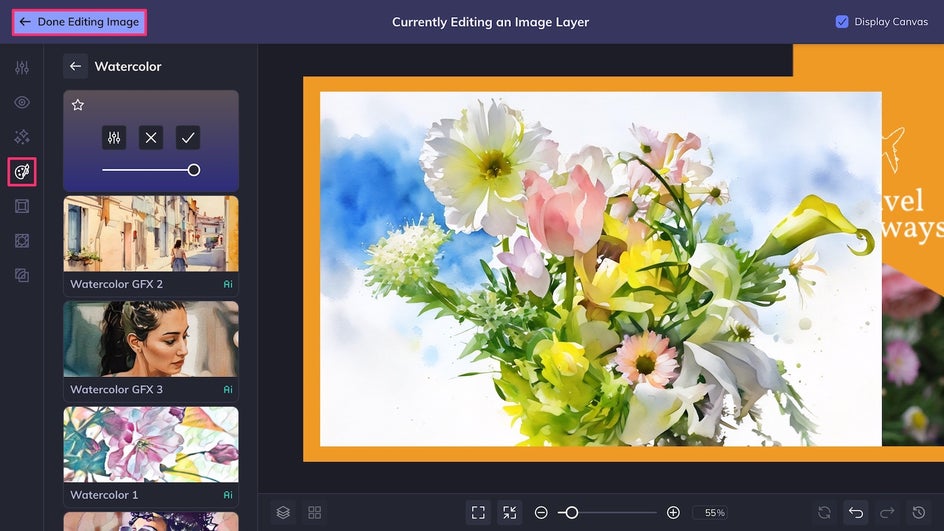
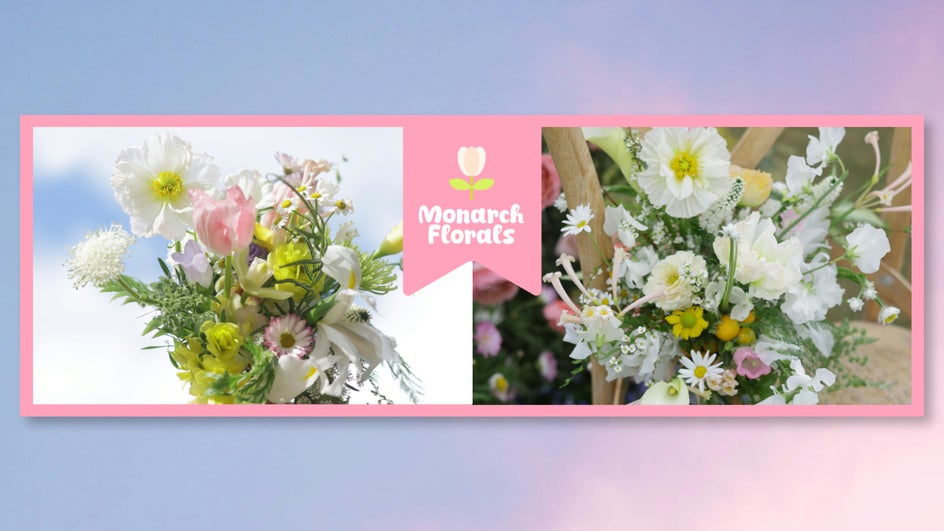
The effect used here is Watercolor GFX 1, which makes the banner feel more whimsical and delicate – perfect for this florist’s brand. There are plenty of other Artsy effects to try depending on your desired look, so feel free to experiment! When you’re done making changes to the photo, click Done Editing Image in the upper left corner to return to the Designer.
Step 3: Finish Personalizing the Header Design
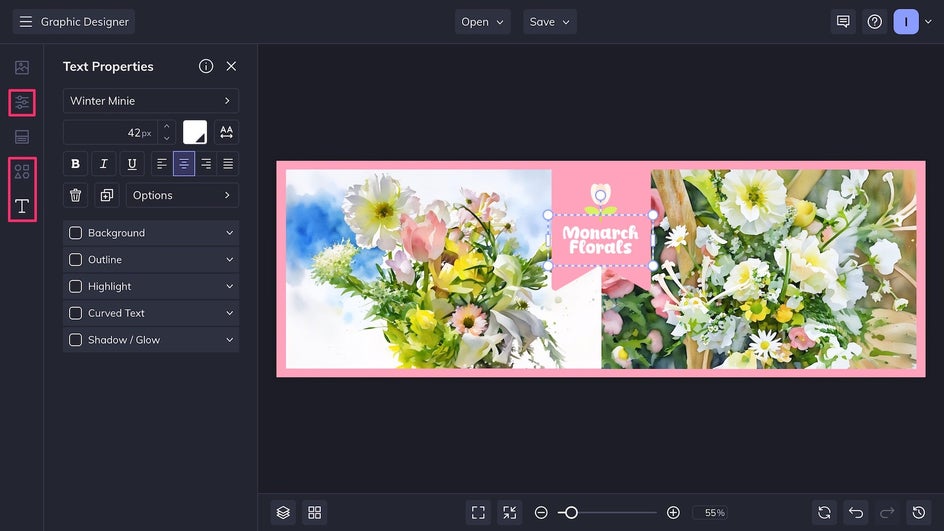
After you’ve finished editing all the images in your Twitter header, it’s time to customize the template. Simply click on any existing text or graphic to personalize it, or add new graphics using the Graphics Library. Don’t forget to change the background to fit your brand color palette!
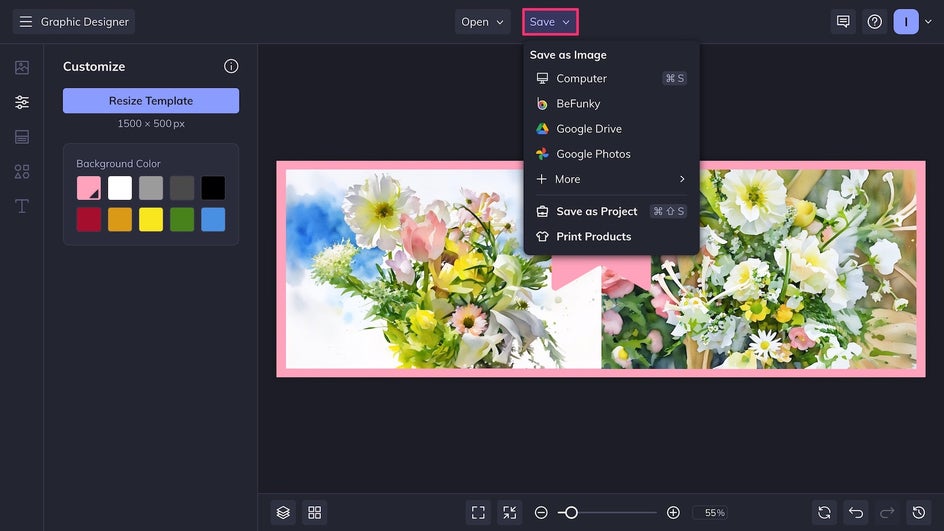
Once you’re satisfied with the banner design, click Save at the top of the canvas and export the file as a high-quality PNG. This will provide the best resolution for your Twitter profile.
A Twitter Header That Stands Out From the Rest
After just a few clicks, this custom Twitter header is ready to upload! These bouquet photos were already beautiful, but the watercolor Artsy effect makes the flowers even more appealing and gives the header a handmade touch.
Creative Photo Editing Ideas for Your Next Twitter Header
As you can see, even just one tweak to an image can completely transform a Twitter header. And the Photo Editor has hundreds of tools that can be mixed and matched for different results every time! Here are a few inspiring ideas to help you get started.
Minimalist Cutout Header
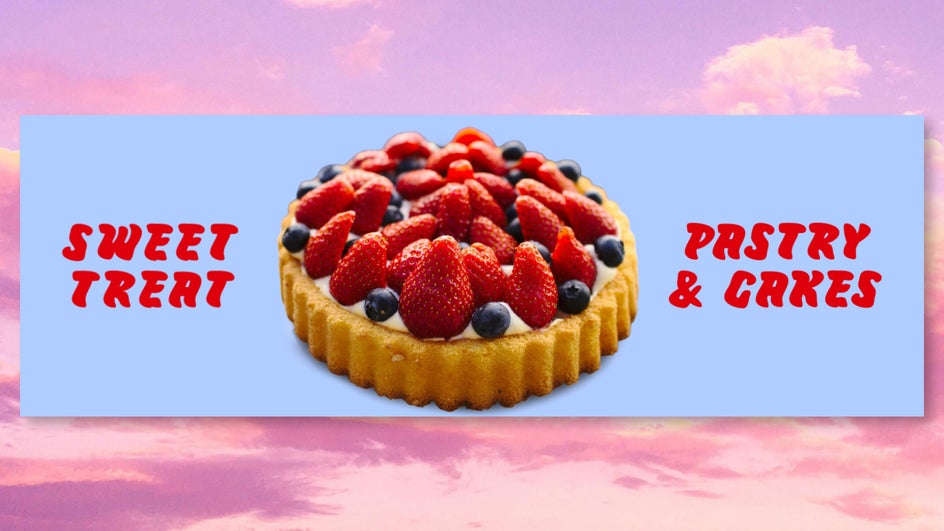
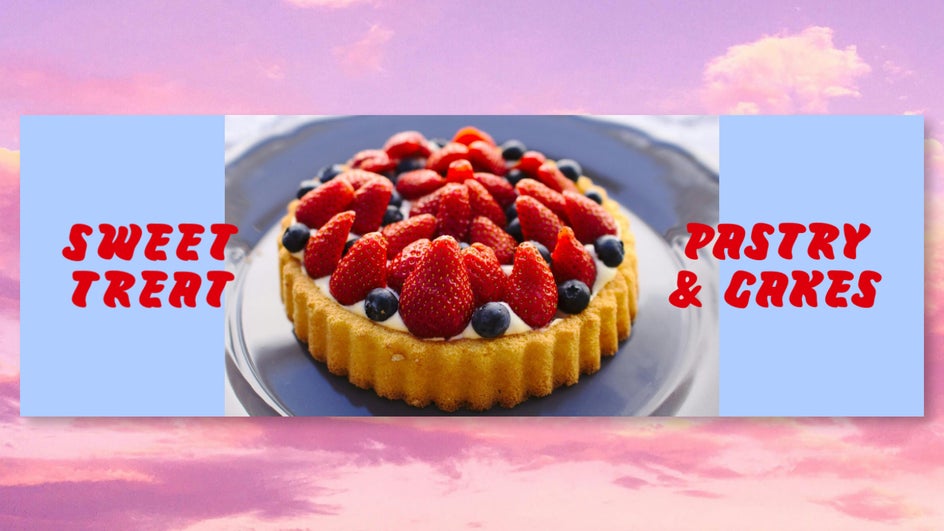
For a cleaner looking header, use the Background Remover or Cutout tool to instantly isolate a subject from a photo. This leaves more room for text, graphics, and negative space, allowing you to create a professional-looking design with minimal effort.
Professional Portrait Header
Do you mainly use Twitter as a way to network and attract clients? Try using a portrait of yourself in the header as well as your profile picture. The AI Portrait Enhancer can elevate the photo in a single click – erasing blemishes, improving color, and brightening eyes and teeth. This is also a great tool for cleaning up group portraits, which are often used in Twitter accounts for churches, schools, and community organizations.


Twitter banners are narrow, but if you end up with a weird crop or sizing issue when using a portrait, simply fix it with the Expand AI tool!
Flat Lay Header
Twitter headers are perfectly sized for a single flat lay shot that showcases objects, tools, and products related to the account. This is a great option for Twitter accounts that represent restaurants and food blogs, as well as artists, photographers, and other creatives. Use the Object Eraser to clear up any extraneous clutter. To make the image more cohesive, try adjusting colors with the Color Grading tool.


Design a Better Twitter Header Today
The header is one of the first things people see when they click on your Twitter profile. Don’t let all that space go to waste! Premade templates make the design process simpler than ever, and with the in-platform Photo Editor, the creative possibilities are endless. Design a header that’s as unique as you are with BeFunky’s Twitter header templates!