









Photo Edits to Elevate Your Holiday Card Designs

There’s a lot of pressure to create a beautiful, memorable holiday card annually. Luckily, the Graphic Designer makes things simple with premade holiday card templates – and with direct access to the Photo Editor through the Designer, you can even take your holiday card photos to new heights directly from the platform. Sharpen low-quality photos, clean up cluttered backgrounds, add stunning Artsy effects, and more. Having these tools all in one place is especially helpful if you weren’t able to get holiday photos professionally taken, or if you’re looking to design a creative, out-of-the-box card.
The Graphic Designer offers hundreds of holiday card templates for major holidays including Christmas, Hanukkah, Diwali, and New Year’s, as well as inclusive Season’s Greetings cards. Whether your taste is minimal, traditional, whimsical, or modern, there’s a holiday template for everyone. In this tutorial, we’ll show you how easy it is to customize a holiday card template yourself and how to elevate the design effortlessly with in-platform photo edits!
How to Make a Holiday Card Stand Out With Photo Edits
First, open up the Holiday Card category in the Graphic Designer. Here you can choose from a wide variety of different holiday messages and styles. For photo edits to have the most impact, choose a design with 1-3 large placeholder images.
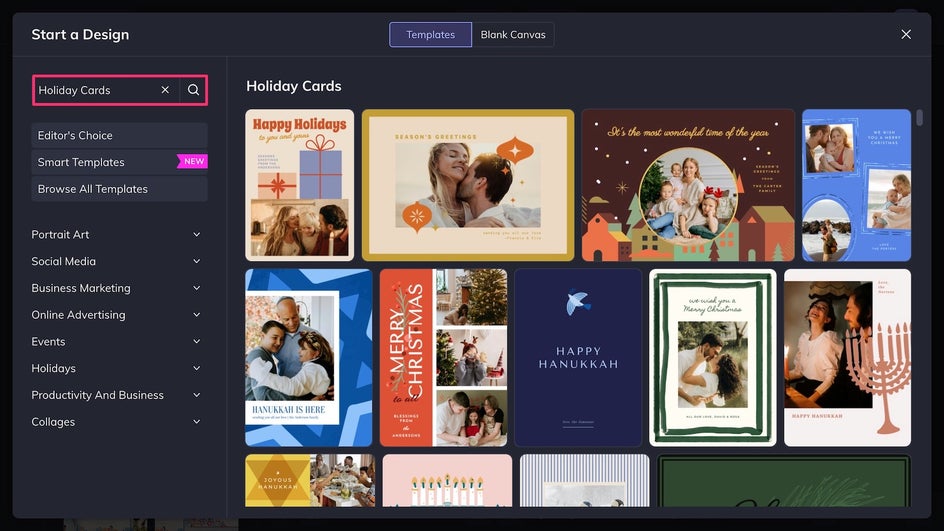
Step 1: Replace the Placeholder Photo
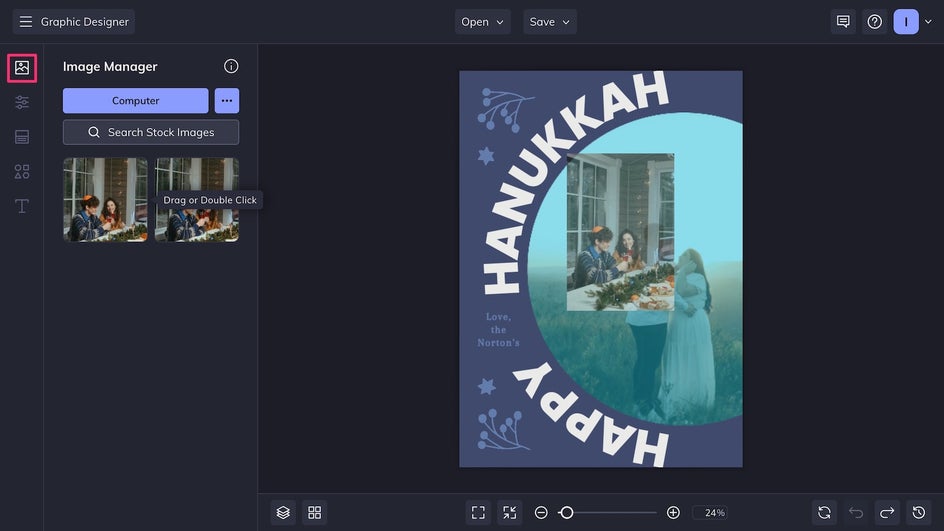
Click on any placeholder photo to replace it with one from your device, or drag and drop one onto the canvas from the Image Library.
Once it’s been added to the template, click your photo and select Edit Image to be brought directly to the in-platform Photo Editor – no tab-switching or exporting required.
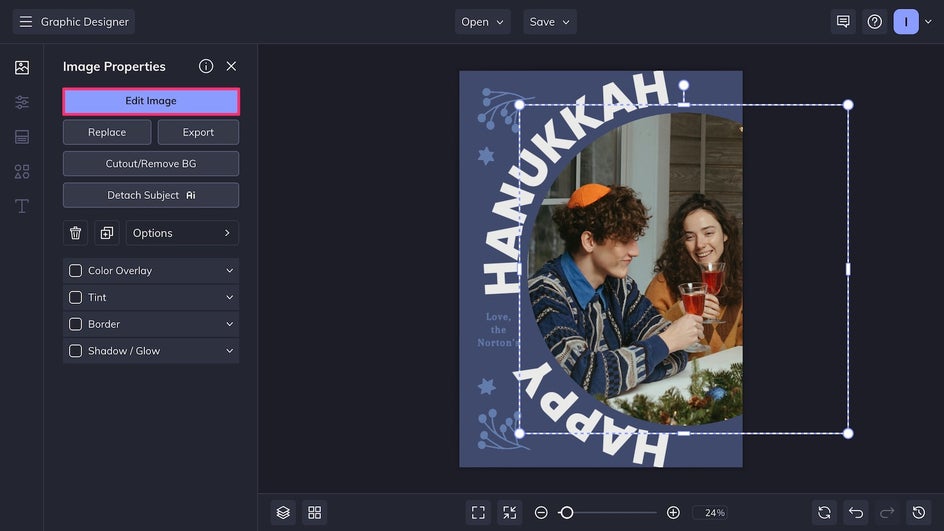
Step 2: Open the Photo Editor
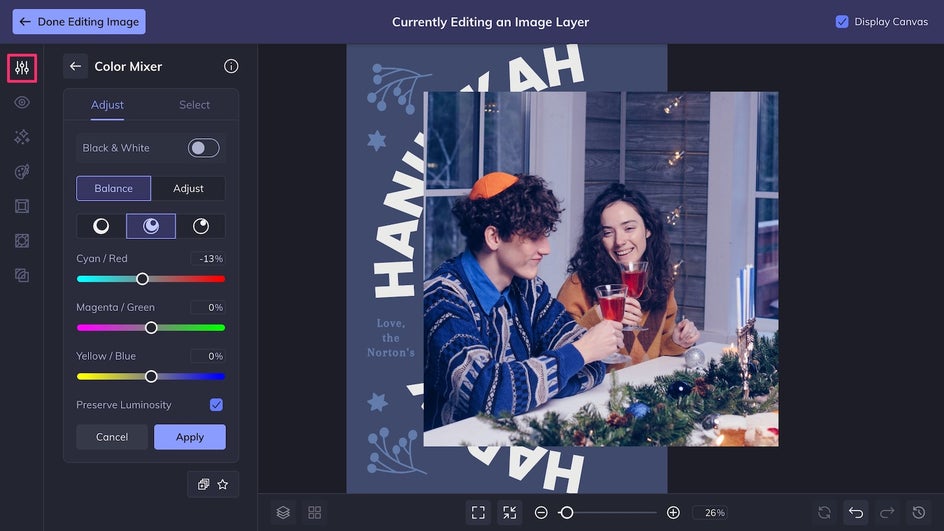
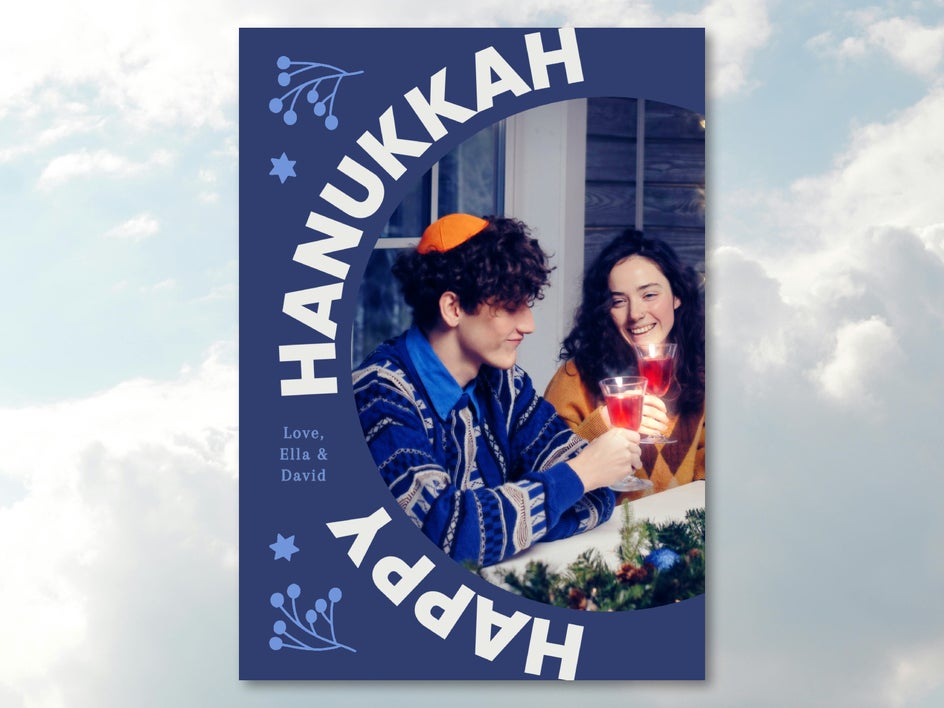
The Photo Editor offers hundreds of professional tools and effects that are easy to use no matter your experience level. Here we’re using the Color Mixer in the Edit tab to bring out the blues in this image and better match the Hanukkah color scheme.
The Glow tool adds sparkle to the candles and glasses, while Soften smooths out sharp lines to create an even greater sense of coziness and warmth.
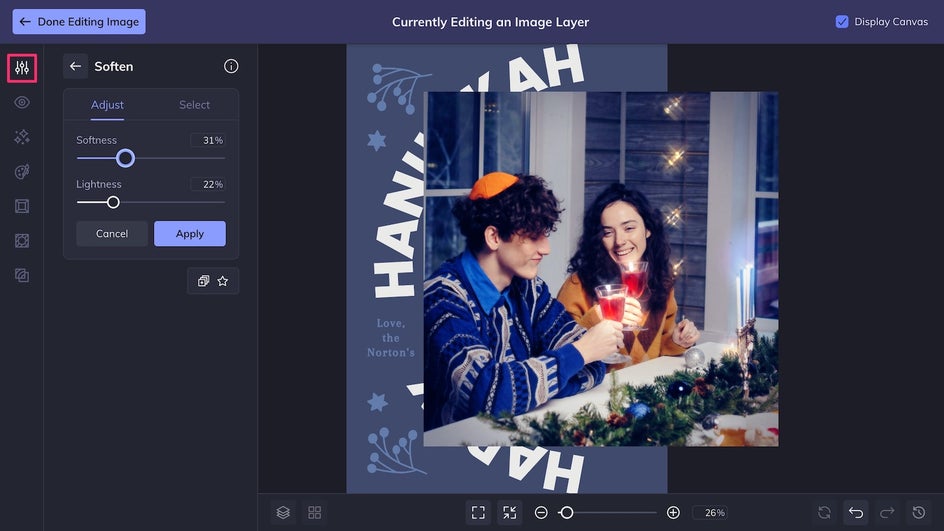
Touch Up tools like the Blush tool used here can be applied to enhance portraits and group photos. Even small changes like these make a big difference!
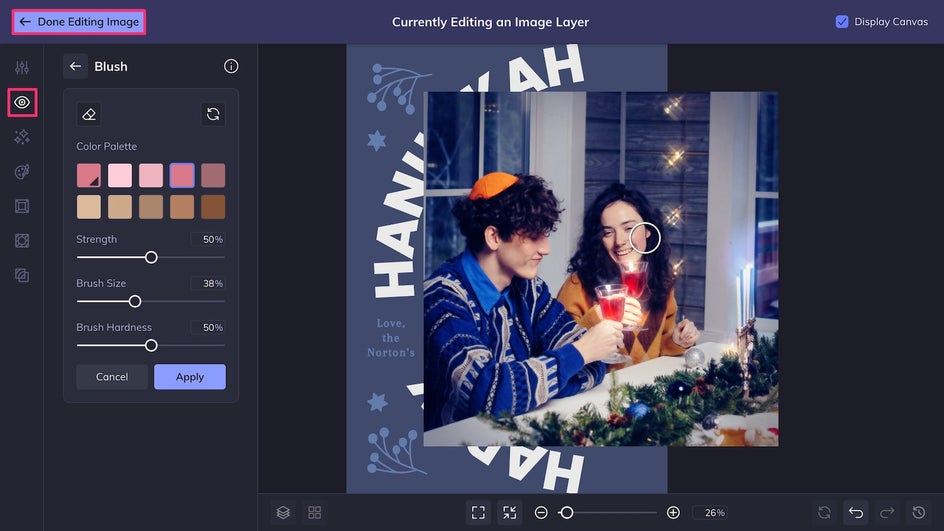
Don’t forget to check out the Textures, Effects, and Artsy tabs for more editing options. Once you’re satisfied with the changes, simply click Done Editing Image in the top left corner of the canvas to return to your design.
Step 3: Finalize Your Design and Save!
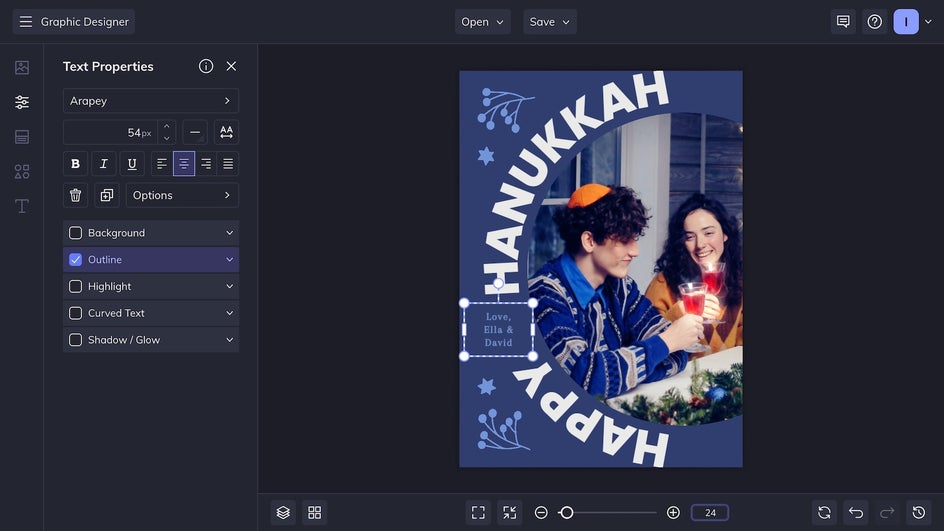
All that’s left to do is tweak the colors and personalize the text on our holiday card. (For a more in-depth example on how to customize your holiday card design, check out this article.)
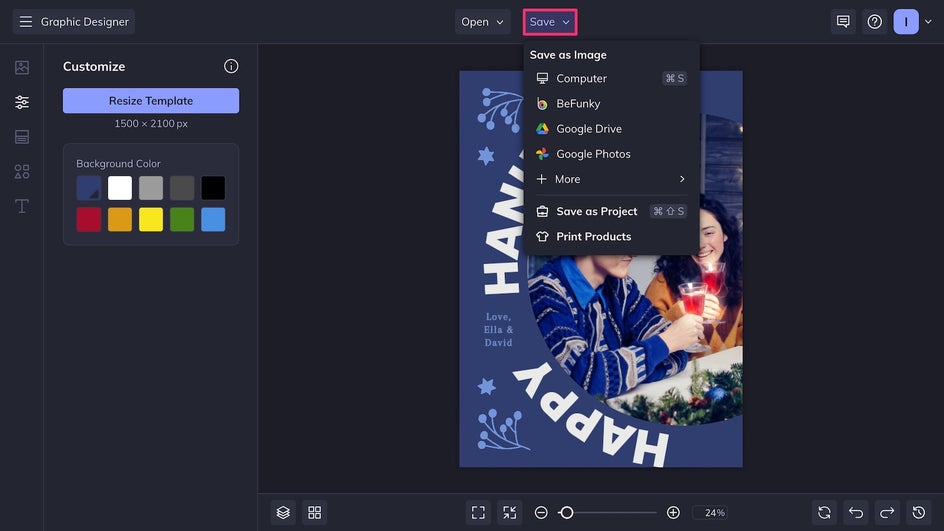
Now it’s time to Save your design using the button at the top of the canvas! This card can be shared digitally, printed at home or professionally through our integrated printing partner.
Here’s a comparison of our Hanukkah card before and after the photo edits! The final result looks softer, brighter, and more cohesive with the overall template.

Creative Photo Editing Ideas for Your Next Holiday Card
With hundreds of tools and effects available, the Photo Editor offers endless creative possibilities. Here are some unique photo editing ideas to make this year’s holiday card stand out from the rest.
Hand-Painted Artwork
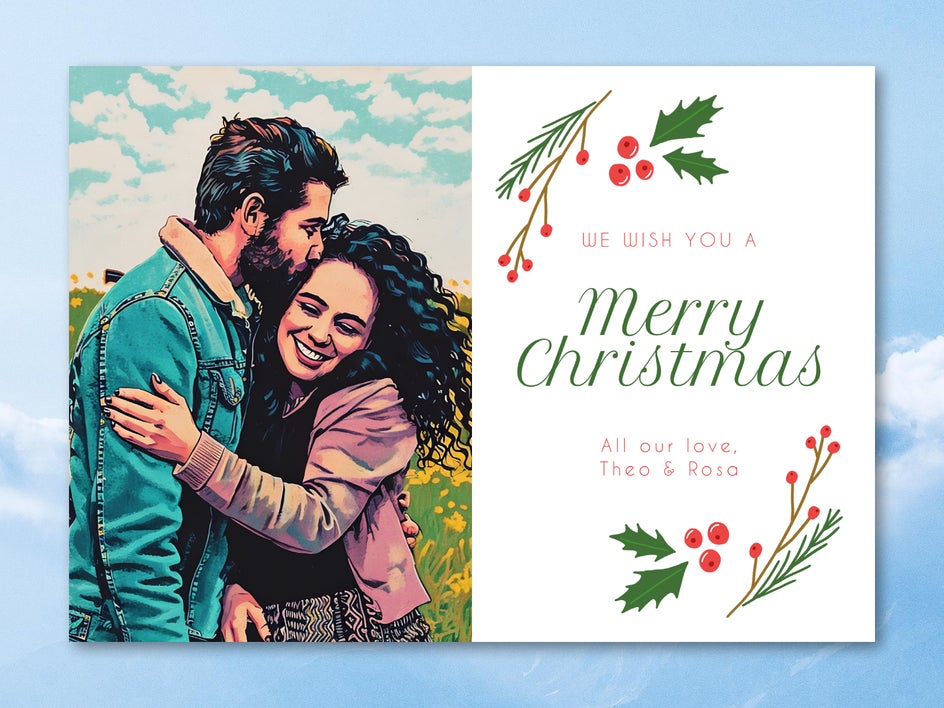
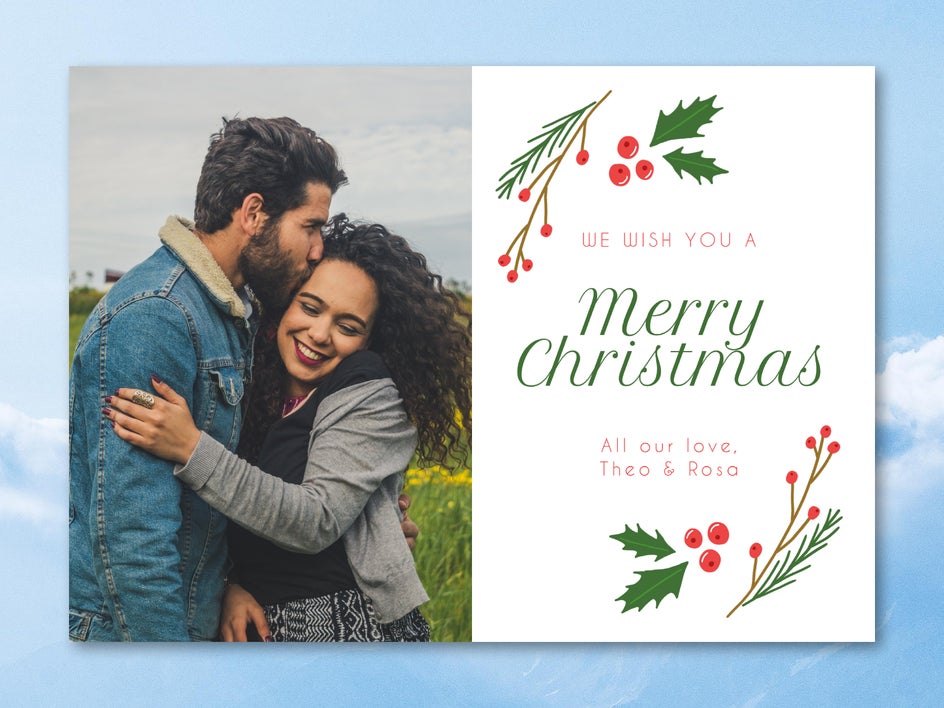
BeFunky’s Artsy effects turn any photo into a work of art. Explore dozens of different styles and mediums including charcoal, watercolor, pastel, and digital art. This example uses Pop Comic GFX for a uniquely colorful holiday card.
Winter Wonderland
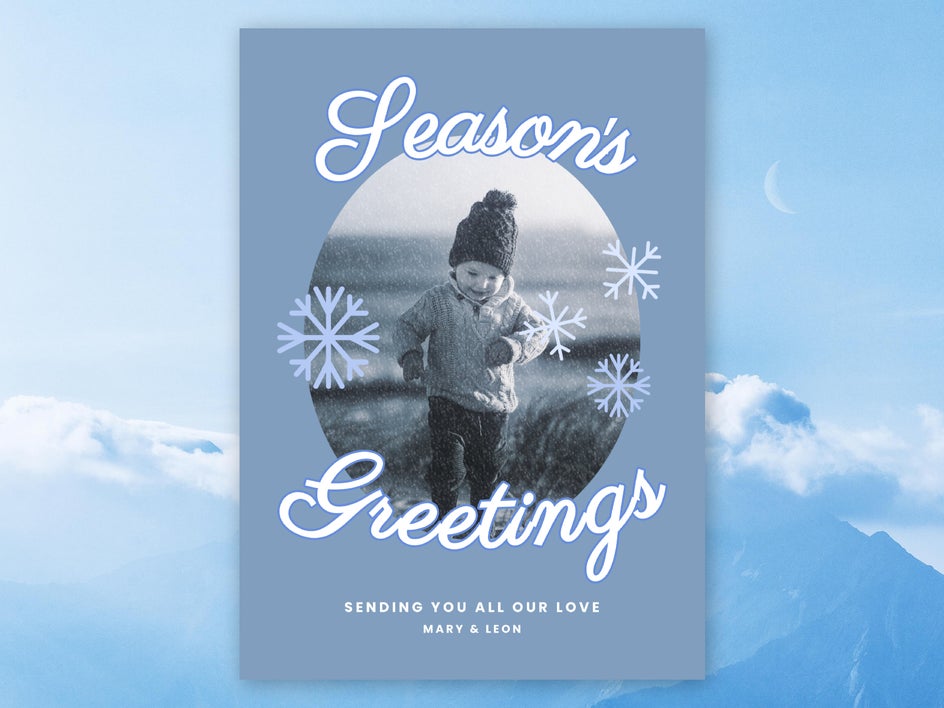
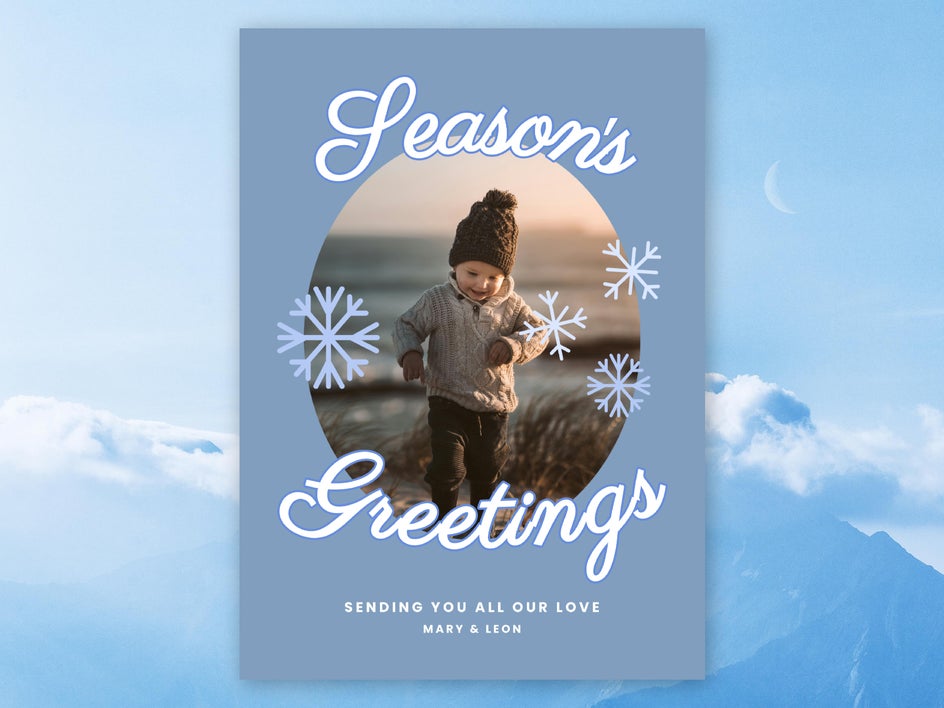
Trying to keep it seasonal? Winter effects can be used to add snow and cool tones to your holiday card photo, even if your photoshoot was done in the summer or at the beach. This card uses Winter 2.
Bokeh Lights
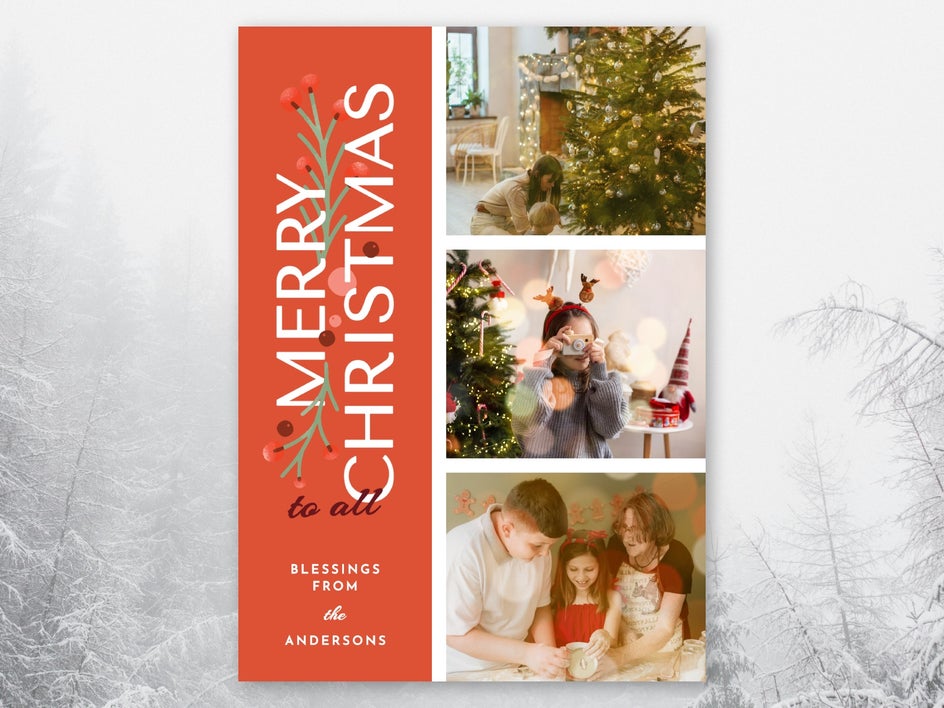
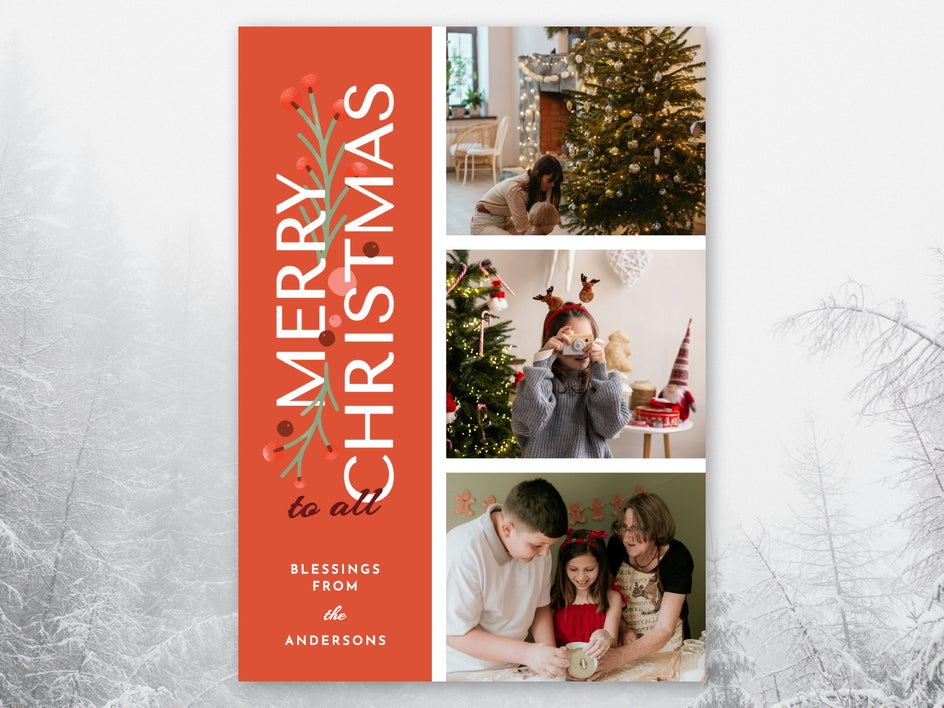
Bokeh textures create a sense of warmth and dreaminess in photos, making them perfect for brightening up winter holiday cards. They can also be used to add more glitz and glam to New Year’s cards!
Enhance Your Holiday Cards Effortlessly
Holiday cards are special: They’re an opportunity to reach out to loved ones, update long-distance friends on our lives, and celebrate important moments. And since they only get sent out once a year, it makes sense to try and make them as beautiful as possible! With the combined power of the Graphic Designer and Photo Editor, creating a beautiful, memorable holiday card has never been easier. Try it for yourself today with BeFunky’s holiday card templates!




