Crafting Festive Greetings: How to DIY Digital Holiday Cards

With each passing year, it seems like the holiday season approaches even quicker – and before you know it, it’s time to send out a new round of holiday cards. It’s not an easy task, either: Any good seasonal greeting card needs a great photo, charming design, and a heartfelt message, not to mention high-quality printing and stationery. This leads to hours of time every holiday season spent on cards on top of an already busy to-do list.
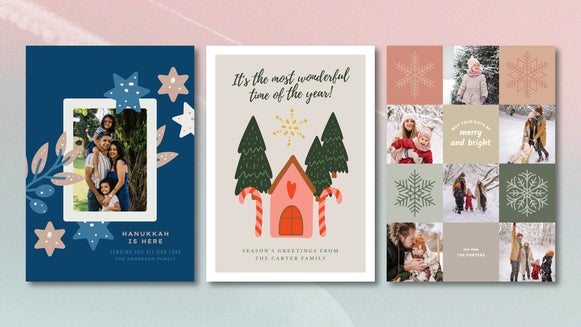
But making holiday cards doesn’t have to be a burden. In fact, with the Card Maker’s holiday card templates, creating beautiful festive cards takes only a few minutes. You’ll find professionally designed templates for various winter traditions, including Christmas, Hanukkah, Diwali, and New Year’s, as well as Season’s Greetings and Happy Holidays. There are designs to fit anyone’s aesthetic, and each template is fully customizable. You can even design digital cards from your smartphone! For the ultimate convenience, these DIY holiday card templates come with built-in photo editing and unique effects so that you can enhance your family photo without leaving the platform.
Want to learn how to create your own holiday card in just a few clicks? In this article, we’ll show you a glimpse of all the tools the Card Maker has to offer, plus share some creative holiday card inspiration. Let’s get started!
How to DIY a Holiday Card in Minutes
First, open up the Card Maker’s collection of holiday card templates. Here you’ll find dozens of beautifully designed templates for the winter season, including free template options. Choose from cozy Christmas wreaths, glowing Diwali lamps, menorahs and stars for Hanukkah, shimmering New Year’s confetti, or timeless Season’s Greetings.
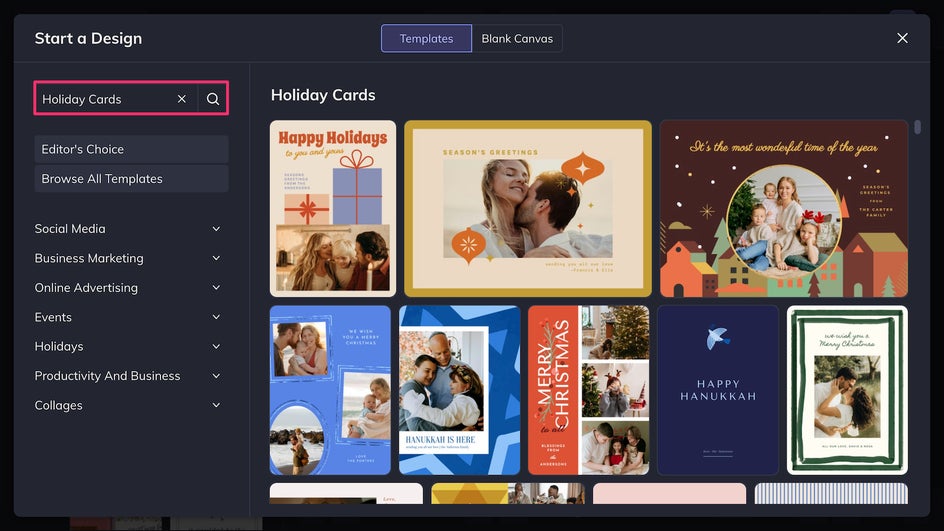
Step 1: Add a Festive Photo
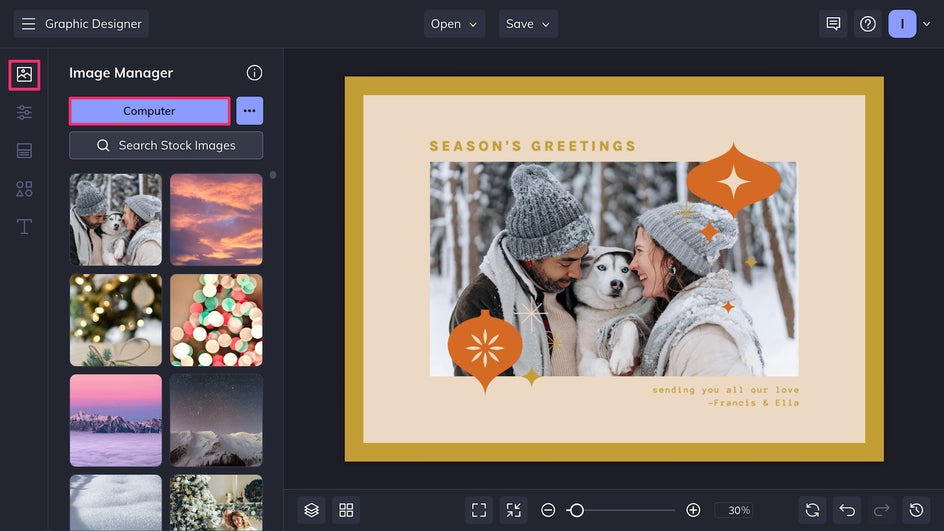
Upload your own holiday photo to the Image Manager from your device, Dropbox, or Google Drive. This could be a family portrait, a favorite pet picture, or even a festive selfie. Drag and drop the photo onto the canvas to replace the template’s placeholder image.
Step 2: Make It Personal
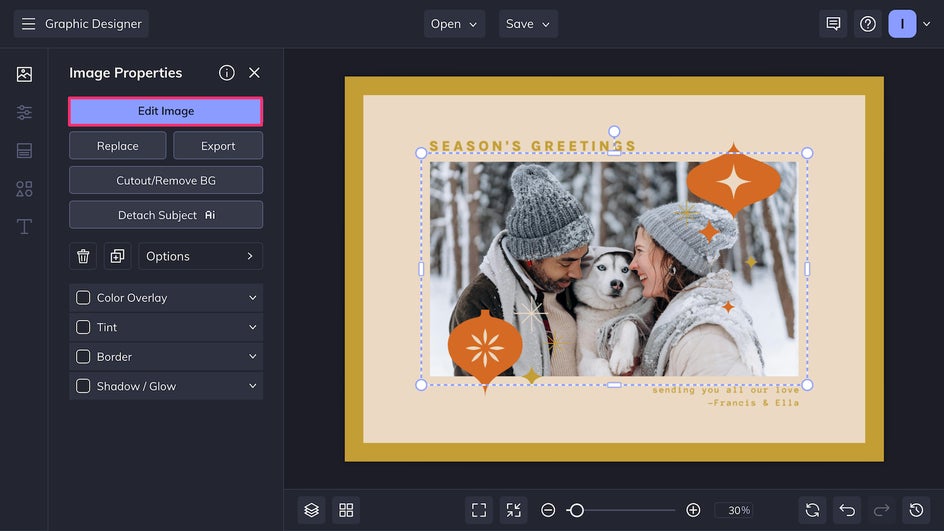
For some extra flair, you can take your holiday card to the next level with photo edits and enhancements. Just click on a photo and then select Edit Image to be brought directly to the Photo Editor.
Here, you can make basic adjustments like editing lighting and color. There are also plenty of touch-up tools available, including the AI Portrait Enhancer for a quick smoothing and brightening effect.
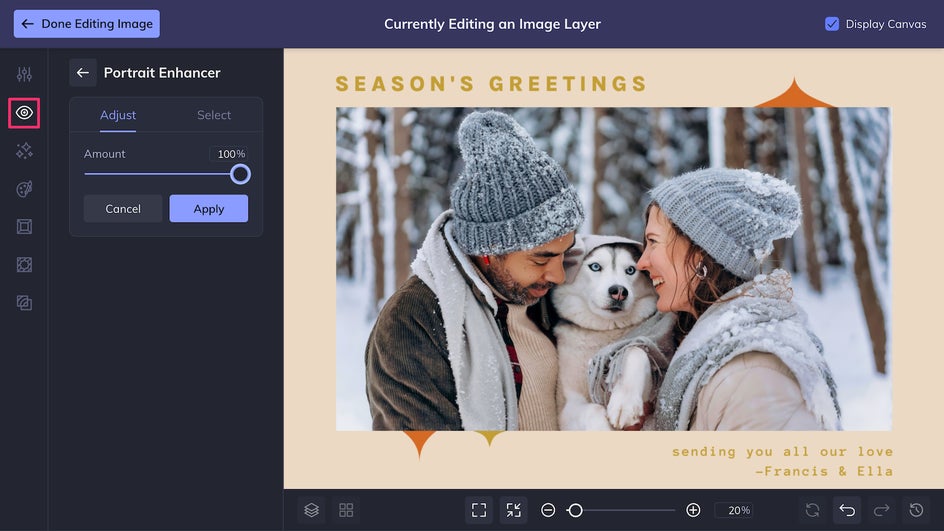
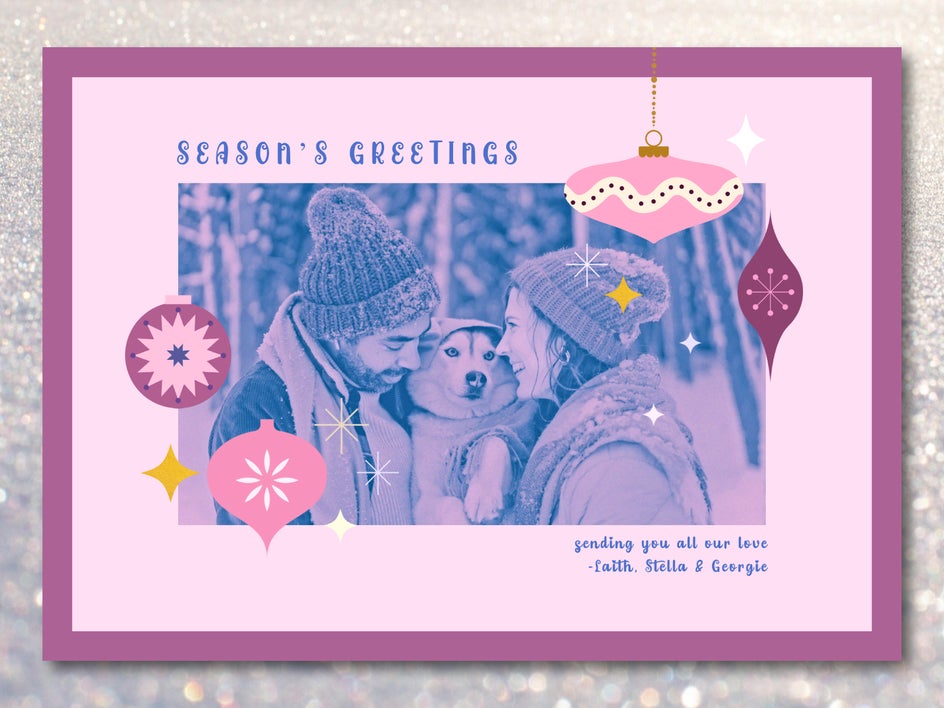
Beyond basic editing tools, you’ll find plenty of unique effects like toning filters and Cinematic effects. Here we’re adding United Colors and Film Grain for a unique pop art-style card.
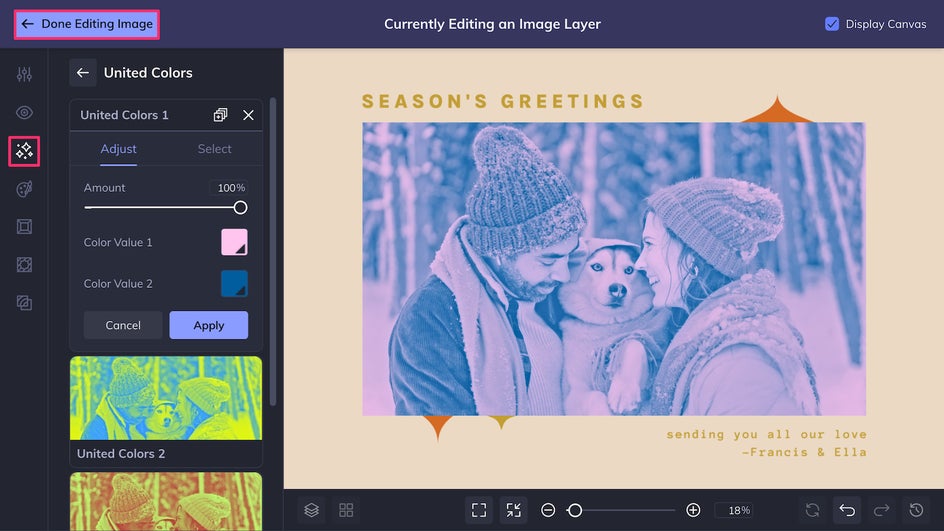
Once you’re done making photo edits, just click Done Editing Image at the top of the canvas to be brought directly back to your card design.
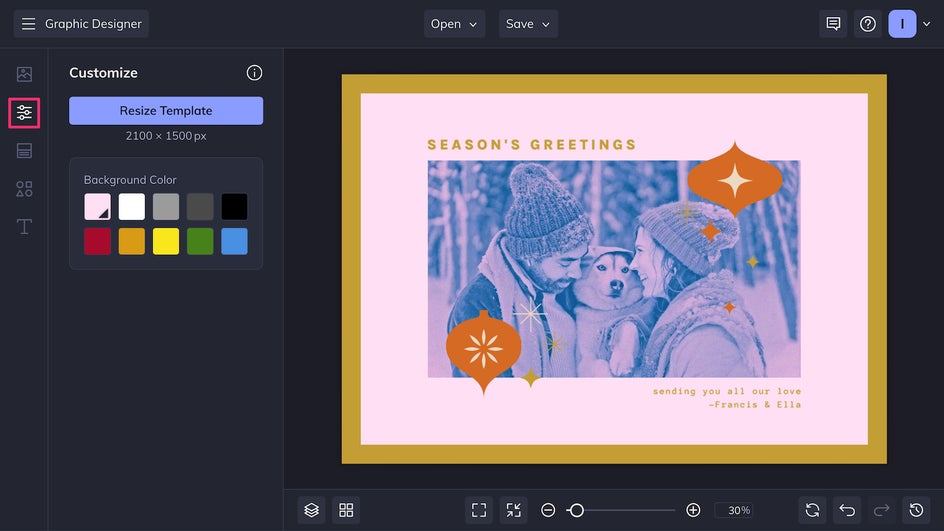
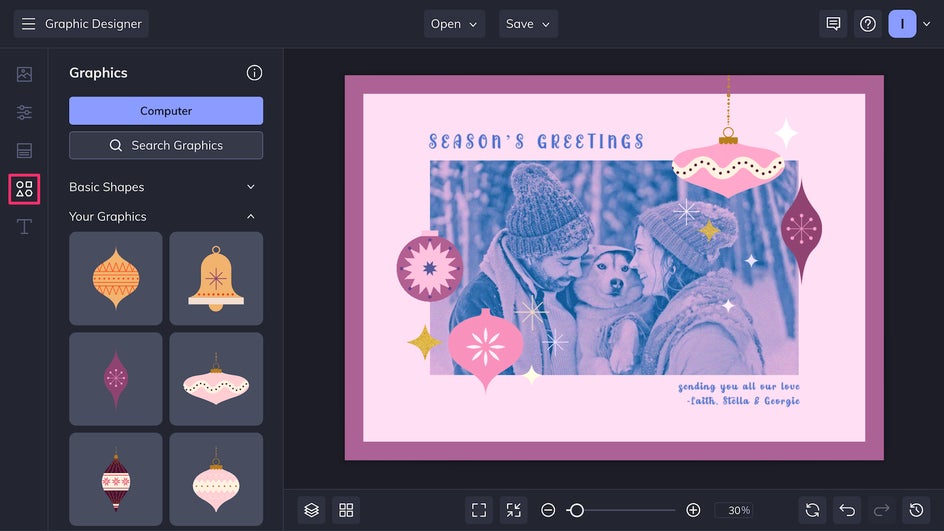
It’s time to customize the template colors, text, and graphics to make this holiday card truly special. Head over to the Customize tab to change the design’s background color.
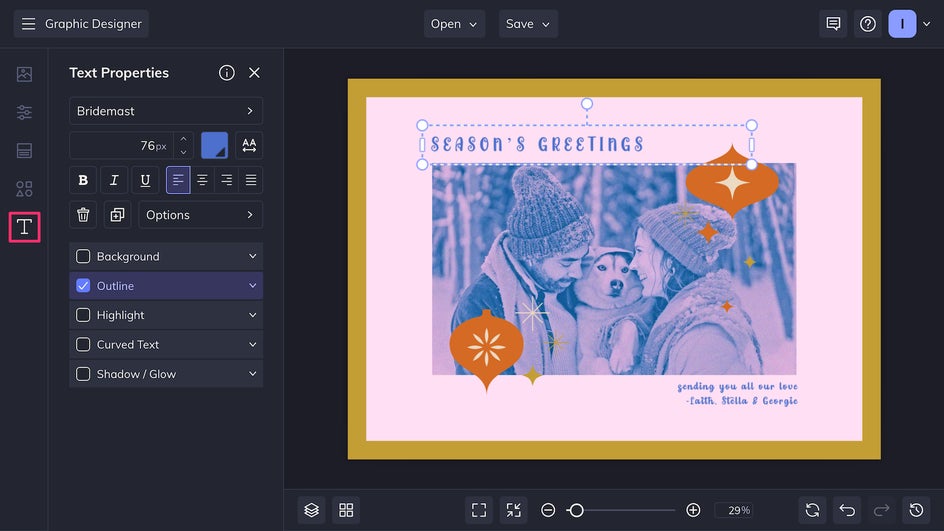
Personalize the card’s greeting using the Text tab. You can also change the font, style, and add any special text effects.
Add or replace art, shapes, and graphics in the Graphics tab, or simply change the colors of the template’s existing graphics. Try using a clipping mask for additional texture. Here, we’ve added gold foil to some of the sparkles.
Step 3: Save and Share Your Holiday Card
And that’s it! With the Card Maker, creating a DIY holiday card from start to finish is that simple. Now it’s time to export your design by clicking the Save button at the top of the canvas.
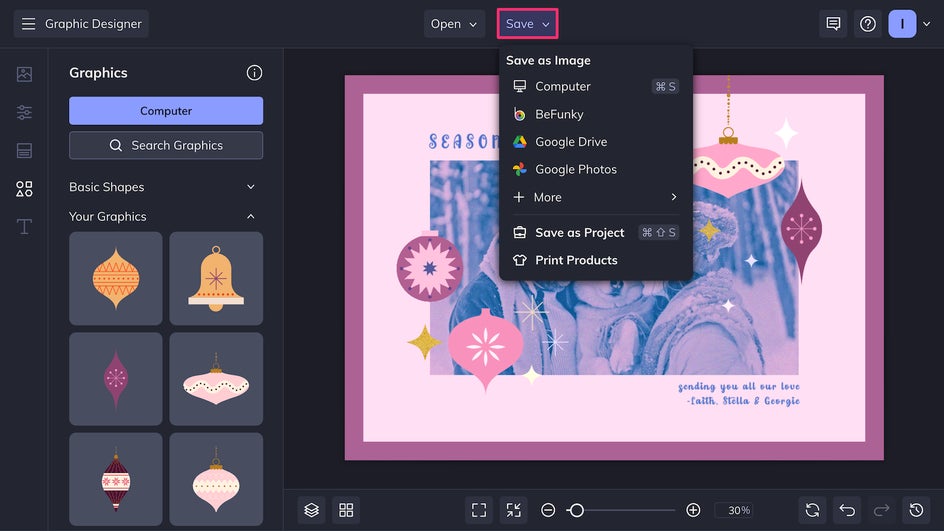
Export the file as a print-quality PDF for the best printing results. Printing can be done at home on cardstock or through a local print shop, but for even greater convenience, you can also print with Zazzle directly through the Card Maker. If sending your greeting card online or through text, simply save the design as a high-resolution PNG.
In just a few minutes, our custom holiday card is complete and ready for sharing:
Inspiration: Get Creative With Your Holiday Cards
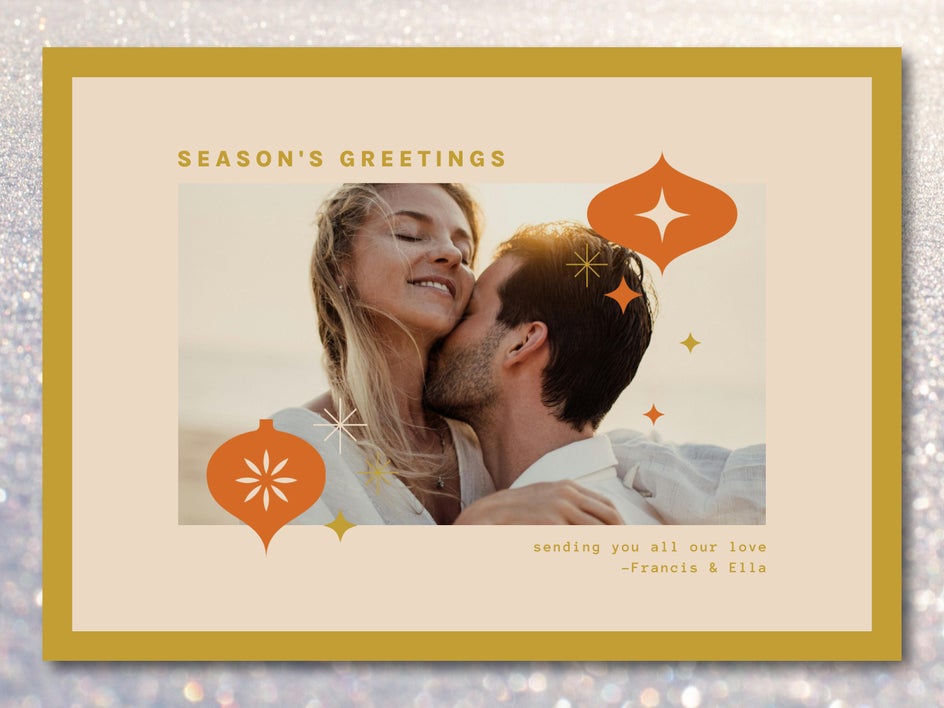
Sending holiday cards year after year can start to feel rote, but the Card Maker offers tons of ways to make your designs more unique. Here are a few ideas for creative holiday cards people will definitely want to hang on their fridge all season:
Vintage Postcard
Bring a touch of nostalgia to your holiday greetings with the Vintage Comic effect, muted colors, and retro typography. This style will make your card feel like a treasured keepsake from decades past, and pairs beautifully with family portraits and scenic winter landscapes. Here it’s been used to spruce up a Christmas card template:

Layered Collage
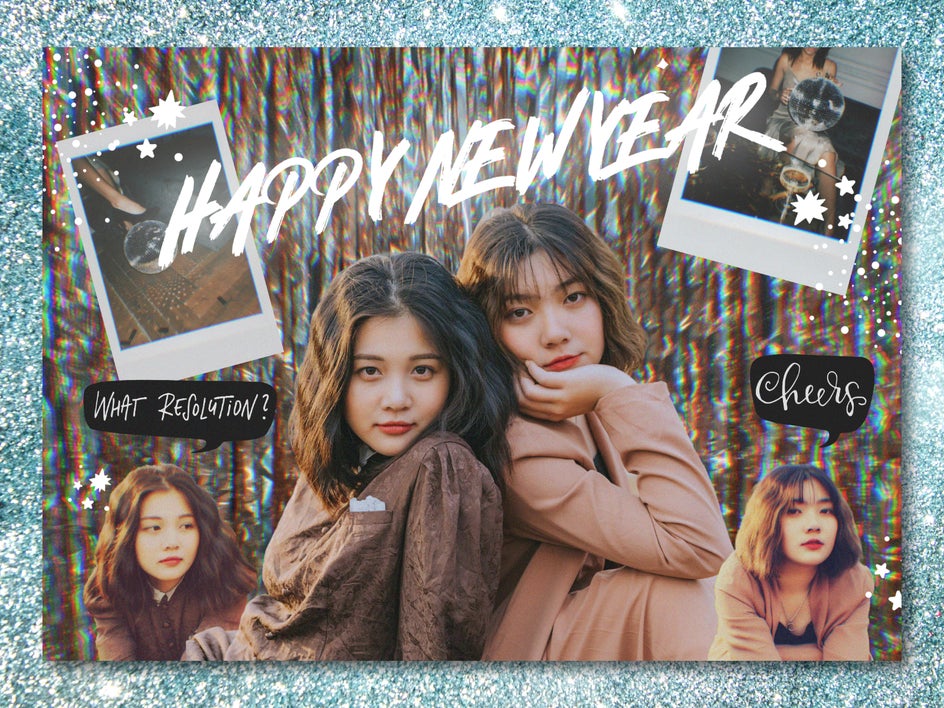
Create a scrapbook-style card by starting with a blank canvas and then layering multiple images, textures, and graphics. Use the Background Remover to create photo stickers and then mix them with seasonal patterns, hand-drawn vector artwork, or even scanned keepsakes like Polaroids. Like this New Year’s card, the result is a personal and dynamic collage that feels as fun and unique as your holiday celebrations.
Bold Graphics
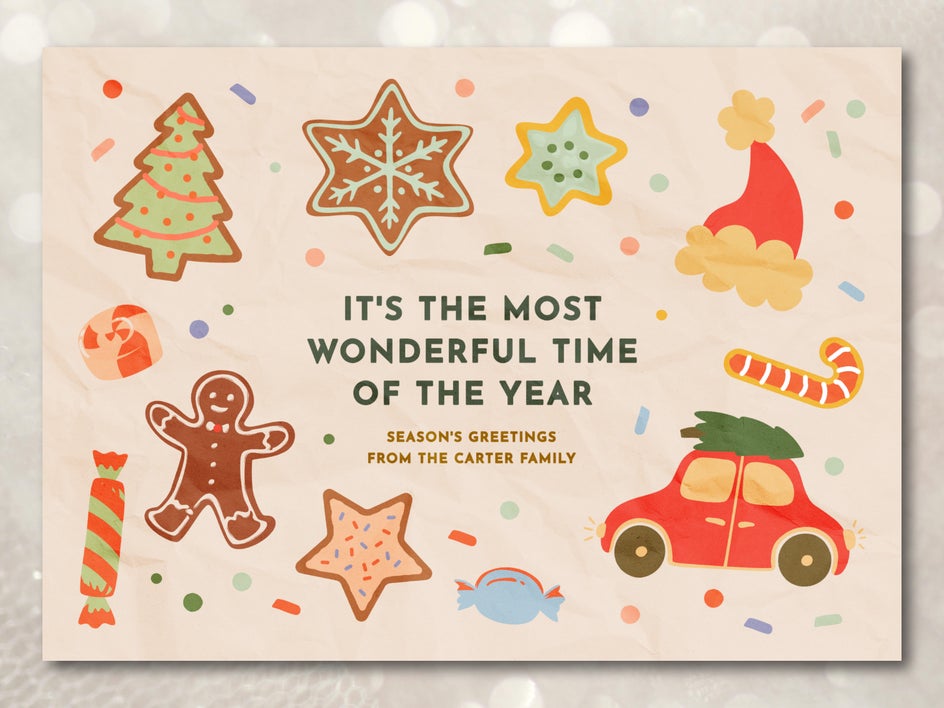
No family photo this year? No problem. Make your holiday message unforgettable with a creative arrangement of graphics like those used in this Christmas card template. Whether you opt for playful illustrations or modern geometric designs, these cards give your holiday card an energy that stands out in the stack of season’s greetings. Try layering a photo of paper or fabric with the Soft Light blend mode for more texture and visual depth.
Send This Season’s Holiday Message in Style
The holiday season is stressful enough without time-consuming DIY projects. Fortunately, with the Card Maker, you can create a holiday card that’s truly personal without having to start from scratch. Start with a professionally designed template, enhance your photos instantly, and add your own unique design flair in just a few minutes. Get started on your next seasonal greeting and customize your own holiday card template today!