







Remove Backgrounds From Hundreds of Photos at Once

Background removal is one of the most common image editing tasks, but also one of the most repetitive when working with multiple photos. Removing the background from ten, twenty, or even fifty images individually takes time, especially when consistency matters.
Being able to remove backgrounds in batch changes that completely. That’s why BeFunky’s Batch Photo Editor has now expanded to include a Batch Background Remover, making it possible to remove backgrounds from multiple images at once instead of editing each photo individually. Instead of manually repeating the same process over and over, you can apply AI-powered background removal across an entire set of images at once. This creates a faster, more cohesive workflow while dramatically cutting down editing time.
The Batch Photo Editor is organized into three editing categories – AI Editor, Background Remover, and Classic Editor – making it easy to combine multiple tools within the same workflow. It’s especially useful for eCommerce product photography, team or school portraits, social media assets, branded graphics, and large photoshoot galleries.
Our BeFunky subscriptions already include powerful creative tools, but to fully utilize the power of our AI batch workflows, you will require a Pro account. Check out our plans to determine the best one for your editing needs.
How to Remove Backgrounds From Multiple Images at Once
Head to the Batch Background Remover in the Photo Editor and upload your images by dragging and dropping them onto the page.
For best results, try uploading a group of similar images like photos from the same shoot or product collection. This helps maintain consistency across the final edits.
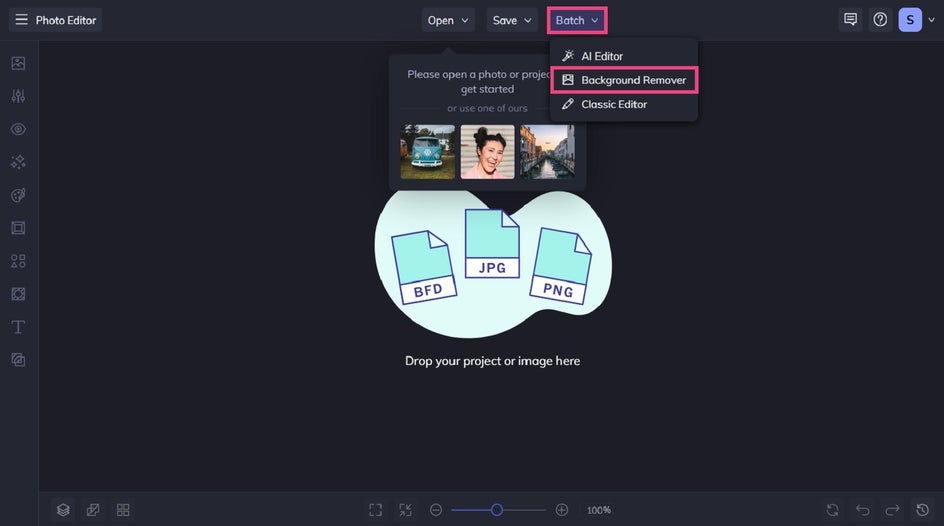
Step 1: Remove the Background
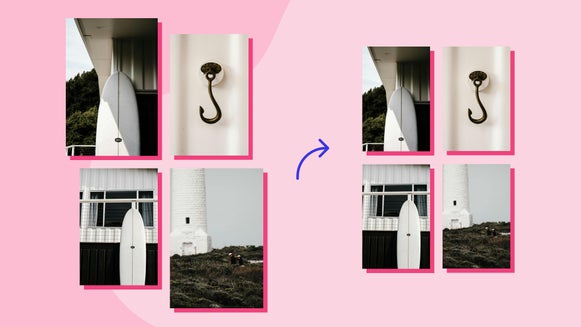
The Batch Background Remover will instantly give your entire set of images transparent backgrounds. You can either keep the transparent background, change the background, or add a drop shadow to each of these images.
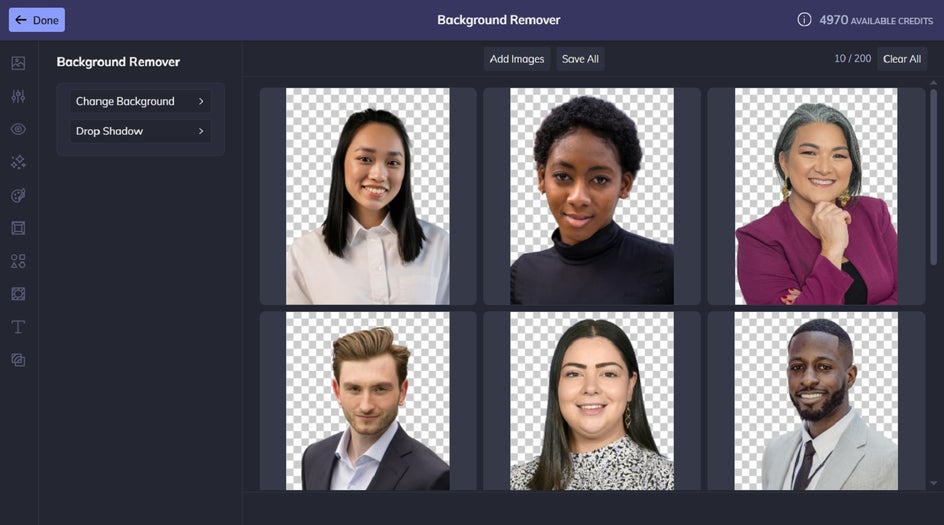
Step 2: Select Your New Background Type
After removing the backgrounds, you have a couple of options depending on how the images will be used.
You can keep the transparent background, which is ideal for:
- Product listings
- Graphic design projects
- Logos or layered compositions
- Website assets
Or, you can replace the transparent background with a solid color for a more polished and uniform appearance. This works especially well for:
- Team headshots
- Social media profile photos
- Marketplace listings
- Branding materials
You can also add an entirely new image as the background – either from your own files or using a stock photo. This is a great option when you want your batch of images to feel more immersive or visually branded. It works particularly well for:
- Lifestyle-style product photography
- Themed social media campaigns
- Seasonal promotions
- Creative marketing graphics
- Personalized portrait backdrops
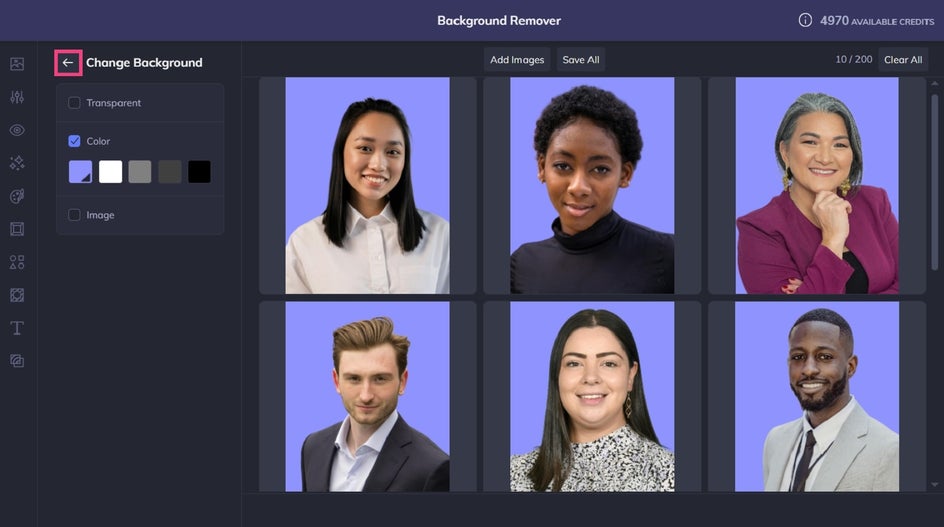
For this tutorial, we’re removing the background from several professional headshots and replacing these with a solid color. The aim is to make them more visually cohesive and on-brand for the company’s Meet the Team page.
Once you’re happy with the results, use the back arrow to navigate to the initial Background Remover screen.
Step 3: Save Your Batch
Click Save All to save your entire batch of images as a single downloaded folder. This helps you move quickly from editing to publishing or sharing.
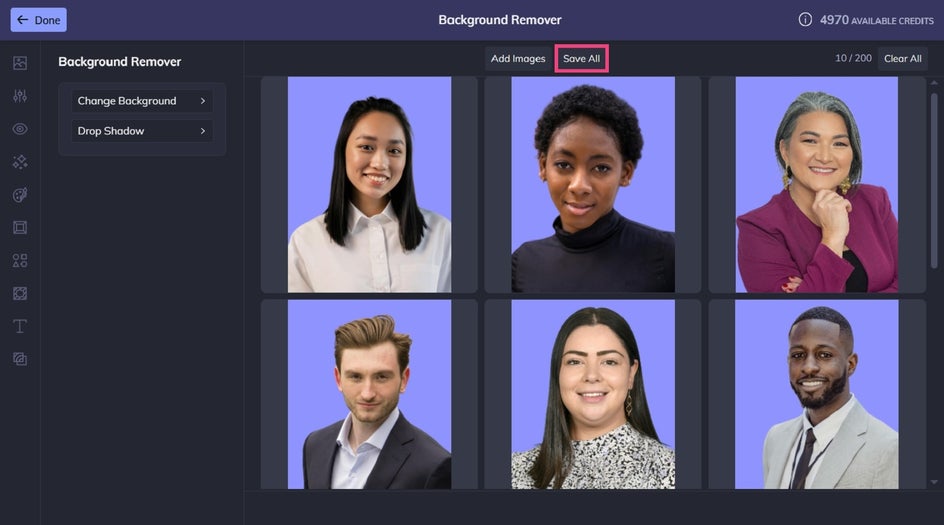
Final Results: Consistent Team Portraits in a Few Clicks
Rather than edit each employee’s portrait individually, we were able to remove the backgrounds from all ten photos within just a few clicks. As you can see, the Batch Background Remover is a total game-changer for anyone looking to apply background removal across multiple images at once. It just doesn’t get any easier!


Other Ways to Use Batch Background Removal
We mentioned earlier that there are plenty of options for batch background removal, depending on your needs. Let’s take a closer look at just some of the ways this tool can assist your workflow.
Create Seamless eCommerce Product Photos
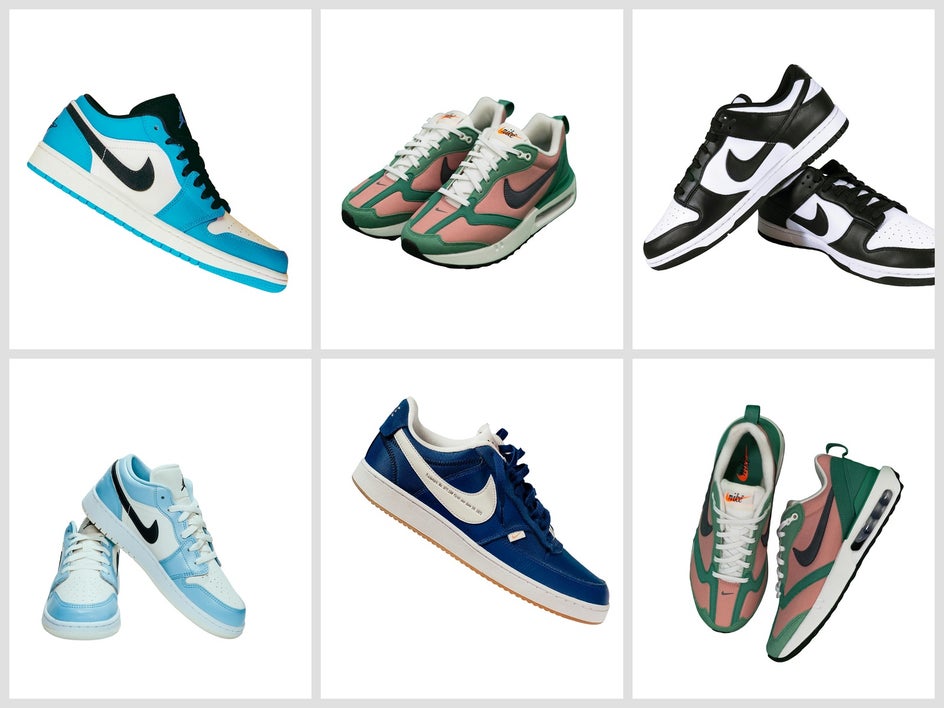
One of the biggest uses for batch background removal is product photography. Removing backgrounds from multiple product shots at once creates a cleaner, more professional storefront while helping every listing feel visually consistent. Adding a plain white or branded background afterward can further unify the collection.
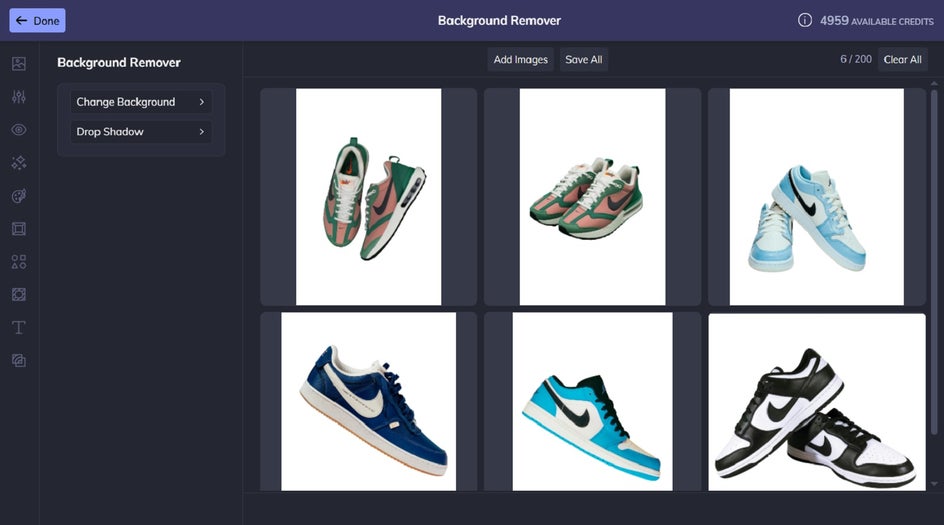
This is especially valuable for online stores with large inventories or product variations, where visual consistency can make the shopping experience feel more polished and trustworthy. It also helps products stand out more clearly in marketplaces, ads, and search results where clean imagery matters.

Build Cohesive Social Media Assets
Social media visuals often work best when they feel visually connected. Batch editing helps make that process much easier.
Removing backgrounds from multiple product photos, promotional images, or campaign assets allows you to place them onto branded social media templates with minimal effort.
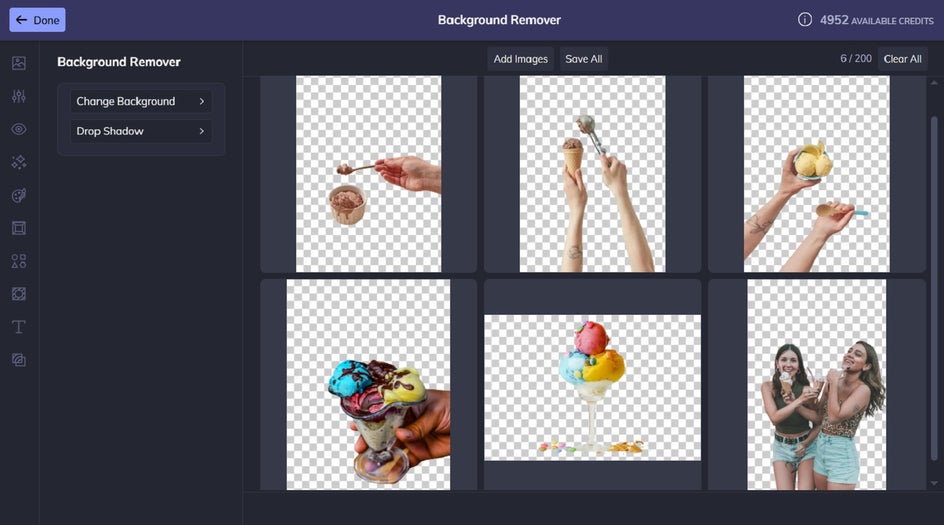
This can be especially helpful for creators, small businesses, and marketing teams managing ongoing campaigns or content calendars. Keeping backgrounds, colors, and layouts visually aligned across multiple posts helps strengthen brand identity and creates a more polished overall feed.

Elevate Photography for Portfolios and Websites
Batch background removal is especially useful for professional branding shoots and portfolio photography. You can shoot against a simple colored backdrop, then replace it with a more polished setting that better reflects your brand.
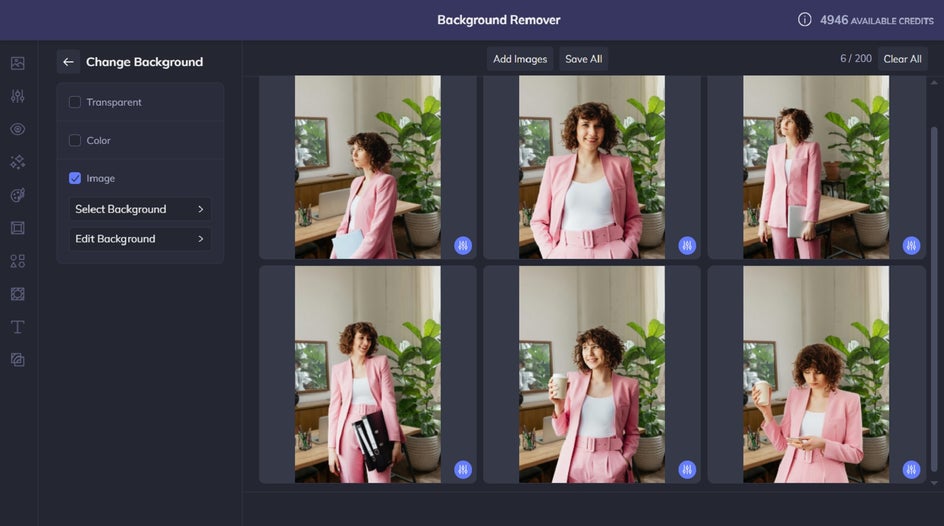
This makes it easy to create a connected and professional look across an entire batch of photos without needing multiple locations or complex studio setups. Whether using clean office interiors, creative studio spaces, or minimalist backgrounds, the final images feel more intentional and aligned with the tone you want to present on your website, portfolio, and personal branding materials.


Edit Smarter With Batch Background Remover
Batch editing is all about removing repetitive work from your creative process, and batch background removal is one of the biggest time-saving additions yet.
Whether you’re editing product photos, portraits, or branded content, being able to remove backgrounds from multiple images at once helps you work faster while keeping your visuals polished and consistent.
Ready to try it yourself? Check out the Batch Background Remover in the Photo Editor and start streamlining your workflow today!