









Edit Product Photos in Bulk With Batch Tools

Consistency is one of the biggest challenges in product photography. Even within the same photoshoot, lighting, color, framing, and sharpness can vary slightly from image to image. When product photos don’t match visually, storefronts and catalogs can feel less polished.
Batch editing solves that problem by allowing you to apply the same adjustments across multiple photos at once. Instead of editing every image individually, you can quickly create a unified look across an entire product line.

That’s where BeFunky’s Batch Photo Editor comes in. The batch editing workflow is organized into three categories: Background Remover, Classic Editor, and AI Editor.
The Background Remover automatically isolates subjects and replaces backgrounds in bulk, while the Classic Editor offers essential editing tools for adjustments like exposure, color correction, crop, resize, and photo effects. The AI Editor, on the other hand, uses intelligent tools to enhance image quality and apply artistic transformations.
Whether you’re editing product launches, seasonal collections, marketplace listings, or social media assets, batch editing helps create a more consistent final result while dramatically cutting down editing time.
5 Ways to Improve Product Photos in Bulk
Here are some of the most useful ways to elevate product photography at scale using the AI Editor, Background Remover, and Classic Editor.
1. Create Clean, Distraction-Free Backgrounds
One of the most impactful upgrades you can make to product photography is removing distracting backgrounds.
Using Background Remover in the Batch Photo Editor, you can isolate products across an entire collection of images at once. This creates a cleaner, more professional look while helping products stand out more clearly in marketplaces and storefronts.
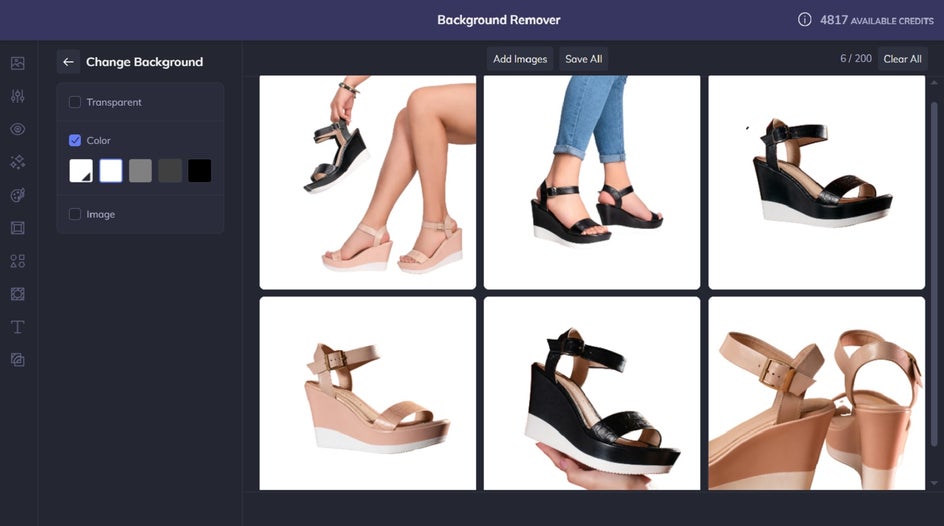
You can keep the background transparent or replace it with a plain white, branded color, or custom image background depending on where or how the photos will be used.
Because the tool uses AI to automatically detect the edges of your product, it’s able to create polished cutouts quickly across an entire batch. This also opens up more creative flexibility for marketing visuals, allowing you to place products into seasonal, lifestyle, or branded settings without needing to reshoot them.
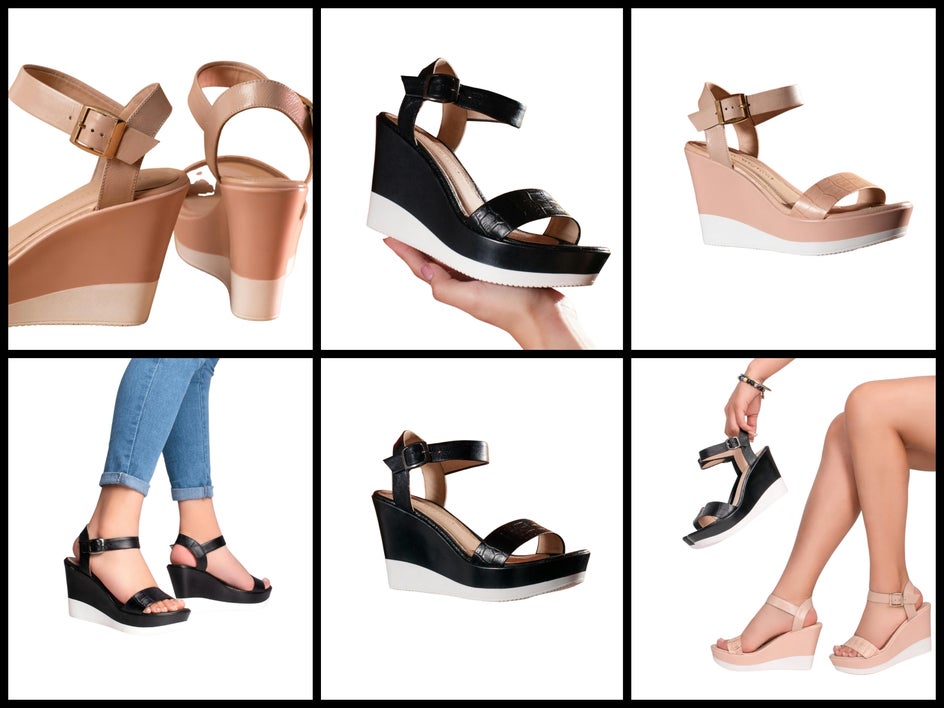

2. Enhance Texture and Product Details
Sharp, detailed images help products feel higher quality and more trustworthy to potential customers.
Tools like Clarity, Deblur, and Upscale can improve clearness across multiple product photos simultaneously. This is especially helpful for showcasing textures, materials, stitching, packaging details, or small design elements that customers may want to inspect more closely.
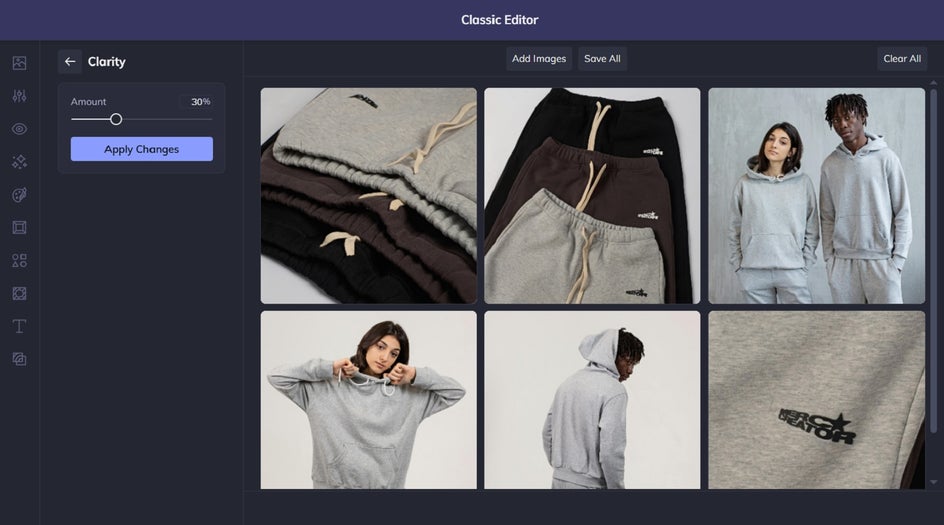
Applying enhancements consistently across a batch also helps prevent some images from appearing noticeably softer or lower quality than others.
In the example below, we've used the Clarity tool because it enhances detail through improved midtone contrast, creating more depth and definition without making images look harsh or over-sharpened. This works well for products photographed in softer lighting or images that feel slightly flat straight out of the camera.


3. Keep Product Colors Consistent
Accurate, consistent color is incredibly important in eCommerce photography. If tones vary too much between images, products can feel mismatched or unreliable.
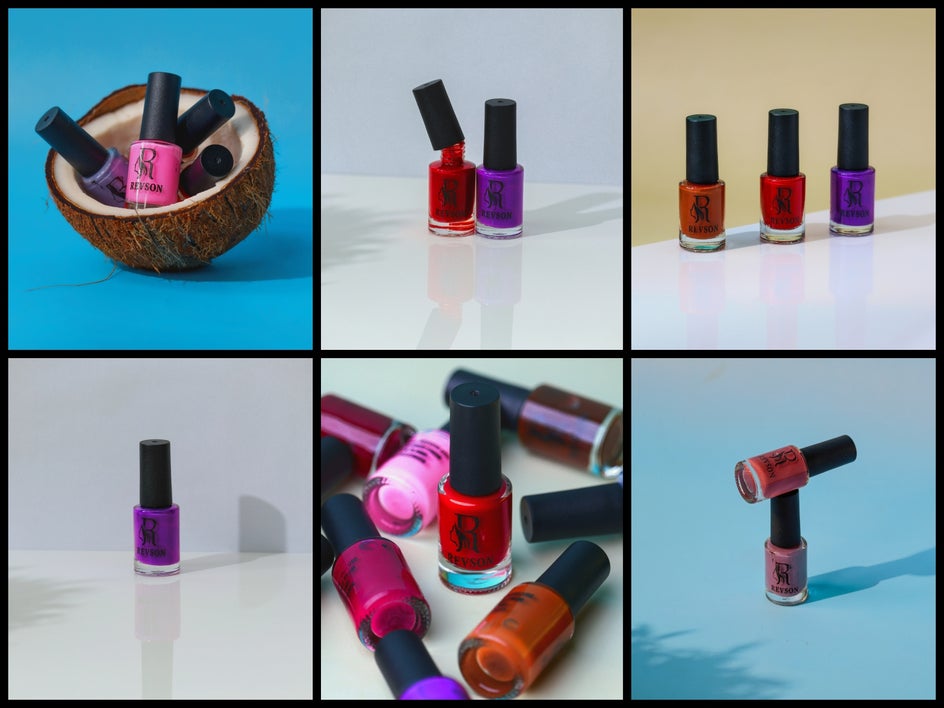
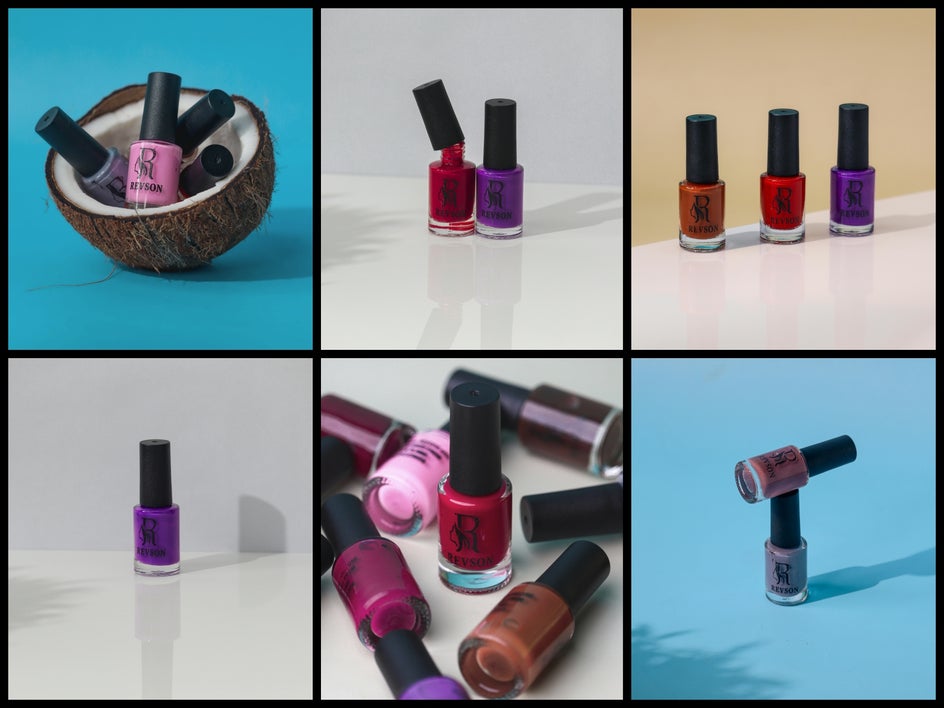
Batch editing tools like Color Restore make it easier to improve and standardize tones across an entire collection. This helps create a more cohesive storefront while ensuring products appear closer to their real-life colors.
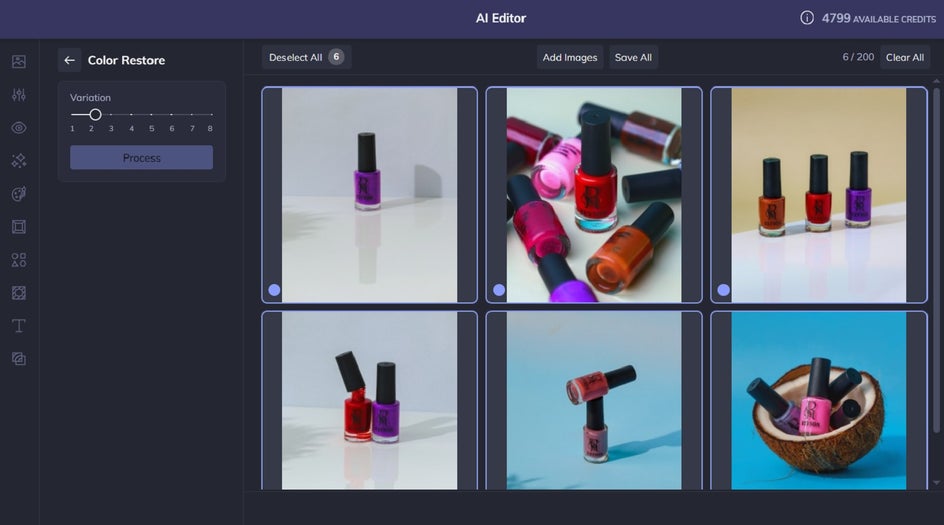
Even subtle color consistency can make a storefront feel significantly more polished.
While Color Restore is often used for revitalizing old black and white photos, it can also work beautifully on product photography by enriching dull or uneven colors in a natural-looking way. Instead of appearing artificially saturated, the enhanced tones still blend realistically with the lighting, texture, and shadows already present in the image.
4. Crop and Resize Everything Evenly
Uneven framing can make product galleries feel cluttered or inconsistent, especially across large inventories.
Using Crop and Resize tools in batch allows you to quickly standardize dimensions, spacing, and composition across multiple images at once. This helps products align more cleanly in storefront grids, marketplaces, and catalogs.
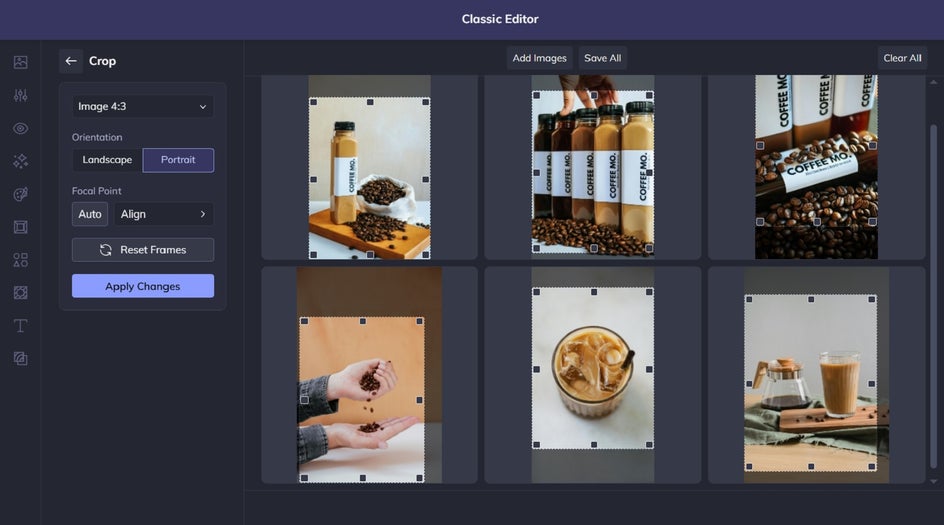
This is especially important for online stores where customers are scrolling through multiple products quickly. Consistent sizing and framing help storefronts feel more organized and professional, while also ensuring product thumbnails display properly across websites, marketplaces, and mobile devices.

5. Perfect Lighting and Exposure Across Every Image
Consistent lighting is one of the biggest factors in making product photography look professional. Even within the same shoot, some images may appear slightly darker, flatter, or more shadowed than others due to changing light conditions or camera angles.
Using the Exposure tool in the Classic Editor, you can quickly brighten or balance an entire batch of product photos at once. This helps products look clearer, more evenly lit, and true to life without needing to manually correct each image individually.
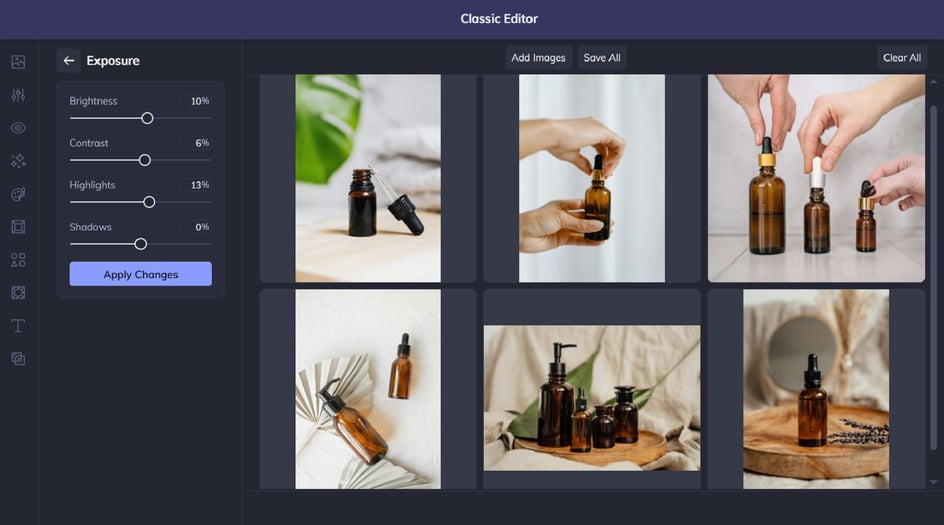
Balanced exposure can also help products appear more premium by improving visibility and reducing distracting shadows or dull areas within the image. This is particularly useful for reflective surfaces, lighter-colored products, or photos taken in natural lighting conditions where brightness may vary across the batch.

Streamline Your Product Photography Workflow
Editing product photos individually can quickly become overwhelming, especially when working with large collections or ongoing launches. Batch editing helps simplify that process by making it easier to enhance, organize, and standardize your images all at once.
With tools spanning AI Editor, Background Remover, and Classic Editor, BeFunky’s Batch Photo Editor gives you everything you need to create cleaner, sharper, and more consistent product photography in far less time.
Ready to start editing smarter? Head to the Batch Photo Editor and begin transforming your product photos in bulk.