







How to Update Brand Photography Without Scheduling Another Photoshoot

Professional brand photography is an investment, but as your business grows, those once–perfect images can quickly start to feel outdated. Maybe you've refreshed your brand’s color palette, moved into a new workspace, or simply want your marketing to feel more current. Scheduling another photoshoot every time something changes can be time consuming and difficult to coordinate – not to mention expensive.
Thankfully, there's a faster, simpler and more affordable option. With BeFunky's AI-powered Smart Edit, you can transform existing brand photos using quick and effective text prompts. Update backgrounds, swap props, change clothing colors, refresh office spaces, or add seasonal details while keeping the original subject intact.
Whether you're updating your website, planning a marketing campaign, or simply giving your social media a refresh, Smart Edit makes it easy to modernize your existing photos. Keep reading, because we’ll show you how!
How to Refresh Your Brand Photography Using Smart Edit
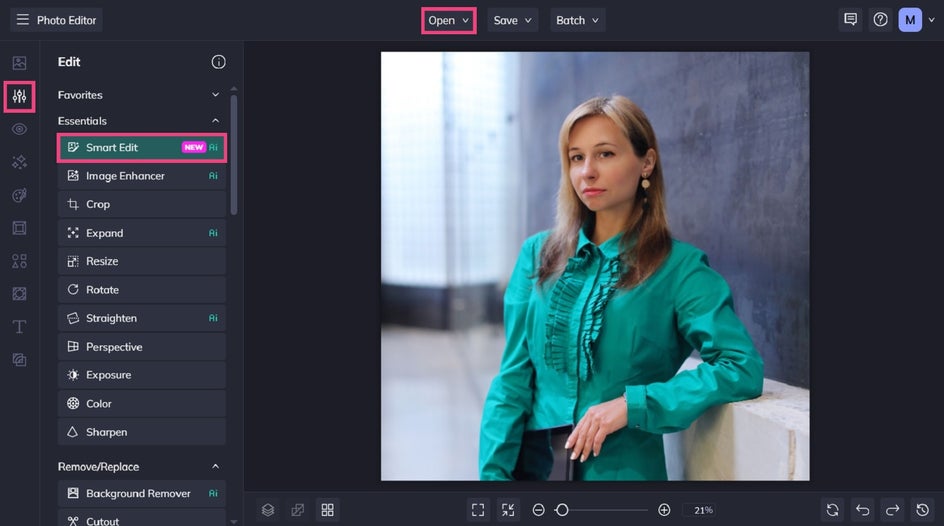
Start by opening the image you wish to edit in the Photo Editor, then navigate to Smart Edit within the Edit tab to get started.
Keep in mind that images with good lighting and clearly defined subjects will typically produce the best results.
Step 1: Describe the Changes You Want to Make
Before writing your prompt, think about what feels outdated. Identifying exactly what you'd like to update will help you create more effective prompts.
Inside Smart Edit, you'll find a box where you can type exactly how you'd like your image to change.
When writing your prompt, try to address the following:
- what should change
- what it should become
- what should remain the same
- any other important visual details
For example:
“Replace the background with a bright, modern home office space featuring natural light and chic decor. Change the subject’s green blouse to a lilac knitted sweater. Keep the subject’s facial expression and pose unchanged.”
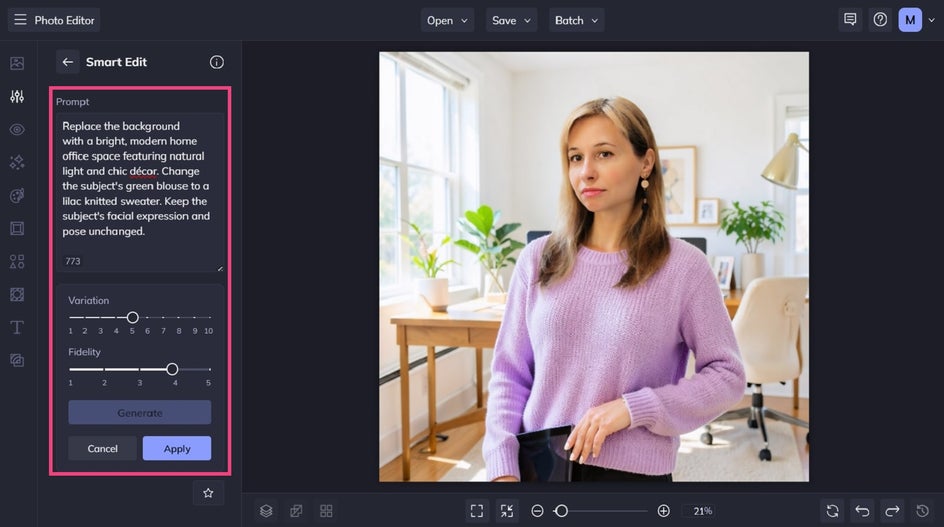
Step 2: Generate Your Updated Brand Photo
Click Generate to preview your updated image.
If you'd like to explore different creative directions, simply adjust your prompt or experiment with the Variation and Fidelity settings. Variation allows you to generate multiple interpretations of the same idea, while Fidelity controls how closely the result matches your original image.
Once you're happy with the results, click Apply to keep your changes.
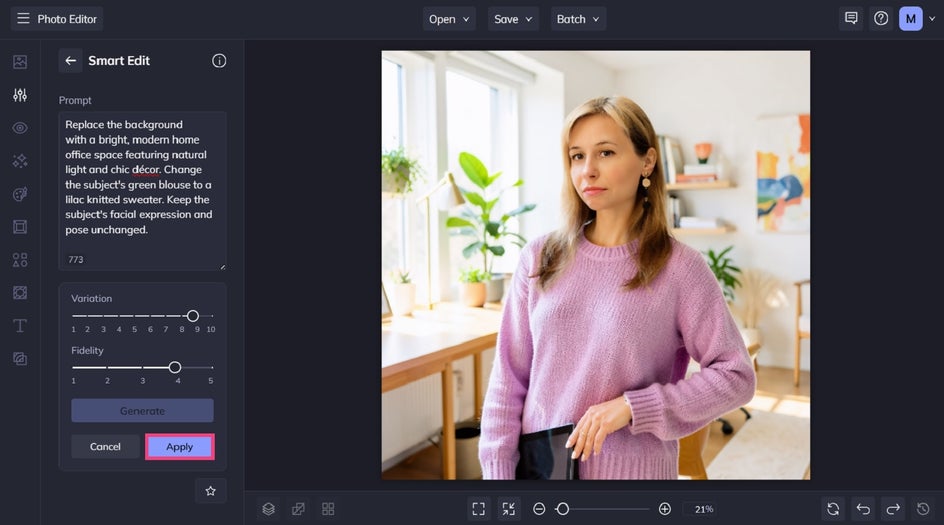
Step 3: Save Your Final Image
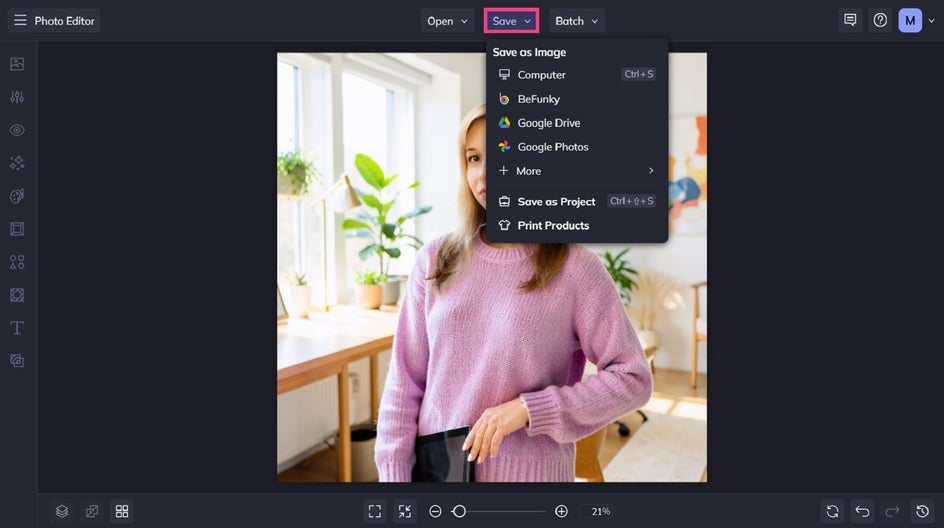
Finished editing your brand photo? Click Save at the top of the screen, then choose your desired save location and format.
You don't have to stop after creating just one version, either. One of Smart Edit's biggest advantages is how quickly you can generate multiple images from the same original photo. Create different versions for your website, LinkedIn profile, email newsletters, social media campaigns, online ads, or seasonal promotions – all without booking another photoshoot.
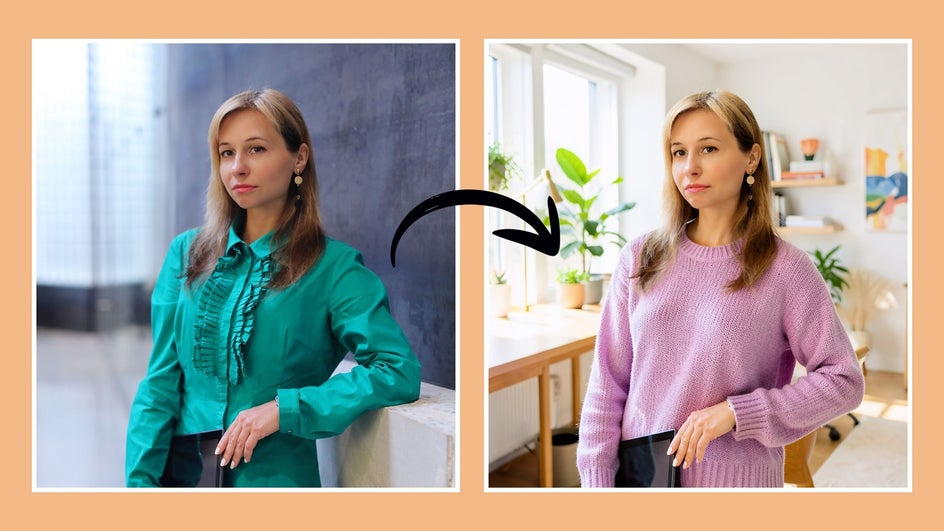
Before and After: From Outdated to On-Brand
Instead of replacing the original image, we used Smart Edit to build upon it. The same person, expression, and pose remain recognizable while the surrounding environment, styling, colors, and visual details are transformed to suit a different brand aesthetic.
As you can see, what once required an entirely new photography session can now be accomplished in minutes using our advanced AI editing!
Other Creative Ways to Refresh Existing Brand Photography
Using the same workflow in our tutorial above, you can update your branding in countless ways. Here are some other ways to use Smart Edit to keep your marketing looking polished throughout the year.
Refresh Your Workspace
Your workspace says a lot about your business. If your office has changed (or you simply want a cleaner, more modern aesthetic), Smart Edit can instantly update the environment around you.
Try prompts like:
- Replace the office with a bright, modern studio featuring large windows and natural wood furniture.
- Add minimalist shelving with plants and books behind the subject.
- Replace the plain wall with a stylish creative workspace featuring soft ambient lighting.
These updates help your photography better reflect your current brand without requiring a new location or photoshoot.


Match Your Current Brand Colors
Businesses naturally evolve over time, and logos, color palettes, and visual identity often change as a result. Rather than replacing your entire collection of brand photos, Smart Edit lets you update your existing images to match your new aesthetic.
Consider prompts like:
- Change the subject's blazer to navy blue (#1E3A5F).
- Replace the desk accessories with branded blue and white office supplies.
- Change the accent wall to a warm sage green while keeping everything else unchanged.
These subtle edits help create a more cohesive look across your website, social media, and marketing materials.


Create Seasonal Marketing Images
Using Smart Edit, you can also adapt your existing photography throughout the year by changing the environment or adding festive details.
For example:
- Decorate the office with subtle holiday lights and greenery.
- Add spring flowers to the desk with soft morning sunlight.
- Transform the outdoor background into a colorful autumn setting with golden leaves.
Creating seasonal variations helps keep your content feeling fresh while maintaining a consistent visual identity.


Visualize Future Branding Ideas
Smart Edit isn't just useful for updating existing branding. It's also an excellent way to experiment with ideas before making real investments.
Want to see what your office would look like with different décor? Curious how a new brand color might appear in your marketing? Thinking about refreshing your visual style?
Generate multiple concepts first, choose your favorites, and refine your ideas before committing to physical renovations, new furniture, or a complete rebrand.

Work Smarter, Not Harder With Your Brand Photography
As your business grows and your marketing needs change, your images should be able to evolve alongside it. With Smart Edit, you can continue getting value from your existing images long after the original photoshoot.
Try Smart Edit in the Photo Editor today to see just how much time, energy, and money you can save with your brand photography!