How to Design the Perfect Photo Watermark

With the rise of social media, creative work like art and photography has never been more accessible. Online sharing through posts, stories, and blogs has the potential to boost business, but if your work goes uncredited, it can also do the opposite – which is why photo watermarks are more important than ever. While it’s not hard to get permission to share someone’s work and give proper credit, few people go the extra mile to do this. A visible watermark ensures that your work can always be traced back to you, whether credited or not; most importantly, it discourages people from trying to sell your photos or create products from them.
One concern about adding watermarks is ruining the aesthetic of your beautifully shot photos, but watermarks don’t need to be unsightly. A good watermark is subtle, creative, and even adds to your brand. Don’t have design experience or an existing business logo to use as a watermark? No worries. The Graphic Designer makes it easy to create a watermark that meets all these criteria in minutes. And once your DIY watermark is complete, it’s a breeze to add it to images with the Watermark tool.
How to Create a Watermark for Your Photos
First, open up the Graphic Designer. From here, it’s a few simple steps to a versatile watermark that you can add to both past and future work.
Step 1: Prepare the Canvas
Start by creating a blank canvas at a custom size. For a stamp-style watermark that’s not too obtrusive, working with a square canvas of around 200x200px should be sufficient – it will take up less than a square inch on a photo at 300dpi. If you tend to post images at a bigger size or higher resolution, a larger size of 300-500px can also work.

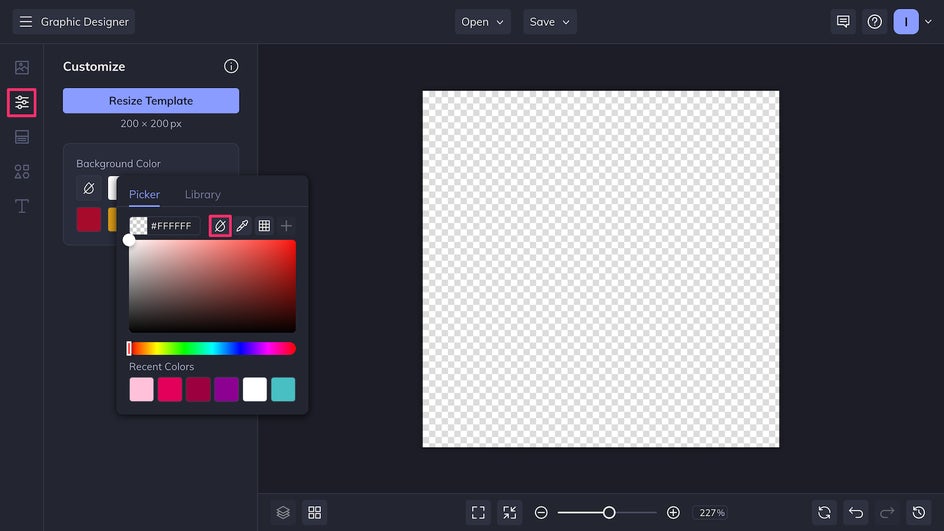
Once the file is created, make the background transparent in the Customize tab by selecting the No Color option, which appears as a droplet with a line running through it. The canvas is now fully prepped!
Step 2: Design Your Custom Watermark
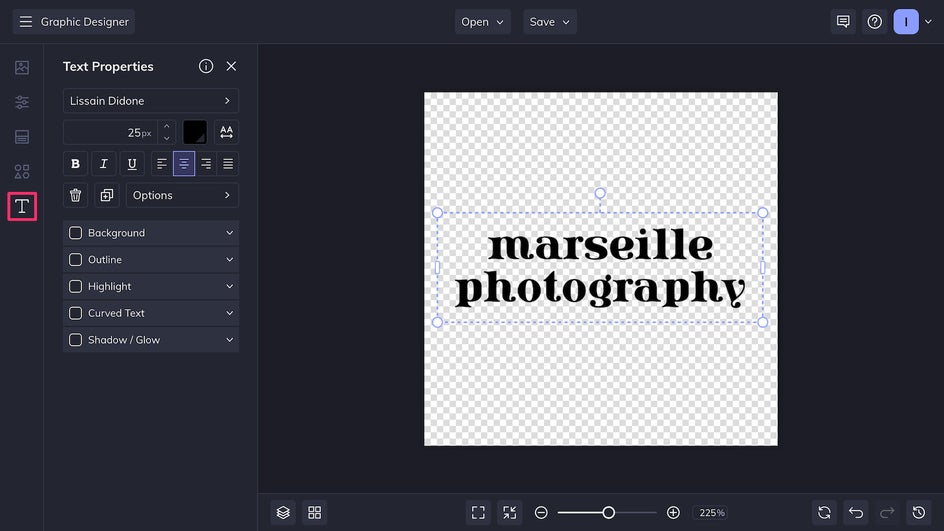
Watermarks don’t need to be – and in fact, shouldn’t be – complicated. A simple, subtle design works best. For instance, use the Text tool to add the name of your brand in an interesting font.
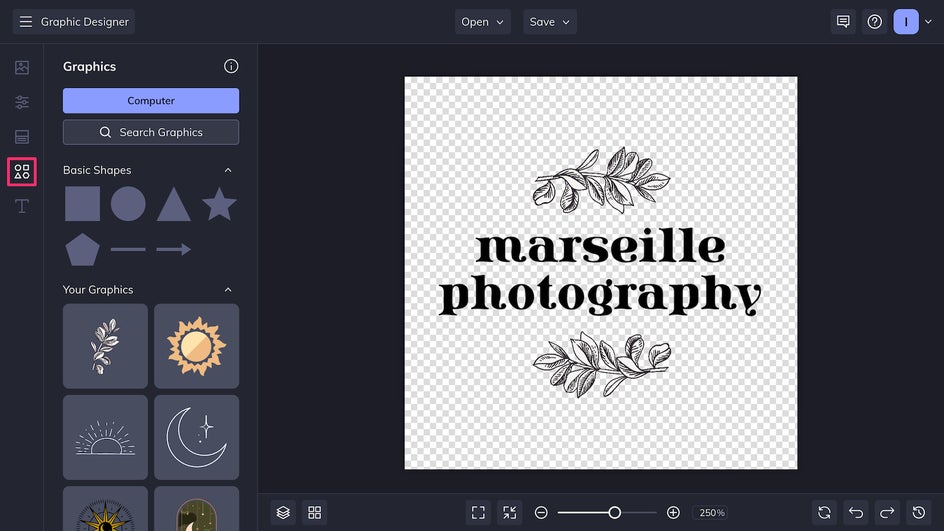
Combine text with a central graphic for the most unique watermark. This method is similar to creating a small business logo. Explore thousands of different vector graphics and icons in BeFunky’s Graphics Library and make sure to include your brand name, social media handle, or URL at a legible size somewhere around the graphic.
When it comes to colors, it’s best to use just a single color, and later adjust how it appears on photos by adjusting the opacity. Two colors can also be used if the design is simple.
Step 3: Save And Apply
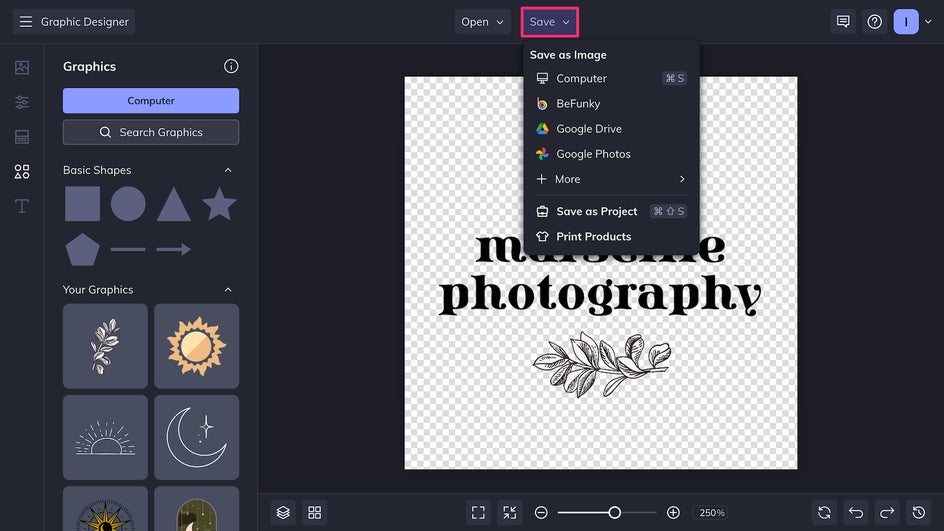
Now it’s time to click Save at the top of the canvas and save the file to your device as a high-quality PNG. It’s also a good idea to Save as Project so that you can adjust the watermark color and size later if necessary.
And that’s it! It takes only a minute to add the completed watermark as a template in the Photo Editor. After that, this custom watermark can be added to any photo when saving, or applied to multiple files at once in the Batch Editor. It’s the simplest way to promote your brand and prevent theft all in one go.
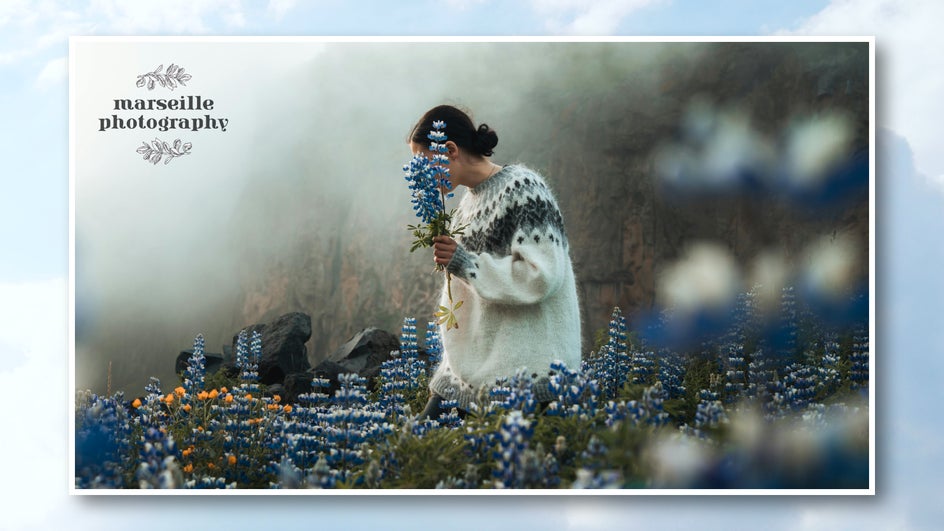
Unique Watermark Styles to Try
A good photo watermark is simple, unique, and on-brand. Just like an artist’s signature, it’s meant to distinguish your photos from the rest. If you’re not sure which direction to go in for your own watermark, here’s a little bit of inspiration:
Logos
If you’ve already established a business logo, it will make the perfect watermark for any photos posted online. Simply position the logo wherever it’s the least distracting, tweak the opacity, and you’re good to go.

Brands or Names
If your own personal or business name would be more recognizable than a logo, it’s a good idea to simply use the name as a watermark. All you need to do is keep the font on brand to establish it as your unique digital signature.

URLs and Social Media Handles
If you’re the owner of a blog or have a web-driven small business, consider using a website URL or social media handle as a watermark. This way, whenever someone comes across a photo you’ve taken and sees the handle or web address, it’ll be easy to follow the watermark back to your site. This can help greatly with increasing traffic and follows.

Boost Your Brand With a Custom Watermark
A good watermark not only protects photos, it also cements a brand and directs people to view your other work. And with the Graphic Designer and Photo Editor, BeFunky has made it easier than ever to create, save, and watermark any image. Custom watermarks can all be stored in one place, and adding them to photos can be accomplished in just one click. Once you’ve decided what kind of watermark to design, the rest is a breeze. Create your own custom watermark today in the Graphic Designer!