Extend Your Landscapes With Expand AI

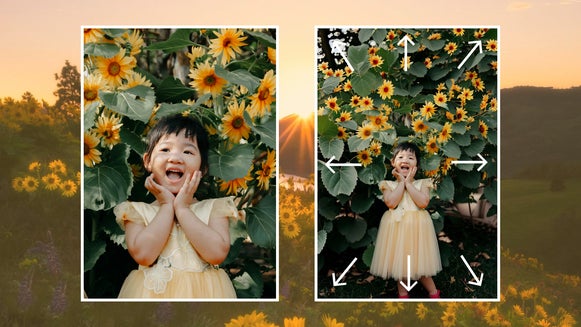
Want to expand your landscape photos beyond what your lens captured? Whether you're reframing for a new aspect ratio or dreaming up an entirely new scene, BeFunky's AI image extender tool makes it possible in a single click.
In this tutorial, we’ll walk you through how to use Expand AI to stretch the borders of your landscapes to create panoramic effects, imagine a new scene, and reframe your shots for maximum impact.
Meet BeFunky’s Image Expander
This innovative tool uses AI to generate new scenery around your photo to create a more expansive composition. Whether you want to convert a vertical photo to a horizontal one or simply add more visual space, it's easy to blend new content into your existing scene in a matter of seconds.

Why Expand Your Images With AI?
- Instantly change photo orientation (portrait to landscape or vice versa).
- Add realistic scenery without stitching or cropping.
- Create panoramas or print-ready designs.
- Maintain a cohesive, high-quality look using AI blending.
How to Expand a Landscape Photo
Expanding your landscape photos is fast and intuitive. Follow along to turn any regular landscape photo into an expansive new scene.
Step 1: Upload Your Landscape
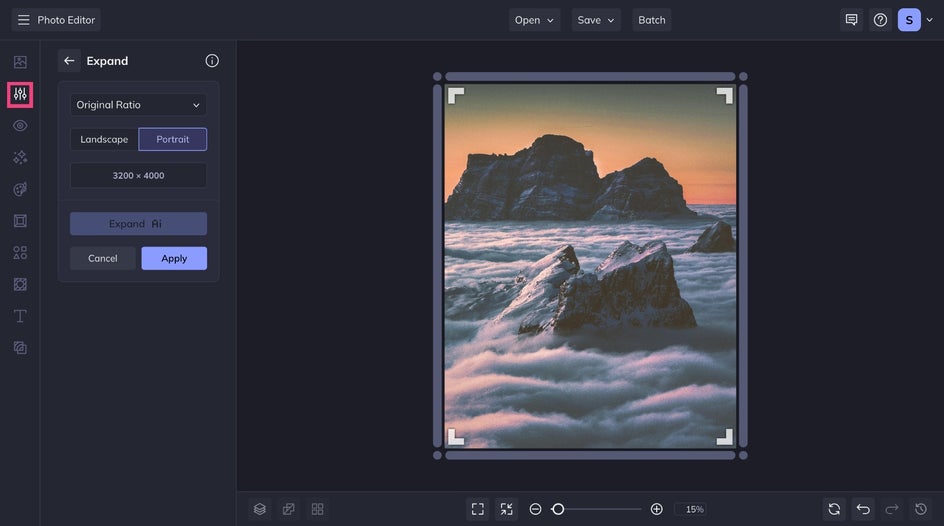
Open Expand AI, found in the Essentials category of the Edit tab, and upload your photo.
Step 2: Choose an Aspect Ratio & Orientation
From the dropdown menu, select a new aspect ratio for your landscape – such as 16:9 for widescreen display, or 1:1 for a social media post.
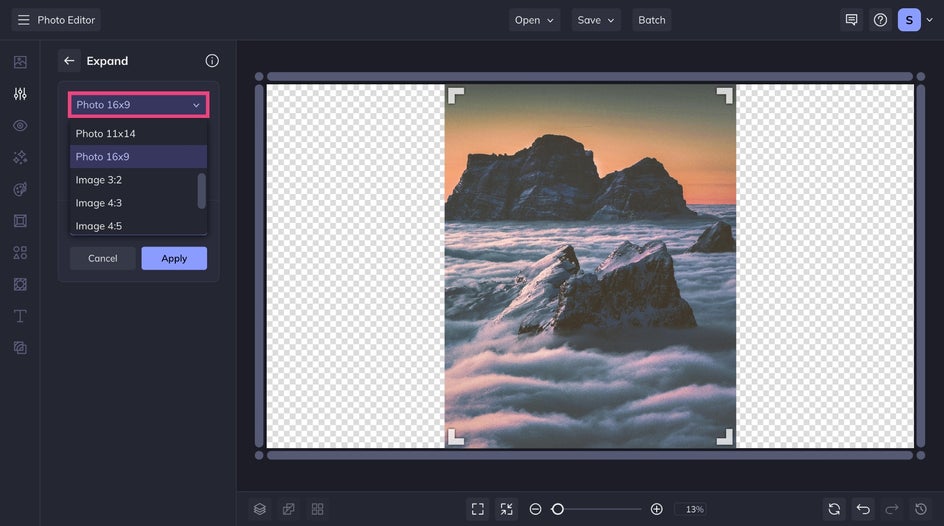
Then choose whether to expand the photo horizontally or vertically, depending on your creative goal. For this example, we're turning a portrait-oriented photo into a horizontal landscape for a banner-style design.
Click Expand to generate your expanded image.
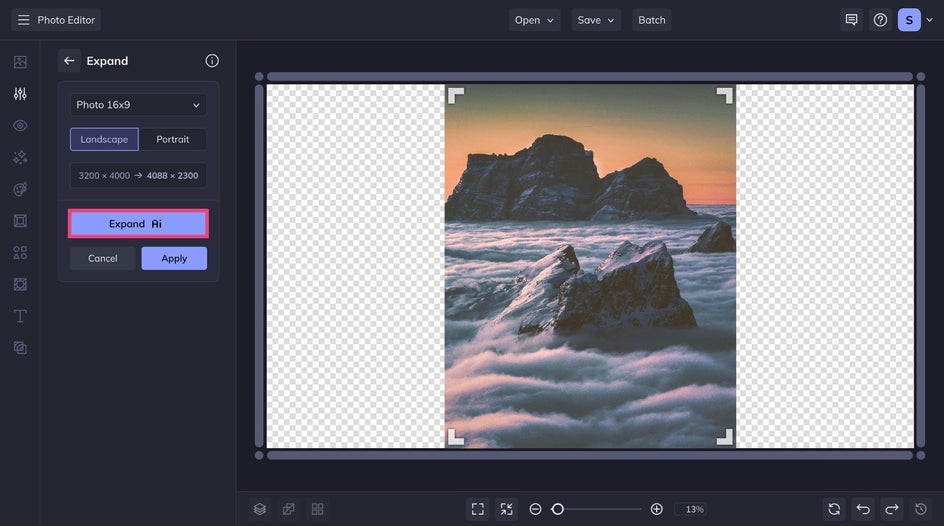
Within seconds, Expand AI will generate a new version of your photo with realistic scenery added. You can:
- Click Generate Again for an alternate version
- Use the Fade Edge slider to control how subtly the new content blends with the original image
- Make final tweaks before applying
When you're satisfied, click Apply to lock in the changes.
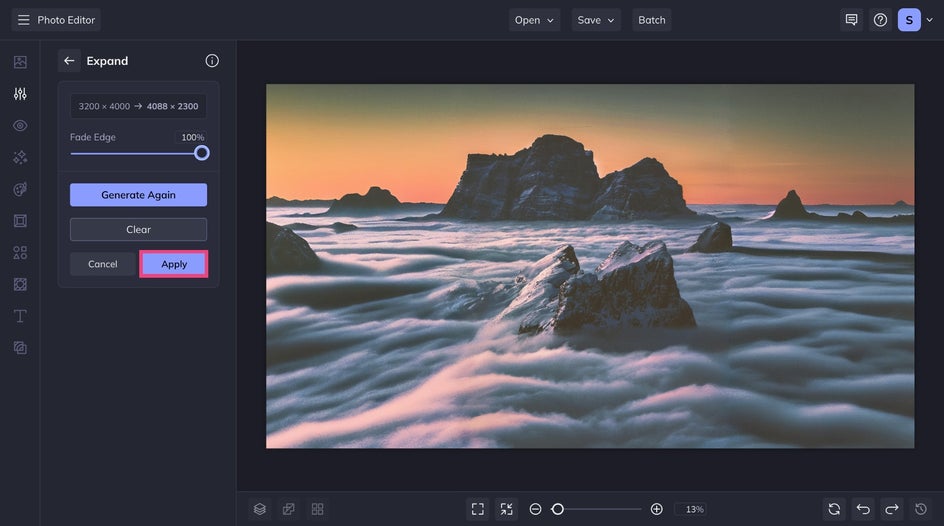
Step 3: Save Your Extended Landscape
Click Save at the top of the Photo Editor and choose any location – your computer, BeFunky account, and more.
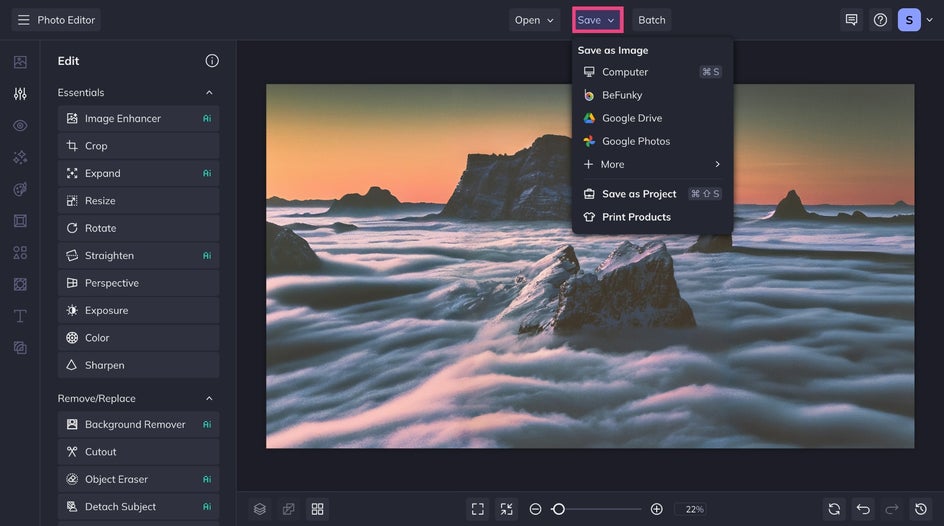
For a quick and easy way to display your newly expanded landscape, click Print Products to have a professional print delivered straight to your door!
Seamless AI-Generated Expansion
Once you’ve applied your changes and saved your work, you’ll have a beautifully extended version of your original photo – complete with AI-generated scenery that blends in naturally. Whether you're printing it as a wide-format piece, using it as a digital banner, or simply enhancing your travel gallery, the result looks so seamless you’d never guess it wasn’t part of the original shot.
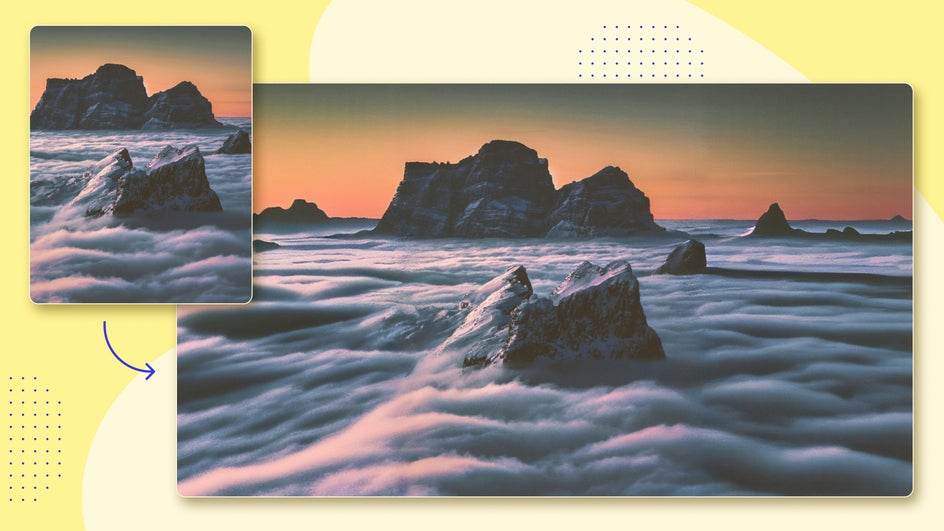
Creative Ways to Expand Landscapes
Expand AI is more than a photo editing tool – it’s a springboard for creative ideas. Here are a few inspiring ways to make the most of it:
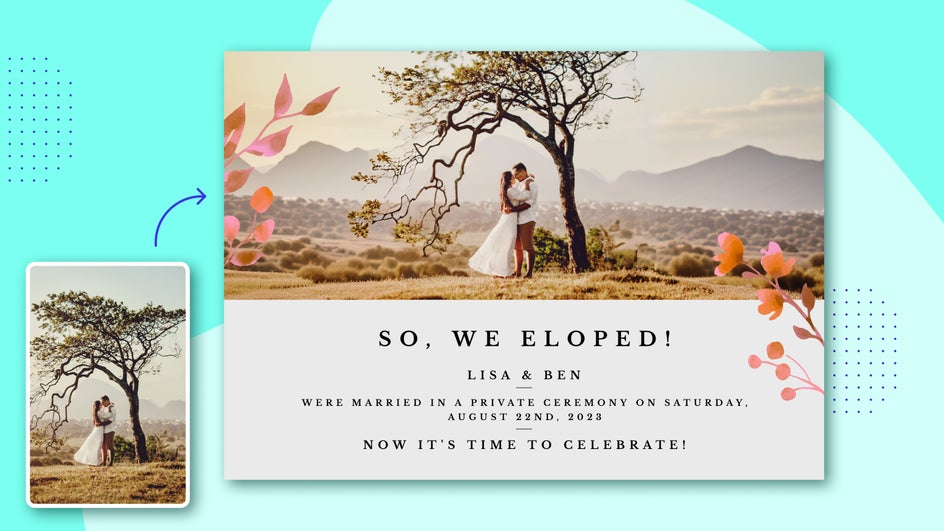
Widen Wedding Portraits
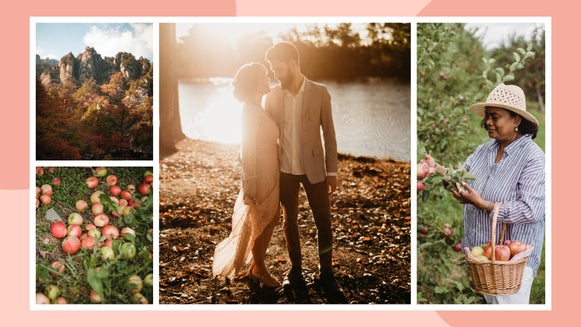
Use Expand AI to turn close-up wedding portraits into wide-angle scenes that highlight both the couple and their surroundings. It’s ideal for adding visual space around your subjects. Find the perfect fit for a wedding album, thank you card, or framed keepsake. Expanded images also work beautifully in collage layouts, giving you more flexibility to design balanced, story-driven pages.
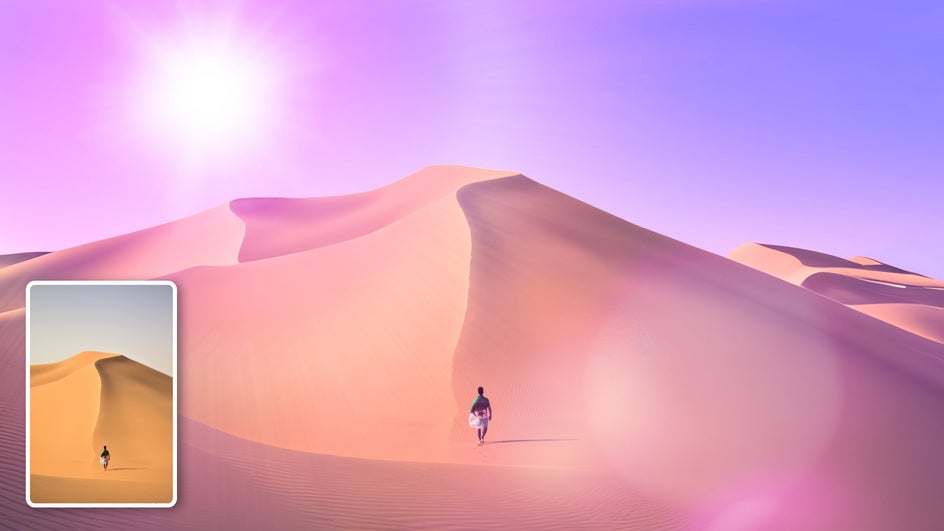
Design Surreal Scenery
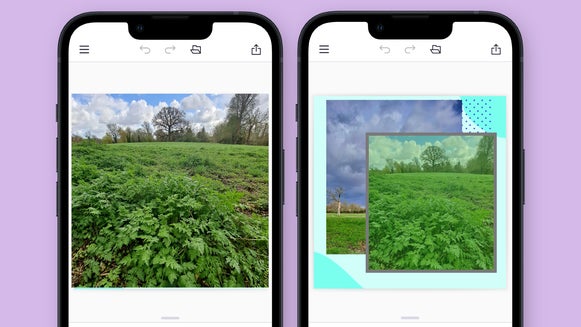
Our AI image expander isn’t limited to realistic scenery. It can also generate entirely new worlds. Want to transform a desert into a dreamlike oasis, or extend a cloudy sky into something cosmic and surreal? Try expanding in different directions and layering your favorite tools and effects – such as the Sky Replacer or a Lens Flare – to create something new.
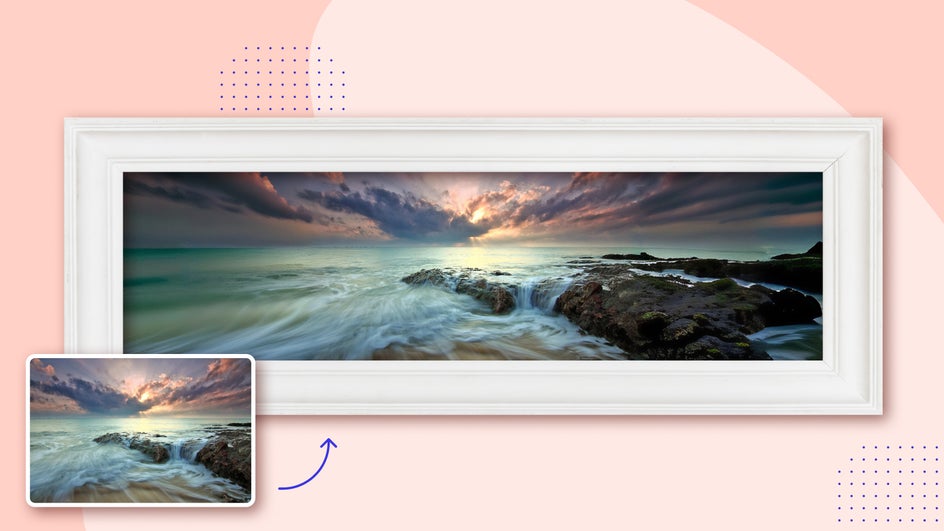
Create Panoramic Art
Wish you had a panoramic version of your favorite landscape shot? Rather than cropping or stitching multiple photos together, you can generate a wide-format version from a single image. Perfect for printing and framing or using to create social media carousels.
Expand What’s Possible With Your Landscapes
Gone are the days of being limited by only what your camera can capture. With BeFunky’s AI image extender, there’s no limit to the landscape imagery you can produce. Ready to try Expand AI for yourself? Head to the Photo Editor to extend your own landscape photos!