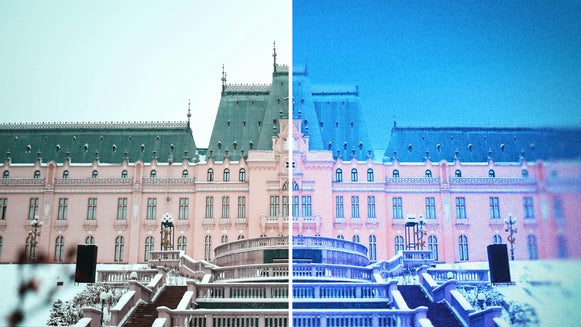
Create Seasonal Photo Edits With Sky Replacer

Have you ever taken a photo you love, but wished it felt more seasonal? Maybe you're working on a holiday card and want a winter vibe, or you'd like to add a warm, golden-hour sky to match an autumn mood. With BeFunky’s Sky Replacer, it’s easy to update the feel of any photo by changing just the sky – no reshoots or complicated edits needed.
This powerful AI tool, found in our Photo Editor, automatically detects and masks the original sky in your image, then blends in a new one for a seamless result. Whether you’re prepping content for social media, designing personal greeting cards, or building themed photo albums, swapping the sky can help your images tell a new seasonal story. And the best part? It only takes a few clicks.
Want to turn a single photo into four unique seasonal looks? We’ll show you exactly how.
How to Create Seasonal Edits With Sky Replacer
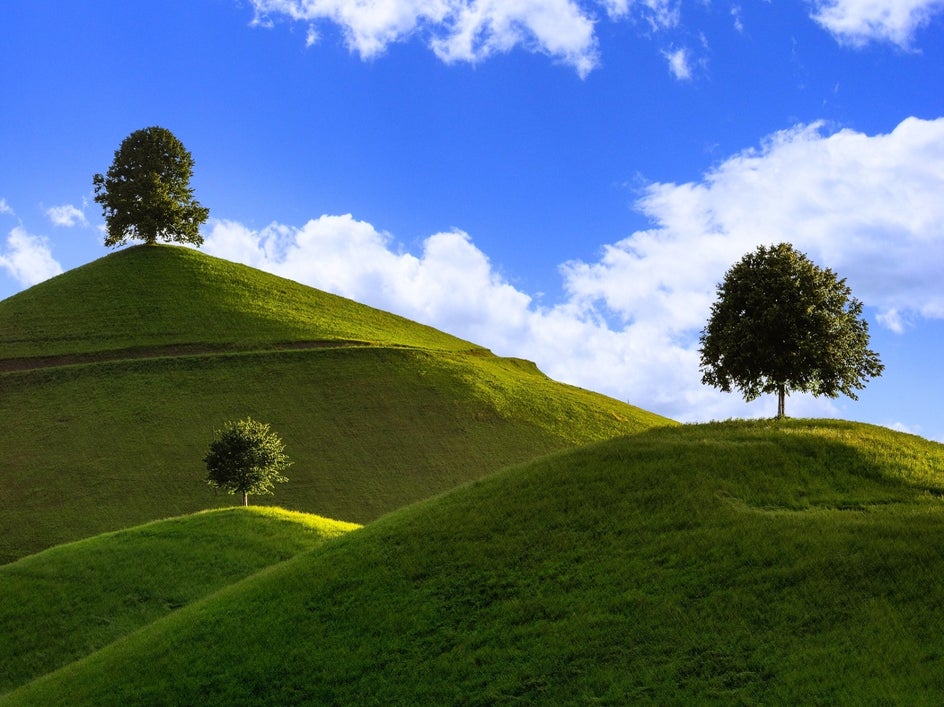
To begin, open the Sky Replacer and upload your photo. For this tutorial, we’re using a neutral landscape image and transforming it into spring, summer, fall, and winter by swapping skies and making subtle edits.
Step 1: Open the Sky Replacer
First, head to the Sky Replacer, which can be found in the Edit tab of the Photo Editor. Upload your travel photo to get started. Once your image is loaded, the Sky Replacer will automatically detect and isolate the existing sky.
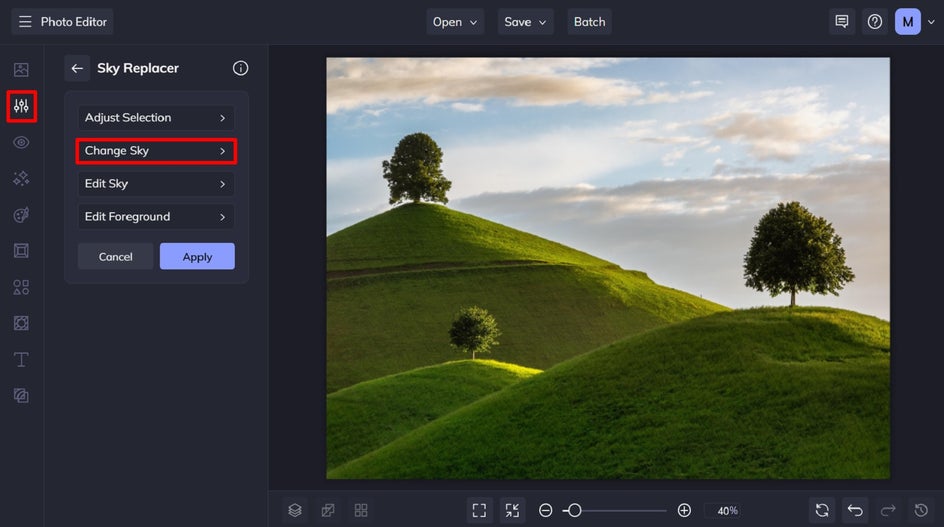
Since we want to completely swap out the existing sky, select Change Sky, followed by Image and Select Sky to choose a new one.
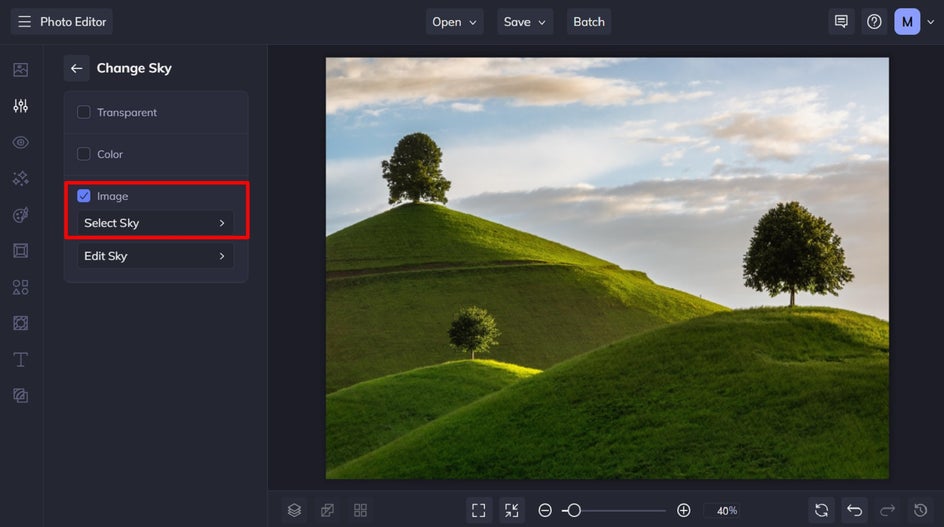
Step 2: Choose a New Sky
Now it's time to browse BeFunky’s collection of skies – from crystal-clear blue to warm sunsets or dramatic clouds. You can also upload your own sky image for a custom look. Once you've chosen the perfect match, click on the Settings icon to make any refinements.
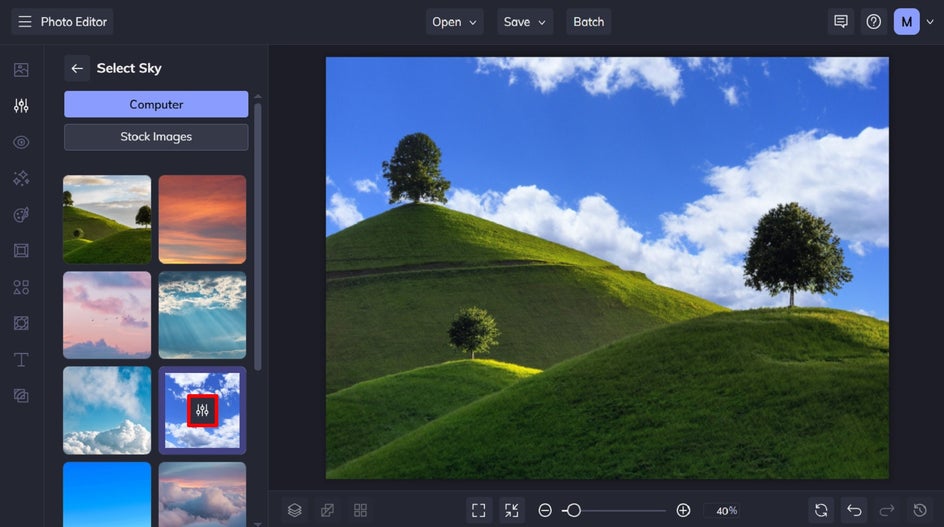
Choose your new sky from the curated selection of skies available. Alternatively, you can click Computer to upload your own sky photo, or select Stock Images to find the perfect seasonal sky within our huge library of free stock photos.
Step 3: Edit the Sky to Match Any Season
For our first edit, we’re swapping our existing sky for one that resembles spring: a bright blue sky with fluffy white clouds.
You can adjust your new sky’s placement by clicking and dragging it on your canvas. You may also apply further edits to your sky by clicking the options button.
From the Colors tab, you can alter your new sky’s saturation, temperature, and more. You can also customize the lighting on the edge to add realism. The key here is to ensure these elements of your sky match those of your existing scene.
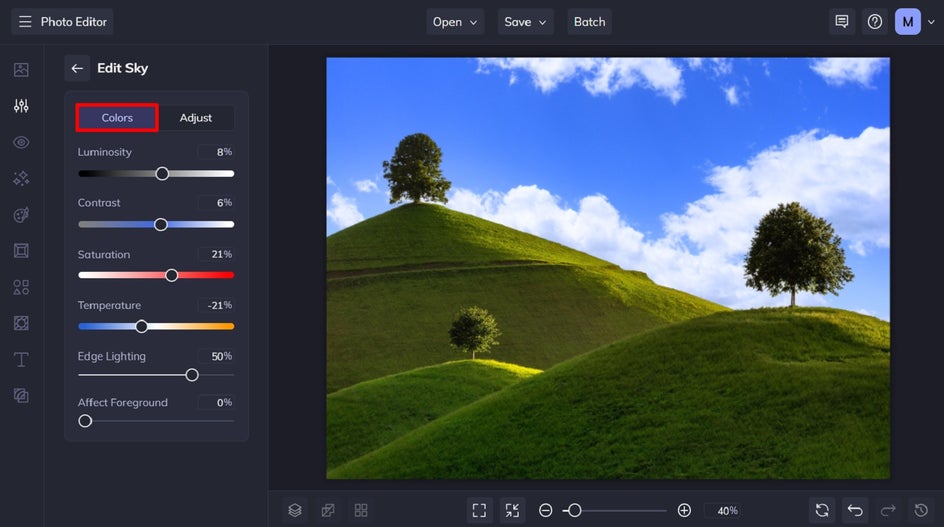
For example, if the lighting in your photo was taken in bright daylight, then a darkened sky wouldn’t look realistic, and vice-versa. For this reason, the Affect Foreground slider is particularly helpful, as it lets you apply these changes to your photo’s foreground too, thus creating a more seamless edit.
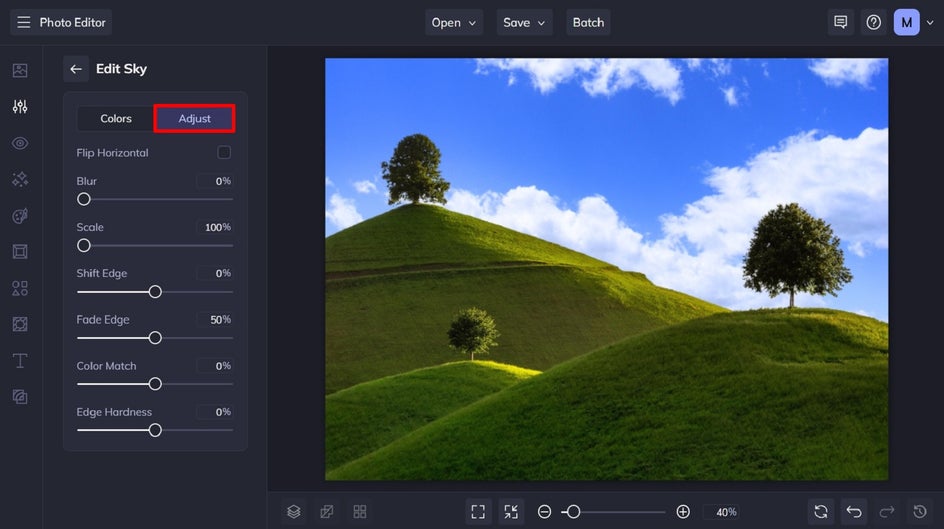
From the Adjust tab, you can also fine-tune how the new sky fits your photo by modifying the edge hardness, scale, placement, blur, and more.
Step 4: Apply and Save Your Seasonal Sky
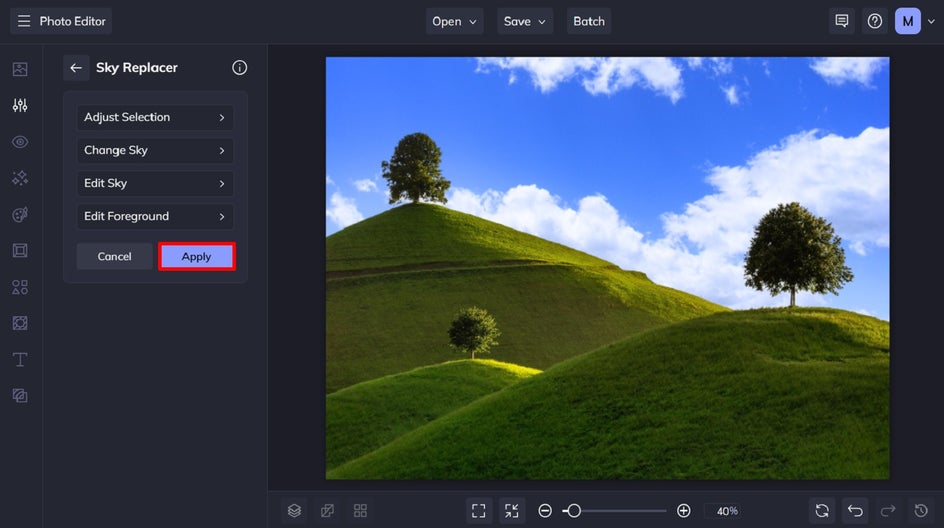
Navigate back to the main Sky Replacer menu using the back arrows, then click Apply.
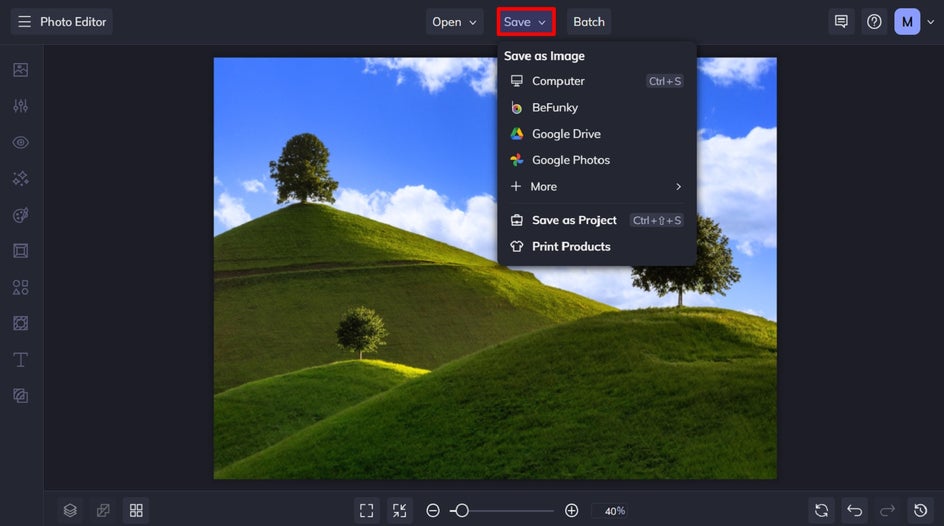
Finally, it’s time to save your seasonal sky replacement. Click Save at the top of the screen and choose your desired save location and format.
Springtime Edit: Fresh and Bright
We started with a generic landscape and turned it into a cheerful spring scene. The blue sky and green hills completely change the tone – it now looks like a bright spring day.
It’s amazing how much you can change the mood and story of a single photo by simply switching out the sky! We took a landscape photo that could’ve been captured in any season and turned it into one resembling the perfect spring scene: a bright blue sky, fluffy white clouds, and rolling green hills.
More Seasonal Swaps to Try
We’ve shown you how to transform a photo into one reminiscent of spring, and now it’s time to turn that same original landscape into the three remaining seasons.
Summer Sky
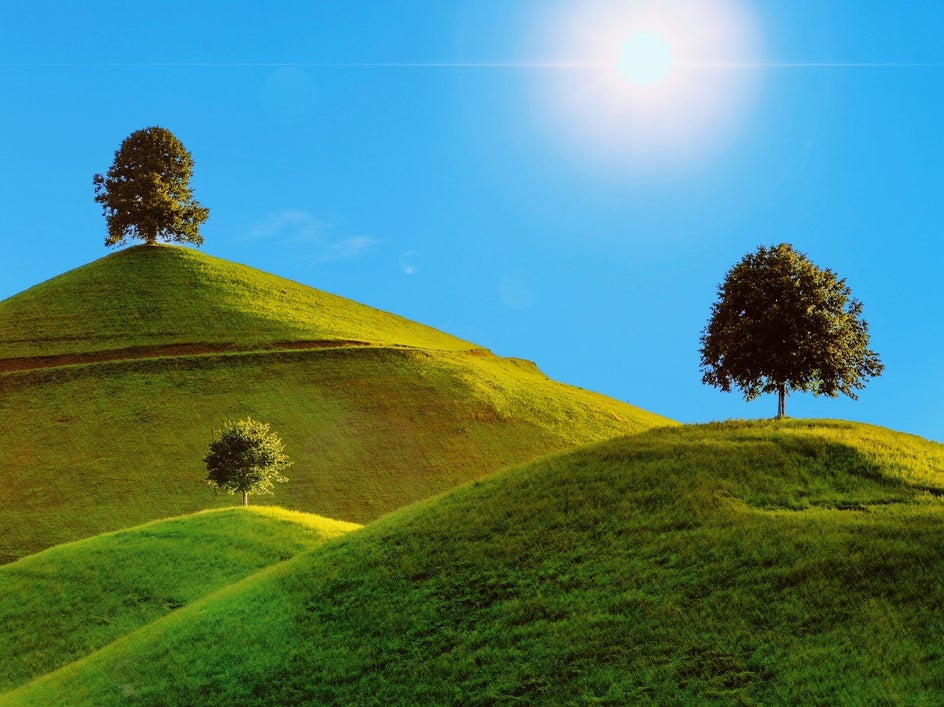
The perfect summer sky is vibrant and warm, like a bright blue sky with minimal clouds and a burst of sunlight. That’s exactly the look we went for here, using a new sky from our stock photo library.
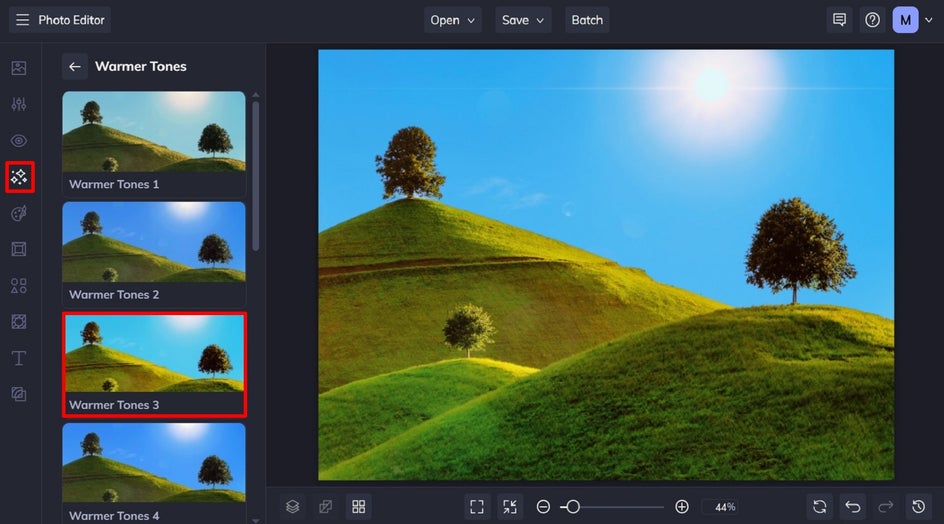
While our new sky image had a little pop of sunshine, we took this to greater heights by adding the Simple Lens Flare photo effect. We also used the Color and Adjust tabs within the Sky Replacer to increase the luminosity and saturation.
Fall Sky
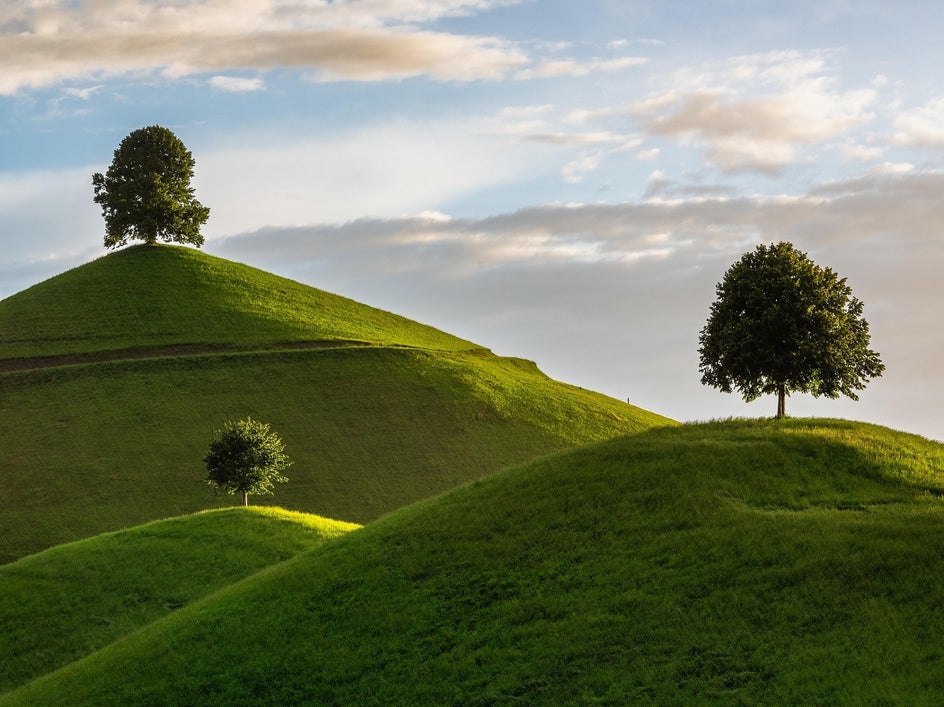
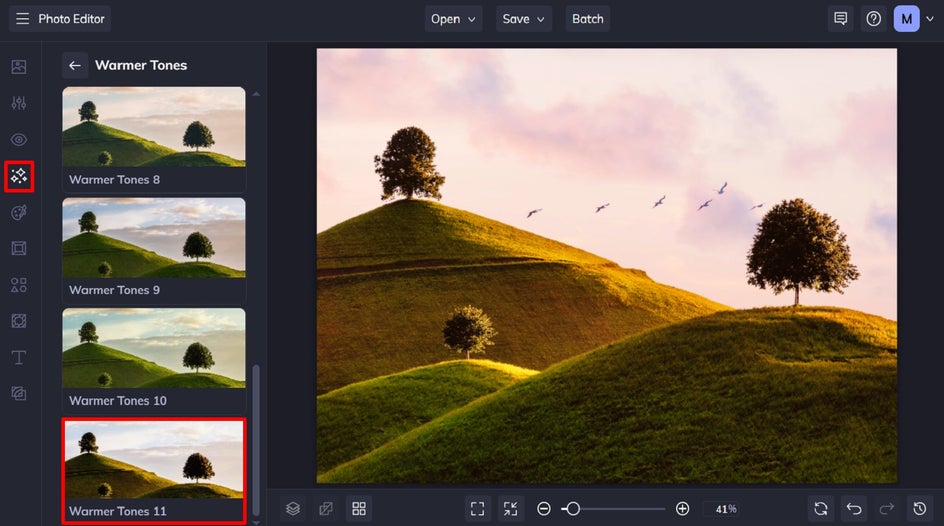
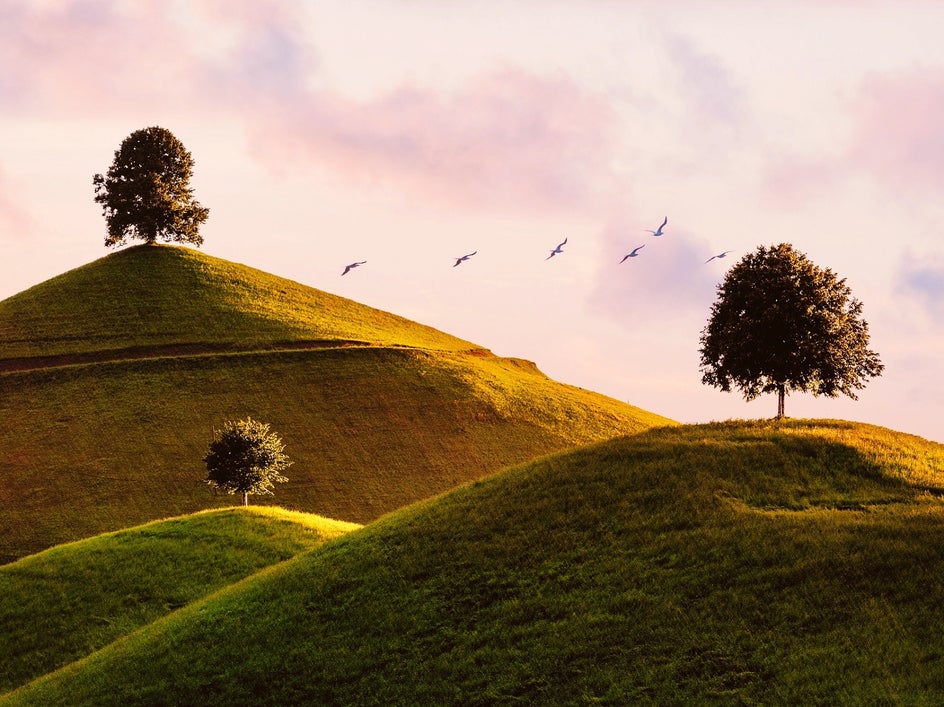
To turn our photo into one reminiscent of fall, we added a pastel-colored sky and paired it with the Warmer Tones 11 photo effect to give the entire scene a more autumnal hue.
With the golden hues, scattered clouds, and soft sunlight, this photo now resembles a crisp evening in fall. It’s a quick and easy way to give your photos that cozy, fall vibe – whether for your social media or branding assets.
Winter Sky
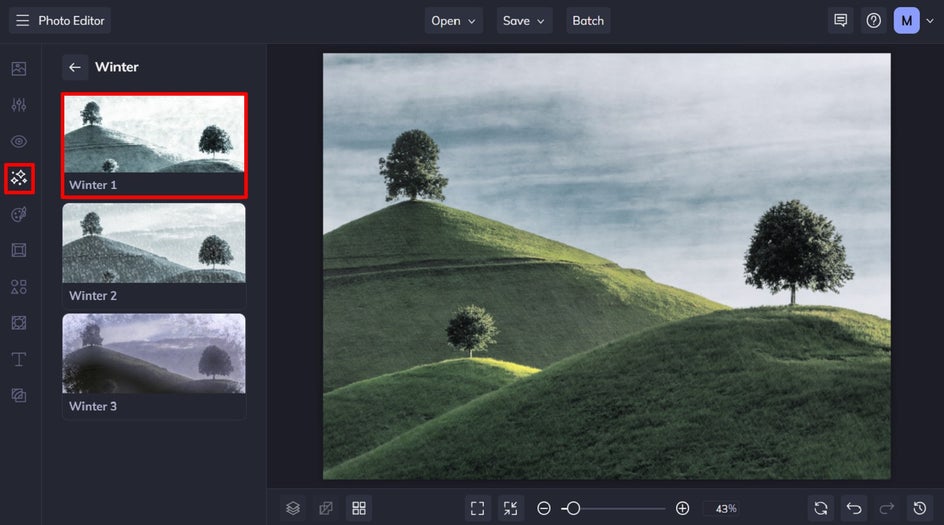
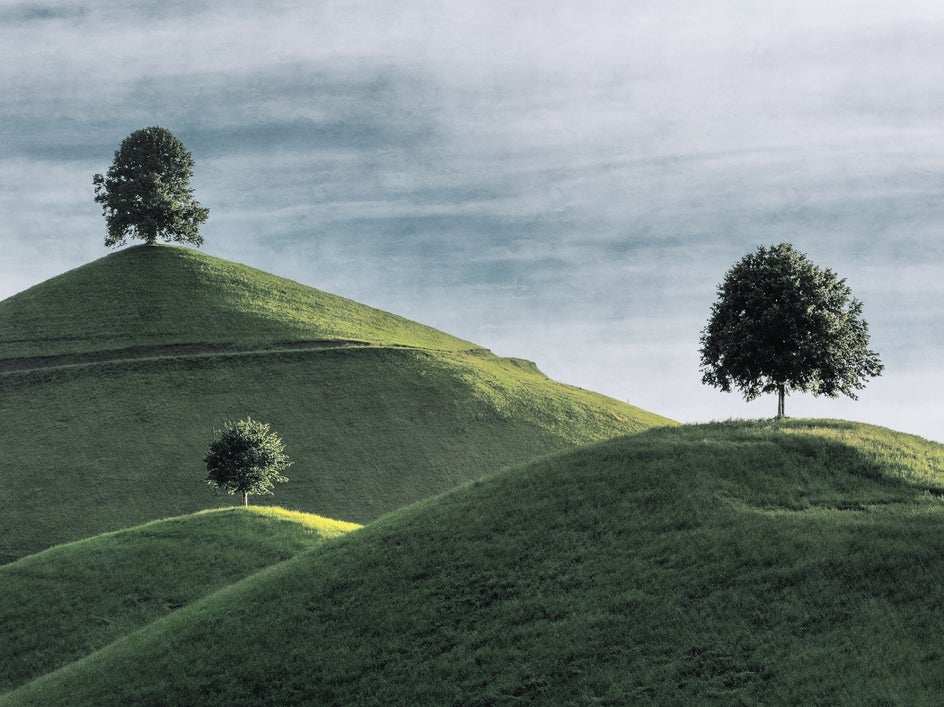
Using the Sky Remover, we added an overcast sky to our landscape. To really turn-up the chill factor, and make our landscape blend in more seamlessly with this new sky, we also applied the Winter 2 photo effect.
The final result is a blizzardy scene devoid of color – just like a photo from a winter holiday card.
Four Seasons, One Image With the AI Sky Replacer
When it comes to transforming the look and feel of your photos, look no further than the sky. With BeFunky’s Sky Replacer, turning one image into four unique seasonal edits is not only possible, but also incredibly fun and easy. Whether you're planning content for your blog, making custom cards, or just experimenting with new creative ideas, this tool helps your photos stay relevant and fresh – all year-round.
Ready to see how different skies can completely change the mood of your favorite shots? Try the Sky Replacer for yourself!