How to Sharpen a Photo for Free With BeFunky

Sharpening is an essential digital photo editing tool that adds definition, creates depth, and makes small details pop. It’s particularly indispensable for professional photographers who need highly customized post-processing. Sharpening allows you to control how crisp and clear a photo turns out, just as an exposure tool allows you to control the contrast and lighting. It also has the power to make blurry photos clearer and bring definition to out-of-focus images.
Contrary to popular belief, there’s no need to download any fancy or expensive software to properly sharpen an image. In fact, with the BeFunky Photo Editor, you can sharpen any image online for free. This Sharpen tool is more customizable than the sharpen function on a phone’s native camera app, but with simple sliders and an intuitive interface, it’s just as easy to use – and you can even apply it from your smartphone. Two different sharpening modes allow you to adjust the effect according to your needs and taste.
In this article, we’ll show you just how easy it is to sharpen a photo online using the Sharpen tool, and go over some situations where it may come in handy.
Sharpen vs. Clarity
The Photo Editor’s Sharpen and Clarity tools have similar functions, but slightly different processes. Clarity adds contrast to the midtones in an image to apply a subtle sharpening effect to the entire image. The result is natural definition and improved clarity even when the tool is dialed up to full effect. It’s useful for low-contrast and muddied images, like photos taken in a dim room, or a blurry snapshot where the shutter speed wasn’t quite high enough.
On the other hand, Sharpen works by adding contrast specifically to shadows and highlights. As a result, objects in a sharpened photo have more clearly defined edges. It’s best when used in small amounts on a soft or fuzzy image, like a travel photo snapped on a bright day or a portrait that’s slightly out of focus. Too much image sharpening can cause a photo to look grainy and pixelated, so in most cases, it’s best to use it sparingly. Even when lightly applied, Sharpen is great for bringing out small details like eyes, hair, leaves, landscapes, and architectural features.
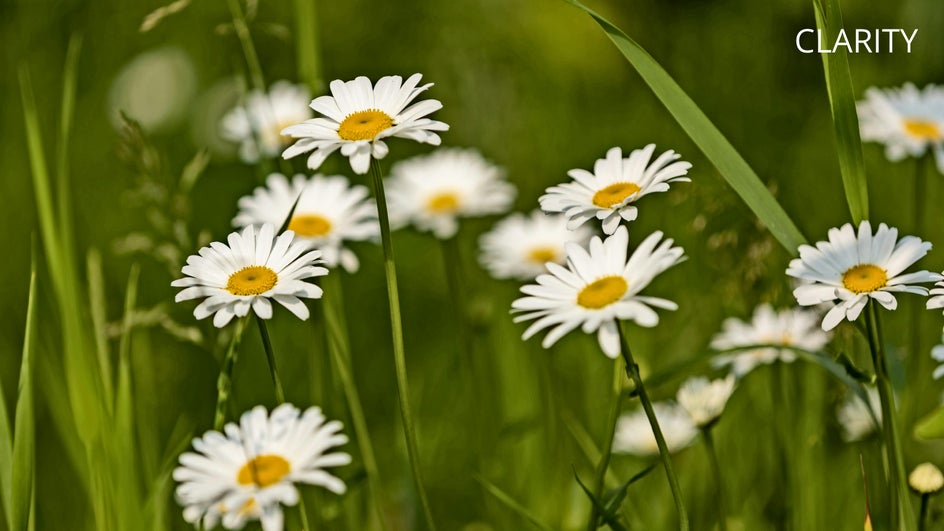
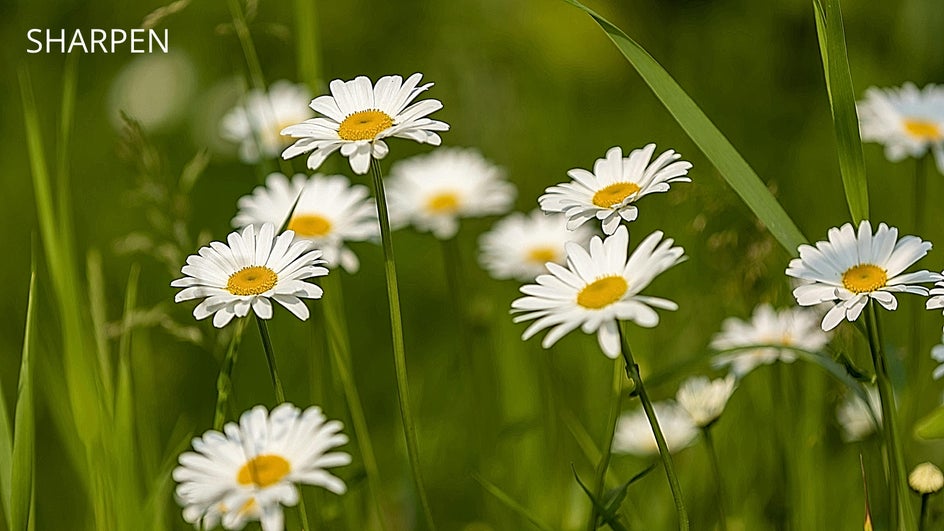
If you’re not sure whether to use Sharpen or Clarity on a photo, try both to see which result you prefer – each tool can be applied in a single click, so it’s not a time-consuming process. For especially blurry or grainy images, using BeFunky’s AI Deblur or Denoise tool may be more effective.
How to Sharpen Any Image Online
With the Photo Editor, sharpening a photo online only takes a minute. Just head over to the Sharpen tool and open a photo to get started.
Step 1: Customize the Sharpness
Once you select a photo, the Sharpen tool will take effect immediately. You can use the Amount slider to adjust the intensity of the results.
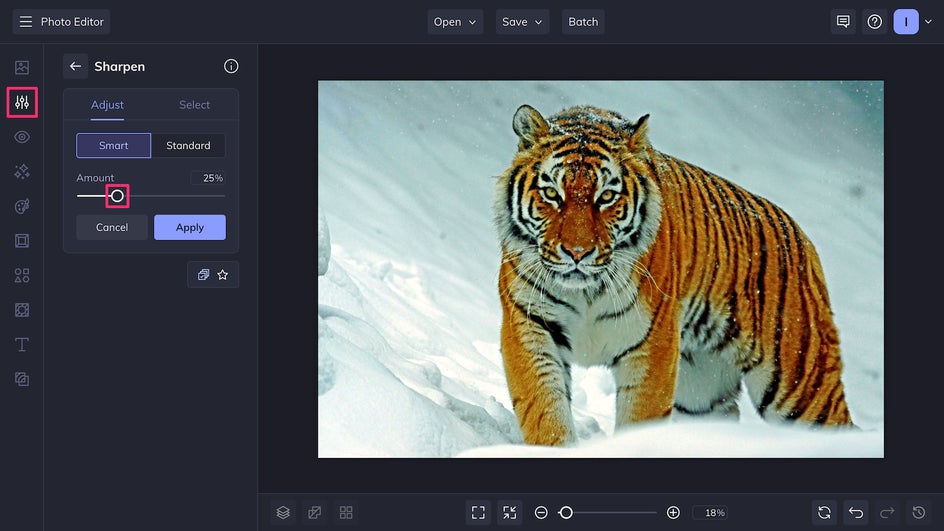
By default, the Sharpen tool is set to Smart mode, which blocks out bigger shapes and helps to increase contrast between very light and dark areas. On the other hand, Standard sharpening is better at clarifying tiny details like hair, fur, and grass. Each has their uses – simply try both and choose a mode based on your image and preference.
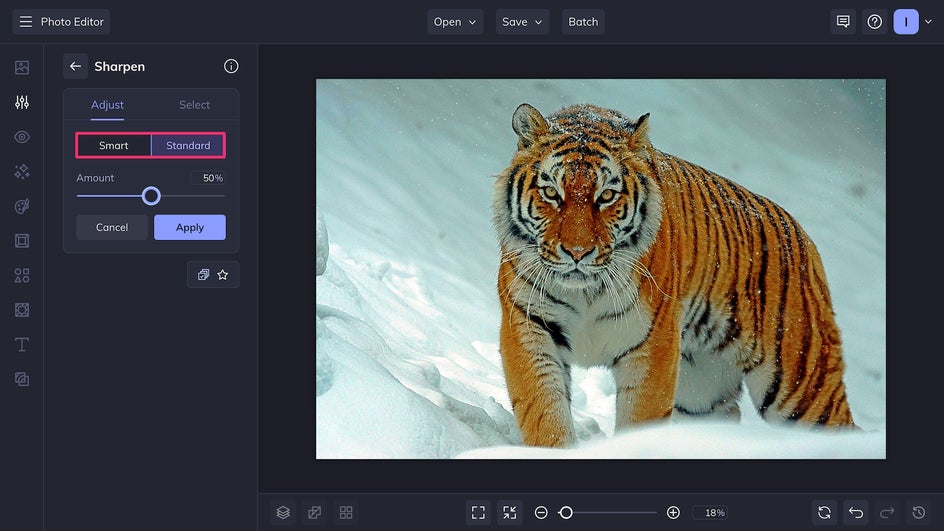
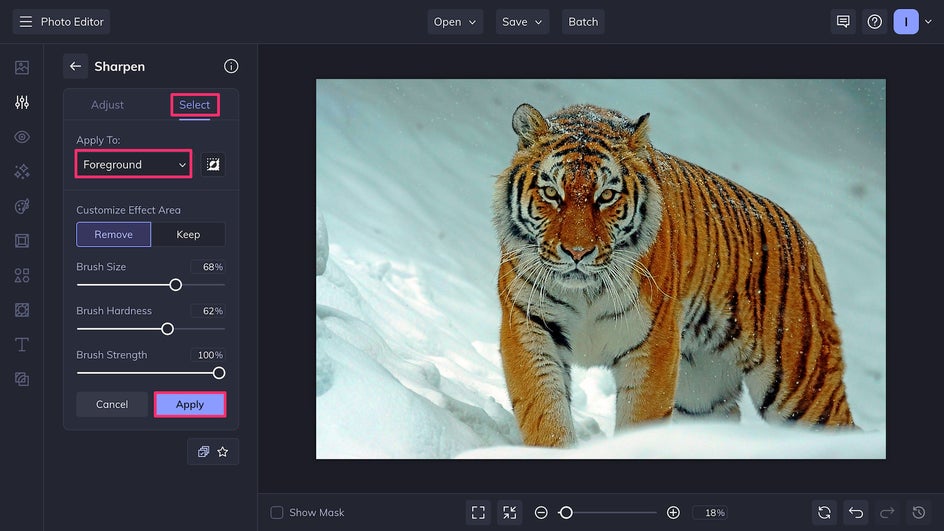
The Sharpen tool is highly customizable - in the Select tab, the brush tool can be used to paint over the specific areas of the photo you want to sharpen (or unsharpen). Alternatively, use the drop-down menu to apply the effect exclusively to the foreground or background. Here, we’re applying it to the foreground only, so that the details of the subject are brought out while the background is left soft. This brings the tiger into greater focus and creates additional depth.
Don’t forget to click Apply once your changes are made.
Step 2: Save Your Photo
Click Save at the top of the canvas to export your sharpened photo. A high-quality PNG will provide the best digital resolution, though a high-quality JPEG takes up less file space. A print-quality PDF is best for framing and printing.
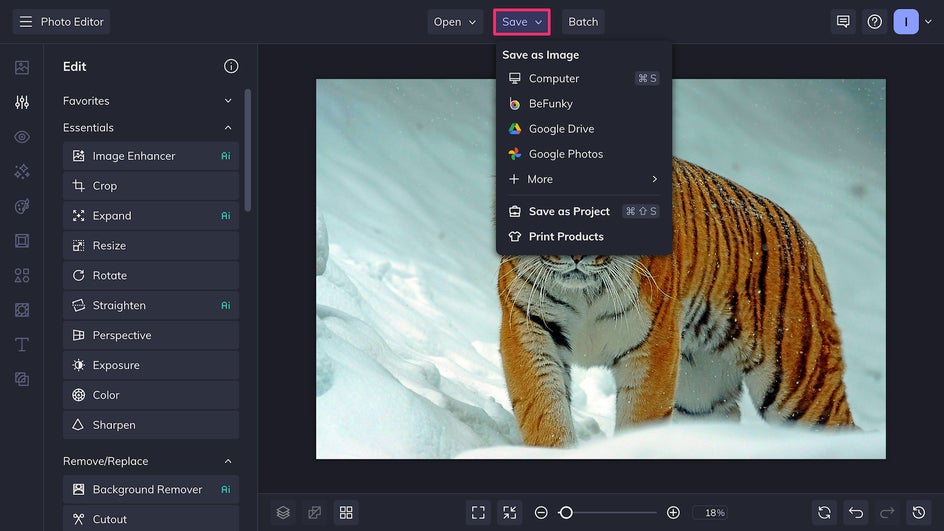
And that’s it! In just a few clicks, this photo has been professionally sharpened – no complex software or bulky downloads required.
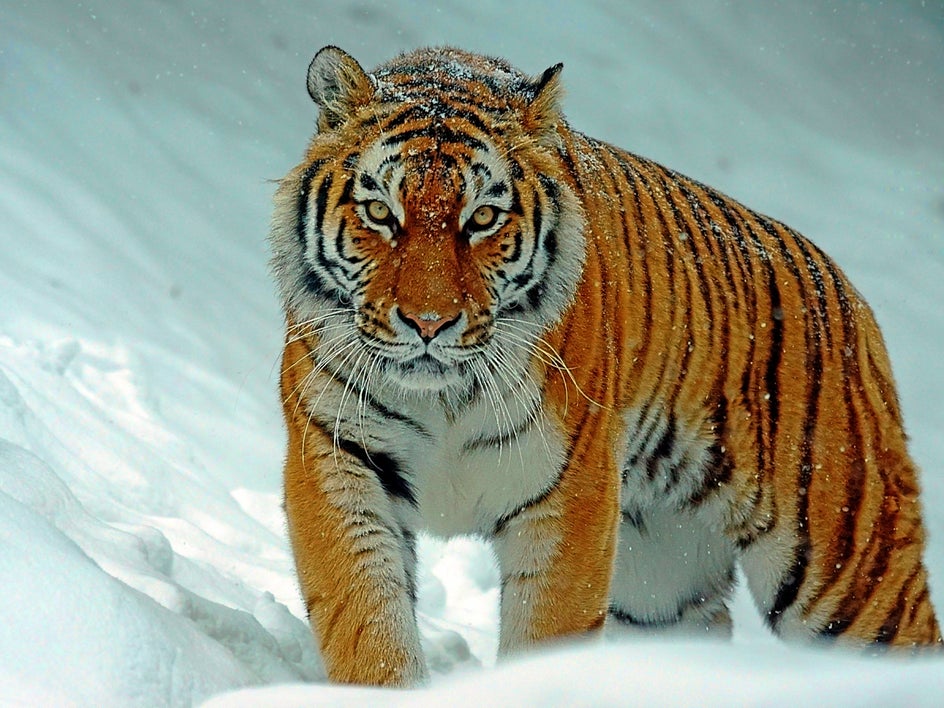
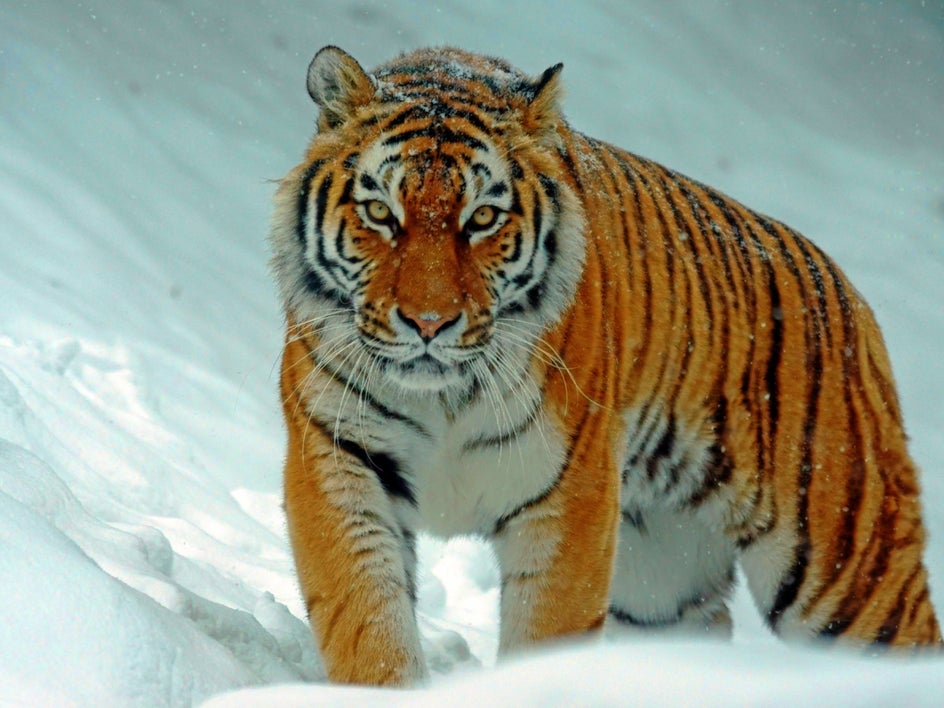
When Use the Sharpen Tool for Impact
Sharpen is one of the most versatile and efficient photo editing tools in any creative’s roster. Here are some tips on using it to help improve your editing and design projects:
Add Definition to Portraits
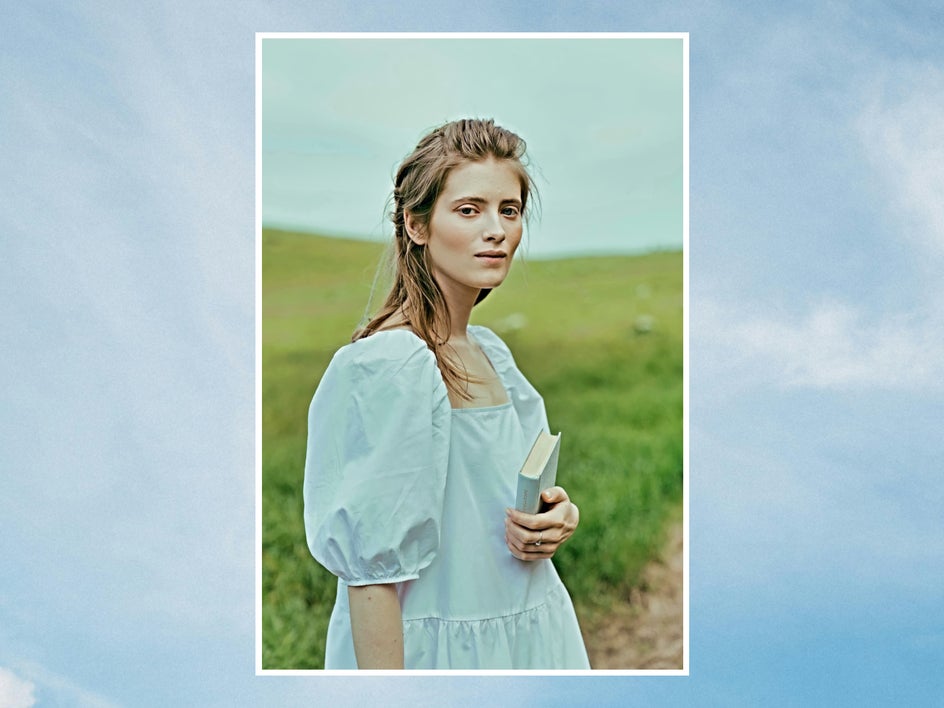
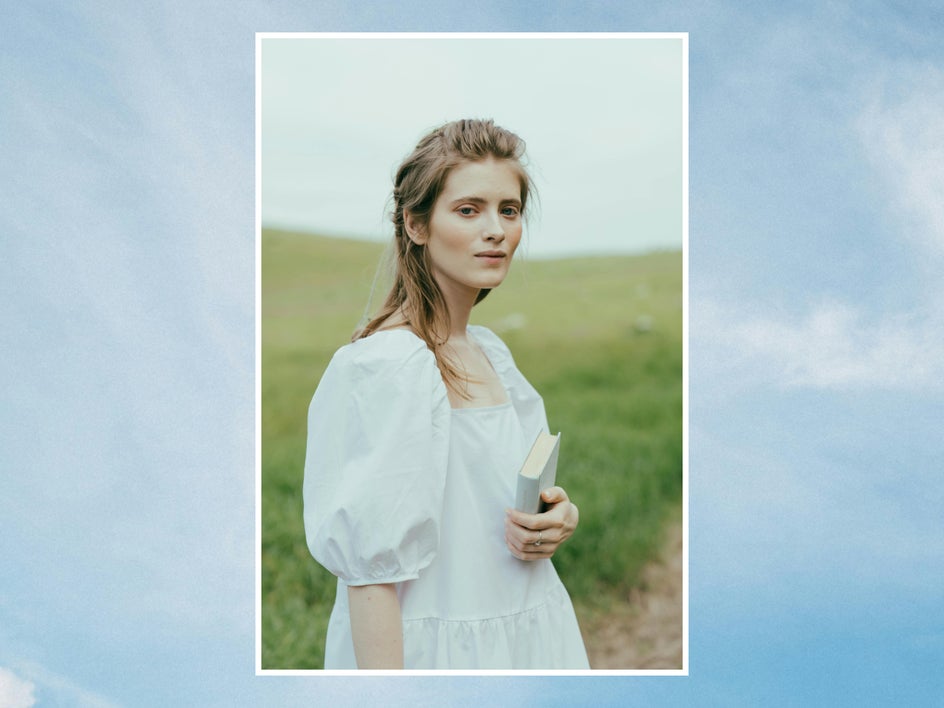
Use the Sharpen tool in Standard mode to accentuate hair, eyes, and other facial features in portraits, eliminating fuzziness and making unique details stand out. Combine with the AI Portrait Enhancer for better color and contrast, as well as smoother skin, brighter eyes, and whiter teeth.
Enhance Travel & Architectural Shots
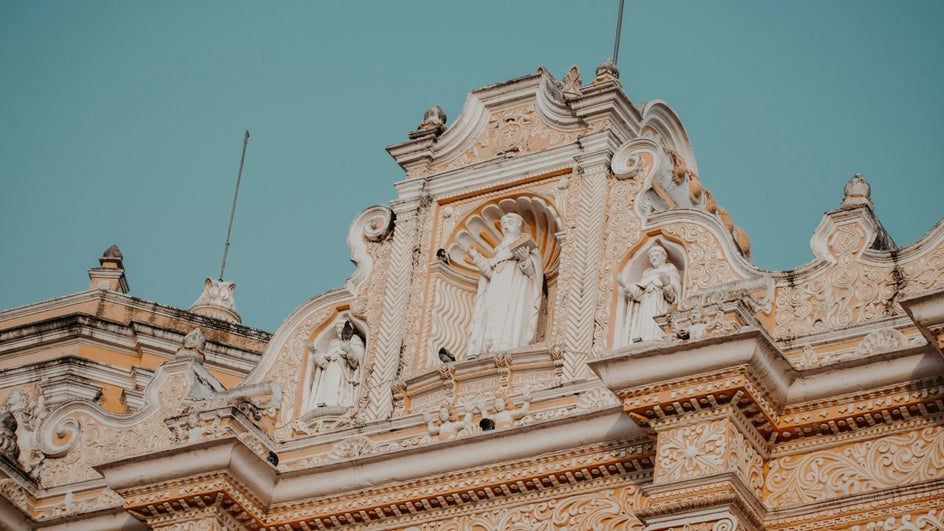
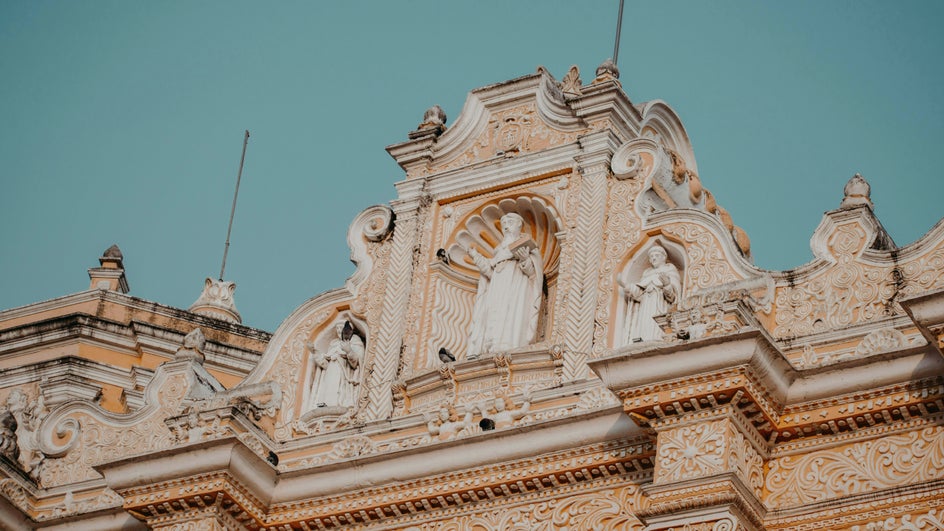
When taking travel photos, architectural details and landscape features can easily get lost – especially on bright sunny days or dim, dusky evenings. Use the Sharpen tool to make details crystal-clear and completely transport your viewer.
Correct Motion Blur
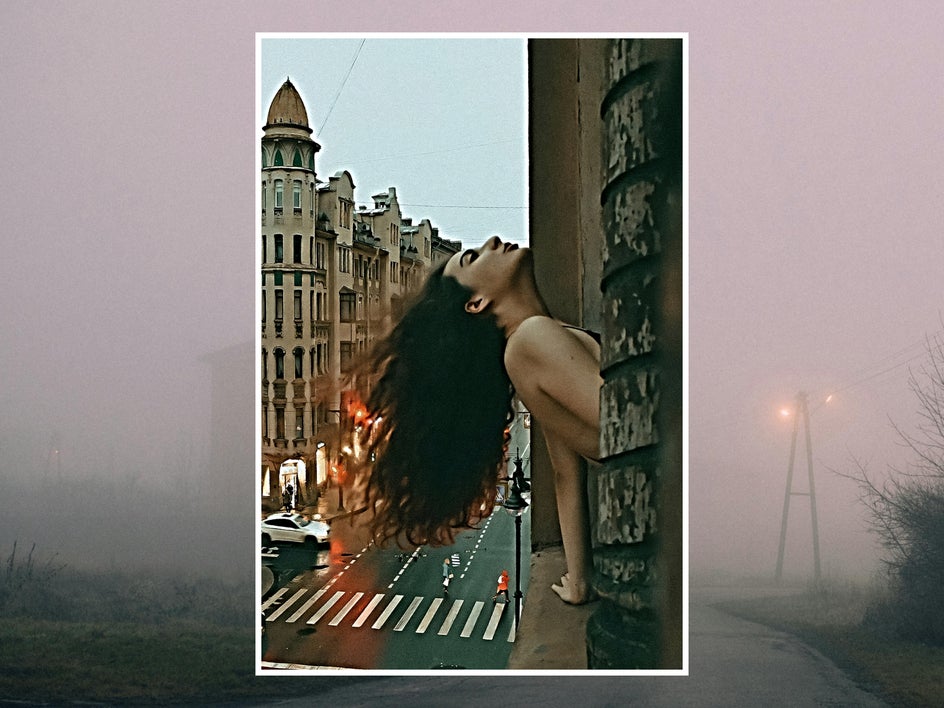
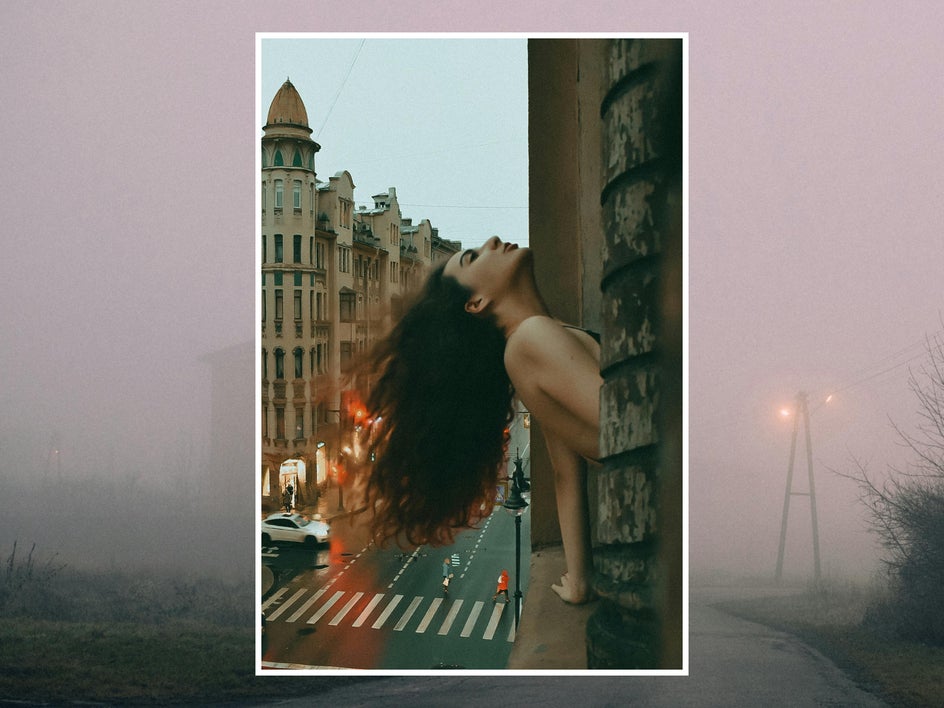
For occasions where there’s a lot of movement – like concerts, sports games, kids’ parties, and busy city streets – there’s always a chance your photos may turn out slightly blurry. Correct any low-level motion blur in seconds with the Sharpen tool. If the blurring is significant, you may also want to try out the Editor’s AI Deblur tool.
Bring Photos to Life With the Sharpen Tool
Whether you want to make details pop, fix blurriness, or even restore old photos, sharpening is one of the simplest and most effective ways to post-process an image. With plenty of opportunities for customization, the Sharpen tool allows you to fine-tune the effect to your exact needs. Ready to get started? Use the Photo Editor to sharpen a photo for free today!