








How to Reimagine Any Photo With Smart Edit

Sometimes a photo is great, but the setting isn't. Maybe the background is distracting, the composition feels awkward, or the scene simply doesn't match the story you want to tell. While traditional photo editing can make these changes possible, it often requires advanced skills, multiple tools, and plenty of time. In some cases, creating a completely different scene might even mean planning another photoshoot.
With Smart Edit, there's another option. Available in BeFunky's Photo Editor, Smart Edit lets you describe the changes you want to make using simple text prompts. You can place a subject in a new environment, alter the time of day, change the composition, or turn an everyday snapshot into something much more imaginative.
Instead of working within the limitations of the original photo, Smart Edit gives you the freedom to completely reimagine your scene and get as creative as you want. Keep reading, because we’ll show you how!
How to Reimagine a Photo With Smart Edit
Ready to give an existing photo a whole new setting? Start by opening the image you wish to edit in the Photo Editor, then navigate to Smart Edit within the Edit tab to get started.
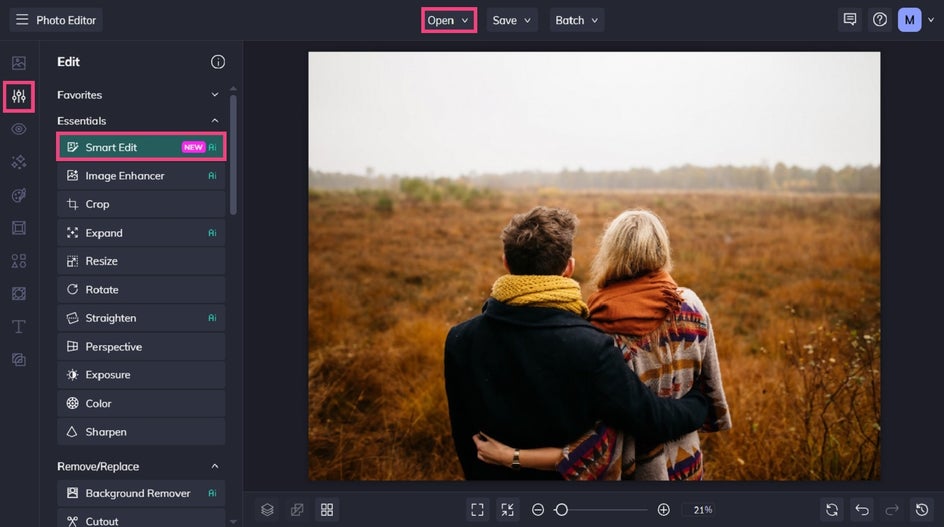
A photo with a clearly defined subject can be a great starting point, especially when you want to place that subject into a completely different environment.
Step 1: Describe the Scene You Want
Think about where you want your subject to be, what the environment should look like, and how you want the finished image to feel. Then describe those changes in your prompt.
For example, try prompts such as:
- "Place the subject on a mountain overlook at sunrise."
- "Change the background to a cozy European café."
- "Expand the scene to show a wider beach with the subject in the center."
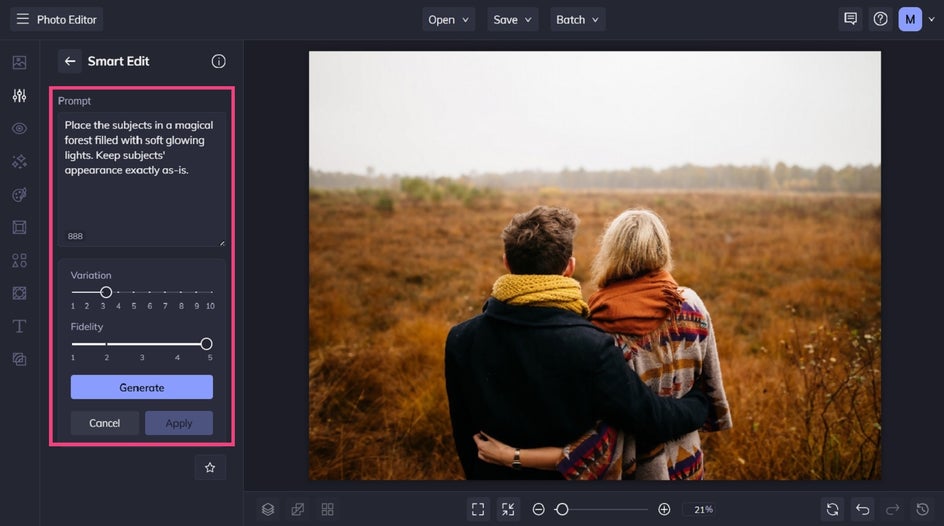
- "Place the subject in a magical forest filled with soft glowing lights."
The more specific you are about the setting, lighting, atmosphere, and composition, the easier it is to bring your creative vision to life.
Step 2: Generate and Refine Your Results
Generate your mage and see how Smart Edit interprets your prompt. If the result isn't quite what you imagined, just refine your prompt and try again.
If you'd like to explore different creative directions, simply adjust your prompt or experiment with the Variation and Fidelity settings. Variation allows you to generate multiple interpretations of the same idea, while Fidelity controls how closely the result matches your original image.
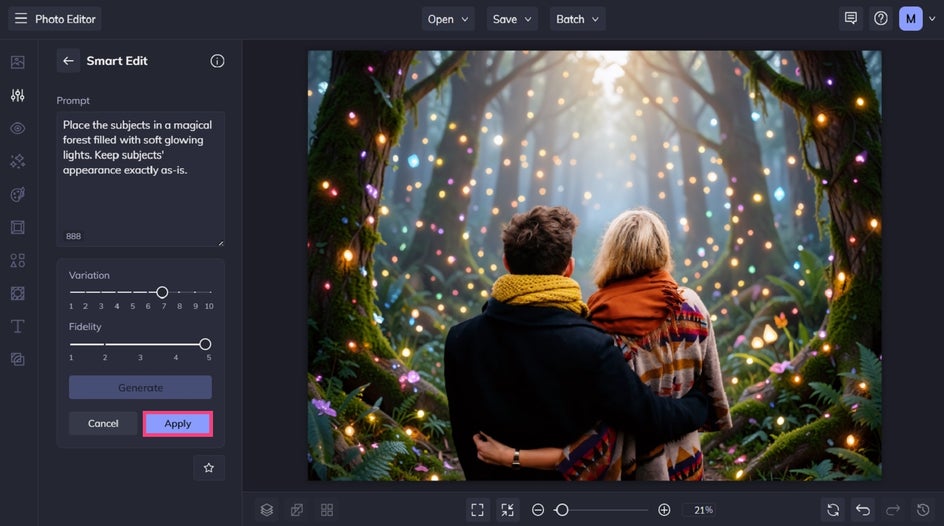
Once you're happy with the results, click Apply to keep your changes.
You can experiment with different environments, compositions, lighting, and moods until you find a result that works. There's no need to commit to your first idea – part of the fun is seeing how many different directions you can take the same photo.
Step 3: Add an Artistic Finish With Artsy Effects
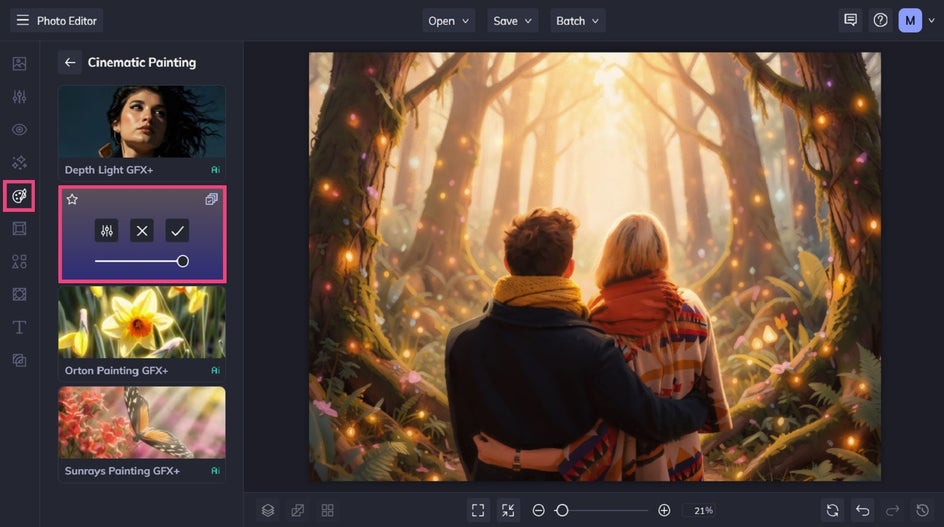
Once you've created a new scene, you can take your transformation a step further with our Artsy effects. These effects can give your reimagined scene a painterly, illustrated, or otherworldly appearance.
To access these effects, click Artsy in the main menu on the left. For this tutorial, we’ve used the Cinematic Painting effect Golden Hour GFX+.
Click Apply to keep your changes.
Step 4: Save Your Final Image
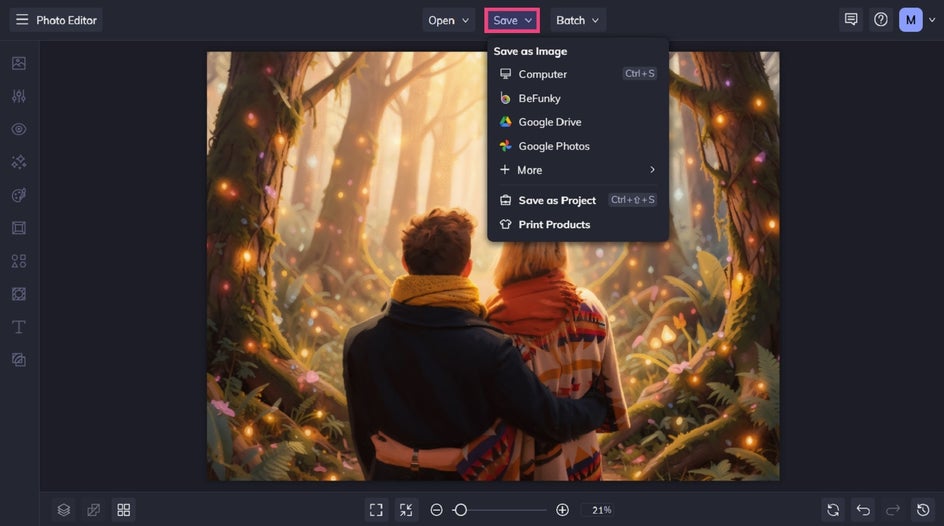
Click Save at the top of the screen, then choose your desired save location and format.
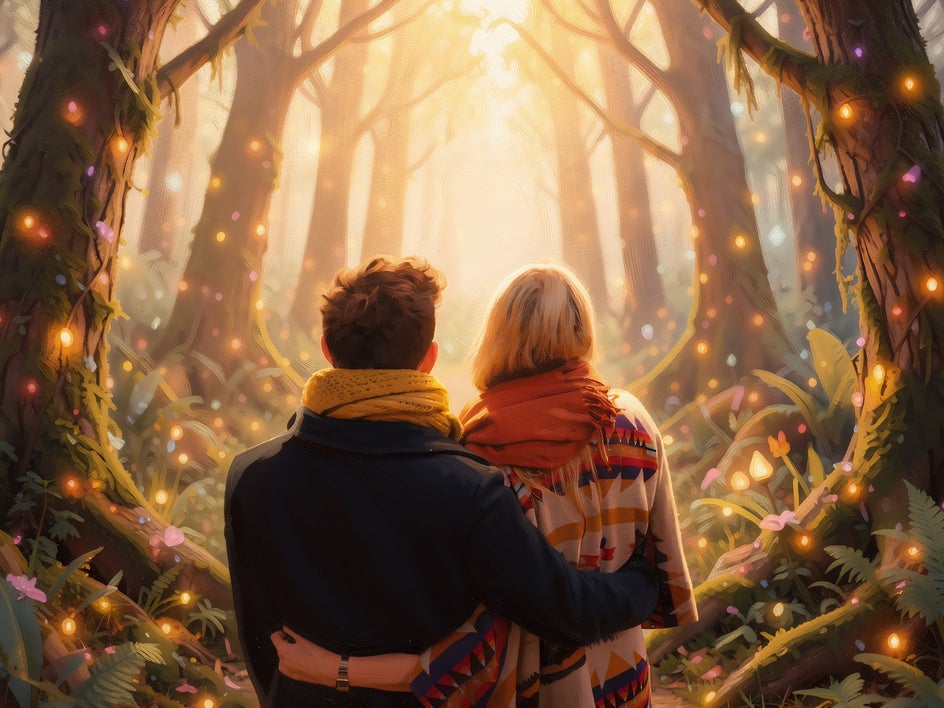
Final Results: An Eye-Catching Enchanted Forest
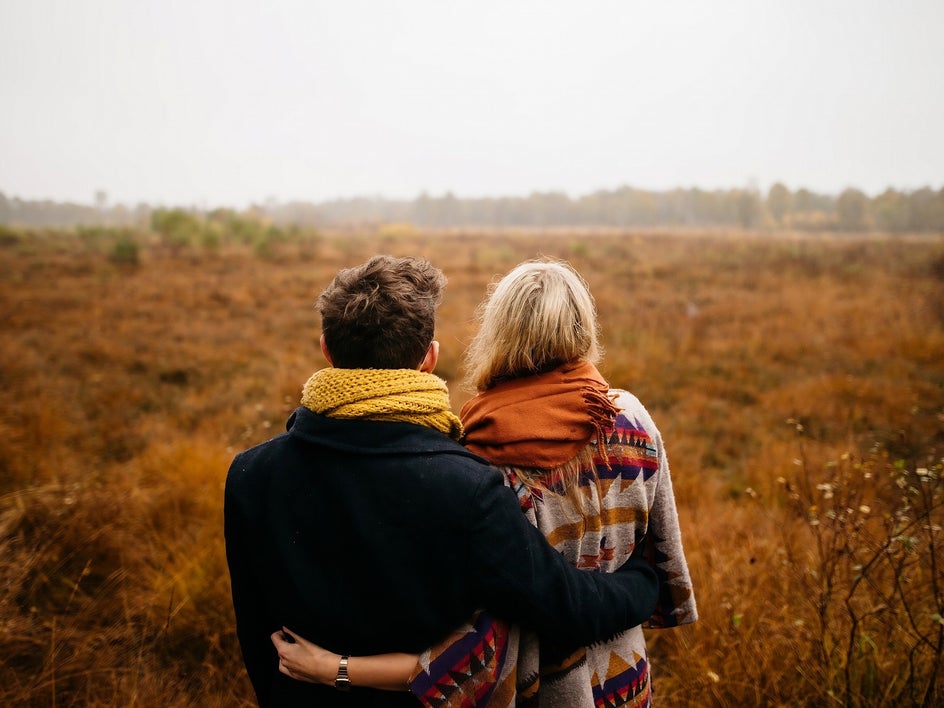
Why overlook an overgrown field when you can glance out at a magical forest? Filled with twinkling lights, our once-mundane scene now looks like something out of an enchanting anime production.
Inspiration for Reimagining Your Photos
Not sure where to start? A change of scenery can completely alter the feeling and story of an image. Here are a few other ideas to try with Smart Edit!
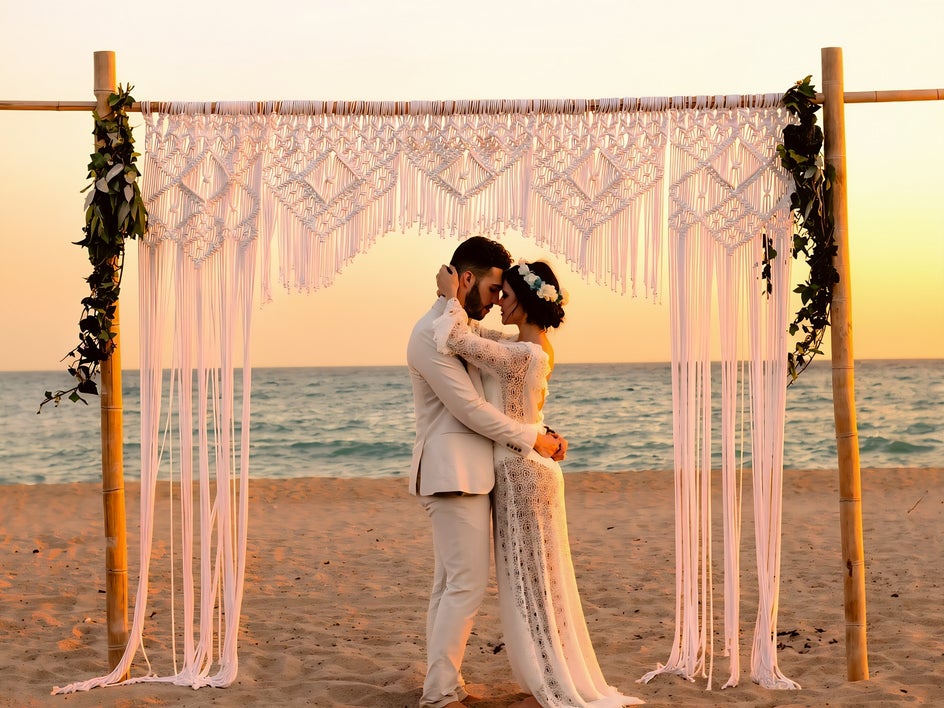
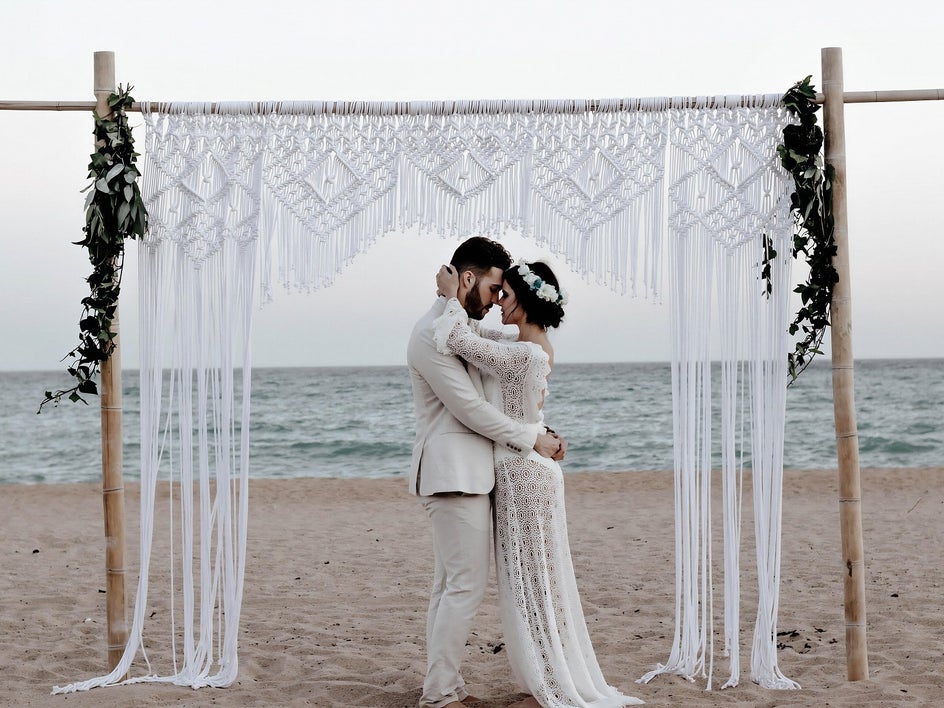
Change the Time of Day
Lighting has a huge influence on the atmosphere of a photograph. Use Smart Edit to transform a bright afternoon into a dramatic sunset, a misty morning, or a nighttime cityscape.
You can also try changing more than just the time of day. For example, describe the mood you want, such as warm golden-hour lighting, cool blue evening tones, soft morning light, or a dramatic sky.
A single image can take on a completely different personality simply by changing when and where it appears to have been captured.
Create New Camera Angles and Composition
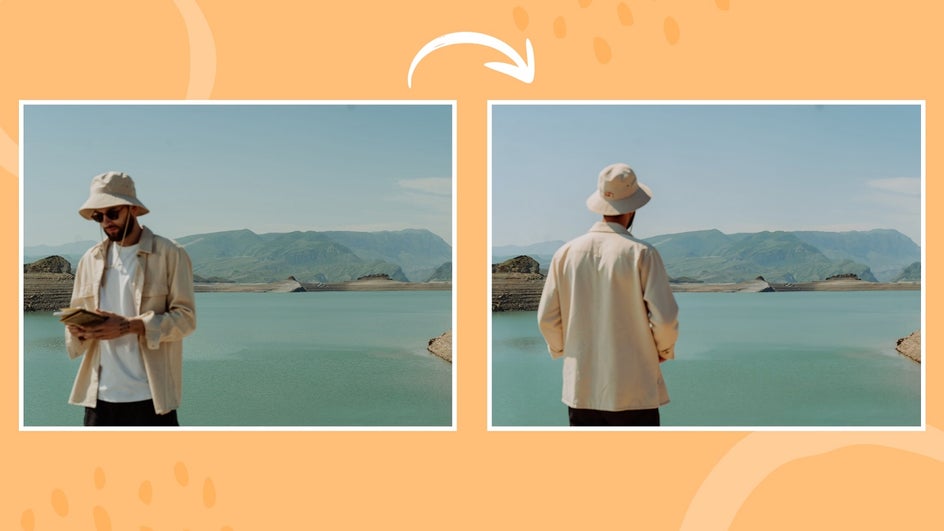
Sometimes the subject itself is exactly what you want, but the composition isn't quite right. Smart Edit can help you explore different ways of framing the scene.
Try expanding the frame to create a wider view or changing the subject’s pose or position. You can experiment with how much of the surrounding scene is visible or create the feeling of a different perspective. This can turn a tightly cropped image into a more expansive scene without needing to recreate the shot.
Turn Everyday Photos Into Travel-Inspired Images
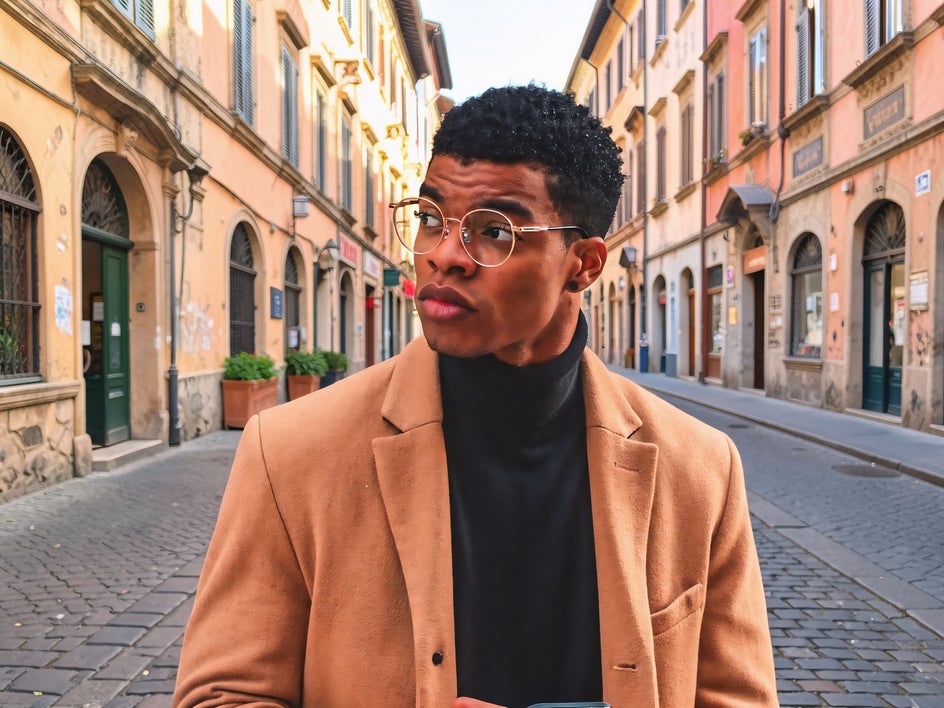
A vacation isn't the only time you can create travel-worthy imagery. Take an ordinary portrait or snapshot and imagine it somewhere completely different.
Place your subject among tropical coastlines, historic European streets, dramatic mountains, or other dream destinations. You can even use Smart Edit to visualize what a photo might look like in a place you've always wanted to visit.
The result doesn't have to be realistic, either. Use the opportunity to create the kind of travel scene that exists more in your imagination than on a map.

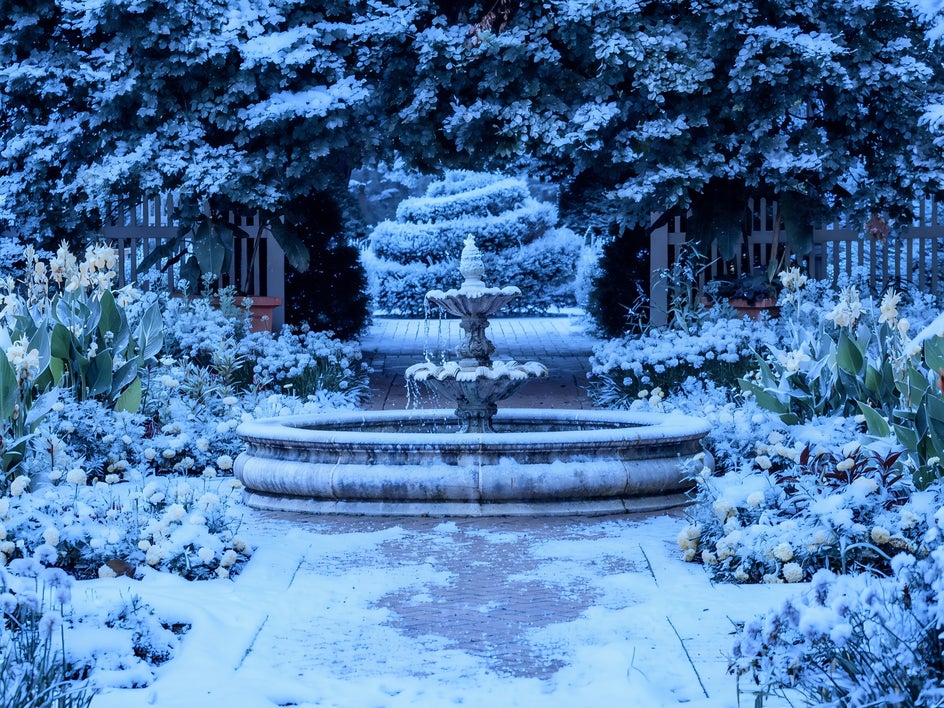
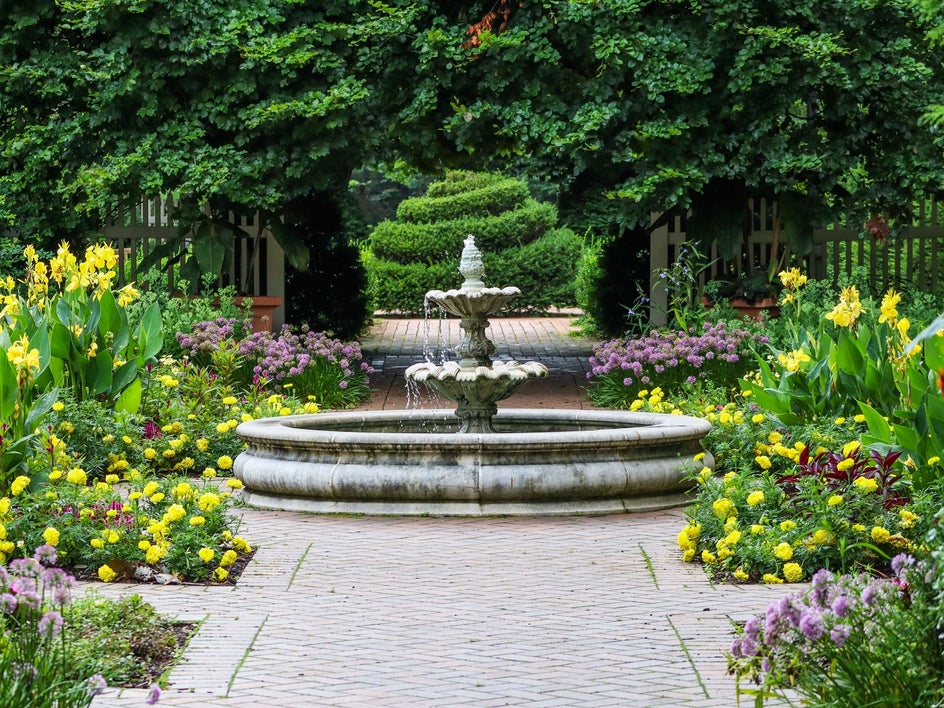
Create Seasonal Variations
Seasonal changes can also be a fun way to create variations of the same image for different projects, campaigns, or creative collections. Start with one photo and explore how its surroundings change throughout the year.
For example, transform a sunny green landscape into an autumn scene filled with colorful leaves, cover it in winter snow, or bring it into spring with blooming flowers.
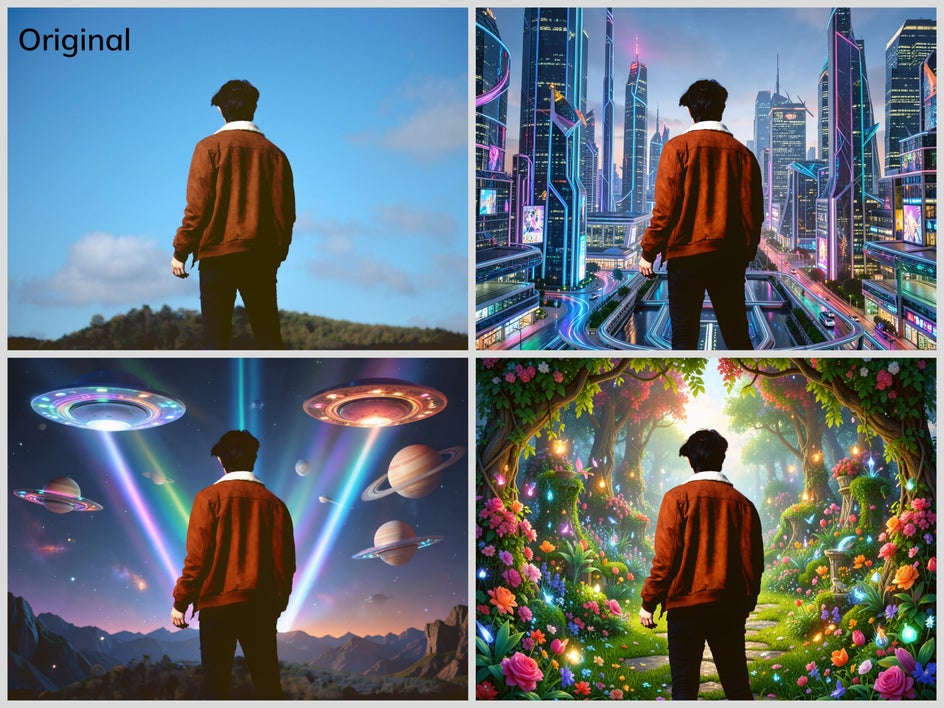
Create Fantasy and Storybook Worlds
Let your imagination take over by placing subjects in magical forests, futuristic cities, enchanted gardens, or other worlds that couldn't exist in an ordinary photograph. Then, apply an Artsy effect to give the finished image an illustrated or storybook-inspired appearance.
This is where Smart Edit becomes especially fun: you're no longer just correcting a photo or improving what's already there. You're using it as a starting point for creating something entirely new.
Give Your Photos a New Story
Whether you're refreshing an old portrait, experimenting with travel-inspired scenes, creating seasonal variations, or building an imaginative world around an everyday snapshot, Smart Edit lets you get more creative mileage from the photos you already have. Add Artsy effects for another layer of transformation, and one image can become the foundation for all kinds of unique results!
Instead of taking another photo every time you imagine a different setting, try reimagining the one you already have. With Smart Edit, the original image is just the beginning! Head to the Photo Editor today to try it for yourself.