Turn Any Photo Into Custom Sticker Art

Have you ever wished it were easier to create custom stickers? Are you looking to add hand-drawn charm to a design project or make a personalized gift for a friend? With Sticker Art GFX+, it’s now possible to turn any photo into vector-style sticker art in a single click. The result is a completely unique piece of art that can be used in graphic designs, wall art, greeting cards, and more. Best of all, this effect can even be used to create physical stickers!
Sticker Art GFX+ is an AI-powered filter that creates a colorful line drawing with a white outline and drop shadow to perfectly replicate the look of a hand-drawn sticker. It’s part of BeFunky’s GFX+ series of Artsy effects that make it easy for anyone to create cool, stylized artwork from a photo. In this tutorial, we’ll show you just how easy it is to use this effect to make custom sticker art online. We’ll also take a look at all the fun projects you can make with your new digital stickers!
How to Use the Sticker Art Maker
To make your own sticker art, first open up the Vector Art category in the Artsy tab and upload an image. For the best results, make sure the background isn’t too cluttered.
Step 1: Select Sticker Art
Select Sticker Art GFX+. It will be applied to your photo automatically, creating a vector-style line art sticker in just one click.
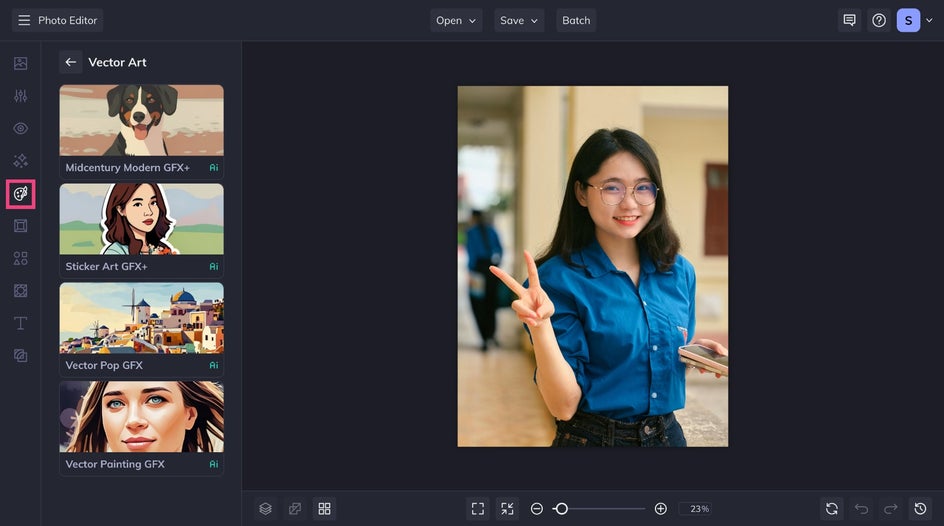
You can stop here and apply the effect by clicking the check mark, or adjust the Settings in the next step for an even more personalized touch.
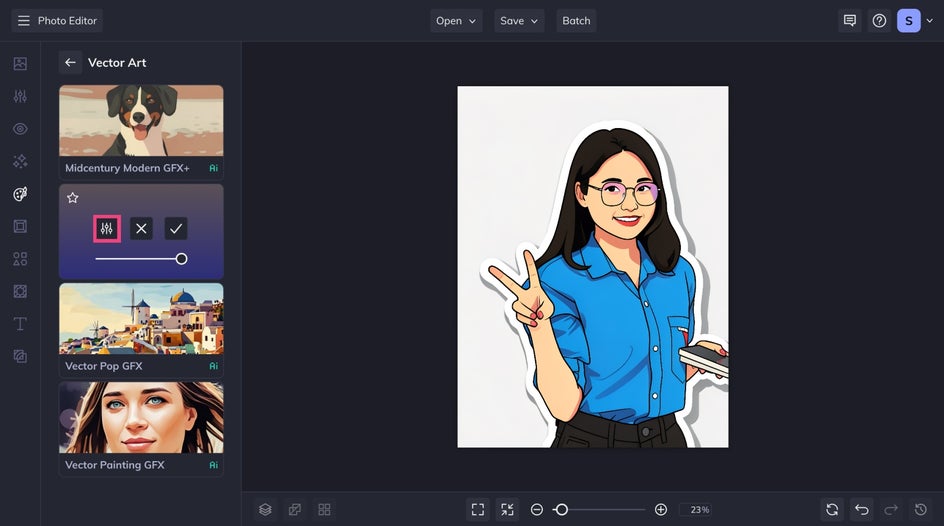
Step 2: Customize the Effect
For more creative control, use the adjustment sliders to tweak the look of the final sticker art. The Fidelity slider controls how much the sticker art will resemble the original photo, while the Variation slider provides slightly different versions of the same effect. Once you’re satisfied with the results, click Apply.
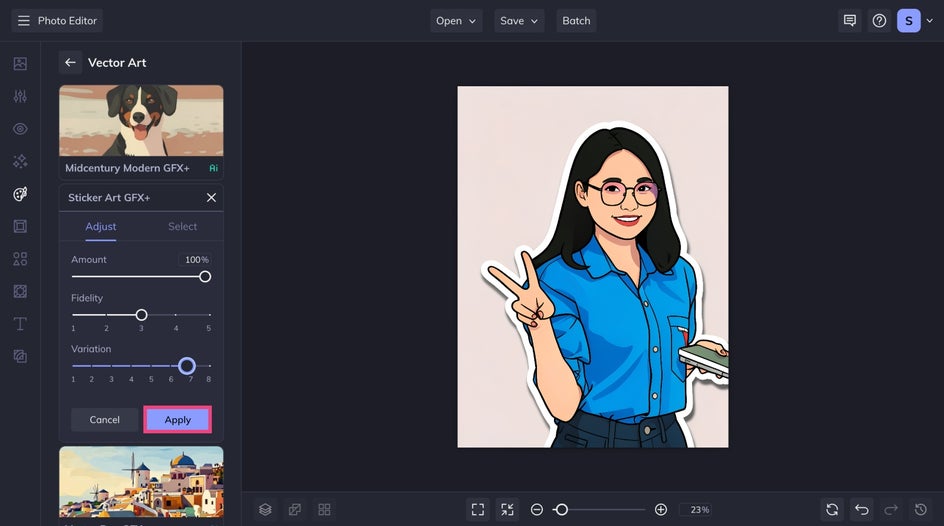
Step 3: Save Your Sticker
After applying the effect, all that’s left to do is Save and export the file to our computer! Save it as a high-quality PNG for the best digital results, or as a high-quality PDF if you plan to print the artwork as is. Alternatively, save it as a BeFunky project file to use in future designs.
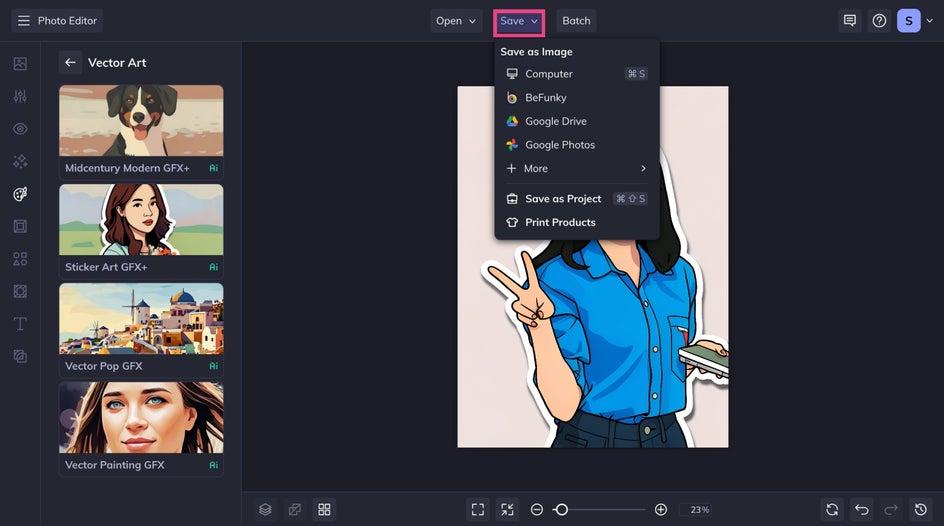
Photo to Sticker Art – Final Results
Our new custom sticker art is bold, simple, and colorful. It’s now ready to post on social media or print as wall art, or to use in a design project later on.
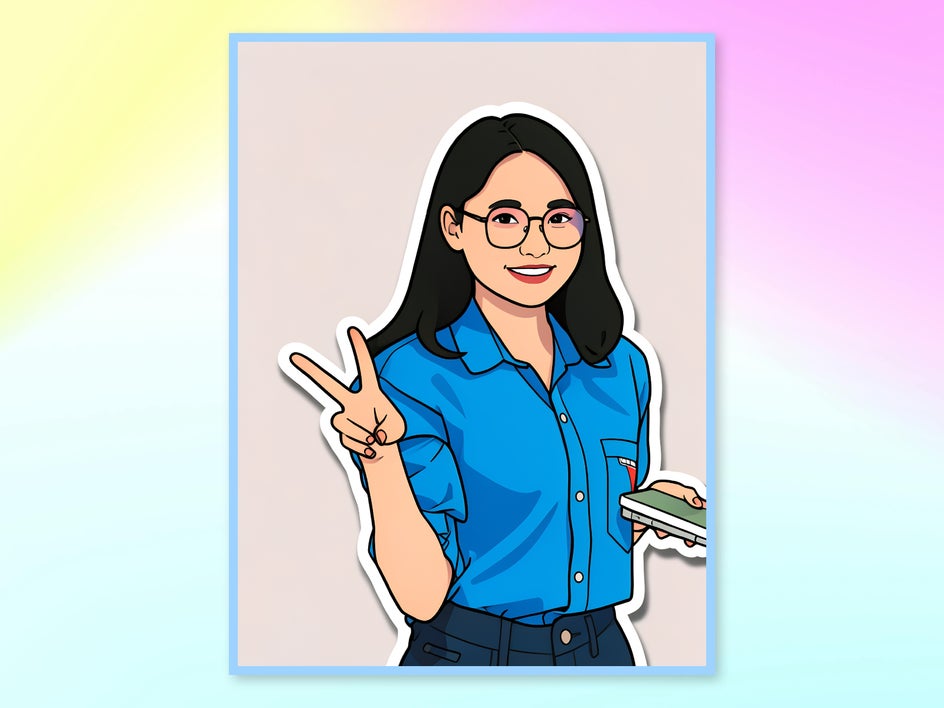
If you’re wondering what exactly to do with your sticker art, check out the next section for some inspiration!
5 Ways to Use Your Custom Sticker Art
By combining Sticker Art GFX+ with BeFunky’s other templates and tools, there’s no limit to what you can create. Here are just a few graphic design projects that will take your sticker art to the next level.
1. Custom Vinyl Stickers
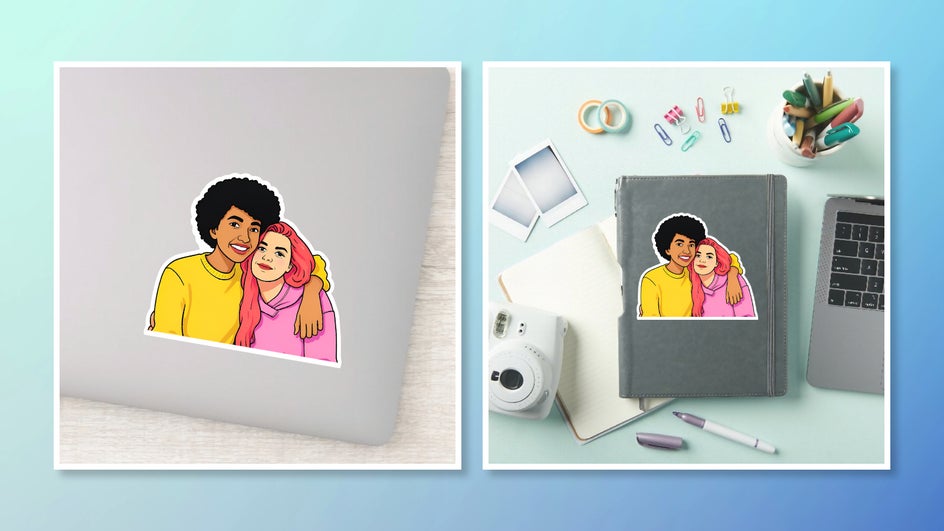
Turn digital stickers into physical ones by uploading the design to Zazzle or any other place that provides custom-cut stickers. Make sure to use the Cutout tool on your sticker art first so that there’s no excess background around the sticker. Custom vinyl stickers are waterproof and come in multiple finishes, making them perfect for journals, laptops, water bottles, or anything else you might want to personalize!
2. Greeting Cards
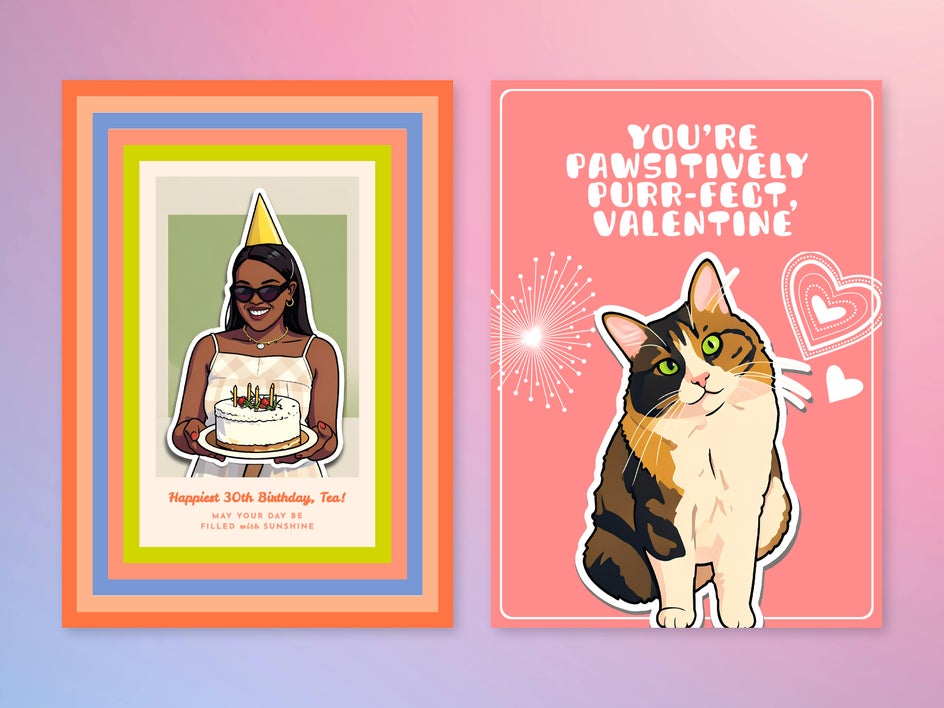
Create a personalized greeting card for birthdays, holidays, and thank yous by combining Sticker Art GFX+ with a heartfelt message. Save time with a premade card template and make the design pop even more with additional vector graphics from BeFunky’s Graphics Library.
3. Digital Collages
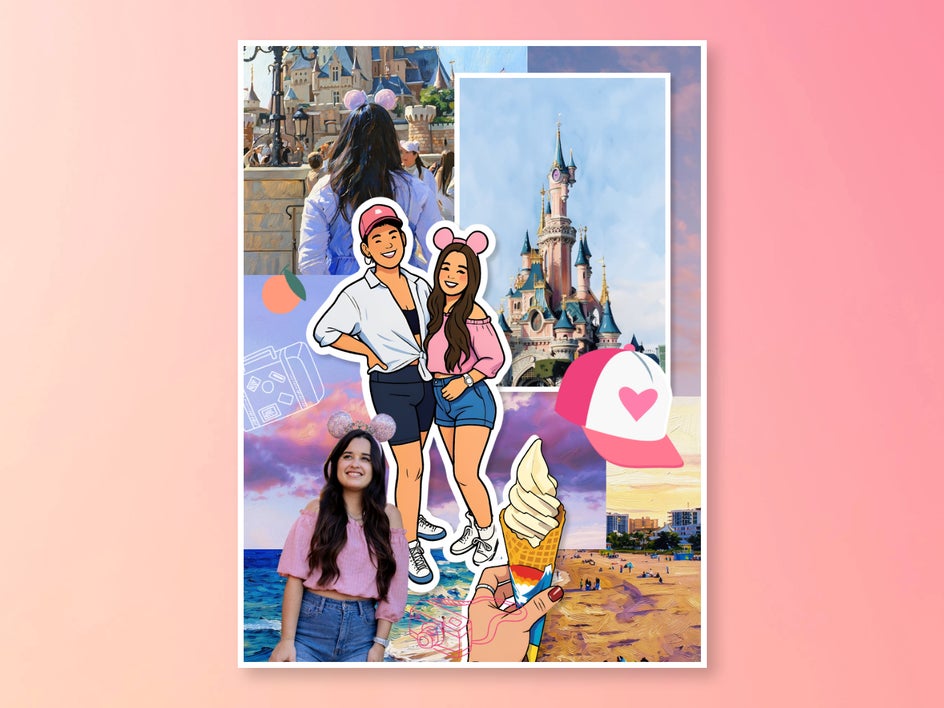
Just like you might use stickers in a scrapbook or bullet journal, digital sticker art can be used for digital scrapbooks and collages. Simply apply the Sticker Art effect, use the Cutout tool to make the background transparent, then save it to your BeFunky library for use in future collage projects. Layer multiple stickers with unedited photos, other Artsy effects, and vector graphics for the most authentic look.
4. Custom Emojis
This is a quick and easy method for creating custom digital stickers to use in texts and DMs. For the fastest turnaround, use the BeFunky mobile app so the sticker can be saved directly to your phone. All you need to do is apply Sticker Art GFX+ to an expressive portrait or selfie and save it as a PNG. In your phone camera roll, press and hold the sticker to add it to your digital collection. When words aren’t enough, use these custom stickers in place of emojis.
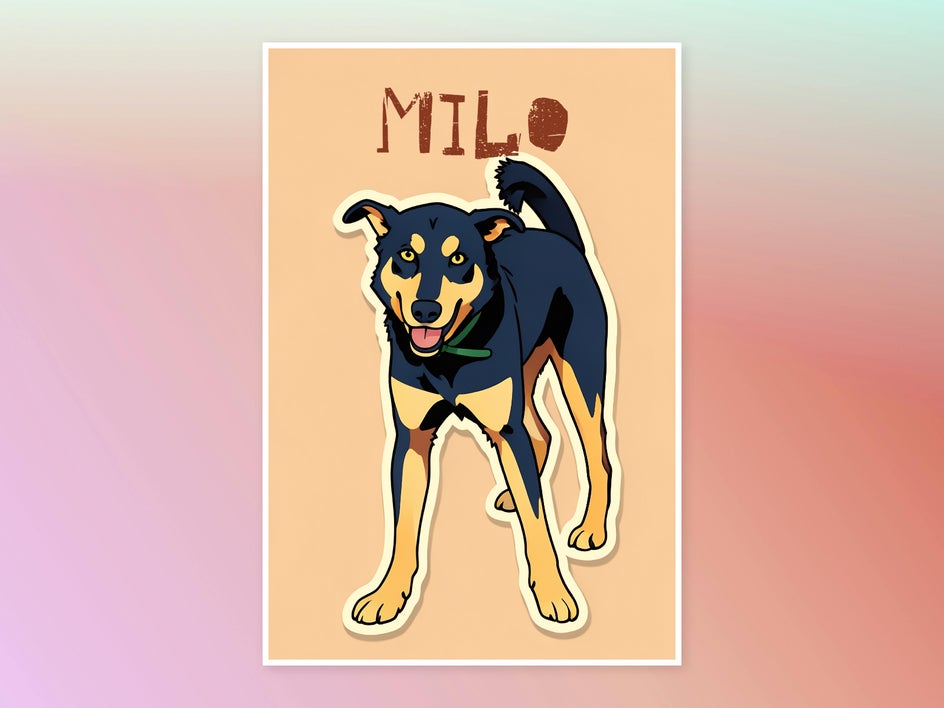
5. Pet Portraits
Apply Sticker Art GFX+ to your favorite pet photo, then add the pet’s name in a bold font to create a colorful pet portrait. Print it out as canvas art to upgrade your home decor, or use the design on a mug or shirt to show off your furry friend on the go.
Create Sticker Art in Seconds With BeFunky
Stickers aren’t just for kids or calendars – they’re a versatile medium in their own right. With Sticker Art GFX+, you can create personalized gifts, attention-grabbing wall art, and graphic designs that pop. Try this unique AI filter for yourself and create your own sticker art today!