How to Create Engaging Preview Images for Your Substack Posts
The digital world has long prioritized short-form content, but there are still places where long-form content thrives. Substack is one of these places – it’s a streamlined online platform for publishing newsletters, essays, fiction, poetry, and more. Substack makes it simple to share opinions and commentary that won’t fit in a TikTok. But just because Substack is about writing doesn’t mean the visuals don’t matter. Just like with traditional magazines, editorial imagery is important for grabbing readers’ attention.
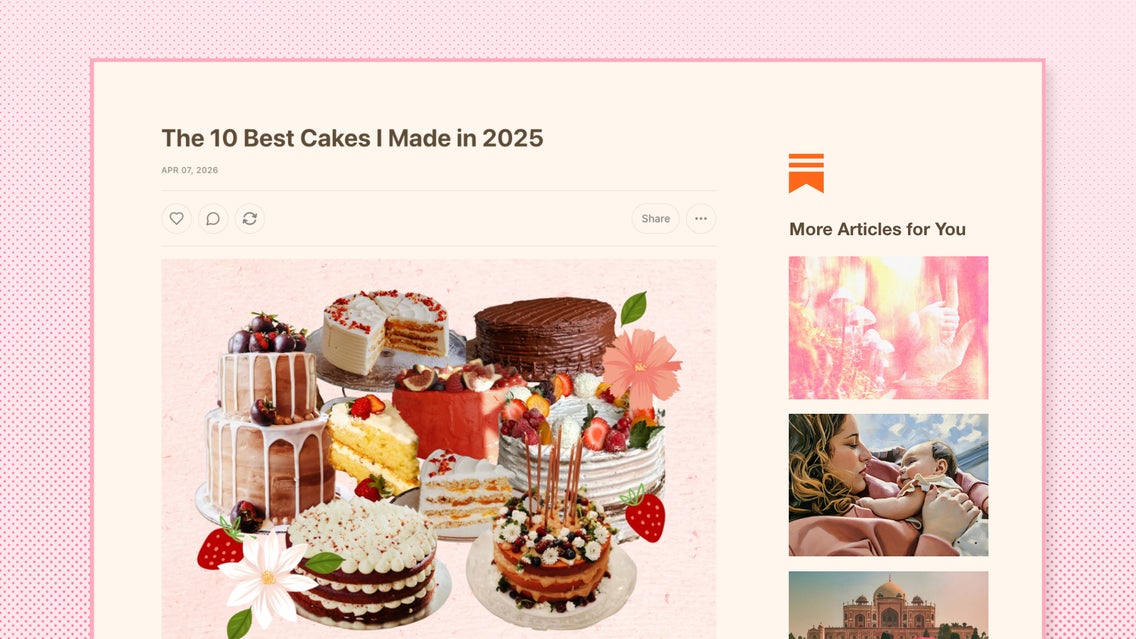
The featured photo of your Substack article, also known as a preview image, is especially important. When users are browsing the app or website, the preview image is the first thing they see alongside the post title. Much like a book cover, this thumbnail can make or break a reader’s first impression. An ugly preview image – or worse, using no image at all – may cause people to scroll right past your work.
Professional-looking designs have the potential to increase readership and elevate your Substack’s brand. That doesn’t necessarily mean you have to be a professional to make them. If you’re currently a Substack writer, or planning to launch a newsletter in the future, there are ways to make your imagery more engaging even without any design experience. By using the online Photo Editor for your Substack imagery, you can go beyond simple stock images and create designs that are unique, appealing, and in line with your brand.
How to Add Images to Your Substack Posts
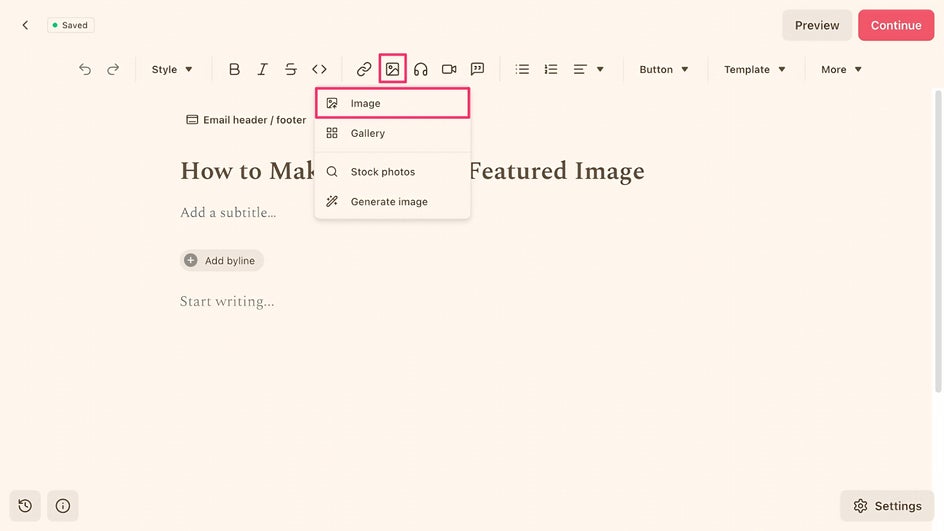
To add a photo to a Substack post, simply click “Insert Image” at the top of the post editor. Alternatively, drag and drop a file from your computer directly into the text. Uploading multiple images is helpful for breaking up big blocks of writing, but a single photo placed at the top of a Substack post as a header works great as well.
Whatever image appears first in your post will show up as the preview image unless you manually change it in your post settings before publication. Even if you don’t include a photo within the text at all, you’ll still want to upload one here so that the post has a proper thumbnail. It’s also important because this is the image Substack will use to generate shareable assets that you can upload to social media.
What’s the Best Size for a Substack Preview Image?
According to Substack, the minimum size for a post preview image is 1200 x 630 px. The ideal width to height ratio is 14:10. Because Substack post thumbnails are different sizes on desktop and mobile, it’s best to keep the focal point right in the center of the image, where it will be cropped on mobile. This will also help the composition of any vertical shareable assets, like Instagram stories.
5 Creative Ways to Make a Substack Preview Image
There are plenty of different ways to approach the main visual of your Substack post, but some methods have more payoff than others. Here are a few ways to use the Photo Editor for Substack preview images that stand out.
1. Digital Collage
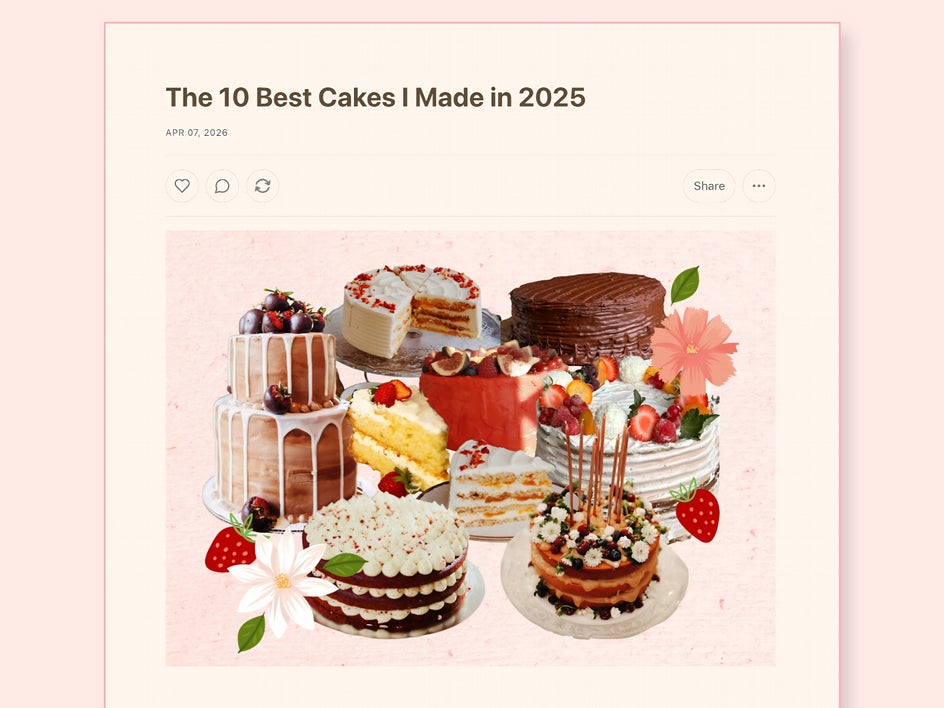
Quickly create a digital collage for your Substack featured image by using the Cutout tool. This tool automatically isolates the subject of any image so that you can layer them on top of each other. This way, it’s possible to showcase the whole breadth of what you’re writing about in a single, easy-to-digest thumbnail. This style of Substack preview image is especially common when discussing trending topics, or when publishing listicles and guides.
2. Stylized Artwork
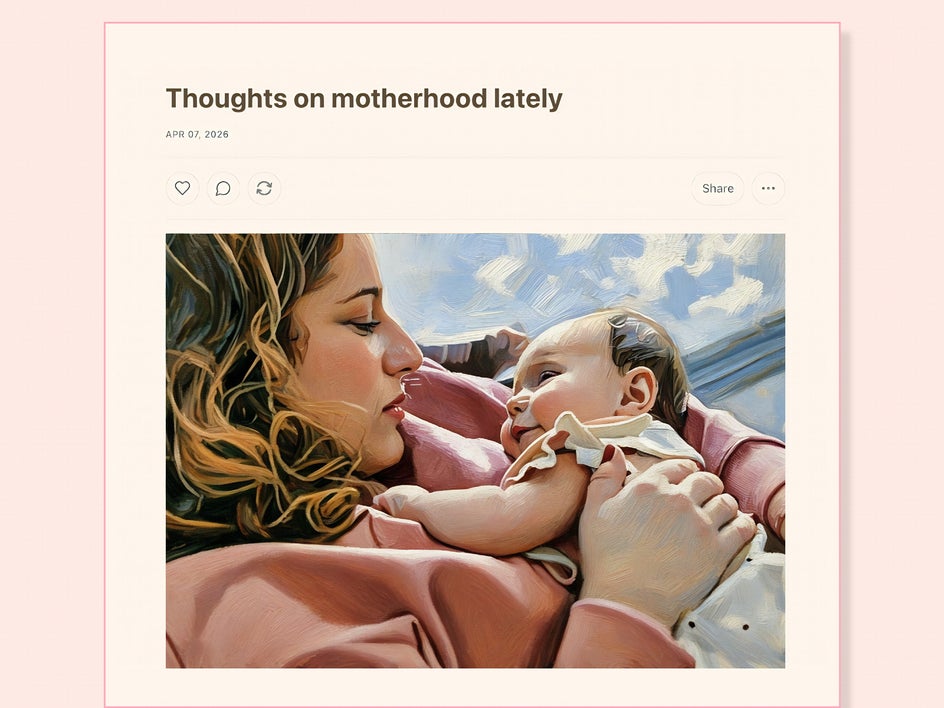
For a unique article cover image that takes just seconds to make, try using an Artsy effect. For opinion pieces and nonfiction essays, make sure that the image lines up with the essay’s theme. If you’re publishing fiction and poetry, it’s possible to create something more abstract using landscapes or experimental photography. Depending on the Artsy effect used, it’s possible to create a vibe that will match the mood of your Substack piece exactly – whether you’re looking for bright colors, bold textures, or subdued linework.
3. Layered Blend Modes
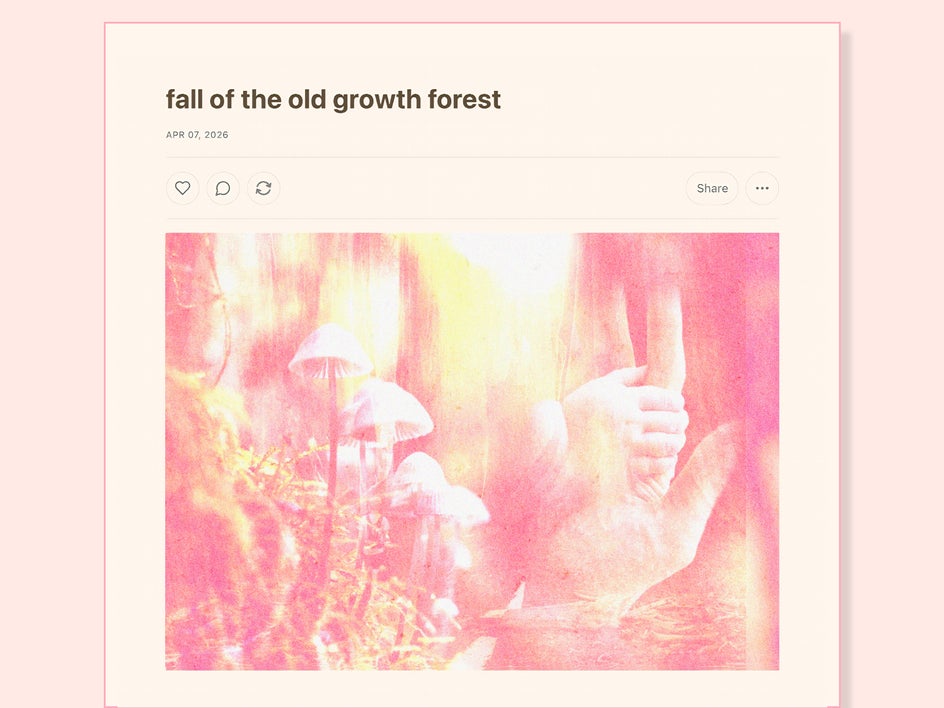
Similar to a collage, blend modes allow you to stitch together multiple images into a single Substack thumbnail, creating the perfect visual shorthand for your writing. Play around with different blend modes for starkly different results. To simplify more complex layers, try using a tint. This style is perfect for a publication that’s more artistic and abstract.
4. High-Contrast Color
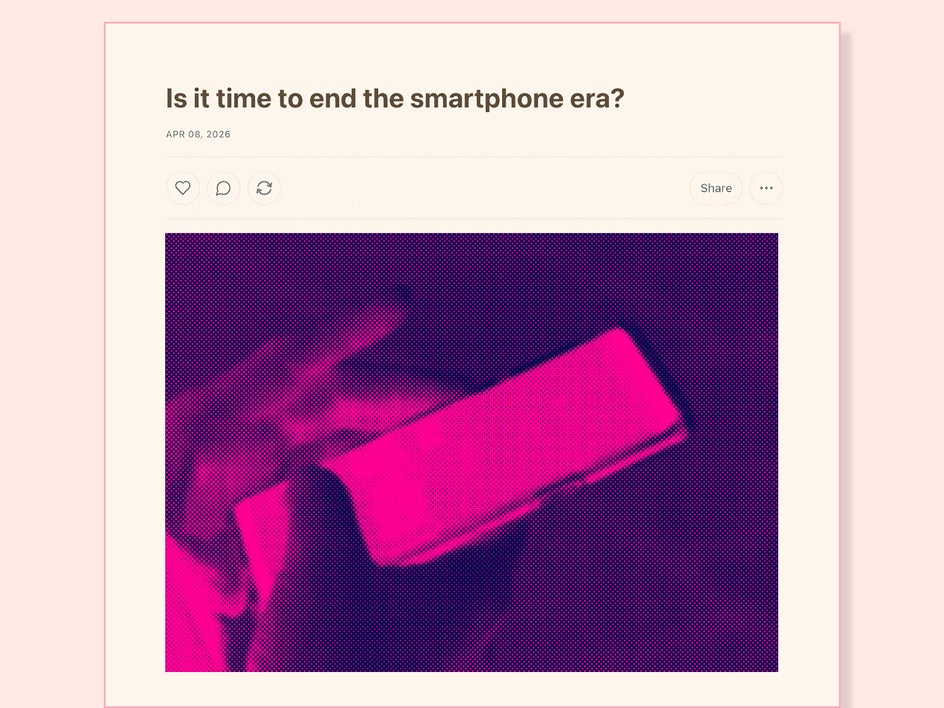
To turn any photo into an impactful, attention-grabbing featured image on Substack, try using a colorful filter like Halftone Duotone, United Colors, or a Pop Art effect. All of these effects can be found in the Photo Editor and applied in a single click, or the colors can be adjusted for a custom look. This is a quick and easy way to make every article cover photo on your Substack look cohesive, even when writing about different subjects.
5. High-Quality Photo
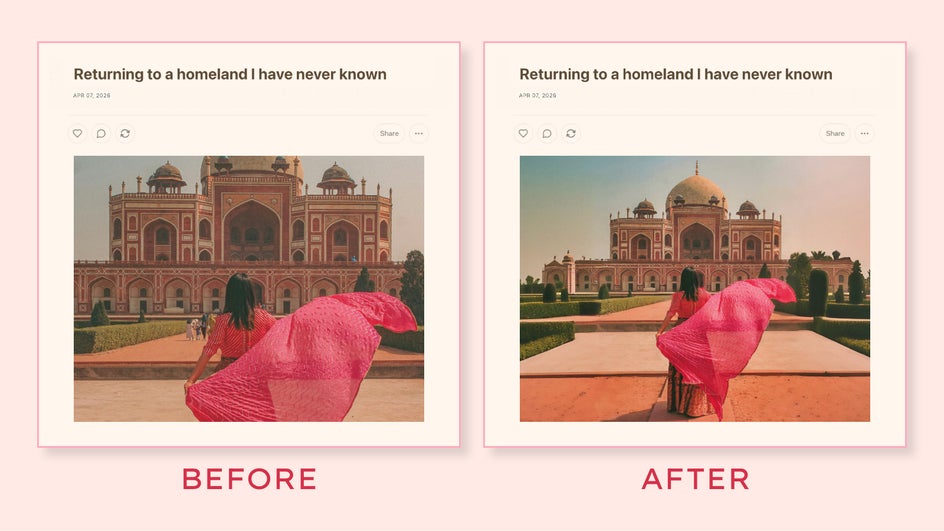
Sometimes, a simple Substack preview image is the way to go. When opting to use a single photograph without any fancy effects, make sure it looks as polished as possible with some basic photo editing. Consider adjusting the exposure for better contrast, upscaling for a higher quality image, or using the Object Eraser to clean up any clutter. For the fastest possible turnaround, use the AI Image Enhancer to elevate an image in a single click. There may also be times where you want to use Expand AI to extend the sides of an image and better fit the required 14:10 ratio, like we did in the example below.
Enhance Your Substack Writing With Unique Thumbnails
Written content may be the most important part of a newsletter, but that doesn’t mean that your imagery should fall by the wayside. A Substack preview image is another place to show off your creativity and make your writing more engaging. If you want to elevate your newsletter to a professional level and create a Substack brand that stands out, try making a featured image today with the Photo Editor!