

Bring Your Ideas to Life With BeFunky’s Image Generator

What if you could create the exact image you need without searching through stock photos, picking up a camera, or opening a blank canvas and starting from scratch? With BeFunky’s new Image Generator, all you need is a few words to turn your ideas into original images.
Whether you’re dreaming up a creative project, designing marketing campaigns, or looking for the perfect visual to complement a design, this AI-powered tool makes image creation more accessible than ever. Simply describe what you want to see, choose your preferred aspect ratio, and let BeFunky generate an image based on your instructions. You can even explore multiple variations to find the one that best matches your vision.
The new tool also fits into the BeFunky workflow you already know, with three different ways to access it depending on what you want to do with your generated images.
Ready to see what’s possible? Let’s explore how the Image Generator works, how to incorporate it into your creative workflow, and what you need to know about accessing the tool.
How to Use the Image Generator
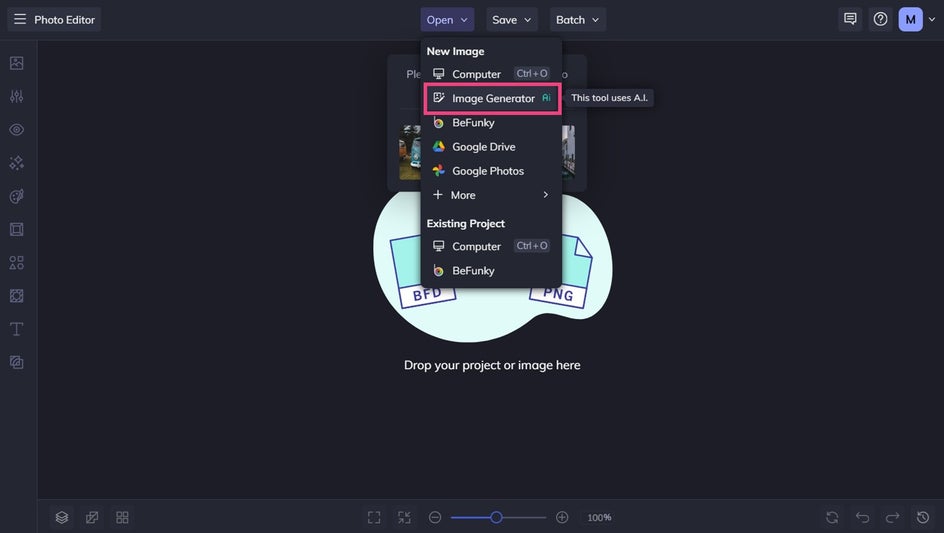
Getting started is simple. You can access the Image Generator from three different places in our platform: the Open dropdown menu, Image Manager, or the Batch toolset.
The entry point you choose determines what you can do with your generated images afterward, so it’s worth choosing the option that best fits your workflow.
From the Open Dropdown Menu
If you want to generate an image and immediately bring your favorite result into your next project, the Open dropdown menu is a straightforward place to start.
You can generate as many images as you’d like, experiment with different prompts, and explore multiple ideas. However, when you’re ready to move into the editor, you can open just one generated image on the canvas.
This option is particularly useful when you already have a specific project in mind and want to generate one image to use as the starting point for further editing.
From the Image Manager
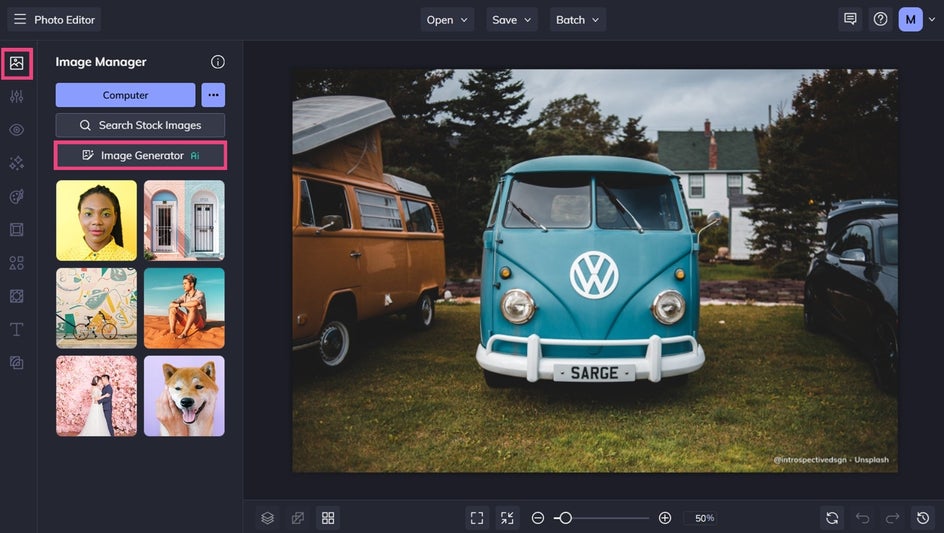
You can also access the Image Generator through the Image Manager tab. This option is ideal if you want to create a collection of AI-generated images and keep them together for later use.
Generate as many images as you want, then add any or all of your favorites to the Image Manager. This makes it easy to build a library of original visuals that you can return to whenever inspiration strikes.
For example, you could generate several different background options for a project, create multiple visual concepts for a marketing campaign, or simply save a collection of images you love for future designs.
From the Batch Toolset
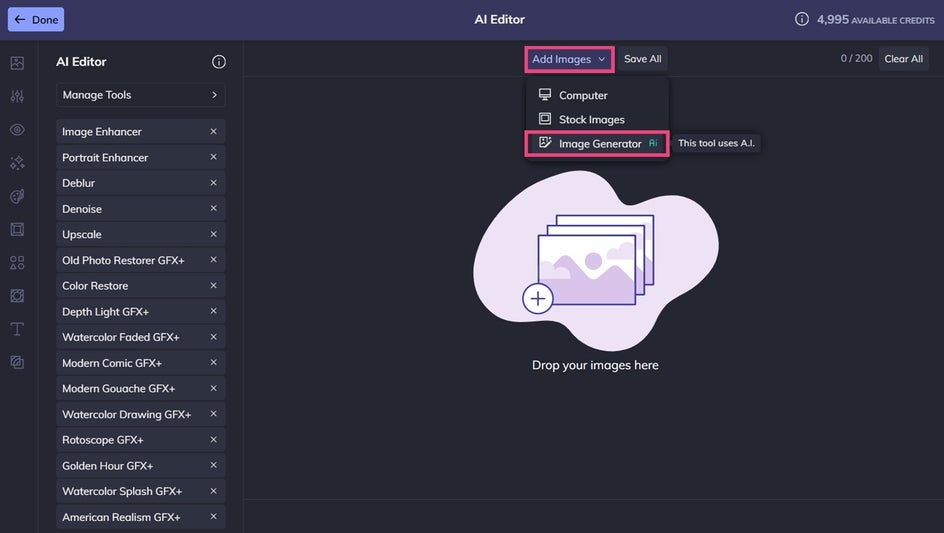
The third option is through the Batch toolset. Like the Image Manager, this lets you generate as many images as you want and add any or all of them to your batch workspace.
This can be especially useful for workflows that involve creating multiple related visuals. Instead of generating one image and starting over each time, you can build up a collection of images and bring them into your batch workflow together.
Once your image is where you need it, you can continue working with BeFunky’s creative tools to incorporate it into your designs.
How to Generate an Image From a Simple Text Prompt
No matter which entry point you choose, the actual image-generation process is the same.
Just keep in mind that the Image Generator is available with different allowances depending on your BeFunky account type. Free users can generate up to 10 images over the lifetime of their account with a social sign-in, while Plus and Pro users receive monthly AI credits for generating images and using other eligible AI tools. Plus users can also purchase additional credits as needed. For the latest details about plans, credits, and allowances, visit the BeFunky Pricing page.
Once you’ve opened the tool, you’ll find a straightforward interface that makes creating images from text prompts a breeze.
Step 1: Describe Your Image
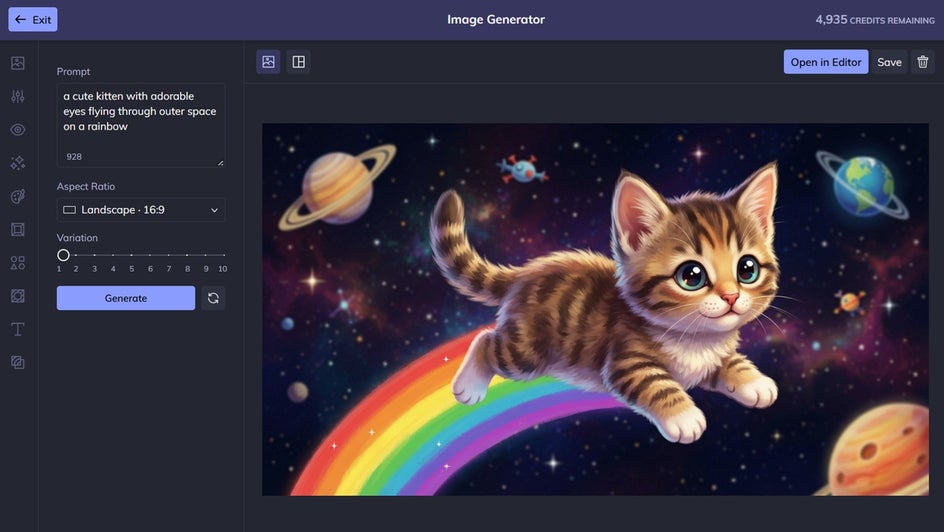
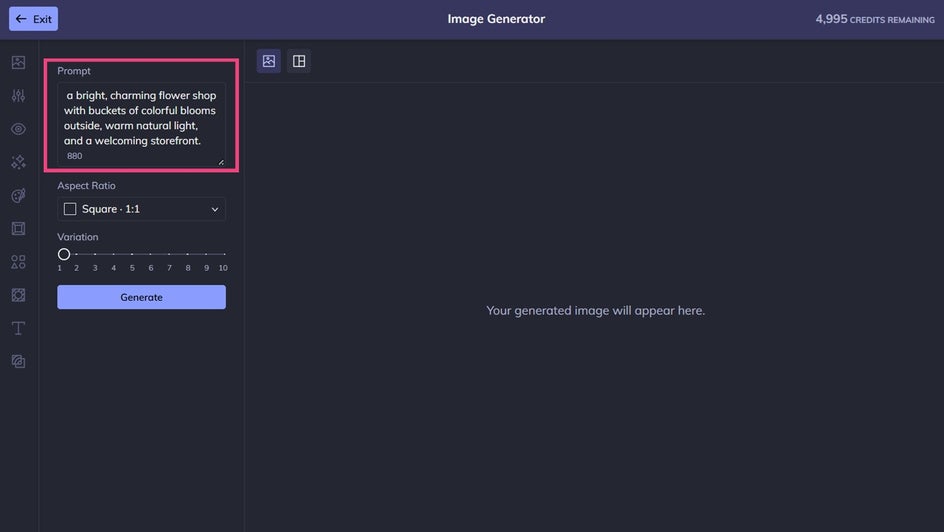
Start by entering a description of the image you want to create in the prompt box.
The Image Generator works from your instructions, so the more clearly you communicate your vision, the easier it is to guide the result.
Begin with the most important elements of your image. Describe what you want to see, then add details about where it is, how it should look, and what kind of mood you want to create.
For example, instead of simply asking for a “flower shop,” you could describe a bright, charming flower shop with buckets of colorful blooms outside, warm natural light, and a welcoming storefront.
Step 2: Choose Your Aspect Ratio
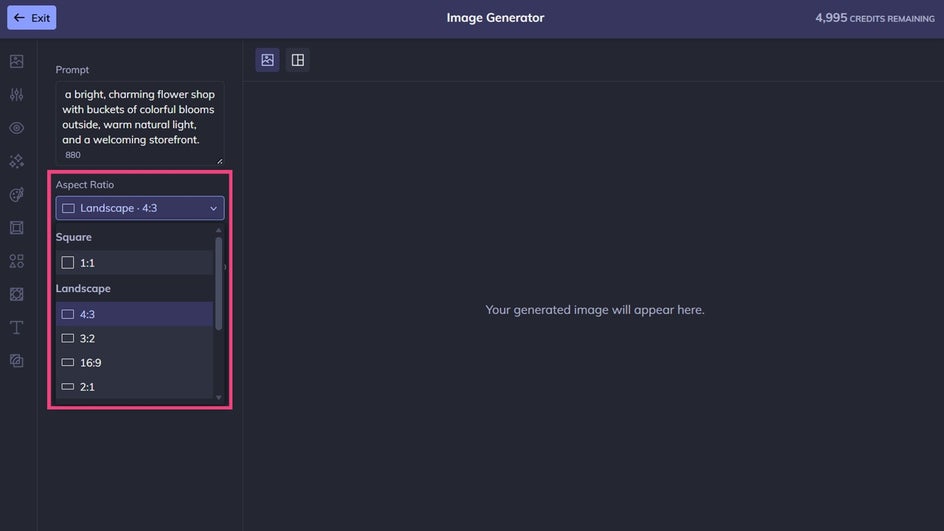
Next, select an aspect ratio for your generated image. The aspect ratio determines the proportions of your image, making it easier to create visuals suited to different projects and layouts.
For example, a square image might work well for a social media post, while a wider image could be better suited to a website banner or presentation. Consider where you plan to use your image before generating it so you can choose proportions that fit your design.
Step 3: Generate Your Image
Once you’ve entered your prompt and selected an aspect ratio, click Generate and let this amazing tool bring your idea to life.
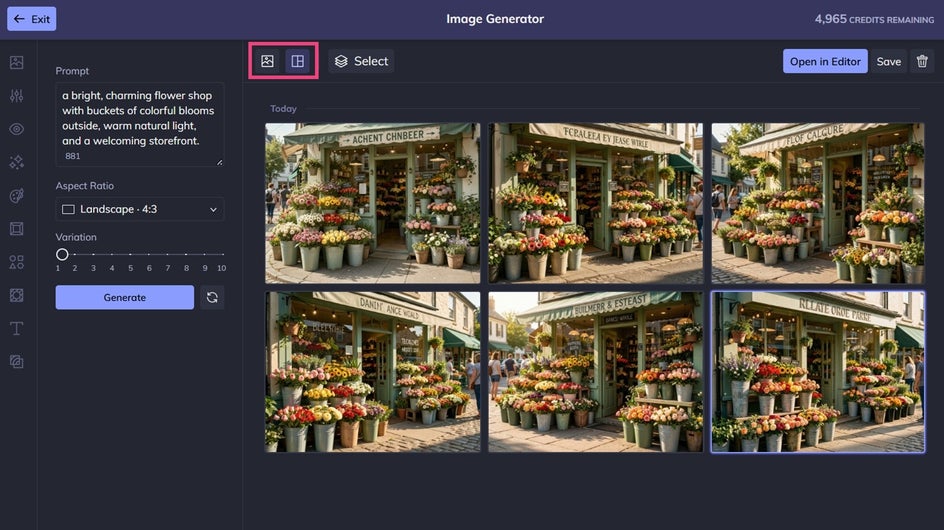
Want to explore different versions of the same idea? You can view up to 10 variations of your generated image and choose the rendition that best matches your vision. Don’t be afraid to experiment, either. Adjusting your prompt or trying a different description can lead to entirely new creative possibilities.
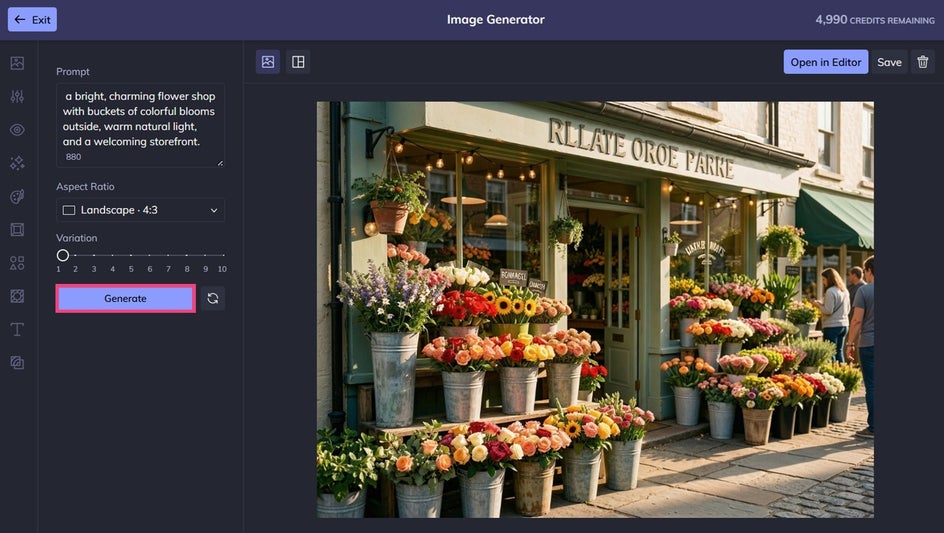
Want to continue editing your generated image in the Photo Editor? Just click Open in Editor to do that. Here, you can add fun photo effects, separate your subject from its background, use various touch up tools, and so much more!
You can also toggle between Create and Image Generations as you work. Create displays the image you’re currently generating, while Image Generations shows thumbnails of your previously created images. It’s an easy way to browse through your ideas and revisit images you’ve already made.
Why Use This AI Tool to Create Images?
The biggest advantage of using our AI-powered Image Generator is also one of the simplest: you can create an original image from an idea without having to build it from scratch yourself.
Maybe you have a visual concept that would be difficult to photograph. Maybe you need a specific image for a design but can’t find the right stock photo. Or perhaps you simply want to experiment with an idea before committing to a larger creative project.
Instead of searching for something that almost works, you can describe what you actually want.
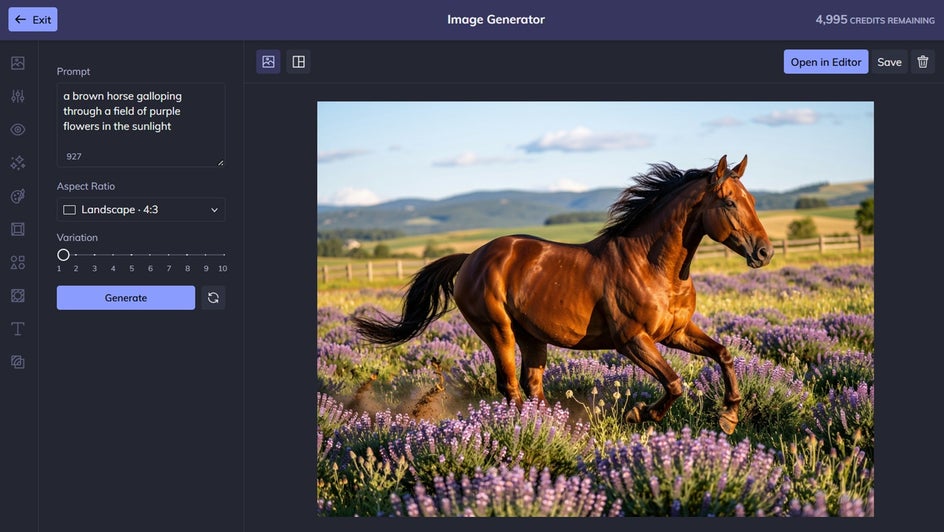
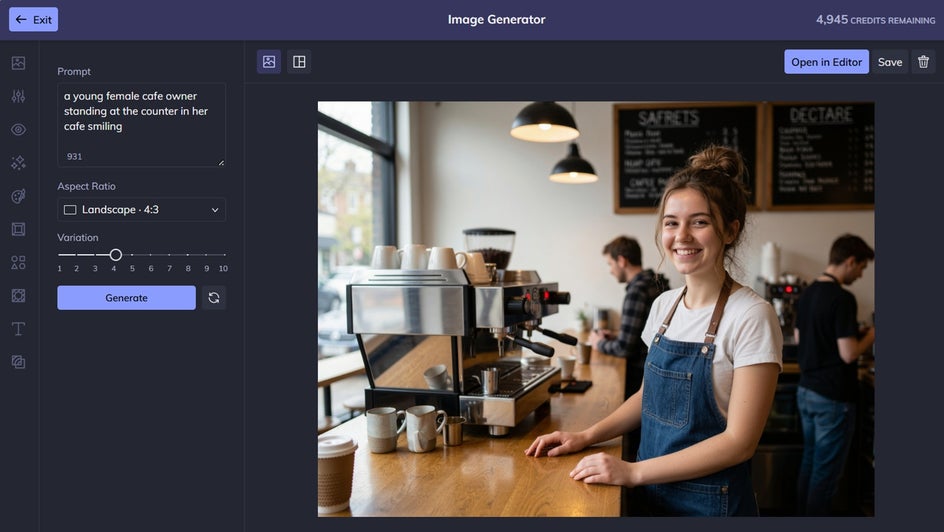
This can open up plenty of creative possibilities. Artists and designers can use AI-generated imagery to explore concepts and visual directions. Bloggers and content creators can create imagery tailored to their topics. Freelancers can quickly develop visual concepts for clients. Small business owners can create original visuals for social media, marketing materials, websites, and more.
It can also simplify everyday creative workflows. Rather than spending time sourcing images, arranging elements, or trying to turn a vague idea into a finished composition, you can start by describing the end result. From there, you can select your favorite generation and continue working with it in BeFunky.
Start Creating With BeFunky’s Image Generator
Great visuals can make a creative project more engaging, help a business communicate its ideas, or give a design the finishing touch it needs. But finding or creating the right image can sometimes be the hardest part.
Our Image Generator offers a simple new way to turn your imagination into imagery. Describe what you want, explore different variations, and bring your favorite results into your existing creative workflow.
Ready to see where your imagination takes you? Try the Image Generator within our Photo Editor and start creating!