Perfect Composition With BeFunky’s Crop Tool

Even the best photos can benefit from a few small tweaks. Whether there’s something distracting in the background or the framing just feels slightly off, a simple crop can instantly improve an image. This is because cropping helps draw attention to what matters most, while cleaning up visual clutter and creating a stronger overall composition.
BeFunky’s Crop tool makes these adjustments quick and intuitive. From removing unwanted elements to refining composition with guides like the Golden Ratio, it’s easy to get your image looking just right. Preset crop sizes also make it simple to format photos for social posts, banners, and other projects without the guesswork.
And when cropping isn’t the only change you need, our Resize and Expand tools add even more flexibility. Resize helps you scale images for specific dimensions, while Expand lets you add extra space around a subject or scene using AI. Together, these tools give you full control over how your images look and where they can be used.
Below, we’ll walk you through how to use the Crop tool in just a few easy steps!

How to Crop an Image
Head directly to the Crop tool within the Photo Editor and open the image you wish to crop.
Step 1: Choose the Crop Ratio
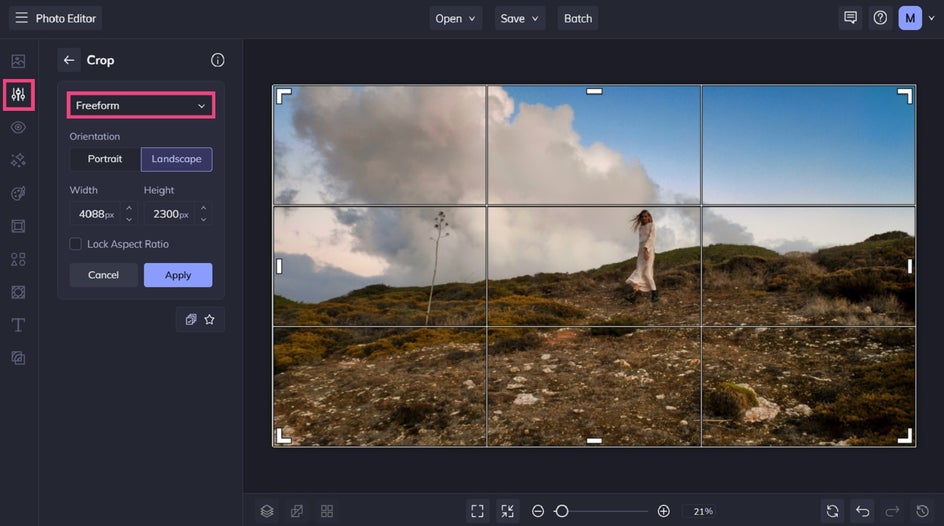
You’re able to manually adjust your crop area by dragging the corners of the box to fit your subject the best. If you’re cropping your image to a specific ratio for uploading to social media or printing, then you can also select this ratio from the dropdown list (where it says Freeform).
Alternatively, if you know the exact dimensions you want, enter them into the Width and Height boxes. Then, just click the Lock Aspect Ratio box to maintain that size and ratio.
Step 2: Select the Crop Orientation
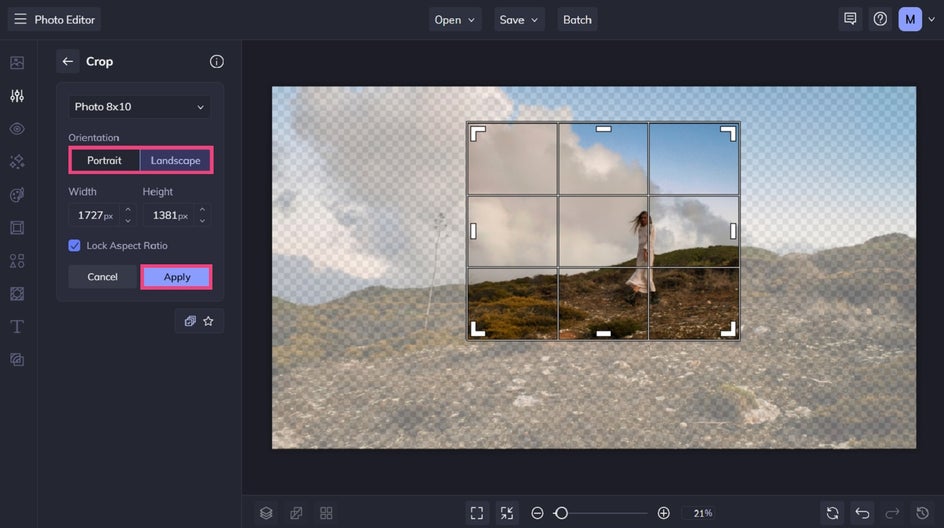
Next, choose your crop orientation. Toggle between Portrait and Landscape to instantly adjust the shape of your crop to match your image and layout needs.
Move the box around to frame your subject to your preference or crop out any unwanted elements. All of our crops use a grid layout, helping you achieve the perfect composition for your image.
When you're happy with your selection, click Apply.
Step 3: Save Your Cropped Image
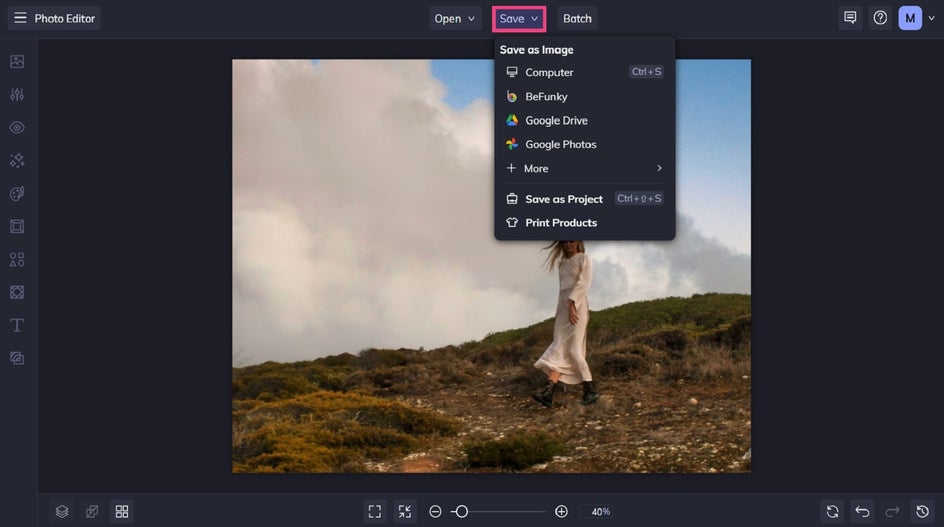
Finally, click Save at the top of the screen and choose your desired format and destination.
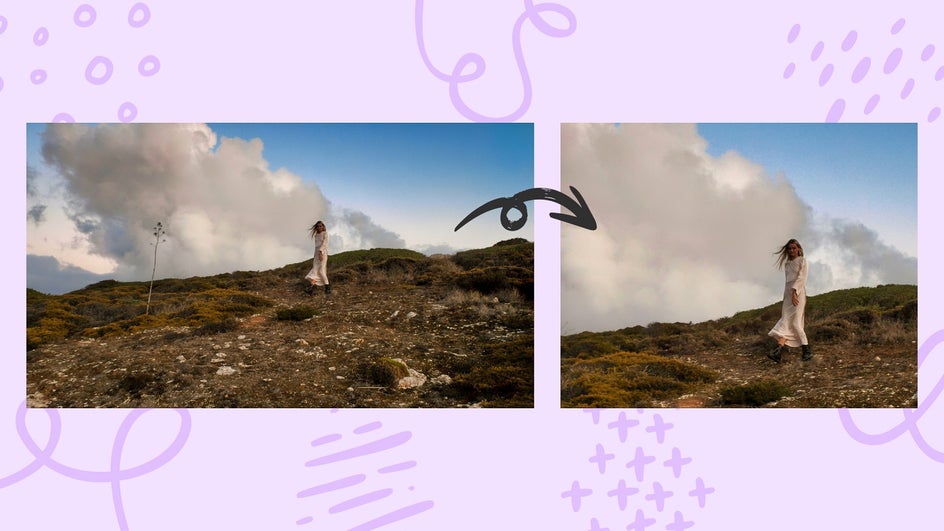
Before and After: A Share-Worthy Photo Crop in Seconds
With just a simple crop, we’ve been able to remove distractions competing with our subject and give our image a more attention-grabbing composition.
Crop Your Photos With Confidence
A well-cropped image can make all the difference. Whether you’re fine-tuning composition, removing distractions, or preparing photos for different formats, the right adjustments help your images feel more polished and intentional. With our Crop tool, it’s easy to adapt any photo to fit your needs.
Try the Crop tool for yourself to see just how simple it really is!