Add Eye-Catching Patterns to Your Collage Layouts

The Collage Maker is more than just a way to arrange photos; it’s an incredibly helpful design tool that lets you add text, graphics, photo effects, and even patterns to take your collages to the next level. Whether you're making a simple photo collage or a greeting card, social media graphic, custom banner, and more. Patterns can add visual interest and tie everything togeadding patterns to your photo collages is a great way to break things up visually and make your layout feel more dynamic. They help your photos and design elements flow together in a way that’s both eye-catching and cohesive.
The Collage Maker is available right in your browser, so there’s no need to download additional software. And with one click, you can open any collage cell photo in the Photo Editor to apply touch ups, photo filters, and more. There’s no end to your creativity!
How to Create a Patterned Collage
Ready to add a pattern to your own collage? Head to the Collage Maker and follow these 4 simple steps.
Step 1: Choose a Collage Wizard Layout
Go to the Layouts tab to choose your format. We're going to use the Collage Wizard to make the process even easier. This tool creates a collage layout automatically by arranging your photos for you. Just select the images you want to use, and it will generate a variety of layouts to choose from – without cropping or sacrificing image quality.
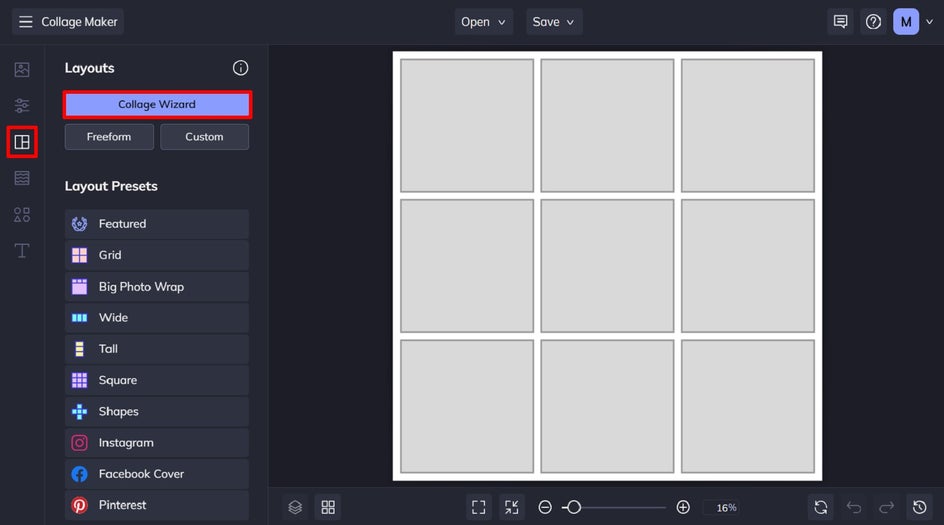
Use the arrows to scroll through the generated options until you find one you love, then click Select This Collage to place it on your canvas.
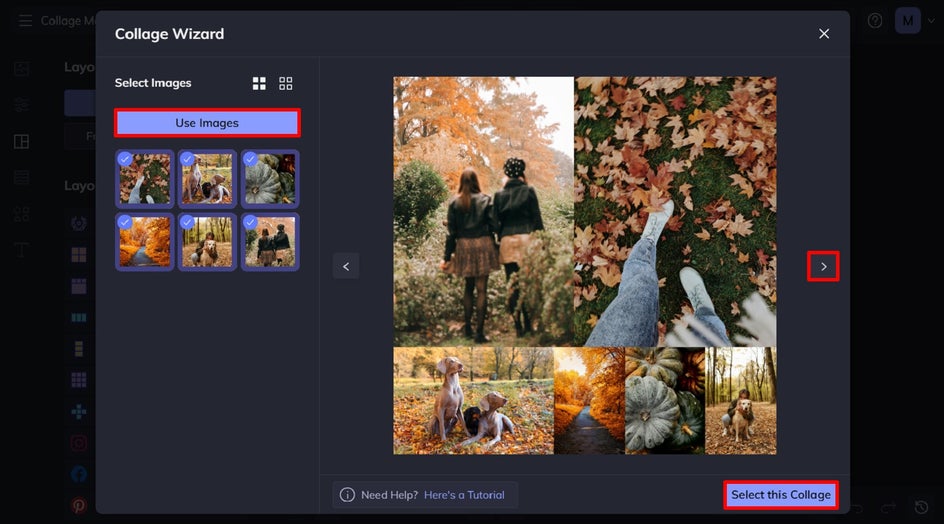
Step 2: Customize the Corners, Spacing, and More
Next, select the Customize tab to adjust various elements of your collage. Here, you can change the spacing between your images, corner rounding, aspect ratio, size, and more.
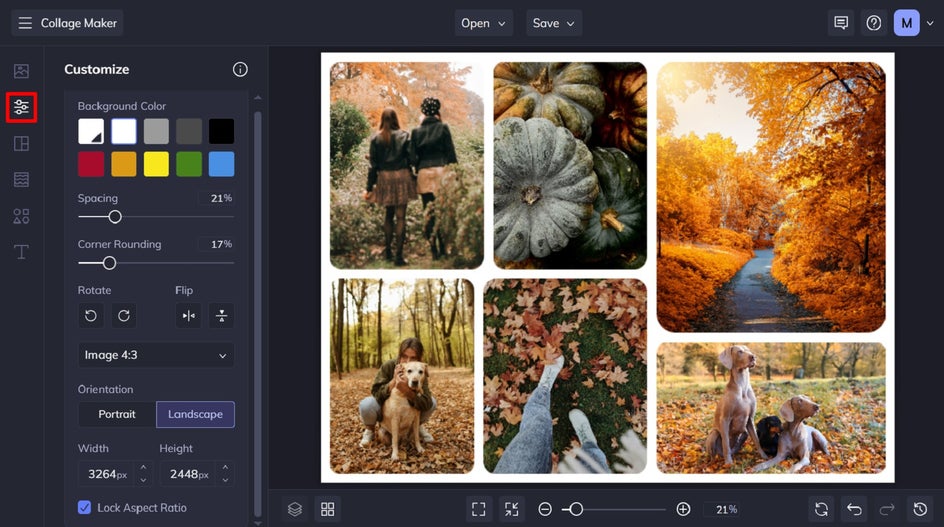
Step 3: Add a Pattern
Here comes the fun part! Click on the Patterns tab to choose from dozens of themed patterns, including geometric, fabric, stripes, summer, and love – among many others. Select the pattern you want to use, followed by Set as Background.
Want to add a pattern to a cell in your collage instead? Just drag and drop it onto the chosen cell.
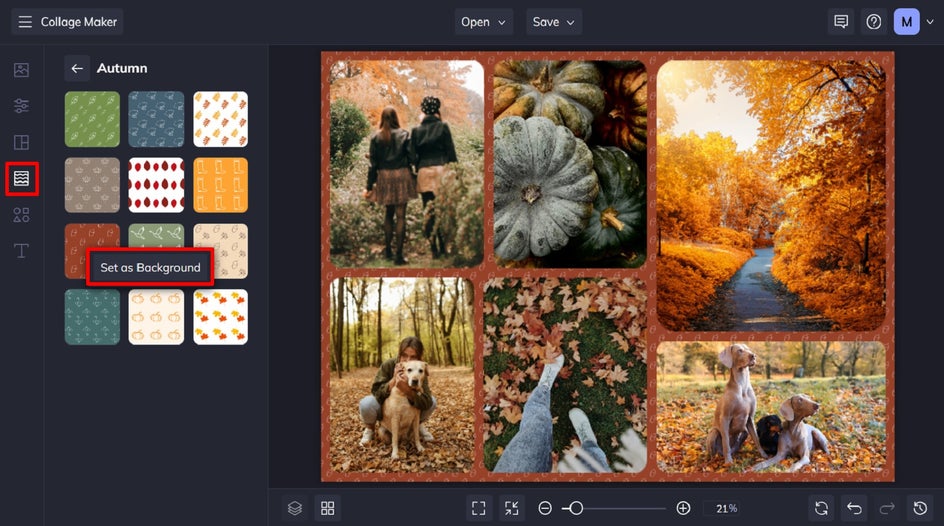
Once you’ve finished adding your pattern, you can make further additions to your collage design, like adding text or graphics.
Step 4: Save Your Collage
Finally, click on the Save menu at the top of your canvas. For basic printing needs or sharing on social media, we recommend saving your file as a JPG or PNG. Want to print a large, high-quality collage for framing? Be sure to save your file as a PDF in Print Quality.
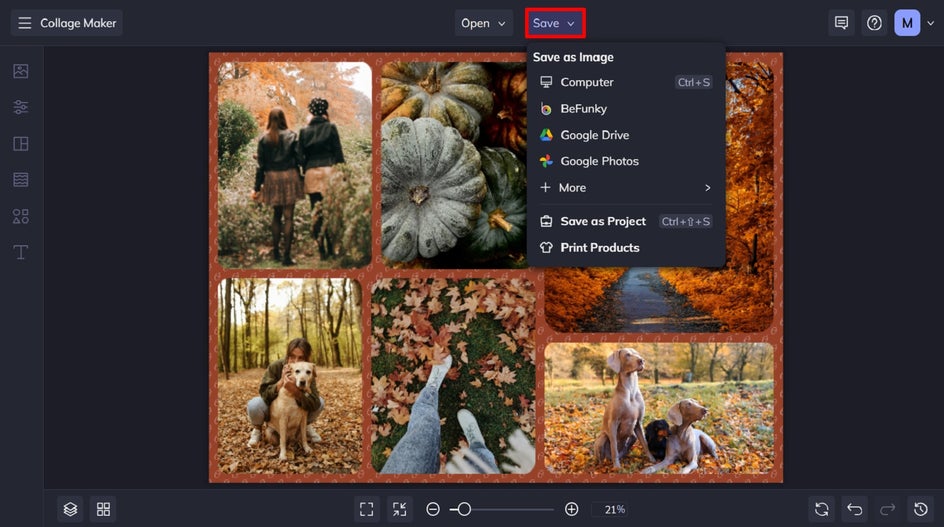
Final Look: A Patterned Collage That Tells a Story
Why create a simple fall inspired collage when you can enhance it with a gorgeous, on-theme pattern? All it took was seconds for us to add a patterned background to our collage, making it one of the simplest, yet most effective customization options.

Pattern Collage Inspiration
Need some ideas for putting patterns to use in your next collage? Here are a few creative ways to get started!
Social Media Posts
Give your feed an instant refresh with a collage that includes bold, eye-catching patterns. Try adding a patterned background to one or two cells to reinforce your branding, create contrast, or draw attention to a specific quote. Geometric shapes, vibrant stripes, or even fabric textures can help you stand out on platforms like Instagram, Facebook, or Pinterest. They're especially great for motivational quotes, announcements, or promotions – just like this example below.

Custom Greeting Cards
Creating a personalized birthday or holiday card? Patterns can help bring the whole design together by reinforcing your chosen theme. Add your photos and any text or graphics, then use a patterned background or cells to complement your layout. Think polka dots for birthdays, hearts for Valentine’s Day, snowflakes for winter holidays, or even fall leaves for Thanksgiving cards. In this example, we’ve used patterns to create a cheerful holiday card collage. It's a simple way to make your message feel extra festive!

Blog, Website, or Etsy Shop Banners
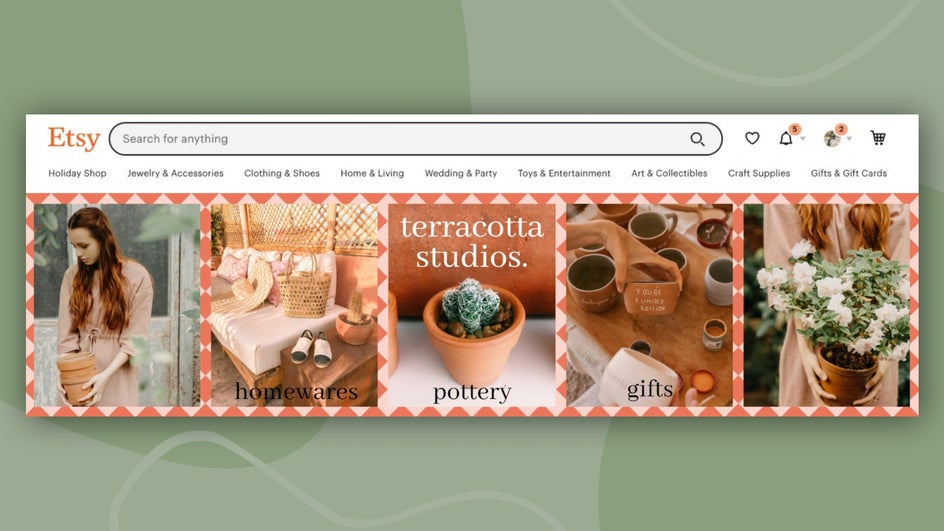
Want your website or online shop to look more cohesive and creative? Patterned collages are also perfect for Etsy shop headers or blog post graphics. Choose patterns that reflect your branding. For example, clean and minimalist for a modern aesthetic, or bold geometric patterns for a trendy, eye-catching look. Combine them with product photos or other branded graphics to create a collage banner that feels uniquely you.
Add a Pattern to Your Next Collage
Adding patterns to your collage is one of the easiest ways to give your design extra dimension and style. Whether you're crafting something fun for personal use or building visual content for your brand, the Collage Maker gives you all the tools you need, right at your fingertips.
Check out the patterns in the Collage Maker today!