
Make Text and Graphics Easier to Align With BeFunky

Good design often comes down to the little details. Text needs to sit neatly within a layout, graphics need to line up with one another, and every element needs to feel like it belongs exactly where it is.
Fortunately, you don't have to rely on guesswork to get everything into place. BeFunky's alignment tools make it easy to position text, photos, graphics, and other layers as you build your design. With Snapping, Alignment, and group selection, you can quickly create balanced layouts without constantly nudging elements around the canvas.
These tools are especially useful when you're working with multiple elements. Instead of carefully adjusting each textbox or graphic by eye, you can use visual guides and alignment options to get everything where it needs to go.
Whether you're creating a social media graphic, invitation, poster, flyer, or collage, BeFunky's intuitive design tools help you spend less time worrying about placement and more time making your design your own.
Let's take a look at a few easy ways to keep your text and graphics beautifully aligned!
Wrap and Align Text With Ease
When you're adding text to a design, getting the formatting right can be just as important as choosing the right font. A textbox that's too narrow can create awkward line breaks, while one that's too wide can throw off the balance of your layout.
BeFunky makes it easy to adjust your text while keeping your design neatly organized. As you type or paste text into a textbox, the text automatically wraps when it reaches the edge of the box. You can then resize the textbox by dragging its sides to give your text more or less room. This lets you quickly find the right balance between your wording and the surrounding design elements.
You can also use the text alignment options to control how your text sits within the textbox. Choose left, center, right, or justified alignment from the Text Properties menu to create the layout you're after.
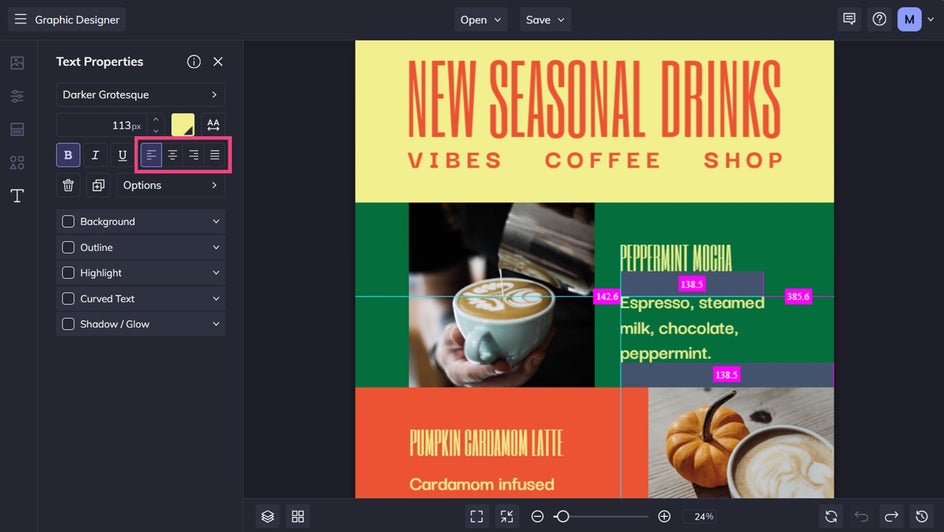
Once your text is formatted, Snapping makes it easier to position the textbox in relation to other elements on your canvas. As you drag it around your design, snap lines appear to help you line it up with the edges or center of the canvas and with other layers. This is particularly useful when you're creating layouts with multiple textboxes that need to share the same margins or line up along the same visual axis.
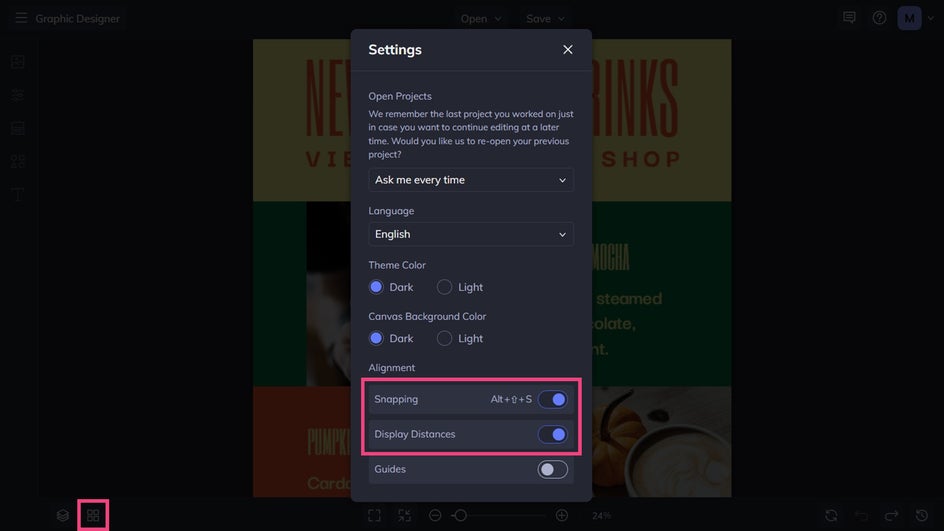
To turn on Snapping, click the Alignment icon at the bottom of the canvas and make sure Snapping is enabled. Then, simply drag your textbox into position and let the visual snap lines guide you.
You can also use the same Alignment menu to turn on Display Distances, which shows the exact pixel distance between your selected layer and other elements or the canvas. This can be helpful when you want to create evenly spaced layouts or make precise adjustments.
Keep Your Graphics Aligned With Snapping
Snapping becomes especially useful when you're arranging several graphics on the canvas. Once your elements are in place, the visual guides can help you line them up and maintain consistent spacing as you build your layout.
For example, imagine you're creating a poster with a row of icons. As you move each icon into position, Snapping can indicate when its edges or center line up with another element or the canvas. Purple spacing indicators can also appear when elements are evenly spaced, helping you create a more balanced arrangement.
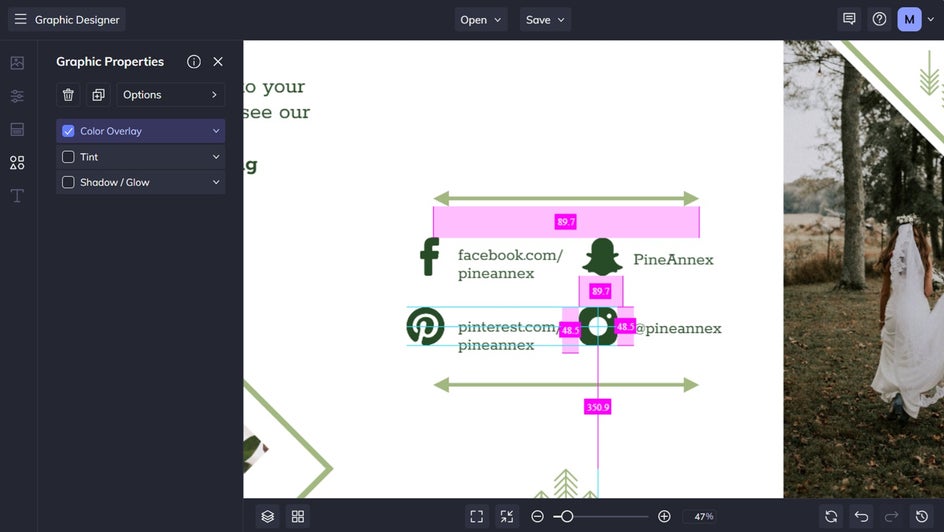
This makes it easier to build layouts that feel intentional without having to constantly zoom in or compare the position of each element by eye. You can focus on the overall design while the alignment guides help with the small details.
Use Snapping to Align Different Elements
Snapping becomes even more useful when you're combining different types of elements in the same design. Rather than treating your text, images, and graphics as separate pieces, you can use the snap guides to create visual connections between them.
For example, you might want the left edge of a heading to line up with the edge of a photo below it, or position a graphic directly beneath the center of a text box. As you move each element, BeFunky indicates when its edges or center line up with another layer.
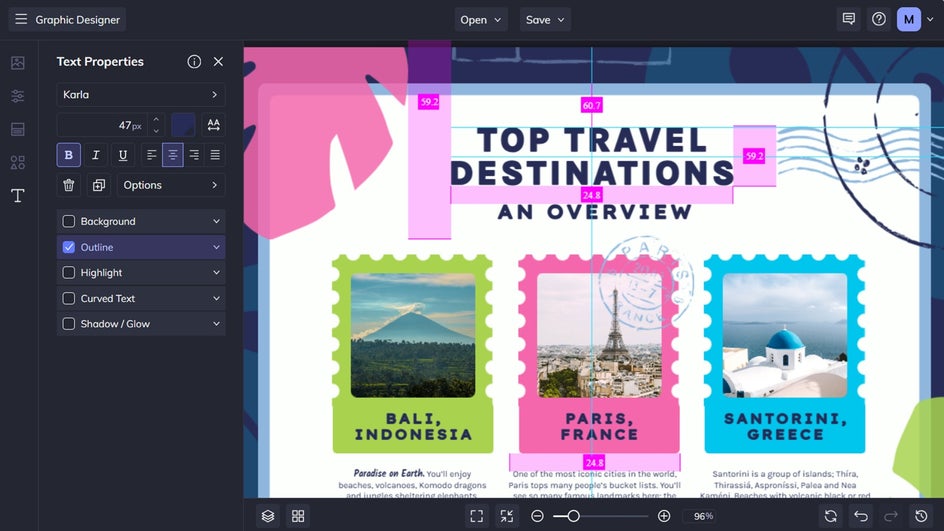
This can help establish a consistent visual structure throughout your design. A series of text boxes can share the same left margin, a collection of photos can line up along the same horizontal axis, or a graphic can sit precisely between two other elements.
When you need even more precision, turn on Display Distances from the Alignment menu. This shows the pixel distance between your selected element and other layers or the canvas, making it easier to create consistent spacing when visual guides aren't quite enough.
Together, Snapping and Display Distances give you two ways to judge placement: visual guides for quick adjustments and measurements when you want more exact control.
Move Groups Without Losing Your Layout
Once you've carefully arranged several elements, you may want to reposition the entire composition without changing how those elements relate to one another. That's where group alignment comes in.
Select the elements you want to move together, then use the alignment options to position the group on your canvas. You can align the selection to the left, center, or right, or position it at the top, middle, or bottom of the canvas.
The important part is that the elements maintain their arrangement within the group. So, if you've already created a heading, image, and decorative graphic that work well together, you don't have to reposition each one individually just to move the composition somewhere else.
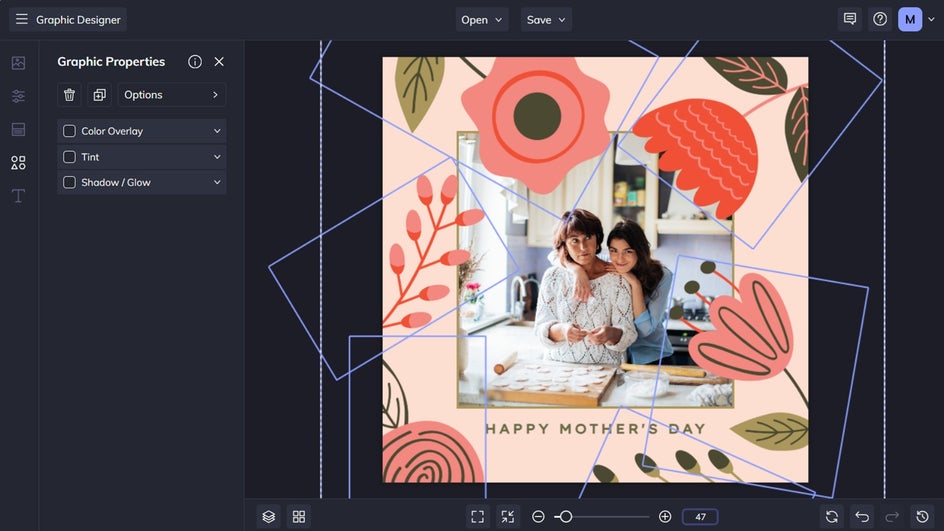
This is especially useful when working with templates. You might like the way a collection of elements is arranged but want to shift the entire section to create more room for your own content. Group alignment lets you reposition that section in one action instead of rebuilding the layout.
It's also handy when experimenting with different compositions. Try moving a complete group to another area of the canvas to see how the design feels, then reposition it again without disturbing the relationships between its individual elements.
Create Better-Aligned Designs With BeFunky
When your text and graphics are positioned just right, your whole design can feel more polished. The good news is that getting there doesn't have to involve endless dragging, resizing, and second-guessing.
BeFunky gives you simple ways to organize the elements on your canvas and create layouts with less effort. You can line up text with graphics, space elements evenly, or move an entire collection of layers without losing the arrangement you've already created.
So, next time you're designing a poster, invitation, social graphic, collage, or anything else with multiple layers, turn on the alignment tools and let BeFunky do some of the precision work for you. Your elements will line up, your layouts will come together more easily, and you'll have more time to focus on the creative part.
Start your graphic design today to see what all of the fuss is about!