









Turn Any Photo Into a Scroll-Stopping Profile Picture

A great profile picture sets the tone everywhere it appears. From social media and messaging apps to professional platforms and community profiles, that tiny image does a lot of heavy lifting. But creating one that looks polished, well balanced, and intentional can feel harder than it should, especially if you are not a designer.
That is exactly where Smart Templates come in.
Smart Templates are pre-designed layouts in the Graphic Designer that apply built-in effects the second you upload a photo. For profile pictures, this includes background removal, colorful graphics, overlays, and other subtle stylizations.
In this article, we will walk through how to create a professional profile picture, unique to your personal brand, in just a few clicks.
How to Create a Profile Picture Using Smart Templates
Before you begin, be sure to choose a clear, well lit photo where your face or subject is easy to see. Close up images with clear contrast and details work best for profile pictures.
Step 1: Open a Portrait Smart Template
Start by heading to the Portraits collection in the Graphic Designer. This is where you will find all of the instant templates designed to apply effects and stylistic edits automatically.
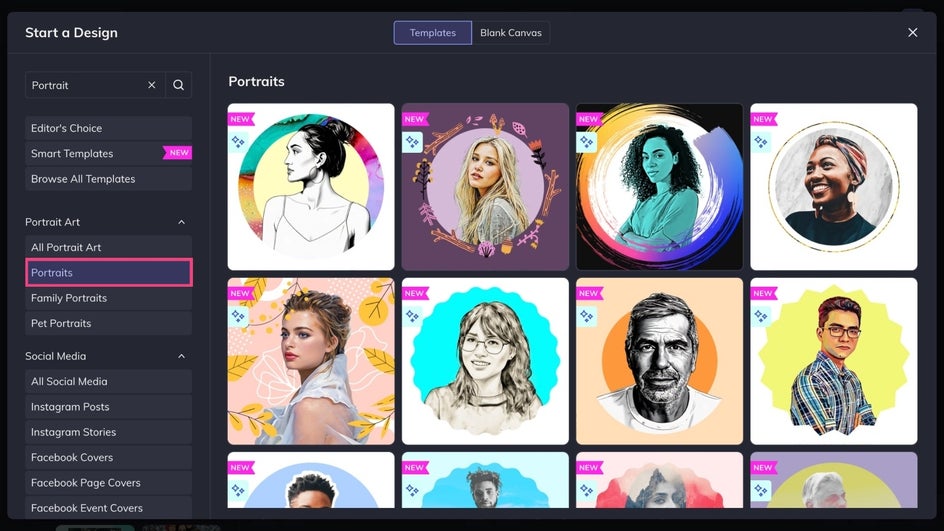
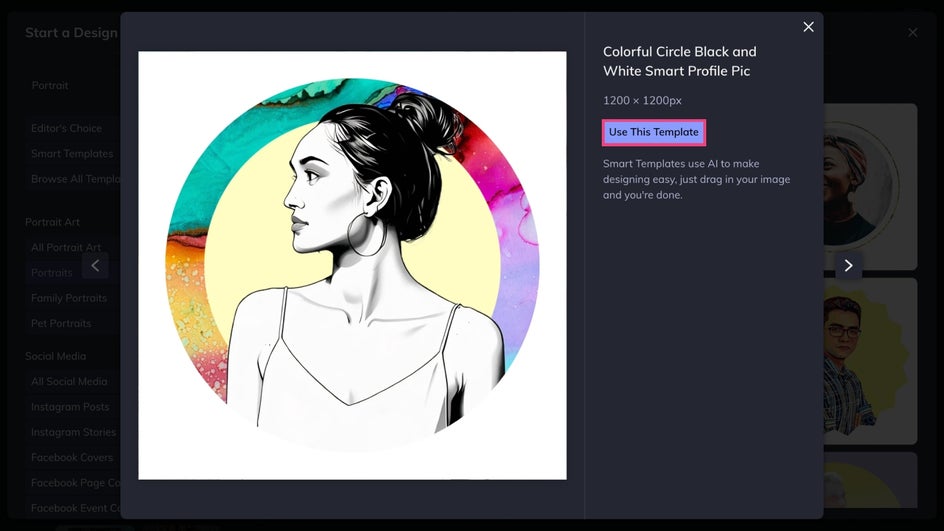
Scroll through the collection until you find a template designed for profile photos or portraits. Once you find one you like, click Use This Template to open it on your canvas.
Step 2: Add Your Photo
Click on the placeholder image to replace it with your own photo. You can upload an image from your computer, drag and drop one onto the canvas, or choose a photo from the Image Manager.
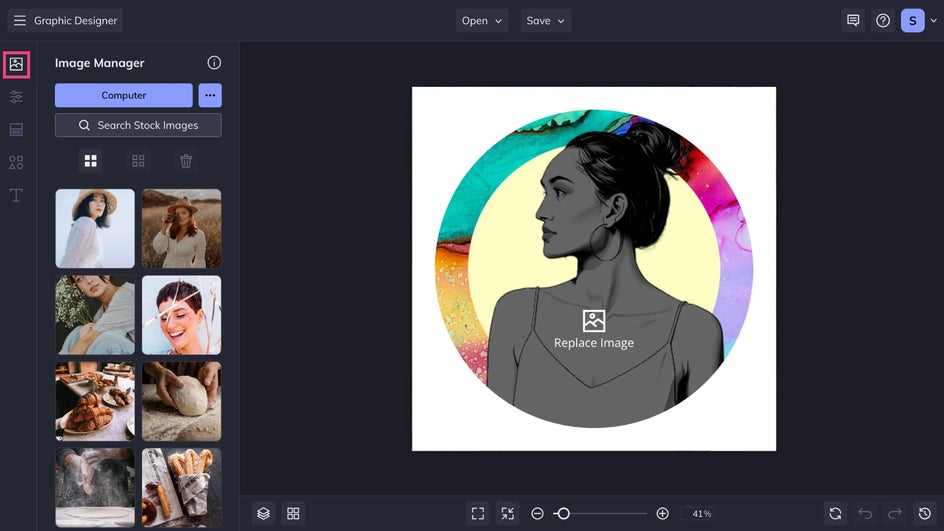
As soon as your image is added, the Smart Template will automatically apply the same effects and styling used in the template design.
Step 3: Customize the Look
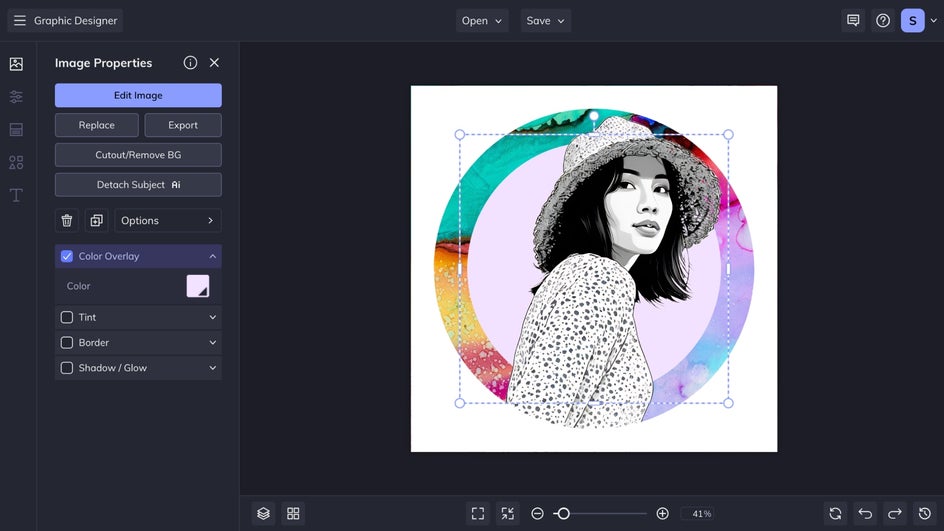
Smart Templates keep their built in effects intact, but you still have full control over customization. Small tweaks like adjusting background color or upping the contrast can help your profile picture feel unique while still looking polished.
Step 4: Save and Upload Your Profile Picture
When you are happy with your design, click Save at the top of the canvas. Export your profile picture as a JPG or PNG for online use.
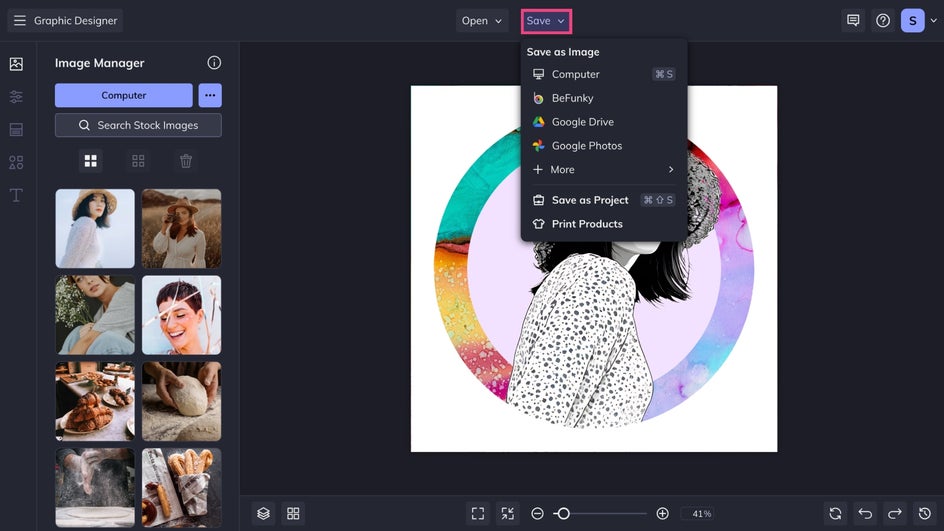
Your image is now ready to upload across social platforms, messaging apps, or anywhere else you need a clean, professional profile photo.
A Polished Profile Picture in Seconds
That is all it takes to create a profile picture that looks professionally edited. Smart Templates handle the technical details, so you can focus on choosing a photo and refining the style.
Instead of starting from scratch, you get a balanced layout, coordinated effects, and a finished look almost instantly.
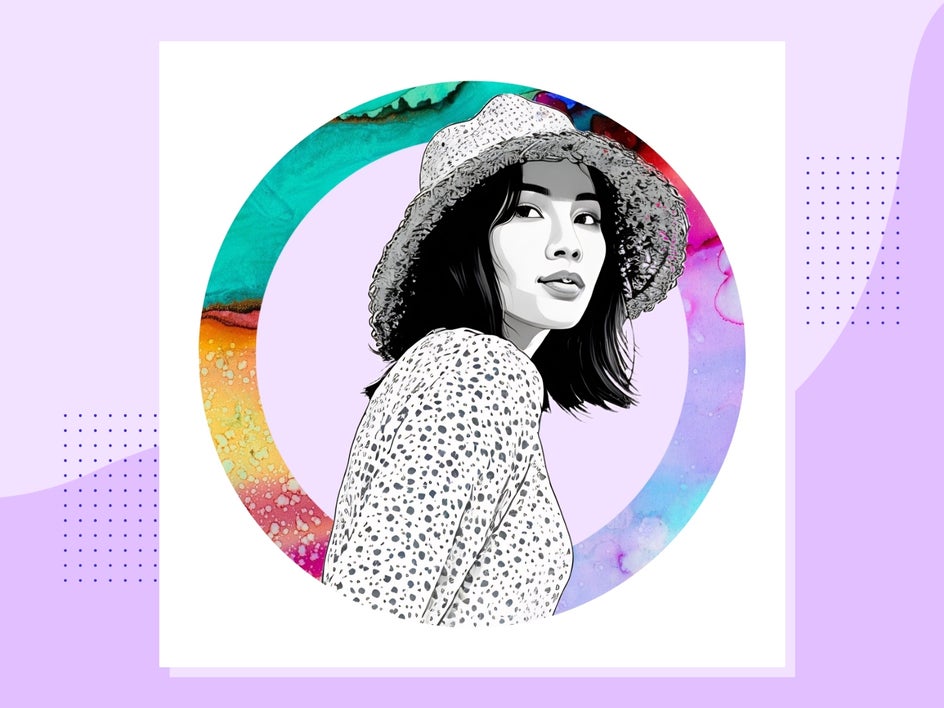
More Profile Styles to Try
Once you have created one profile picture, try experimenting with different Smart Templates to explore new styles.
Seasonal Profile Photos
Switch up your look for holidays or events with seasonal Smart Templates. From themed graphics to haunting portrait effects, it's easy to refresh your profile for each season without the extra work.
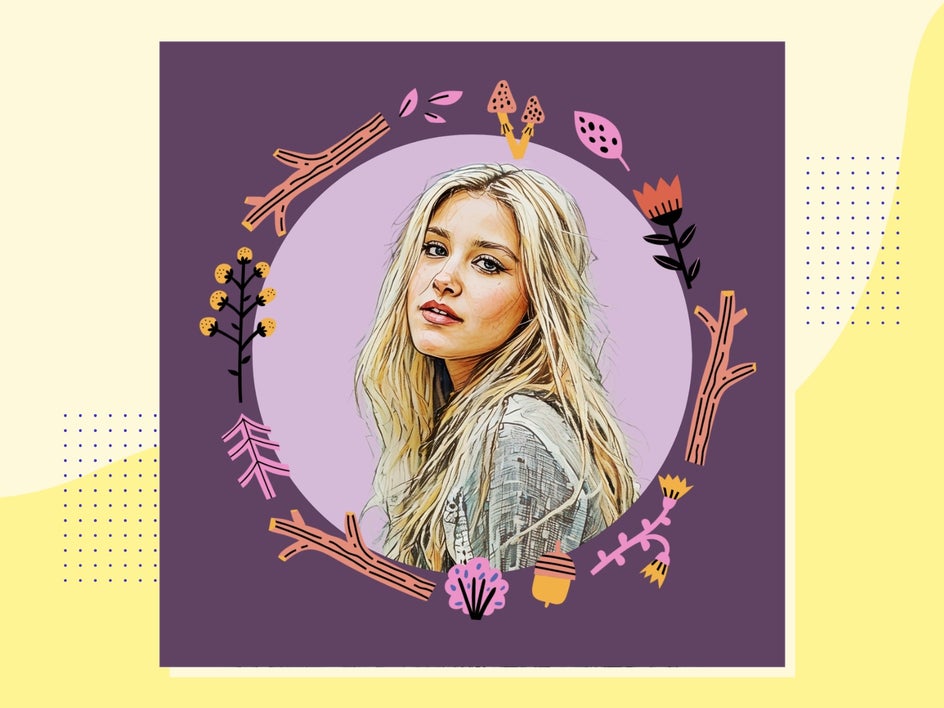
Double Exposure Profile Photos
Add instant style with subtle photo layering, textures, or frames that sit on top of your photo. Double exposures are a simple way to make your profile picture feel more intentional, while still keeping your face clear and easy to recognize.

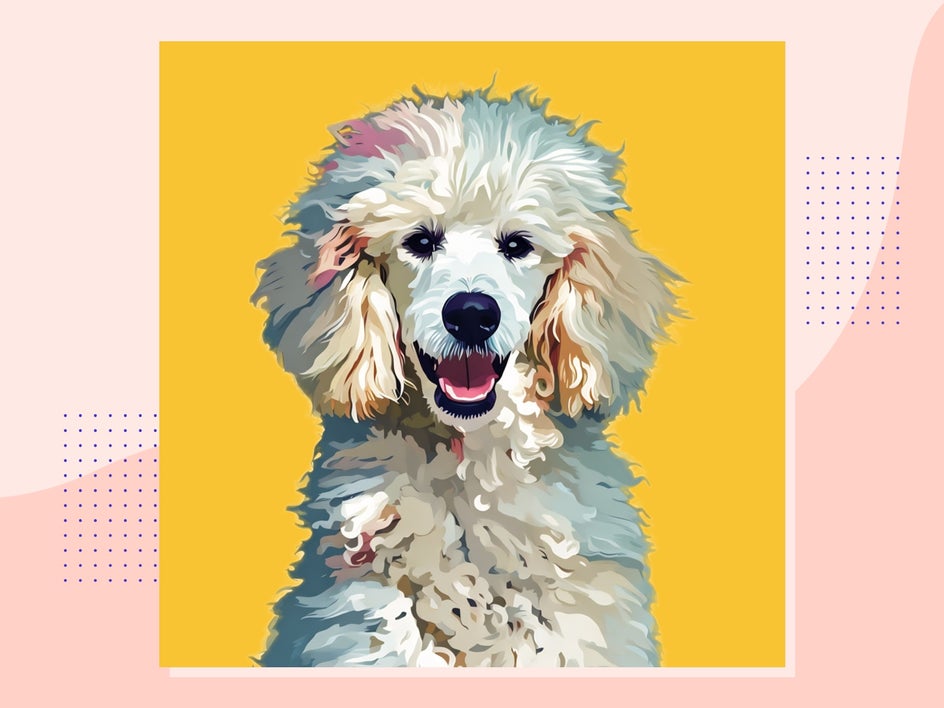
Pet Profile Photos
Create a profile picture for your pet using our instant Pet Portrait templates. These designs introduce textures and fun artistic styles while maintaining a balanced composition and your pet's unique features.
Get Instant Results With Smart Templates
Smart Templates make creating profile pictures fast, approachable, and stress free. By handling layout, effects, and overall styling for you, they remove the guesswork and help your images look consistent wherever they appear.
Explore our Smart Portrait templates to see how easy it is to upgrade your profile picture in just a few clicks.




