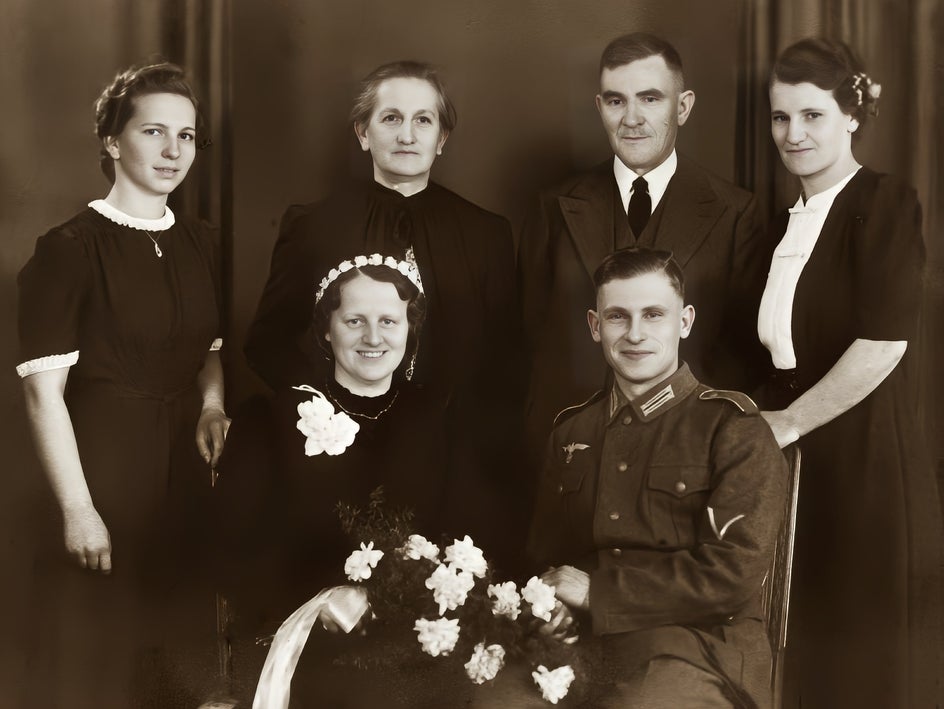
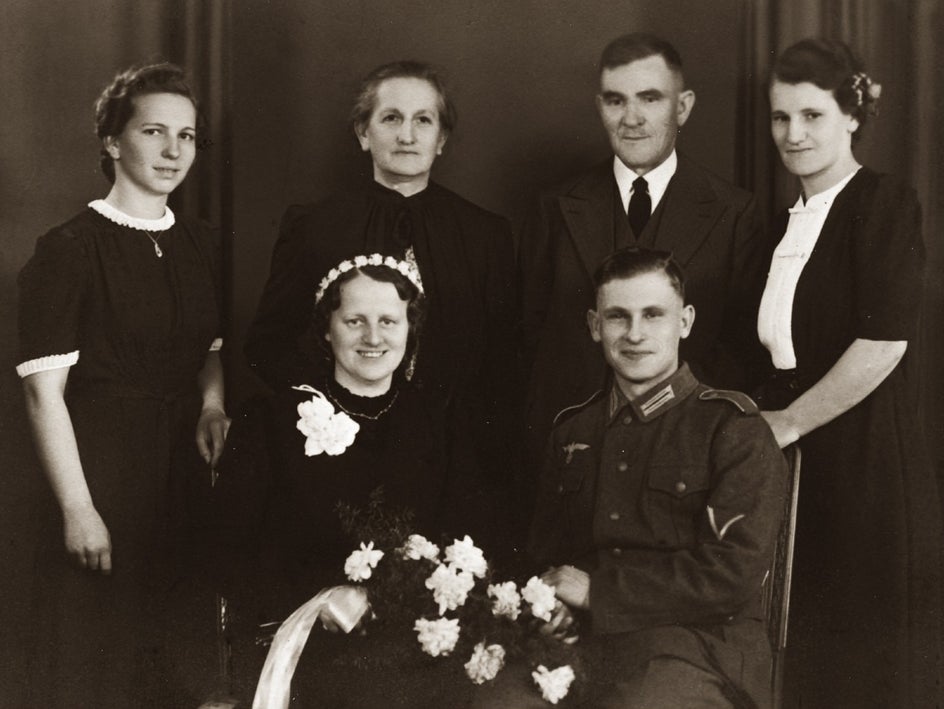
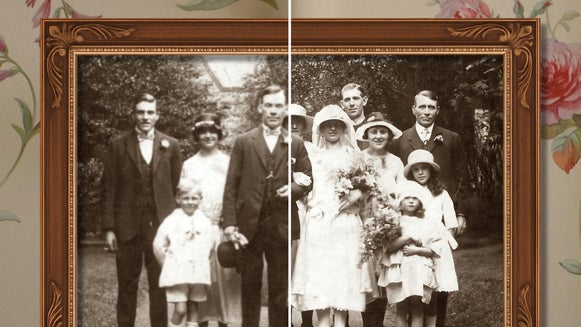
Bring Old Family Photos Back to Life With the Old Photo Restorer

Restoring old family photos is one of the most meaningful ways to preserve your history. Whether you plan to frame a vintage portrait, include it in a memorial, share it online, or drop it into a design project, working from a faded or damaged original can be a challenge. Luckily, the Old Photo Restorer makes the process simple by repairing wear and enhancing details automatically, all from BeFunky's Photo Editor.
This resurfacing tool analyzes your image and applies fixes for fading, discoloration, scratches, dust, and general aging. It revives clarity and contrast while keeping the original character intact so the final photo still feels authentic. You can use it on scans of prints, photos of old albums, or any heirloom image you want to preserve for future generations.
In the tutorial below, you will learn how to restore an old family photo using the Old Photo Restorer and prepare it for printing, framing, sharing online, or adding it to a Smart Template built just for family portraits.
How to Restore an Old Family Photo
Before you begin, make sure your photo is digitized. A flat scan offers the best quality, but a well lit phone photo of the original can work too. Aim for the sharpest version possible so the Old Photo Restorer has good detail to work with.
Step 1: Open Your Family Portrait
to get started, head straight to the Old Photo Restorer – found in the Edit tab of the Photo Editor – and choose a photo. This tool is designed specifically for vintage images and works with both black and white and early color photographs.
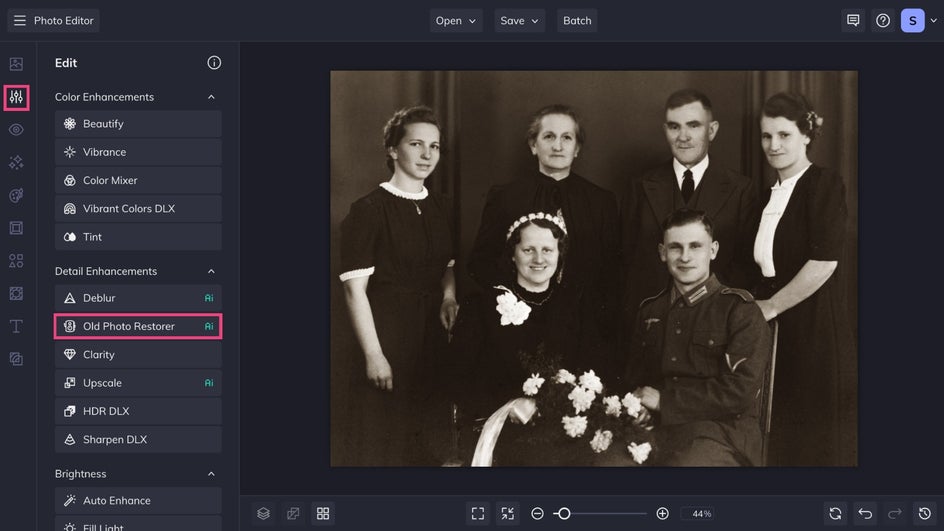
Step 2: Apply the Old Photo Restorer
The Old Photo Restorer will instantly get to work. The tool uses AI to analyze your image and repairs common issues due to aging. You will see improvements in clarity, contrast, and overall visibility right away.
Adjust the restoration strength to get the exact result you want. Upping the Scratch Reduction helps heavily damaged photos look cleaner. You can also recolor old black and white photos by toggling Recolor B&W. And be sure to select Recover Faces to see every smiling face in crisp, vivid detail.
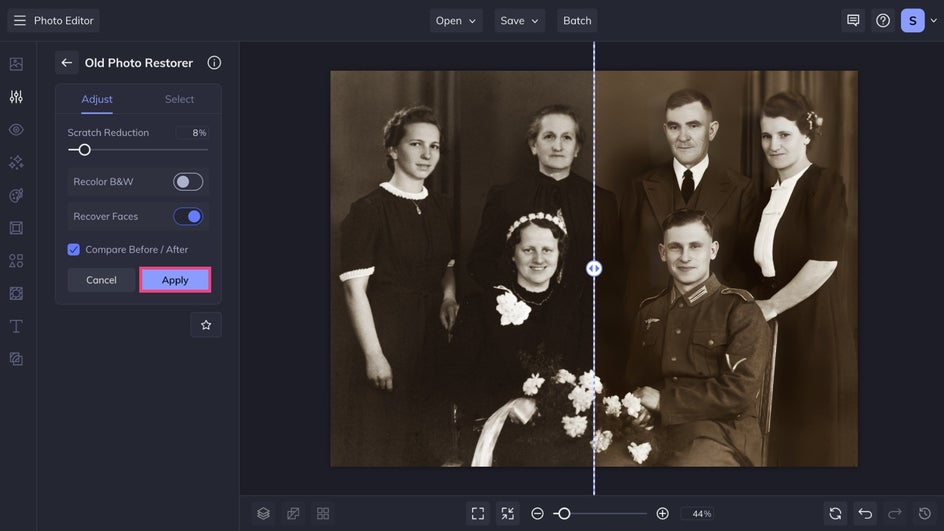
Once you're satisfied with the results, click Apply to save your changes.
Step 3: Save and Share
Once your family photo has been restored, click Save at the top of your canvas.
For printing or framing, keep the resolution as high as possible and save as a PDF or high quality JPG. This ensures smooth detail and sharp lines in the final print. If you want to get professional prints shipped straight to your door, click Print Products to choose your desired format in Zazzle.
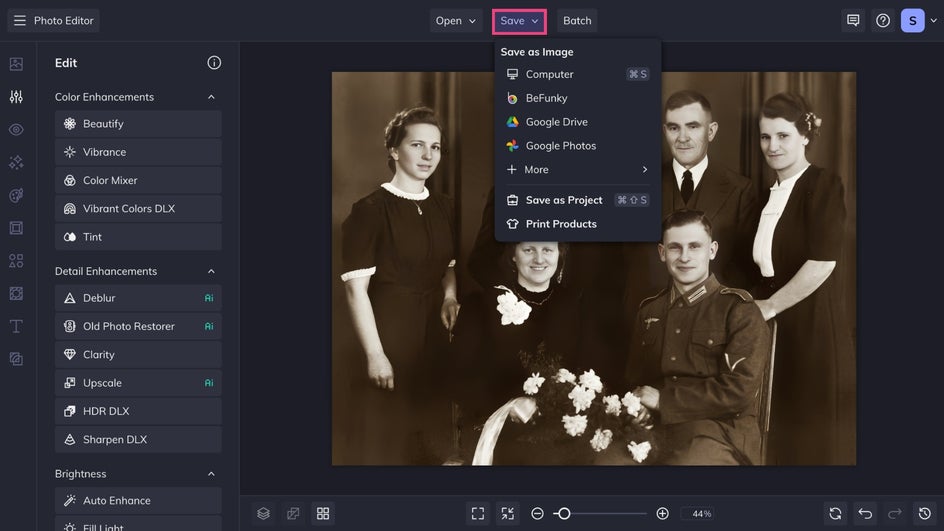
For sharing online, save as a JPG or PNG. These smaller file sizes make uploading faster while still showing your restored details clearly.
For designing with the image, such as creating a collage, memorial, or family history project, save it to your Image Manager for easy access in BeFunky’s Graphic Designer.
Restore and Preserve Your Family History
BeFunky’s Old Photo Restorer refreshes family portraits that may have been otherwise lost to time. With automatic scratch repair, flexible adjustments, and simple export options, you can transform a worn photograph into a clear, beautiful version ready for printing, framing, sharing, or applying to a design. Restore your favorites today and keep your family stories vivid for generations to come.