









Create Stunning Designs Instantly With Smart Templates

Starting a graphic design design from scratch? Whether you’re trying to create something personal for social media or step up your marketing game, it’s easy to get stuck wondering what layout works best, how to match colors, or which effects to use. That’s exactly why we built Smart Templates.
Smart Templates are pre-designed layouts in the Graphic Designer that come with built-in effects – like background removal, double exposure, or Artsy filters – that apply automatically when you add your photo. They take care of the heavy lifting, so your design looks cohesive right away, without needing to adjust layers or experiment with filters. It’s a faster, easier way to create something that feels professional from the very first step.
In this article, we’ll show you how Smart Templates work and how to customize one to fit your style. Follow along to see just how easy it is to create professional-quality designs in just seconds.
How to Create a Design Using Smart Templates
Before you begin, be sure to select a clear, well-lit photo that complements the colors and theme of your chosen template.
Step 1: Open a Smart Template
First, head to the Smart Templates collection in the Graphic Designer. Here, you'll find all of our AI-powered templates in one place.
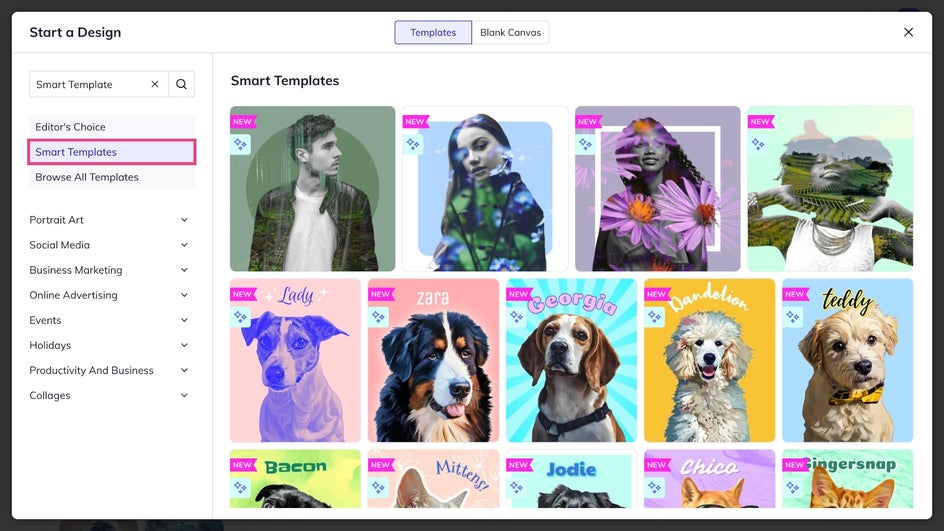
Browse through the available templates until you find a layout that fits your project. Once you’ve decided, click Use This Template to open it on your canvas.
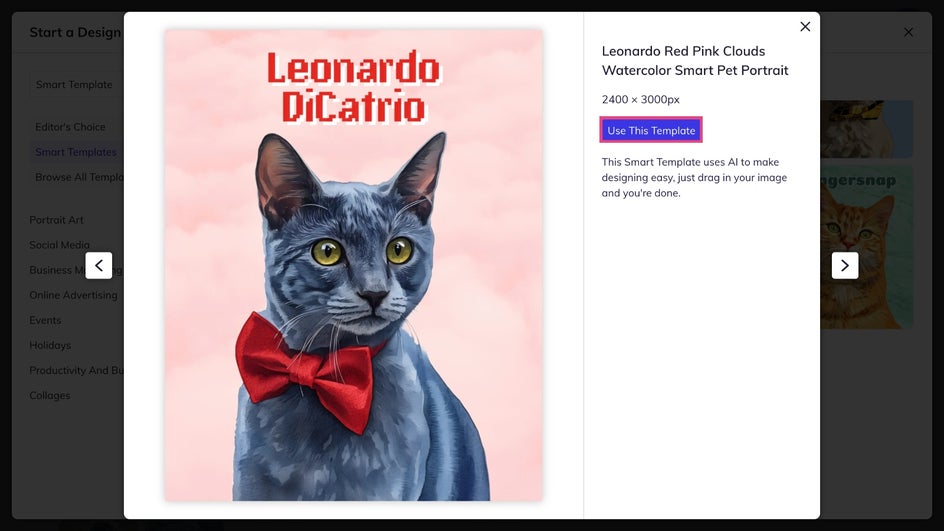
Step 2: Customize It
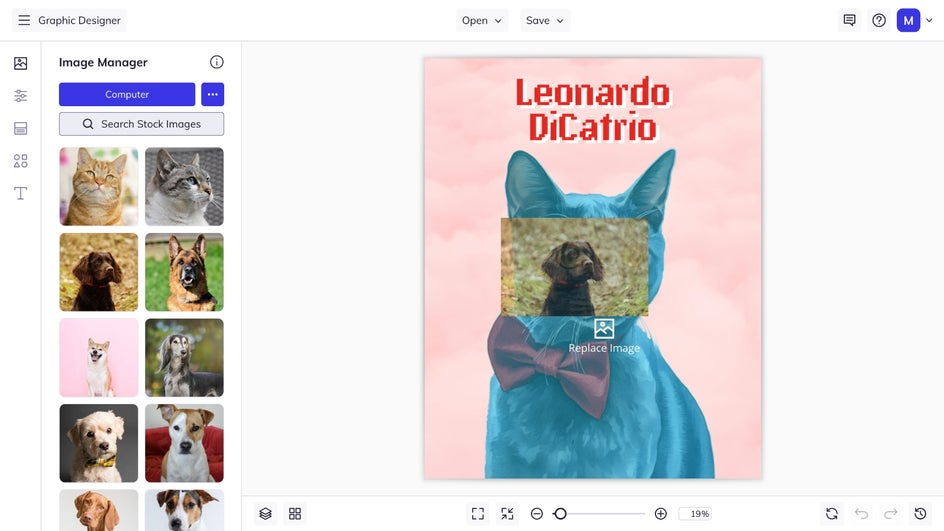
Click the placeholder photo in the template to replace it with one from your desktop, drag and drop a new image onto the canvas, or head to the Image Manager to choose a portrait from your library. The Smart Template will automatically apply the same stylization and effects from the original photo to your new one.
Use the corner handles to resize or reposition your image as needed. Keep an eye on any overlays or background shapes to make sure your subject remains the focal point.
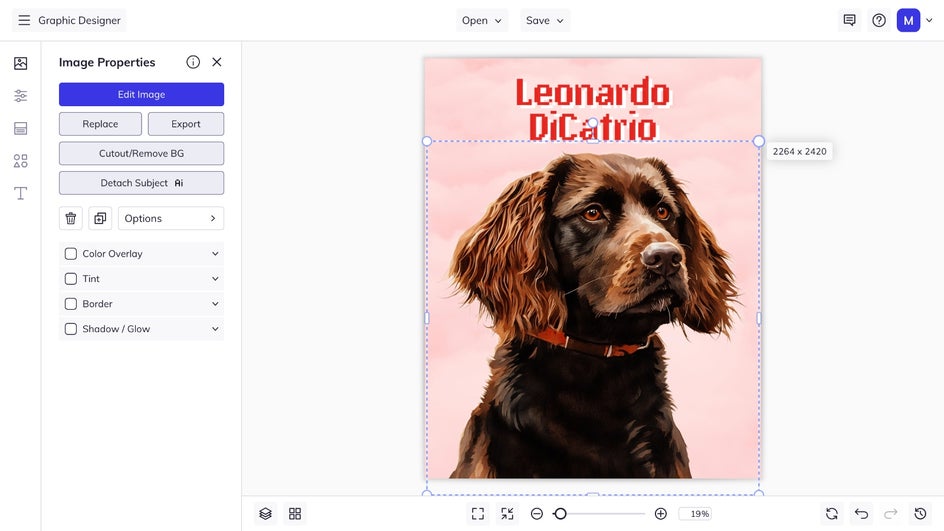
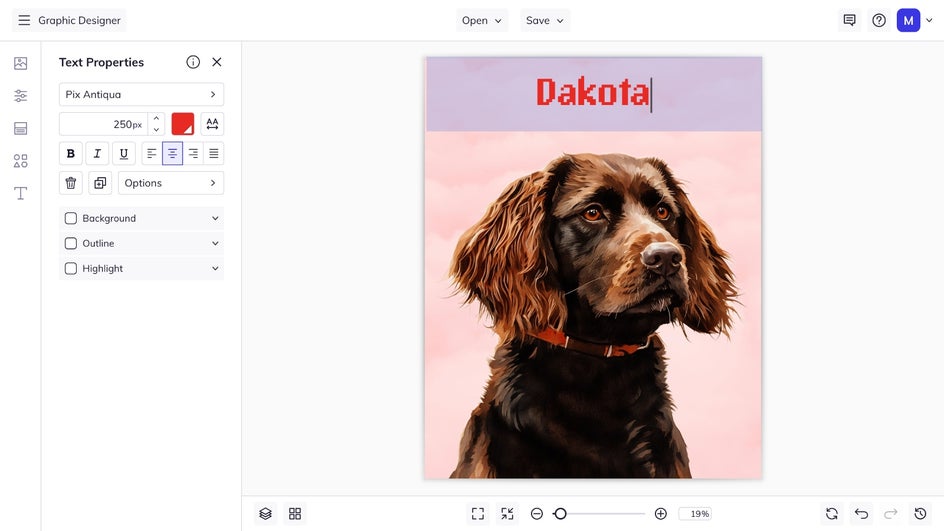
Smart Templates keep their built-in effects intact as you customize, ensuring your design stays balanced and cohesive. For templates with text, click any textbox to replace the content with your own words or captions. You can easily adjust fonts, colors, and alignment. To modify background elements, such as graphics, you may need to unlock them from the Layers menu first.
Step 3: Save and Share
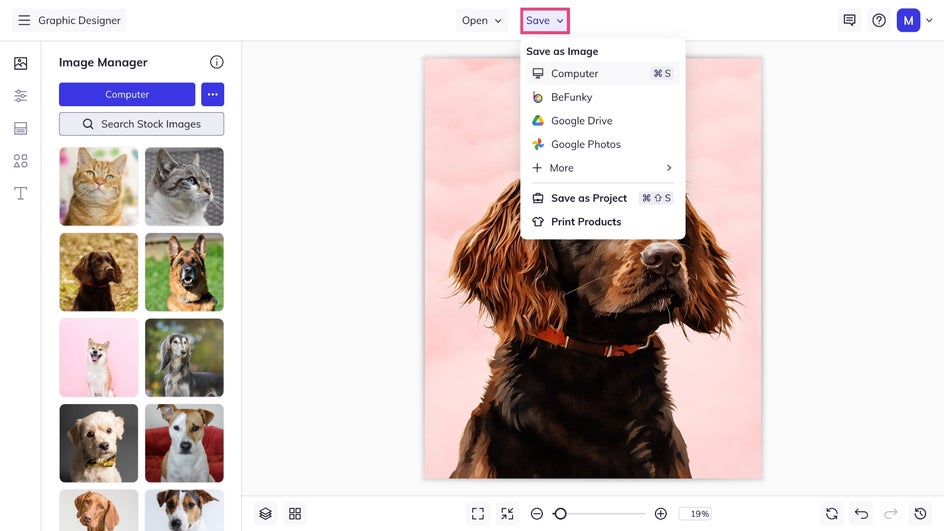
When you’re happy with how everything looks, click Save at the top of your canvas to export your finished design as a a JPG or PNG for web use, or a high-resolution PDF for print.
A Polished, Stylized Design in Seconds
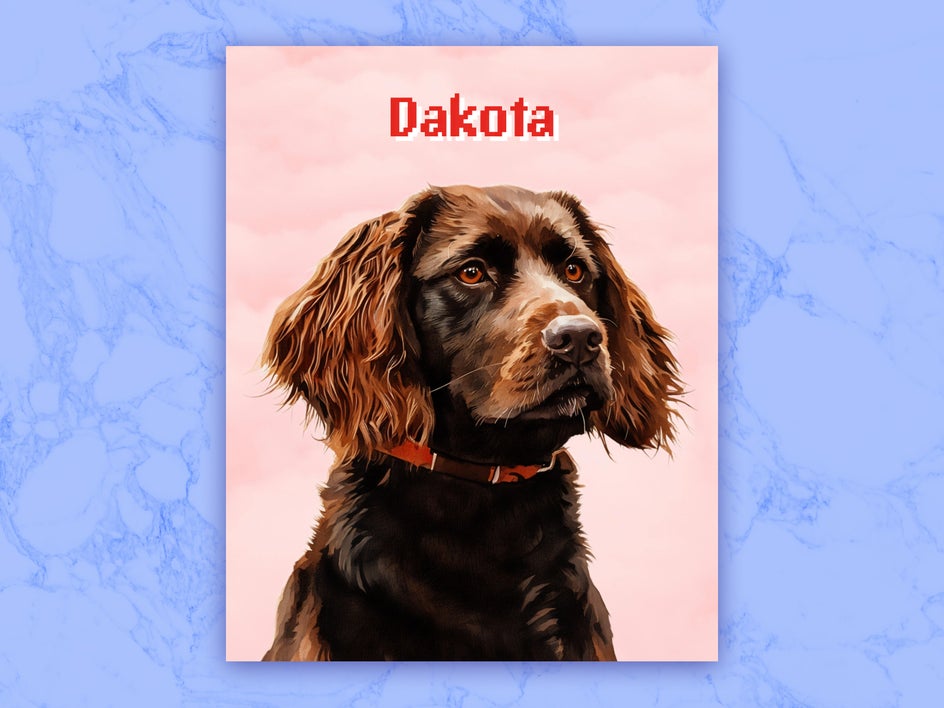
That’s all it takes to create a finished, stylized design that looks professionally edited. Smart Templates do the heavy lifting by applying coordinated effects and color treatments for you, leaving more time for creativity.
More Smart Templates to Try
Once you’ve mastered the basics, try experimenting with different template styles to get new results. Each template in this collection offers a unique visual transformation that balances professional-quality graphic design and innovative photo edits – in seconds.
Holiday Cards
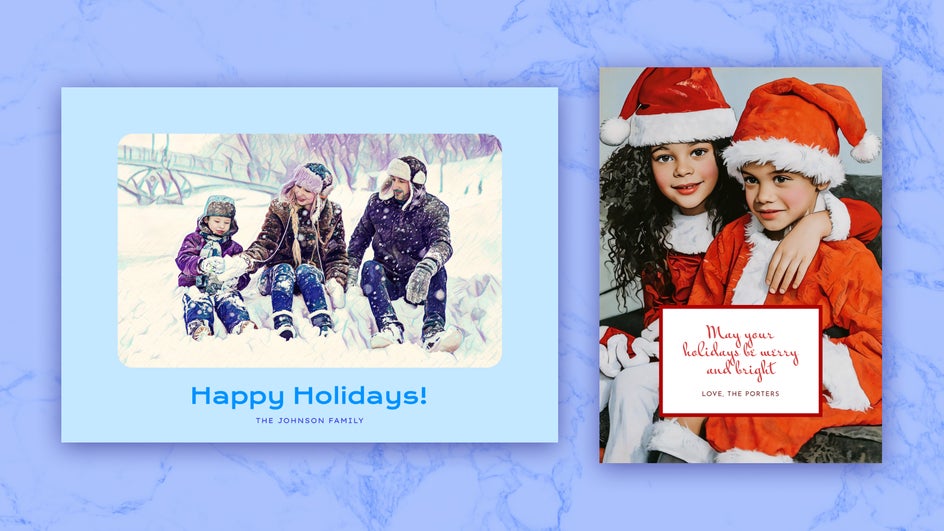
Design festive holiday cards for any occasion with layouts that adapt perfectly to your photos. Choose your favorite design and customize the colors, fonts, and graphics to match any holiday theme. Smart Templates make it easy to go from idea to beautifully finished card in moments.
Profile Photos
Update your online presence with templates that use balanced color palettes and subtle effects. These layouts are perfect for elevating your profile photo with a consistent, eye-catching style.

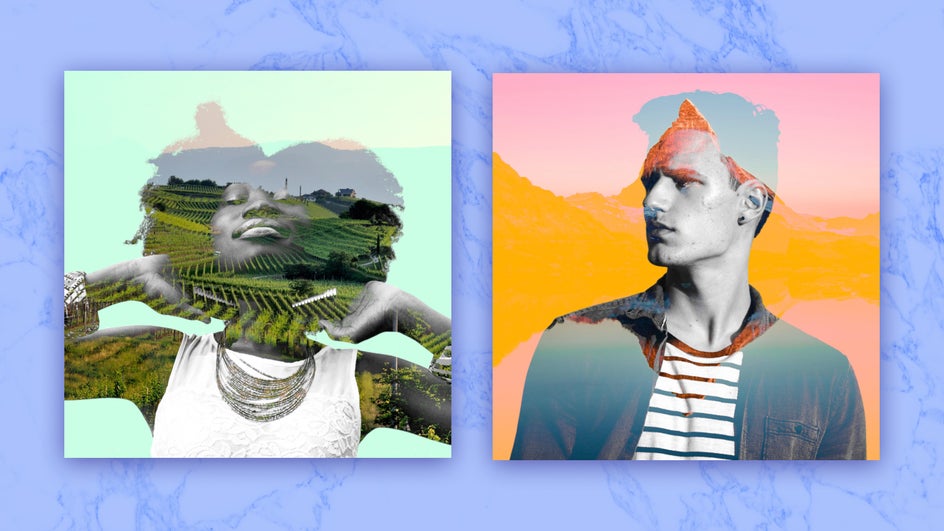
Double Exposures
Combine a portrait with landscapes, textures, or abstract patterns to create a cinematic double-exposure effect. Smart Templates make this complex look simple by blending your images seamlessly and preserving fine detail in the process.
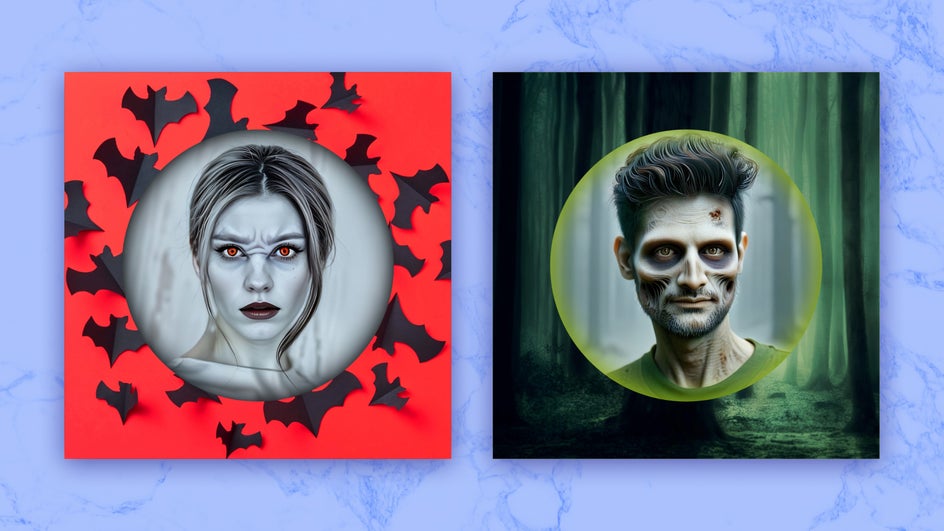
Holiday Avatars
Experiment with eerie tones, shadows, and dramatic overlays to create seasonal avatars. Smart Templates handle the lighting and special effects automatically, so all you have to do is pick the image and adjust the typography to match your theme.
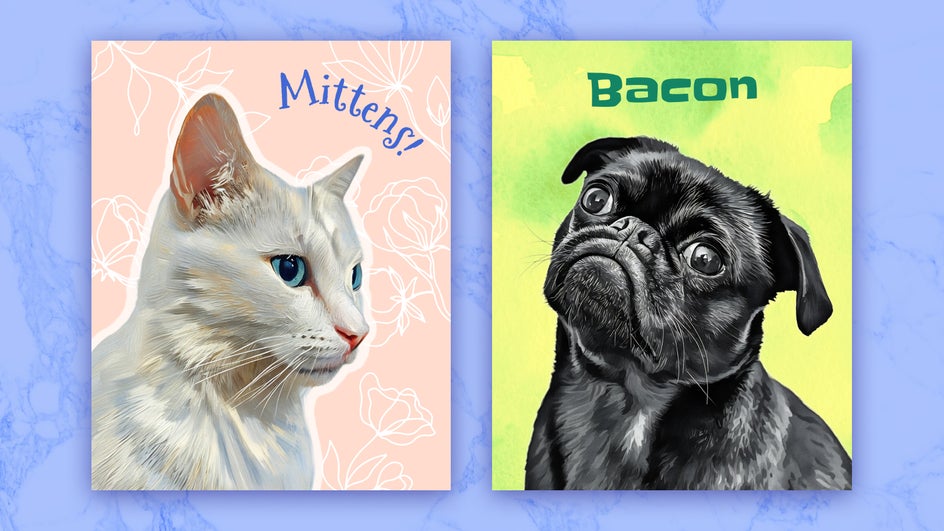
Pet Portraits
Turn your favorite animal photos into gallery-style artwork. Choose a painterly Smart Template to bring out fur texture and depth, then add your pet’s name in a playful font. These designs make great gifts or printable keepsakes for any pet lover.
Get Instant Results With Smart Templates
No matter the project, Smart Templates make it easy to start with confidence and finish with style. By handling the effects, layout, and overall aesthetic for you, they remove the guesswork from graphic design – so you can focus on expressing your creativity. Explore the Smart Templates collection today and see how effortlessly professional your next project can look.




