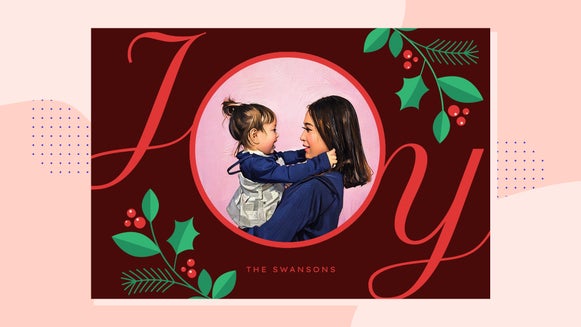
Customize Smart Templates to Make Family Portrait Design Effortless
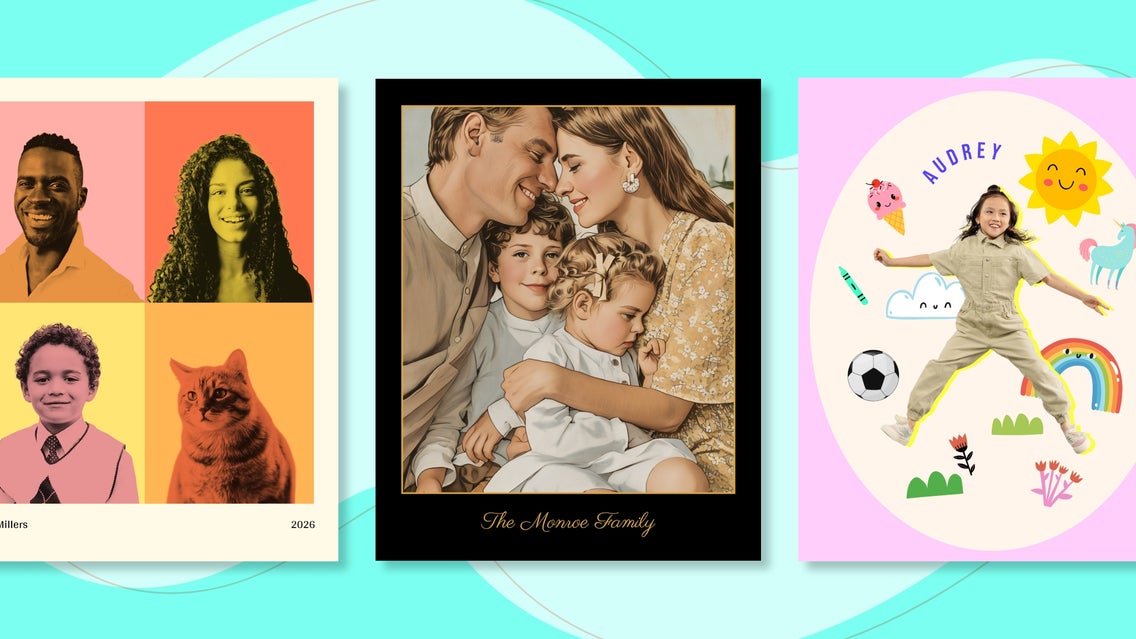
You already have the family photo, now you just need a design that makes it look polished and intentional. But choosing a layout, matching colors, and adding text without distracting from everyone’s faces can take more time than you expect. That’s exactly why we built Smart Templates.
Smart Templates are pre-designed layouts in the Graphic Designer that include built-in effects, like background removal, double exposure, and Artsy filters, that apply automatically when you add your photo. They handle the styling and visual balance, so your family portrait design looks cohesive right away, without needing to adjust layers or test a dozen effects.
In this article, we'll go over how Smart Templates work and how to customize one to turn a family photo into a polished design for printing, posting, and more.
How to Design a Family Portrait Instantly
Before you begin, choose a clear, well-lit family photo where faces are easy to see and the background isn't too busy.
Step 1: Choose a Smart Template
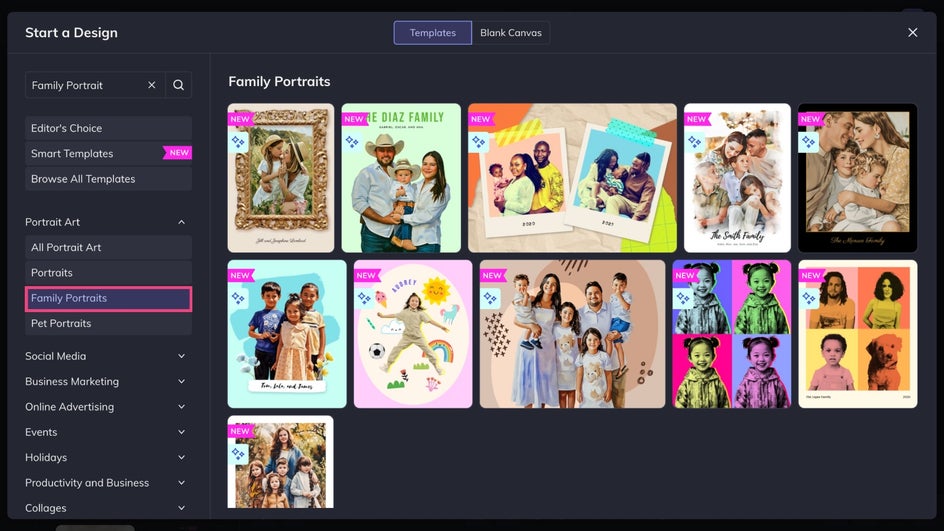
First, head to the Family Portraits collection in the Graphic Designer. This is where you will find all of our AI-powered templates in one place.
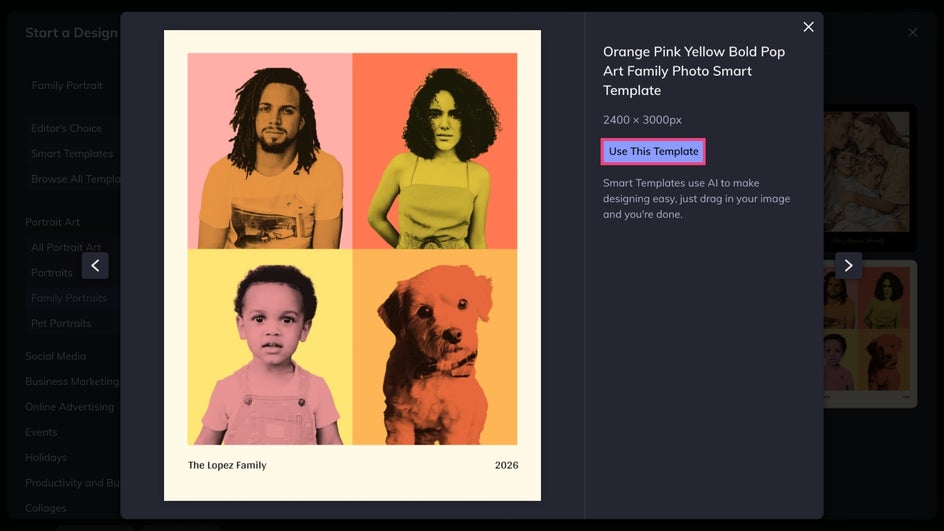
Once you have picked one that best represents your family, click Use This Template to open it on your canvas.
Step 2: Add Your Family Photo
Click the placeholder photo to replace it with one from your desktop, drag and drop an image onto the canvas, or open the Image Manager to select a family portrait.
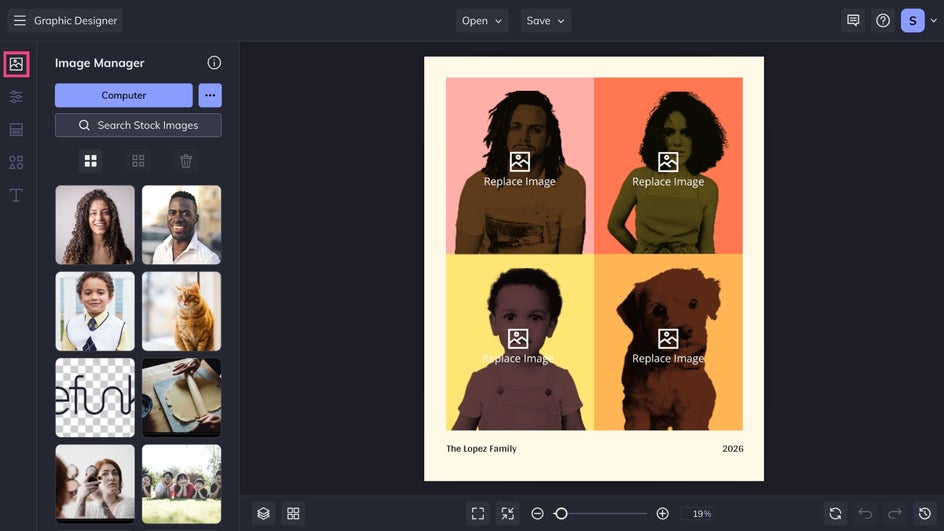
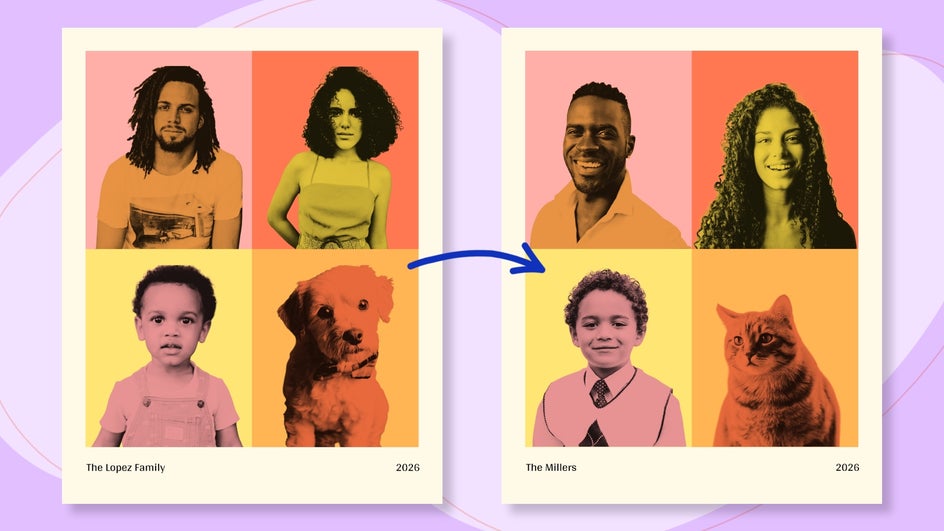
As soon as you add your photo, the Smart Template automatically applies the same stylization and effects from the original template image to yours. This is especially helpful for family portraits because it can unify lighting and tone, so your photo looks edited and cohesive right away.
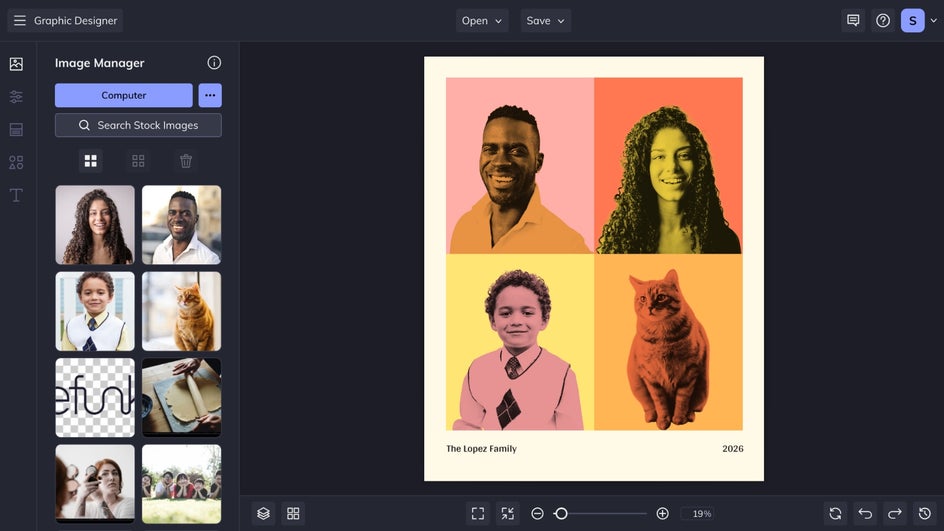
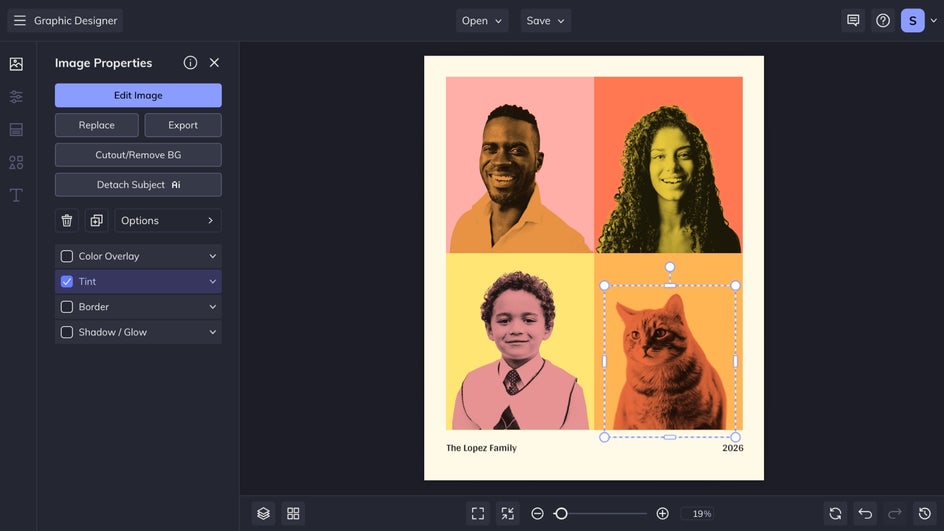
Use the corner handles to resize or reposition your photo. You can also utilize the Image Properties menu to make any quick photo edits without leaving your design!
Step 3: Personalize It
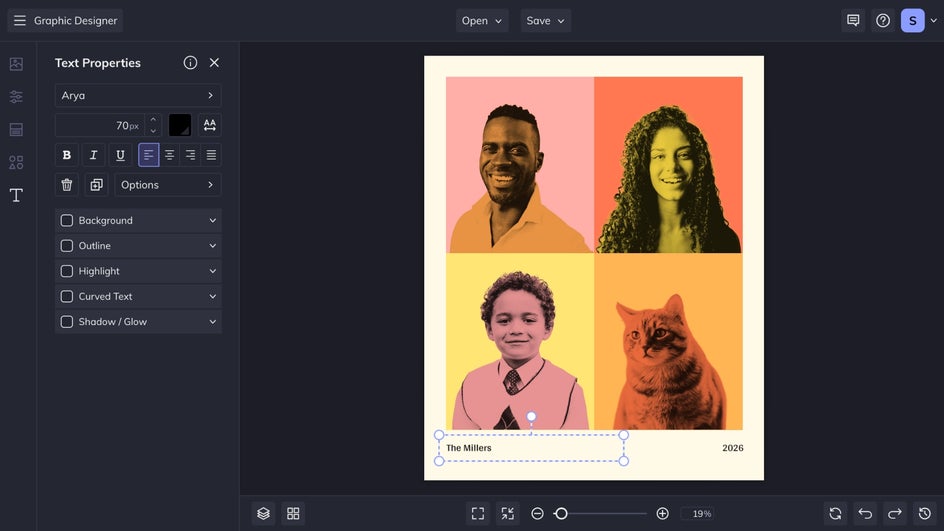
If your template includes text, just click a text box and type your own message. Add first names, a family name, a year, a short quote, or a meaningful place. For extra personalization, you can also add a drop shadow, outline, adjust spacing, change colors, and fine tune the fonts.
If your template includes graphics, select the graphic to customize it in the Graphics Properties menu. From there, you can swap colors to match your theme, adjust opacity for a softer look, resize and rotate for better placement, flip or layer elements, and fine tune alignment so everything feels balanced and intentional.
Step 4: Save and Share
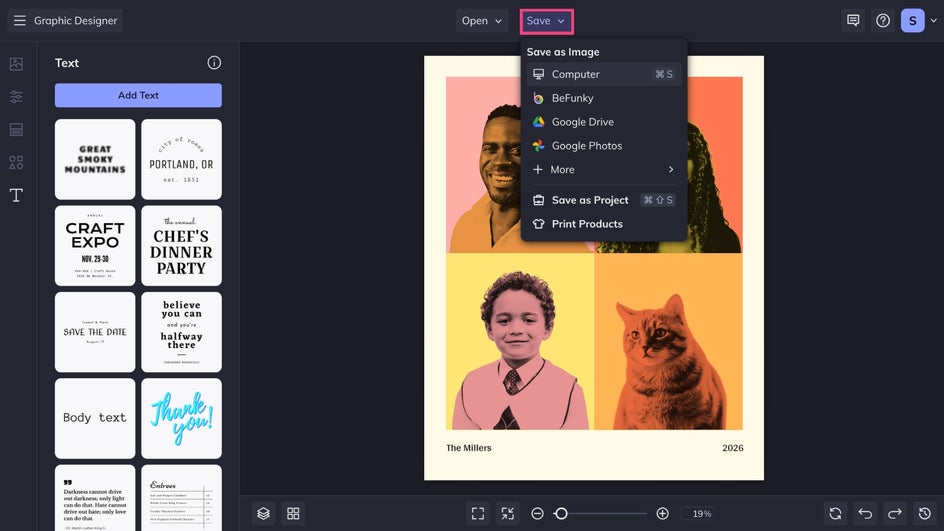
When your design looks the way you want, click Save at the top of your canvas to export it as a JPG or PNG for online sharing, or as a high-resolution PDF for print.
Turn Any Family Photo Into a Shareworthy Portrait With BeFunky
Family portraits deserve more than a basic crop and upload. Smart Templates make it easy to turn your favorite memories into a finished design that looks styled and ready to share – without the guesswork or extra expense.
Explore the Smart Templates collection in the Graphic Designer to turn your next family portrait into something you will actually want to print, post, and keep for years to come.